Step by Step:
Step 1: Opening and Activating the Clover.
First, let’s open and activate your Clover device:
- Turn on Clover: Press the power button until the device turns on.
- Jonas Synergy App: Ensure the Jonas Synergy app is downloaded on your Clover device from the Clover App Market. If it is not, please contact Jonas Synergy. 
Step 2: Updating the Clover Interface.
- Open your home screen
- Move Unnecessary Tabs: Hold down any app icon.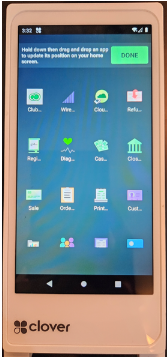
Step 3: Update App Position:
- Hold down the Jonas Synergy or Cloud Pay Display apps and drag them to the top of the screen. This will save to your favorites at the bottom of the screen for quick access.
Step 4: When Apps are in Place: Tap Done.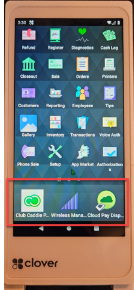
Step 5: Adjust Screen Timeout:
Locate and tap the Settings Icon > Tap Display > Tap Screen Timeout > Select your desired screen timeout.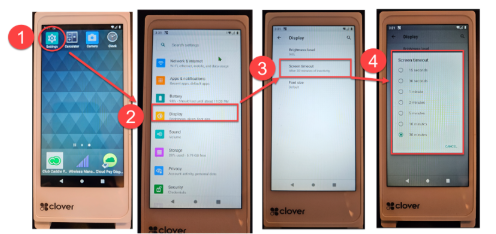
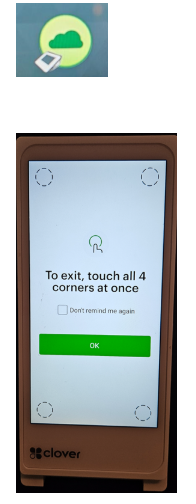
Cloud Pay Display: Use the "Cloud Pay Display" to process card payments pushed from the POS to run payment.
Note: To exit the Jonas Synergy Pay screen, you must touch all four corners of the screen.
Cloud Pay Display:
Jonas Synergy Software:
- Setting Up Manage Roles Specific to Beverage Cart. - Ensure that the correct roles have been created (IE, Beverage Cart, or Server Role).
Manage Roles: Navigate to "Manage Roles" in the settings.
Confirm the Role desired has been created: Example- Beverage Cart Role, Server, Bar Tender.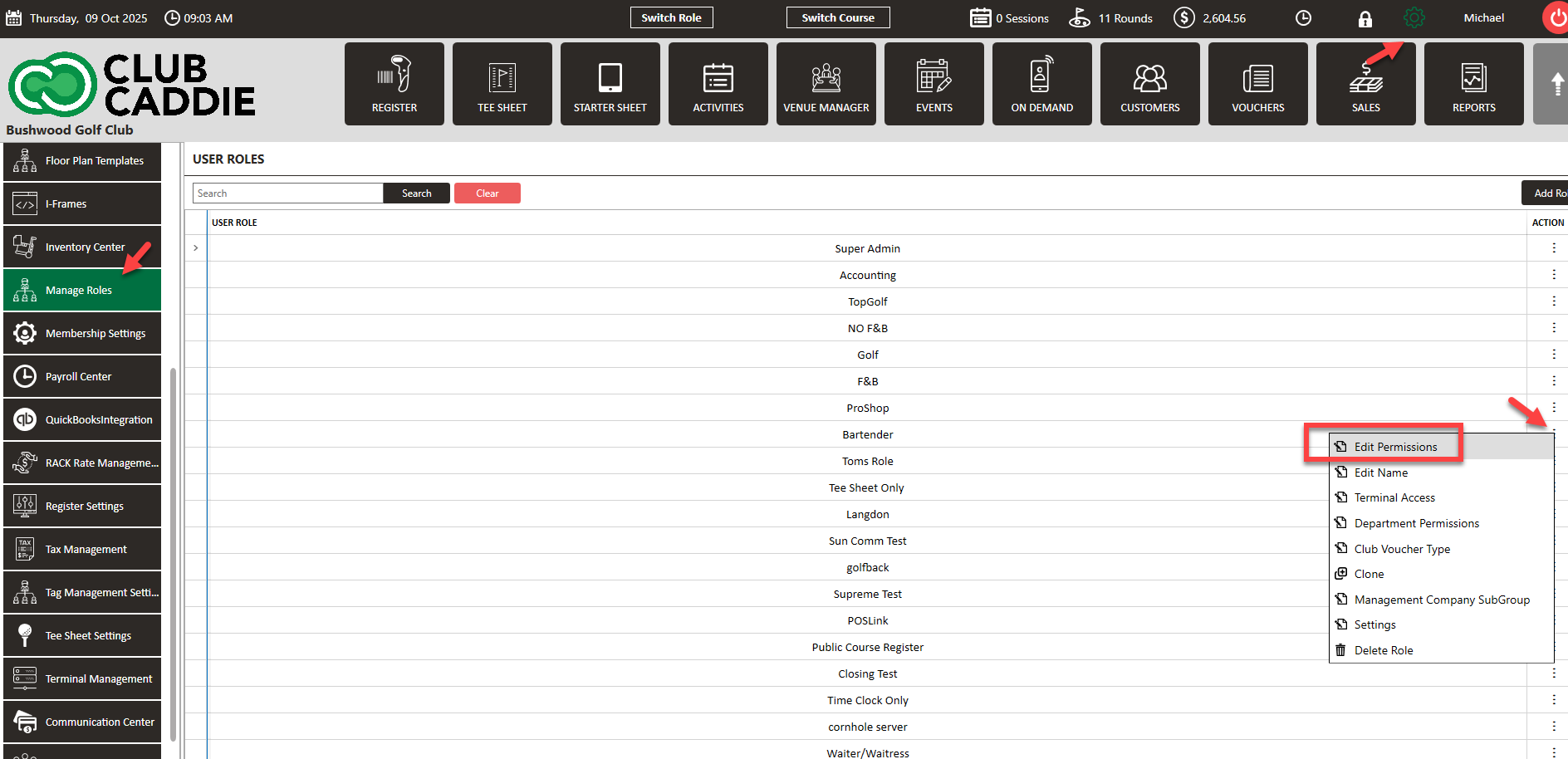
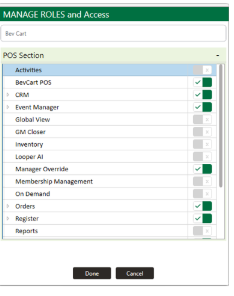
Confirm Permissions: Select the three dots and clickEdit Permissions. Only role-related options should be checked. This limits access to what is needed, making navigating easier for your staff.
2: Terminal Management in Jonas Synergy:
For efficient terminal management:
Tip Suggestions - Ensure tip suggestions are enabled if applicable.
Enable Signature - Ensure the signature requirement is turned on for added security.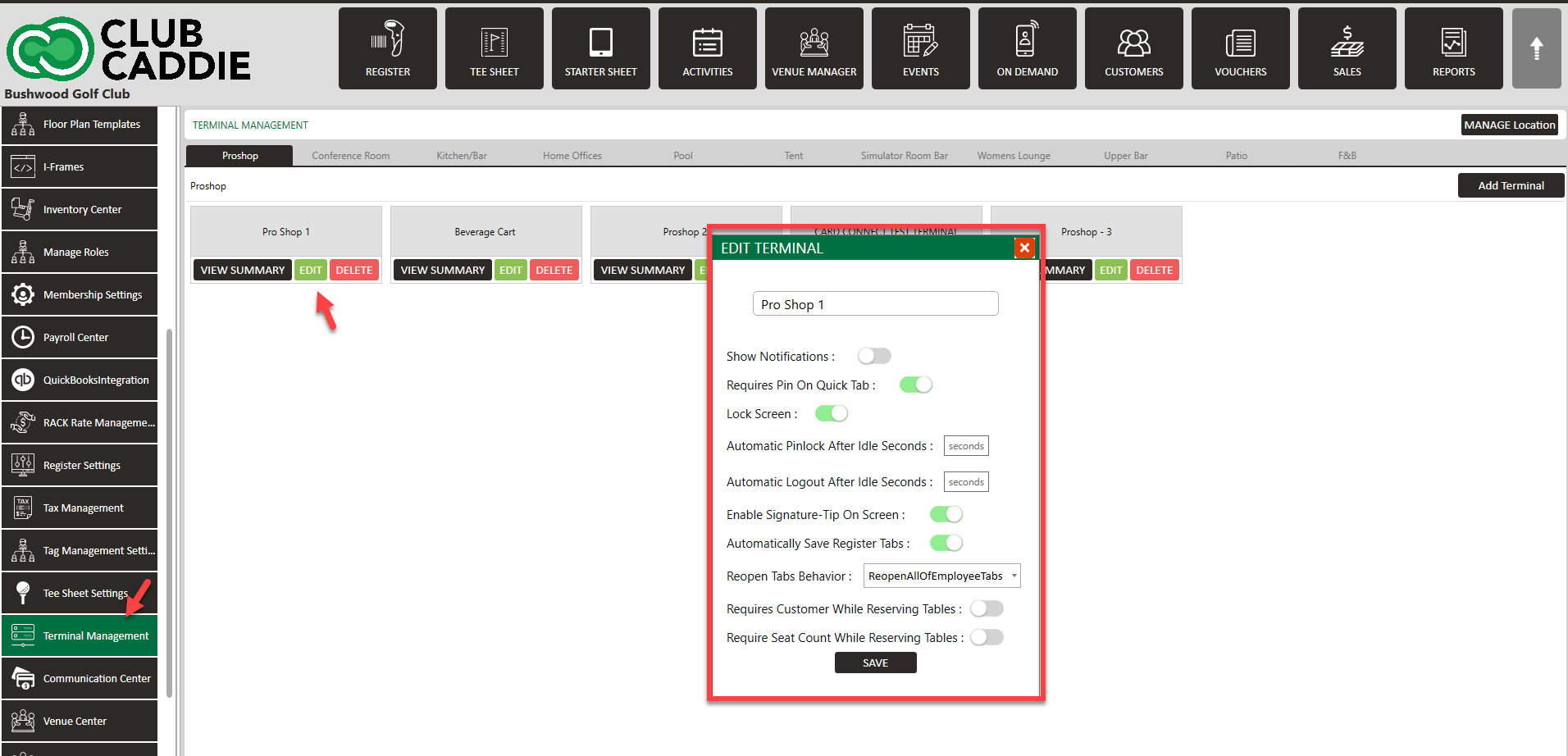
For additional information about Clover – Tips management, click HERE.