Lottery
Article Content:
This article provides steps on how to create a lottery booking for tee times for your facility.
Step by Step Guide:
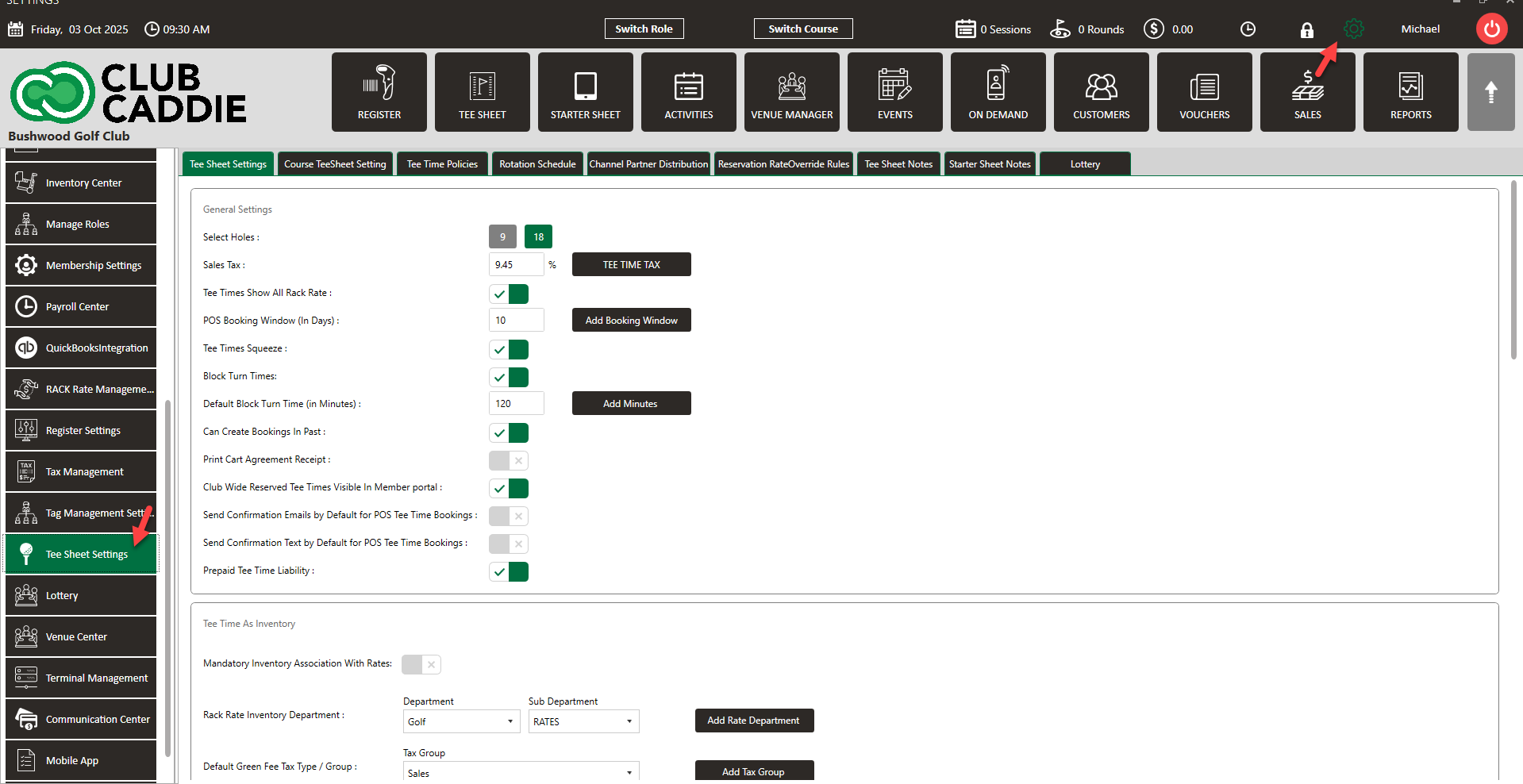
Step 1: Navigate to Settings and then click Tee Sheet Settings from the left-side menu.
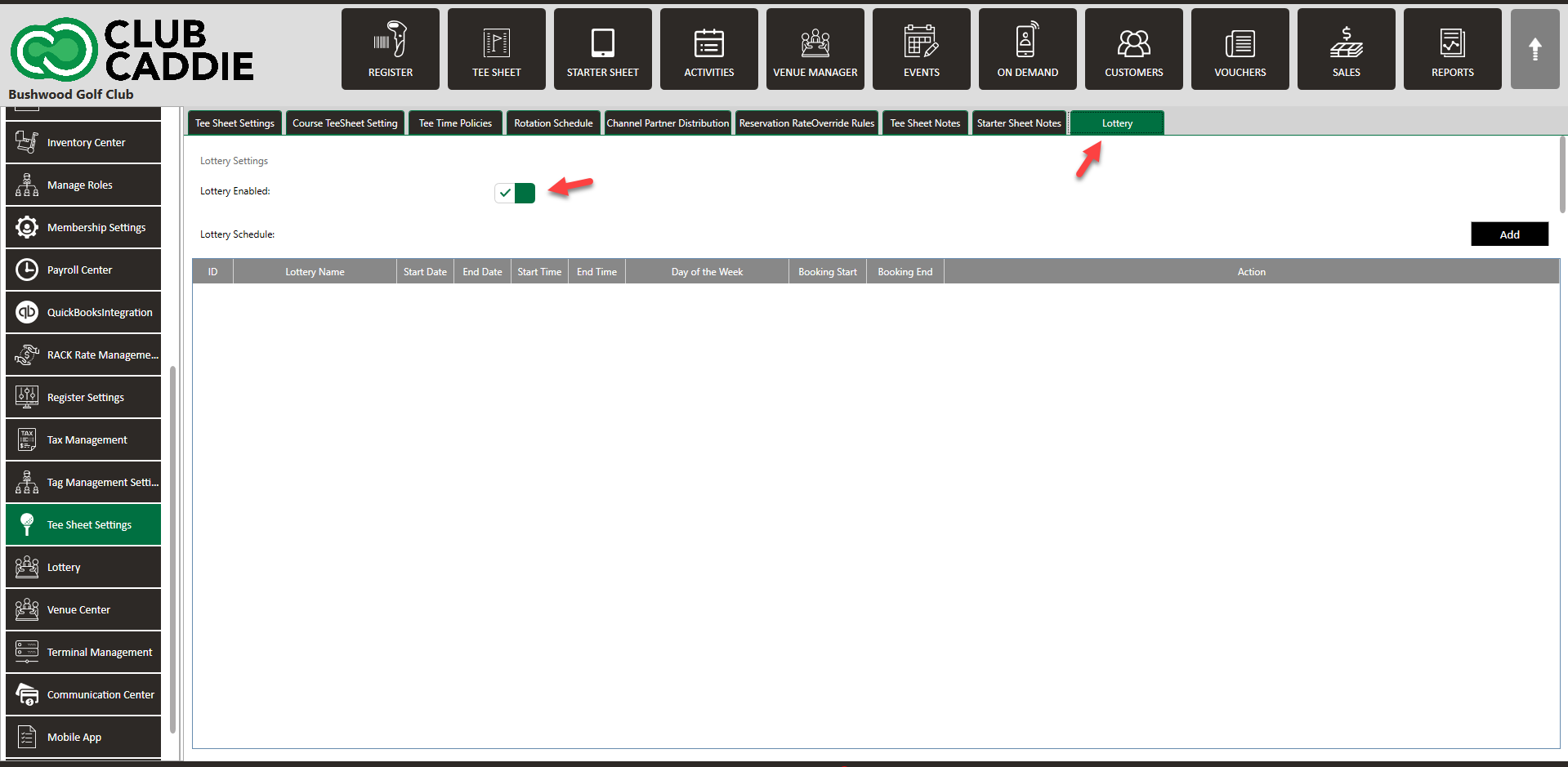
Step 2: Next, click on the Lottery tab, and then toggle on Lottery Enabled.
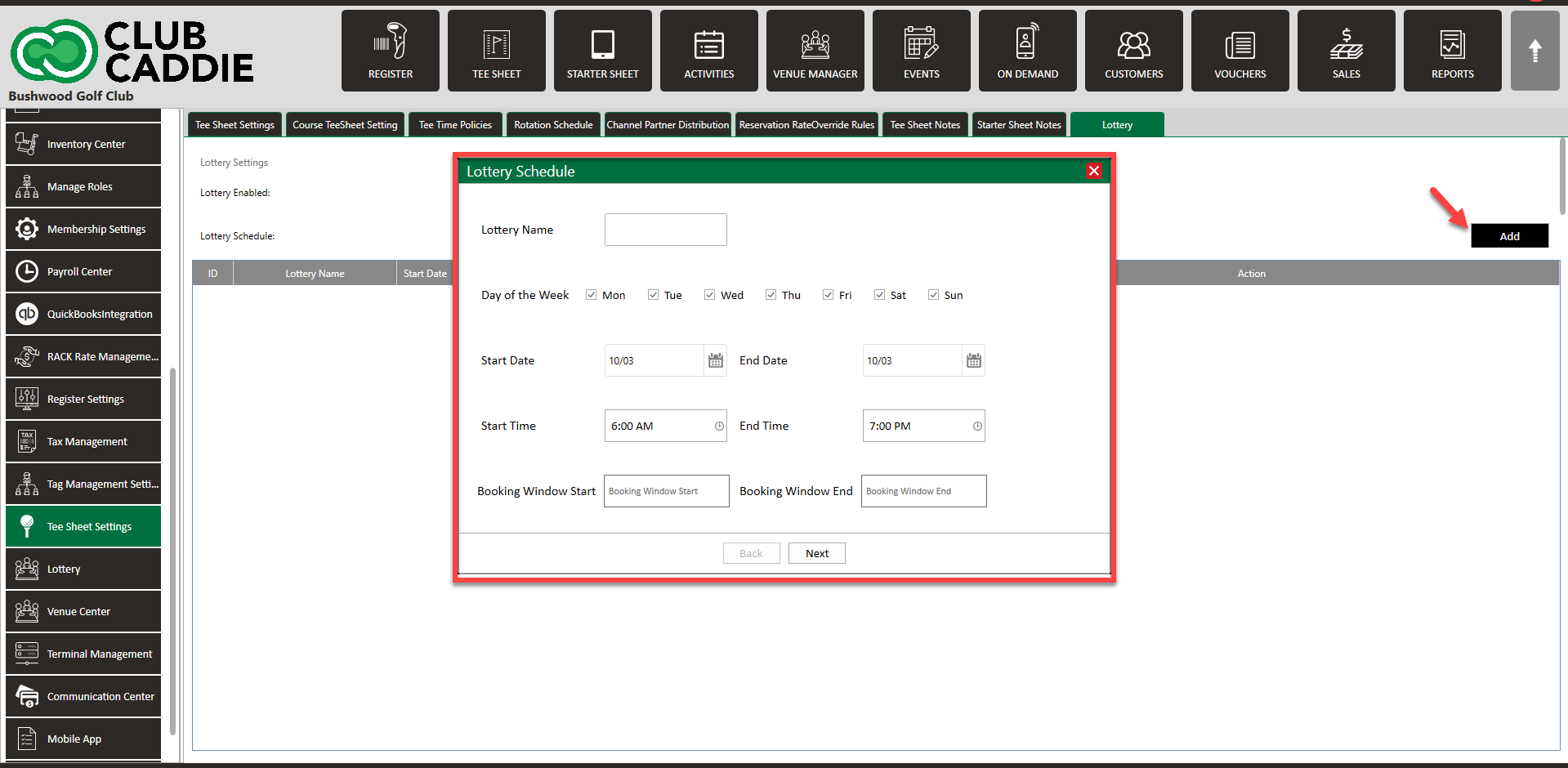
Step 3: Click Add. In the pop-up window, you will have the following information to enter:
Lottery Name: The title that displays for this lottery.
Day of the week: Select the days that you want this specific lottery to run. Ex. You would like the lottery to run only on the weekends for a certain date range, you would only check Saturday and Sunday.
Start/End Date: The date range for when you would like this lottery to be available. Ex. If you wanted to run the weekend lottery as mentioned above, but only for your "in season" date range, you can select April 1st as your start date, and October 31st as your end date. Now this particular lottery will only run on Saturday and Sunday, through the date range of April 1st, October 31st.
Start/End Time: What time of the day on your tee sheet that you would like the lottery. Ex. if you have 10 minute intervals, and you would like your weekend tee times up to 11am to be in the lottery, then you would select 7am (or your earliest tee time) as your start time, and then 11am as your end time. Now tee times from 7am through 10:50am will be in the lottery. If you would like to include that 11am tee time in your lottery, you would need to set the end time to 11:10am.
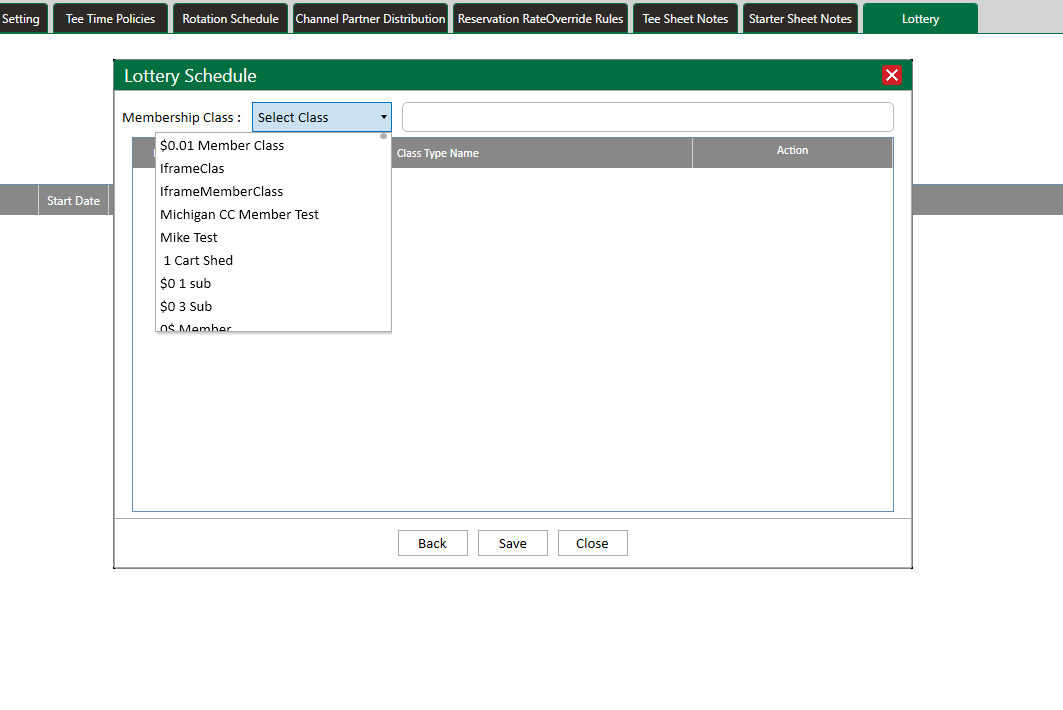
Step 4: Click Next. Then select all the classes that you would like this lottery to be applied too. Click Save.
Step 4: Click Next. Then select all the classes that you would like this lottery to be applied too. Click Save.
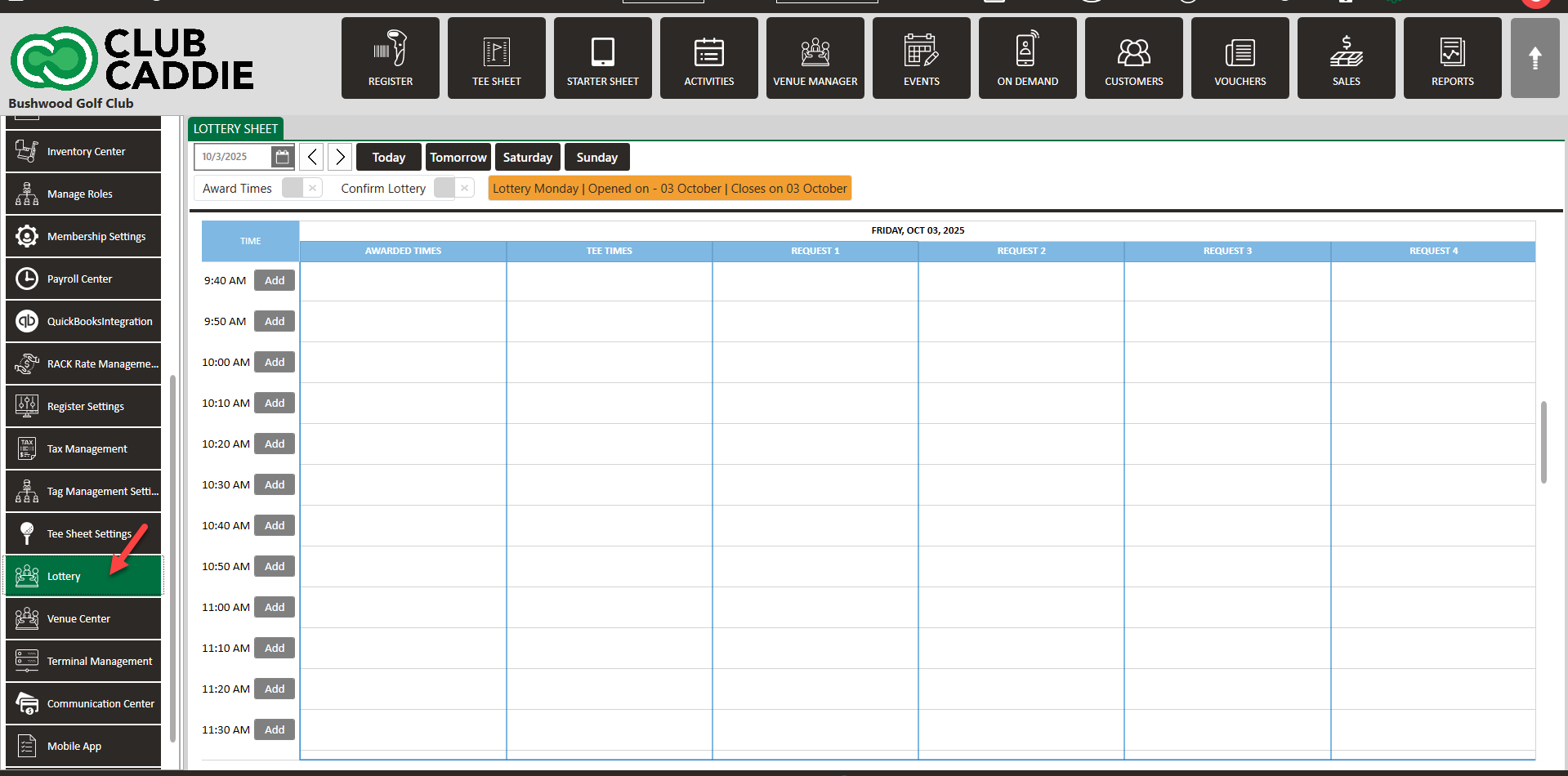
Step 5: Now you will be able to book for the lottery for which you created. First, select Lottery from the left hand side menu. Then select the date and time, and enter the booking information as your normally would. However, fill in the start and end time of the time period of when this player/group would like to play.
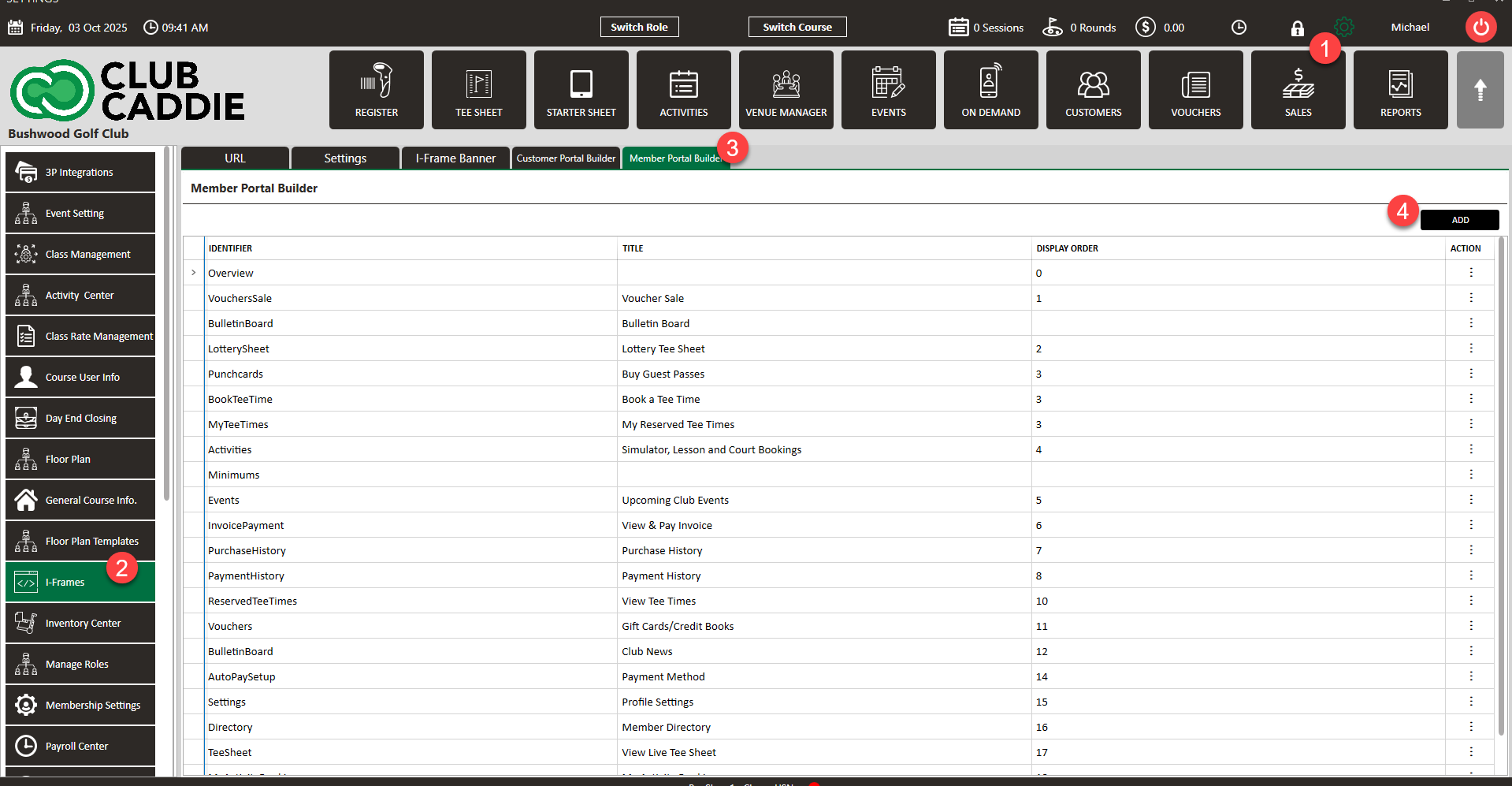
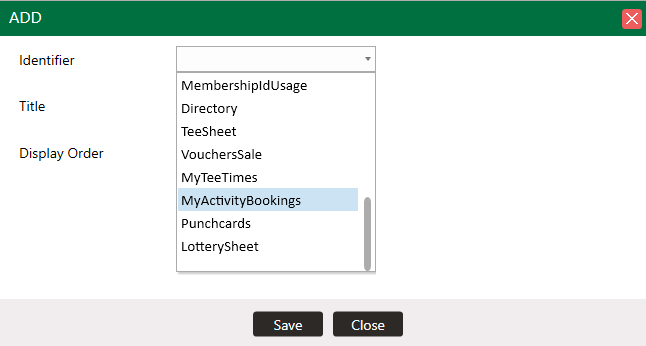
Step 6: To enable the lottery tee sheet for members to book online, you would need to add it to your member portal. First, select I-Frames from the left hand side menu. Then, click on Member Portal Builder. Click Add. Here you can select Lottery Tee Sheet to be added to your member portal.
Step 7: Once the lottery has closed, you will then navigate to the Lottery Tee Sheet, and toggle Confirm Lottery. You will then be able to move tee time around and once your tee sheet is set, you will toggle Award Times. Once Award Times is selected, bookings will populate on your tee sheet, and players will receive a confirmation that their tee time has been awarded.