Manage Meal Courses in Register Settings

SETTINGS: MEAL COURSE (VIDEO)

Article Contents: This article contains step-by-step instructions on how to edit your display sequence for items in your register.

Function: Users can create any number of courses and then assign those courses to individual Items. These courses will be separated when items are sent to kitchen printers and the KDS. 

Step-by-Step:

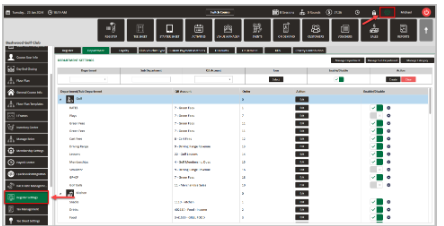
Step 1:  Click on the Gear Wheel icon on the top right corner of the screen. Then, click on Register Settings from the left hand menu.
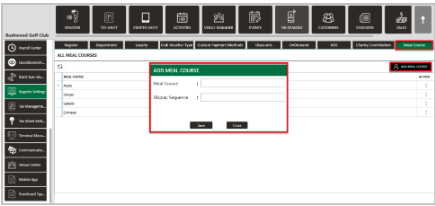
Step 2: Click on the Meal Course tab along the top row, and then Add Meal Course. This will generate a Add Meal Course pop-up window where you can enter a title for the course, along with the display sequence. After entering your information, click Save.
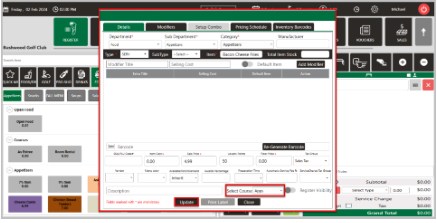
Step 3: To assign an inventory item to a course, right click on an item in your register and select Edit Inventory, or navigate to Inventory Center in your settings and select an item to populate the item's window. Here you can select the course on the bottom of the window, then click Update.
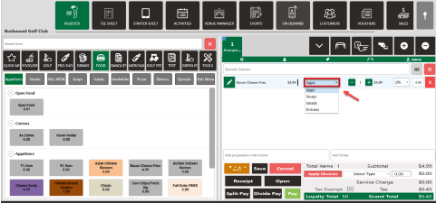
If you would like to switch the course of an item for a particular order, you will have the opportunity once the item is added to the cart. Click the drop down, select the course, and check-out as you typically would.
    • Related Articles

    • SETTINGS: GENERAL COURSE INFO

      Article Contents: This article contains information about how to set up course info from POS settings. Step By Step: Step 1: Click on the Gear Wheel Icon on the top right corner of the screen. Click on the General Course Info tab on the left side ...
    • SETTINGS: MULTI-COURSE PUNCH CARD USAGE

      Article Contents: This Article Guides You On How To Create A Punch Card To Be Used Across Multiple Courses. Step by Step: Step 1: Navigate to Settings, then click on Punchcard Type Center. Step 2: Add a new punchcard or edit an existing one. In the ...
    • SETTINGS: DEPARTMENTS TAB OVERVIEW (VIDEO)

      Article Contents: In this video tutorial, we provide step-by-step instructions on navigating the second tab of the register settings: Department. Below are the key points covered. Step-By-Step: Step 1: The Department tab is where you create and ...
    • SETTINGS: REGISTER SETTINGS

      Article Contents: This will show you how to navigate through your register settings, as well as providing a brief description on what each setting can do for you club. Video: The video covers essential features such as printing tip receipts, adding ...
    • SETTINGS: MAILCHIMP INTEGRATION (VIDEO)

      This article contains a guide on how to configure the MailChimp integration in Jonas Synergy by using the 3P Integrations settings. It shares where to locate required credentials on MailChimp that are necessary to enter into Jonas Synergy settings, ...