Post Revenue
Step-By-Step:
Step 1: Select the Events module along the left pane. Then, select the event that you wish to post revenue.
Step 2: Select the Payment tab along the top of the event builder.
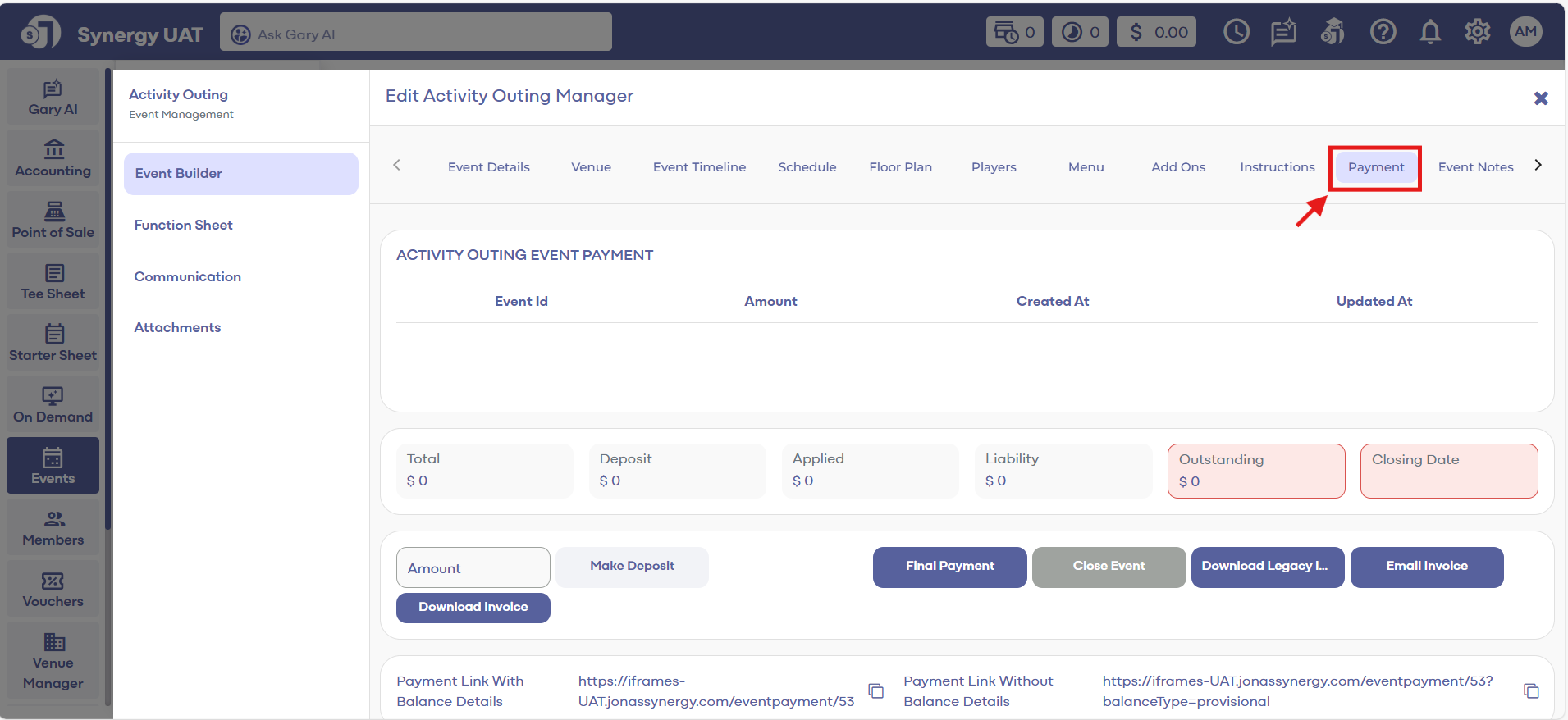
Step 3: Select Post Revenue along the bottom. This will post the revenue in reports based off the items in Golfers, Menu and Add Ons tab in your Event builder.
Step 3: Select Post Revenue along the bottom. This will post the revenue in reports based off the items in Golfers, Menu and Add Ons tab in your Event builder.
After confirming the charges, users can finalize by selecting Close Event to lock the event from being edited.
Once you have Posted Revenue, you can still charge items to your event but it must be done through the register using Event Charge. For step-by-step instructions on how to Event Charge, please click here.
If you are not able to Post Revenue, most likely the permission in Manage Roles is toggled off. Please have a manager navigate to Settings > Manage Roles > Action > Edit Permissions > Event Manager to toggle on the permission.
If you need to re-open an event to edit, you can select the button "Re-Open Event."
Related Articles
Post Revenue
This article provides instructions on how to use the feature Post Revenue in the event builder. When selected, the items in the Menu and Add Ons tabs will be posted as revenue and reflected in Reports. Step-by-Step: Step 1: Select the Events module ...Closing Events
This article provides instructions on how to close a Banquet event. Step-By-Step: Step 1: Select the EVENTS module, and then click on Banquet Manager in the left menu. Step 2: Select the event to be closed from the BANQUET MANAGER list of events by ...Closing Events
This article provides step-by-step instructions on how to close a Golf Outing event. Step-By-Step: Step 1: Navigate to the EVENTS module. From there, select Golf Outing Manager from the left menu pane. Step 2: In the GOLF OUTING MANAGER, choose the ...