Advanced Billing
- This feature only applies to classes using the Annual billing type. It does not support proration or monthly billing.
- Billing adjustments are percentage-based. Each installment must represent a portion of the total annual fee.
Step 1: Select settings, then click on Class Management from the left-side menu. You'll then selection Action for the class that you would like to edit the billing schedule, and select Advanced Billing.
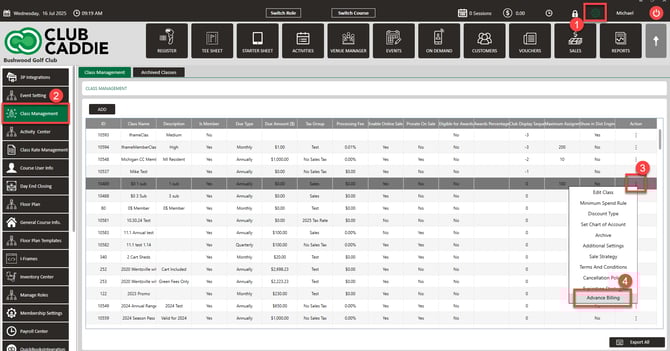
Step 2: In the pop-up, you will be able to edit the billing schedule for the class and enter the percentage that you would like to be charged and in what month. Then click Save.
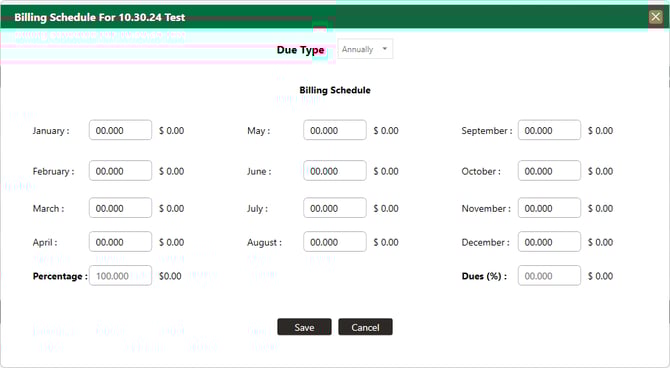
In order to adjust the billing schedule for an individual member, advanced billing must be set up in Class Management for that particular class, prior to adding the class to the member.
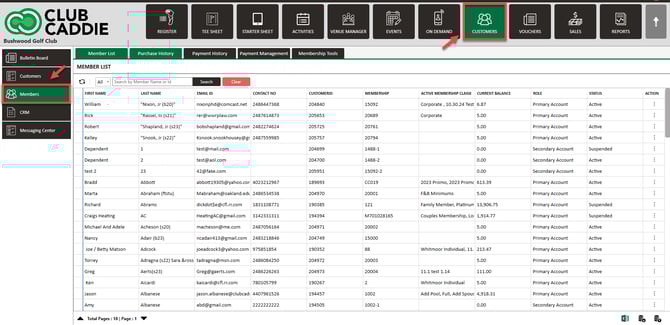
Step 3: Click on the Guests module along the top row. Then select the member and open up their profile.
Step 4: In the members profile, select the Membership tab. Then click on the three dots under action for the class you wish to edit and select View/Edit Billing.
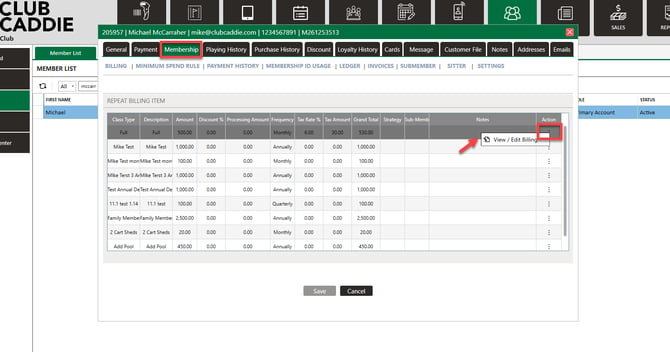
Step 5: Here in the pop-up you will be able to make your desired changes on the individual level.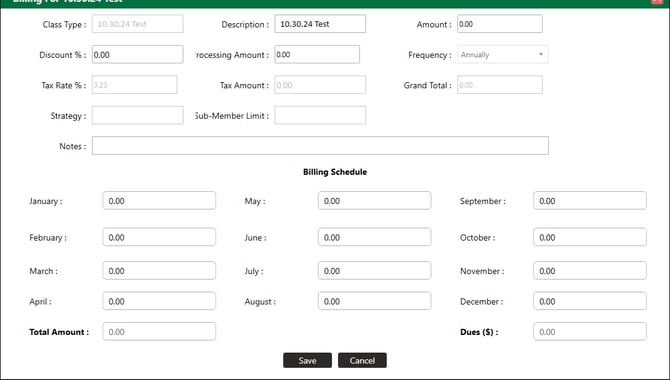
Export the Membership Billing Report after making changes to verify the Guest’s new schedule and ensure your A/R aging remains accurate
Example:
A club charges a $1,000 annual fee by default. One member asks to pay quarterly instead. You can quickly change that single record to four × $250 installments while everyone else stays on the annual plan.
Related Articles
Archiving a Guest
This is a step-by-step guide on how to delete (archive) a member from your Guest list. Please keep in mind that this will move the Guest to your Archived list. Step-By-Step: Step 1: Navigate to the Guests module along the top of the POS, then click ...Adding a card to guest profile
Article Contents: The video tutorial demonstrates how to manage member payments using the "Payment" tab in the Jonas Synergy software. Step-By-Step: Step 1: The "Payment" tab allows you to store a credit card or an ACH account on file for a member or ...