How to Redeem Loyalty
Step-By-Step:
A. How to see Guest/Member Loyalty history
Step 1: Select the GUESTS module from the module navigation menu. Select the Guests or Members tab from the left-hand menu.
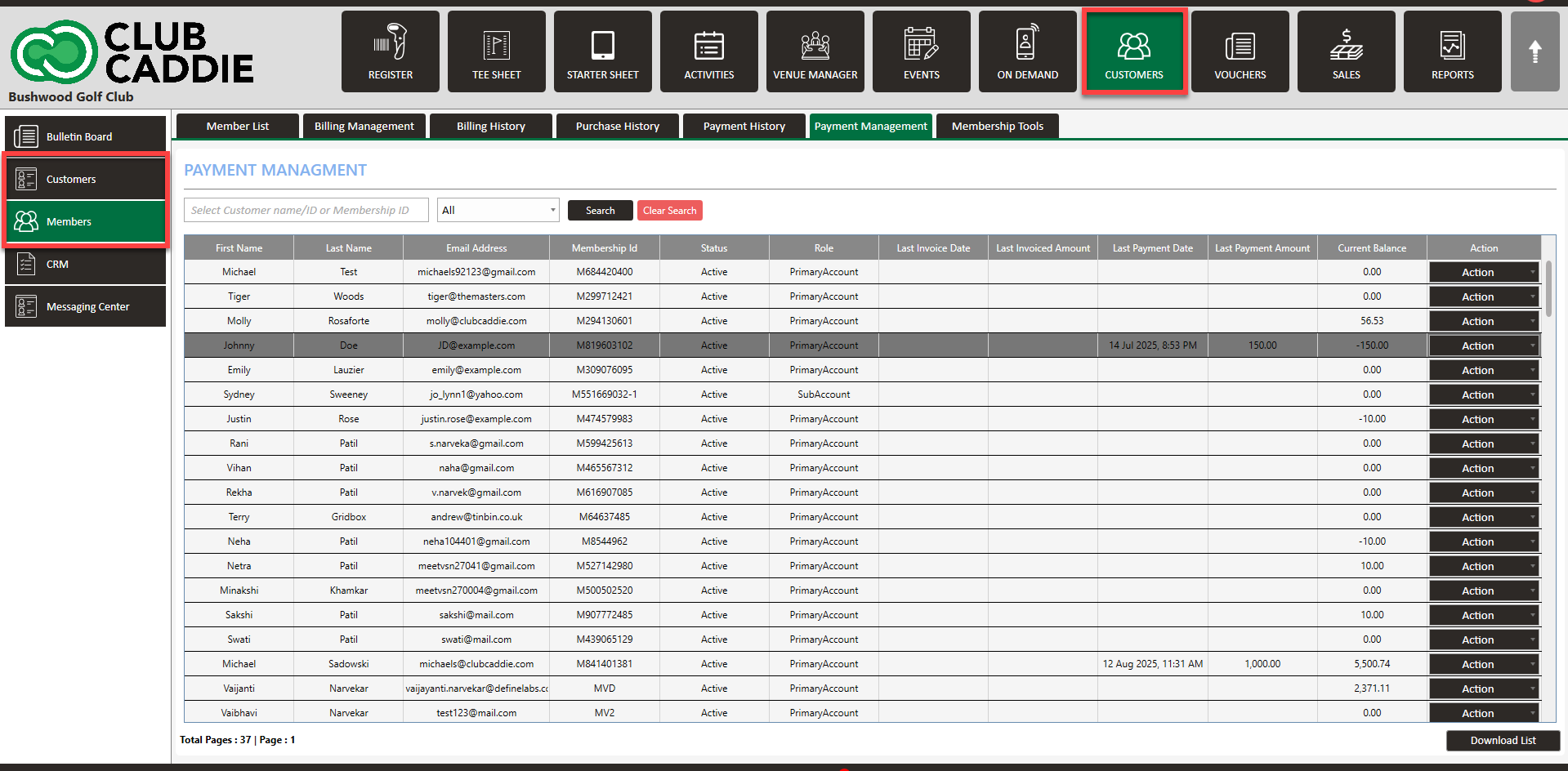
Step 2: The Guests and Members tabs have the same procedures to see their loyalty history. In the Guests / Members window, click View/Edit of a guest or member.
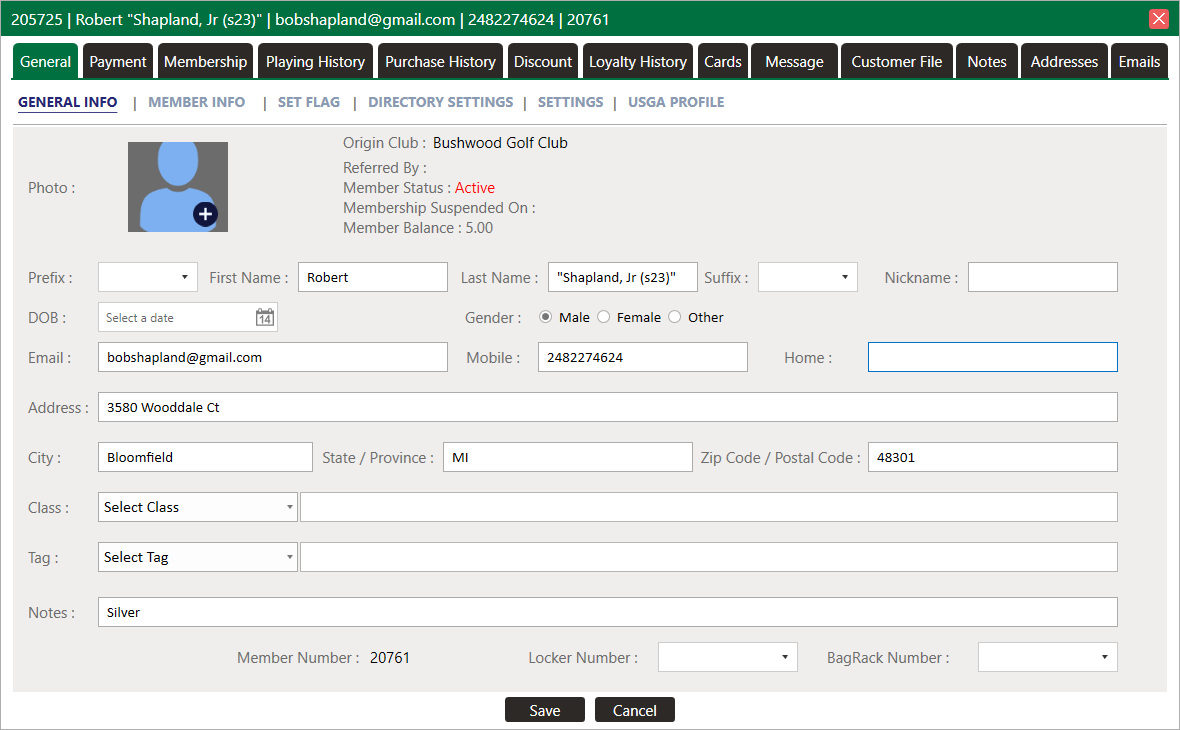
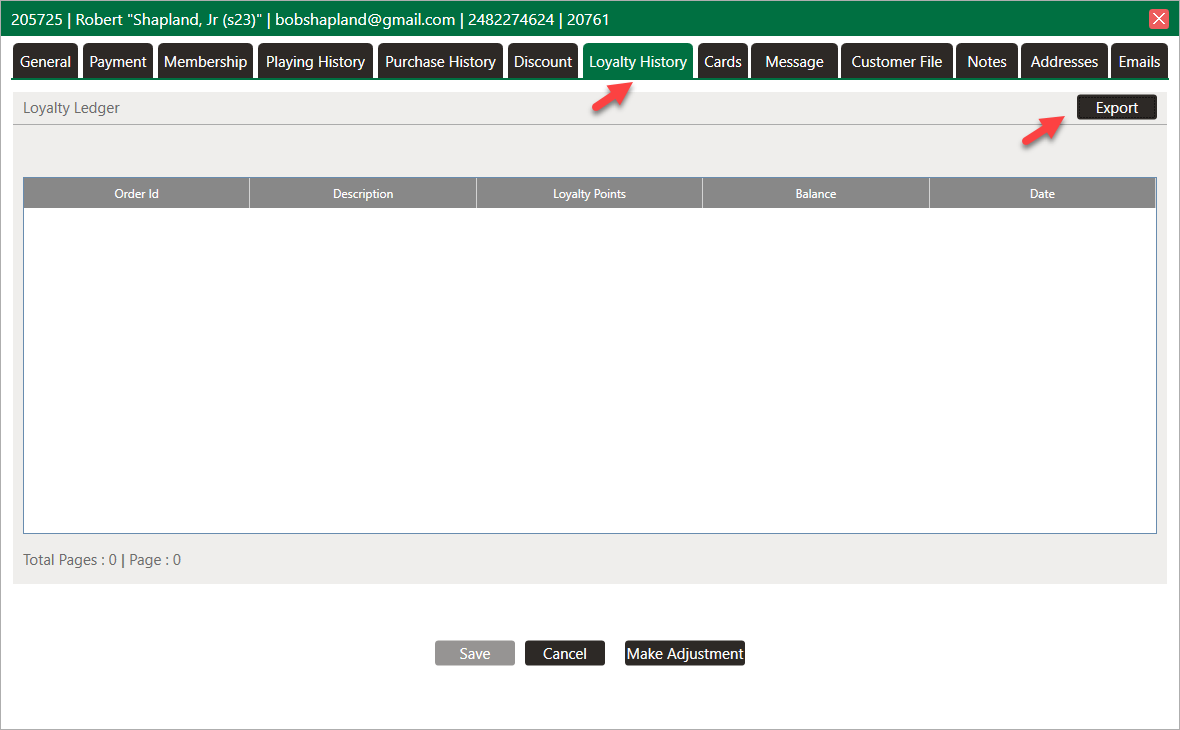
Step 3: The system will generate a GUEST PROFILE window. Select the Loyalty History tab. Under this tab, you can see Order Id, Description, Loyalty Points, Balance, and Date. If you want to export the data, click Export.
B. How to make payment through Loyalty.
Note: Before making payments through loyalty points, make sure that the guest has loyalty points available. Loyalty payment can only be chosen if the order is placed for a guest or member. An order cannot be paid through loyalty if the guest or profile has not been created.
Step 1: Select the POS module from the module navigation menu.
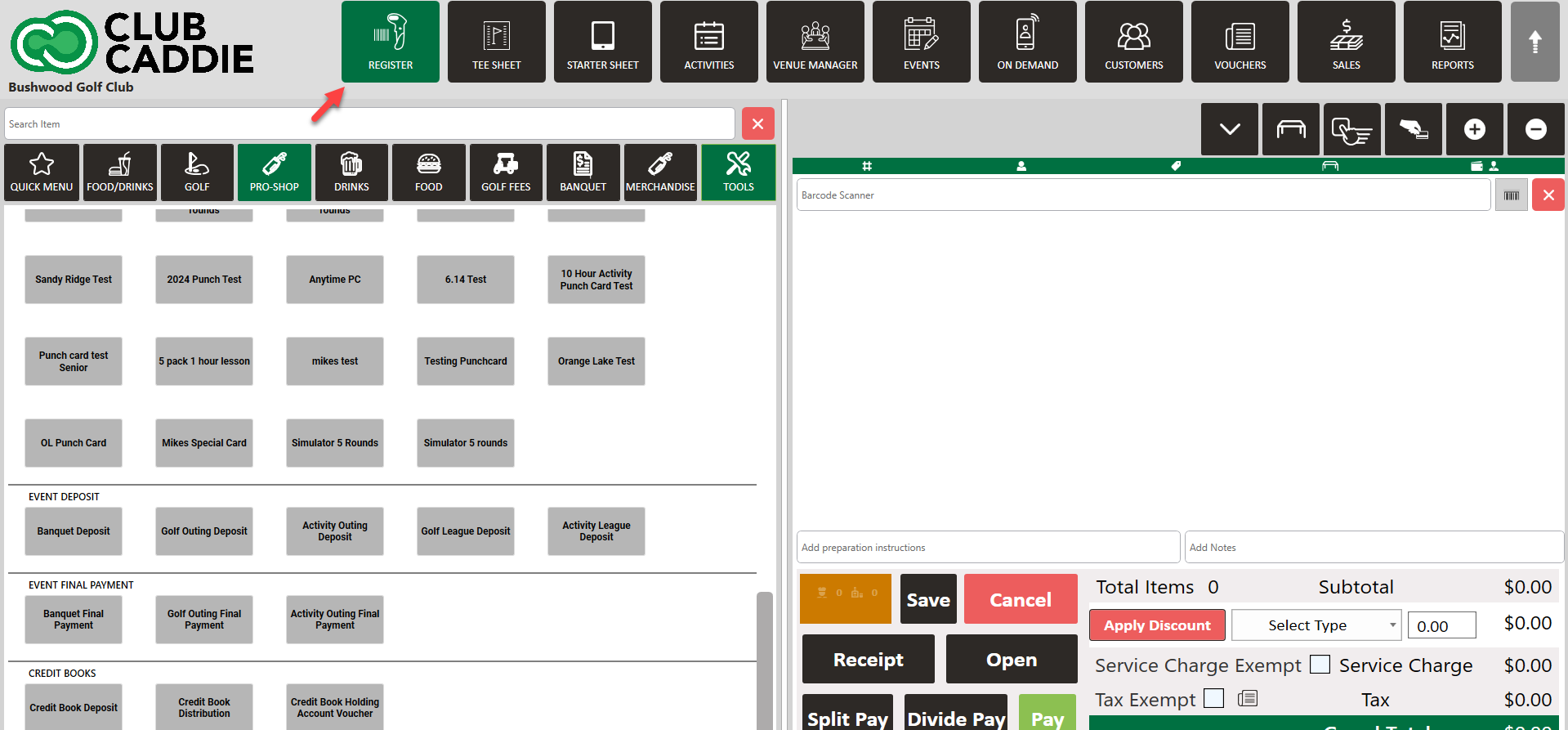
Step 2: On the left side of the screen will be the inventory window. Select items from the Inventory and the items will be added to the right side of the window. In the line item of the item, the number of loyalty points needed to purchase that item is shown.
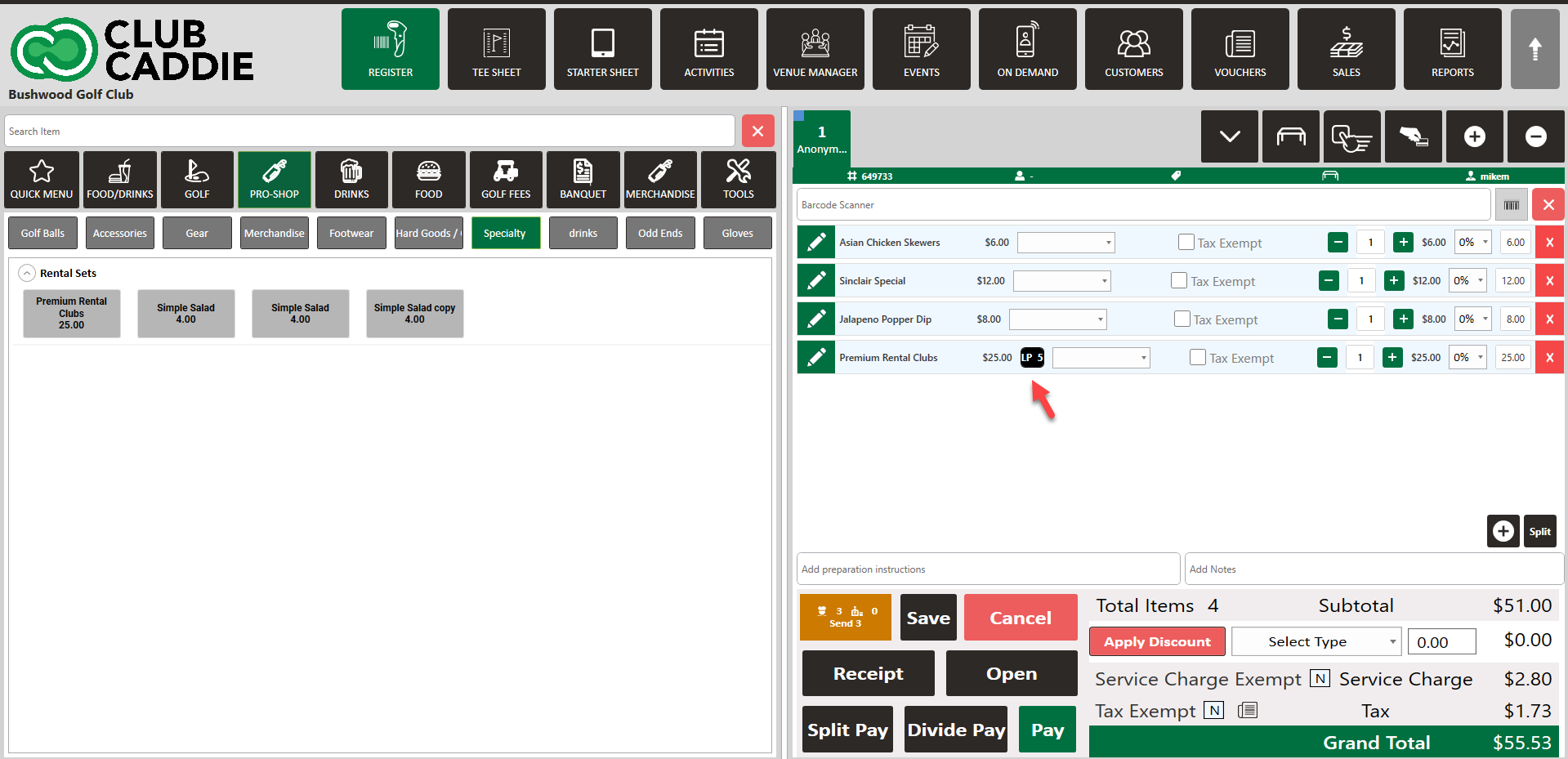
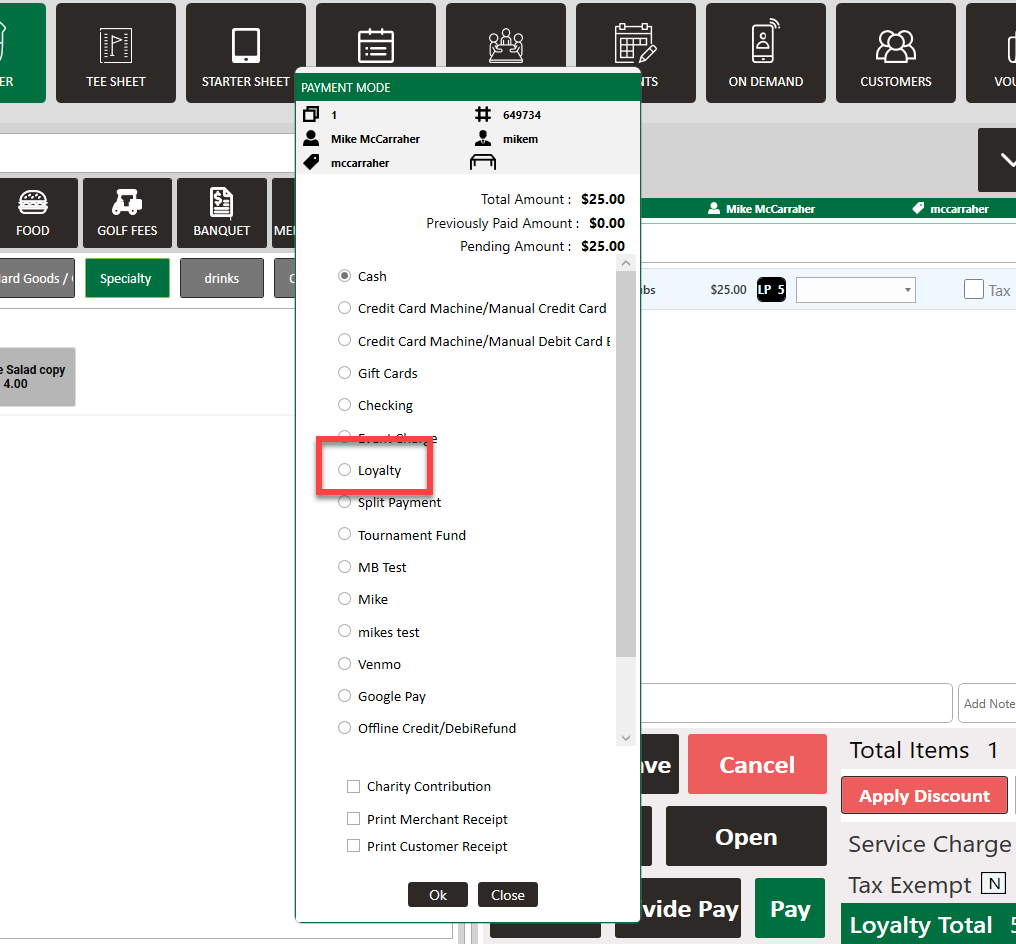
Step 3: Click Pay to make a payment. The system will open a new Payment Mode window. Select Loyalty and click Ok.
Related Articles
Playing History
This article outlines how to search for the playing history of an individual guest or member. Step-By-Step: Step 1: Click on the "Guests" tab, followed by the "Members" option. Step 2: Choose the member whose playing history you wish to view, then ...Guest Playing & Purchase History
This article covers the features and functionality of the History and Purchase History tabs in the Jonas Synergy software. This includes a walkthrough of how to view member and golfer activity, search and filter transaction details, sort data, and ...