Confirmation Status
Step-by-Step:
Step 1: Navigate to the Events module, then select the event to open the Event Builder window.
Step 2: On the Event Details tab, navigate to Confirmation Status and select the option from the drop down of Proposed, Tentative, or Confirmed.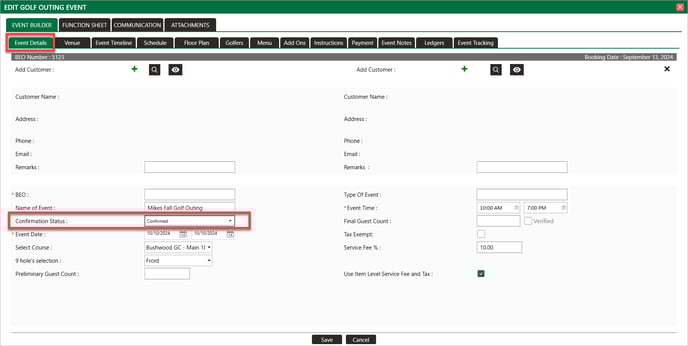
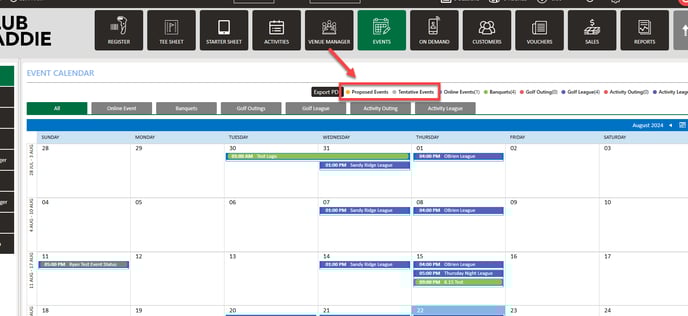
Each status will reflect a different color on the Event Calendar for easier identification.
Related Articles
Closing Events
This article provides instructions on how to close a Banquet event. Step-By-Step: Step 1: Select the EVENTS module, and then click on Banquet Manager in the left menu. Step 2: Select the event to be closed from the BANQUET MANAGER list of events by ...Schedule
Article Contents: This article contains step-by-step instructions on how to manage/reset the schedule for Golf League Events. Step-By-Step: Step 1: Select the EVENTS module from the module navigation menu. Step 2: Select Golf League Manager from the ...Closing Events
This article provides step-by-step instructions on how to close a Golf Outing event. Step-By-Step: Step 1: Navigate to the EVENTS module. From there, select Golf Outing Manager from the left menu pane. Step 2: In the GOLF OUTING MANAGER, choose the ...How to Manage Your Golf Leagues
Article Contents: In this video, we will provide a comprehensive guide on how to effectively manage your golf leagues. This article and video will cover everything from creating a new golf league and setting up a schedule to managing golfers, ...