Augusta ID Tech : Unable to Read Track Data
Step-By-Step:
Step 1: Please click on the link below to install the SDK Demo Tool. IdTech will list this tool as "dot NET SDK Demo.zip for Windows".
Dot Net SDK Demo Application
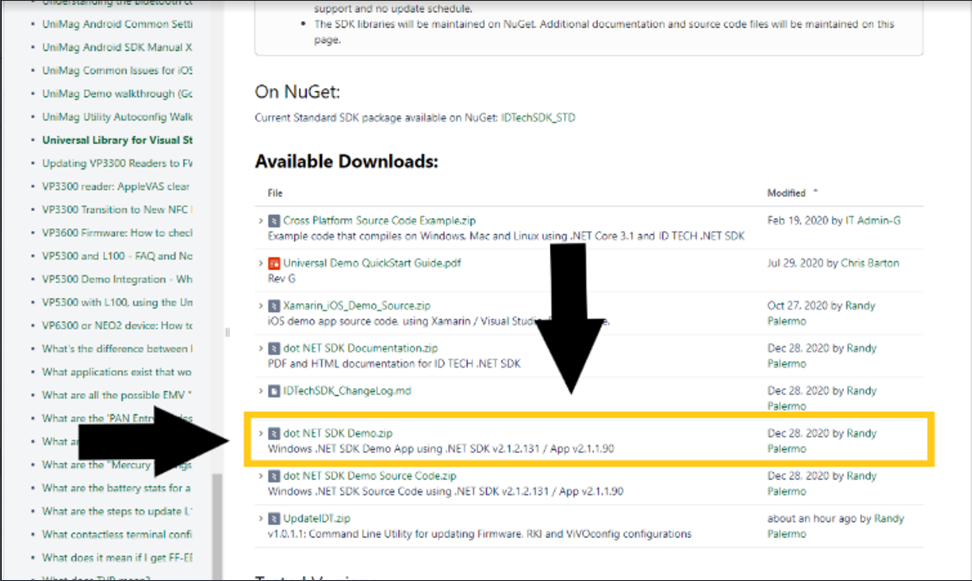
Step 2: Once you've downloaded and installed the SDK Demo Tool please continue with the below steps:
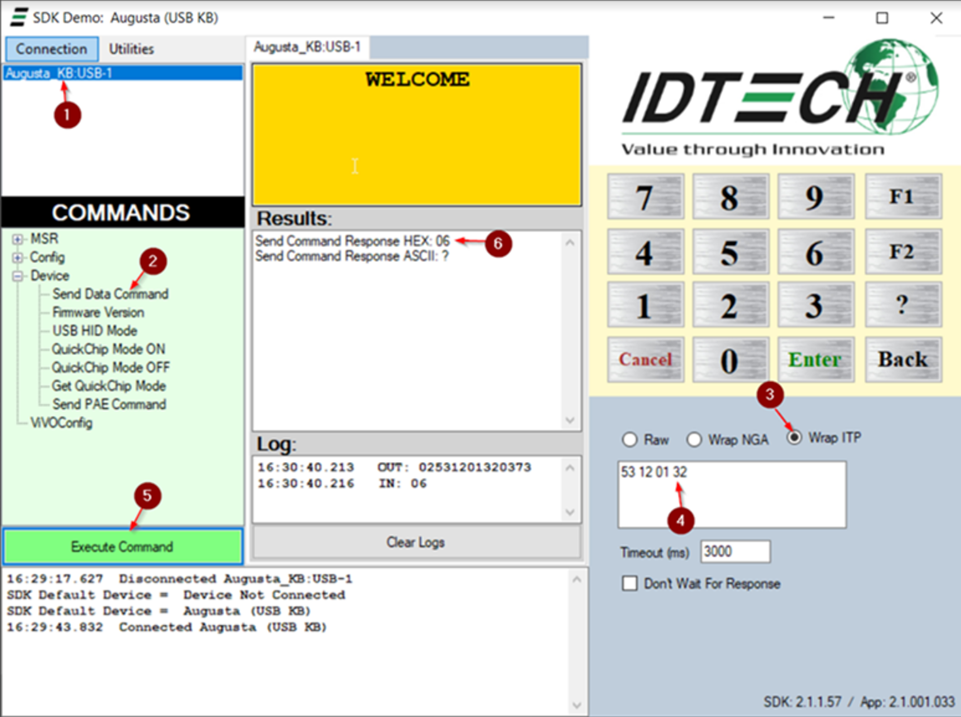
- Ensure the device is connected
- Select “Send Data Command” under “Device”
- Select the radio button “Wrap ITP” on the right
- Insert “53 12 01 32” into the text box ( **NOTE** If the merchant continues to experience the error, you can even slow the track data down further by changing the last number of the command string from 32, to 31 or 30 )
- Select “Execute Command”
- Ensure the response is “06” this means the command sent to the device was successful
Step 4: After following the above steps, you are able to test on the site to see if track data is populating correctly https://fts.cardconnect.com/itoke/ajax-tokenizer.html
Step 5: You can test a card read within Jonas Synergy.
Related Articles
Augusta IDTech : Slowing Down Track Speed
Article Contents: Depending on your system specifications it may be necessary to slow down the track read speed of the Augusta readers. A card read will display "Unable to read track data" indicating that slowing down the read speed may be needed. ...Ingenico Lane 3000 : User Guide
Article Contents: This article covers an overview of the Ingenico Lane 3000 User Guide. This Ingenico Lane 3000 User Guide covers the device's features, setup process, and troubleshooting. It explains how to connect the device, enter text using the ...Pairing a new Clover Device with Jonas Synergy
This article outlines the steps to pair a Clover device with Jonas Synergy. CLOVER INTEGRATION WITH JONAS SYNERGY GUIDE First you will want to ensure that the customer has activated the device and it is powered on and connected to Wi-Fi. Next you ...Using the Jonas Synergy App
Article Contents: This is a step by step guide on how to use the Jonas Synergy app on the Clover Flex. Step-By-Step: Step 1: Logging into the Jonas Synergy App. - Select Environment: Open the Jonas Synergy app and select the appropriate environment. ...Setup Guide to Cloud Printing
This article reviews the various error lights displayed by Star Micronics Printers. This article reviews the various error lights displayed by Star Micronics Printers. Step 1: Star Micronics Error Lights Power light Error light Beep code Issue ...