Using the Jonas Synergy App
Step 1: Logging into the Jonas Synergy App.
- Select Environment: Open the Jonas Synergy app and select the appropriate environment.
- Enter Credentials: Enter your username and password to log in.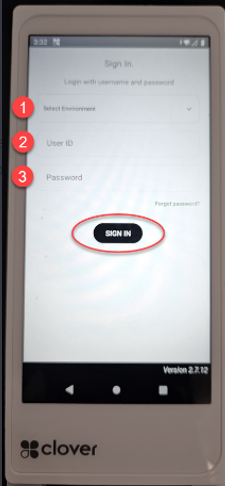
Step 2: Selecting the Correct Terminal.
Make sure you select the correct terminal with Clover credentials. The credentials are tied specifically to the terminal where they are set up in the POS system. If the “Beverage Cart” terminal lacks the Clover credentials, you must not select it for processing transactions. Doing so will result in sales that don't finalize or process, causing potential issues for your operations.
- Choose Terminal: Select the terminal that has the Clover credentials associated with it.
- Importance of Credentials: This ensures that all transactions are processed correctly and finalized.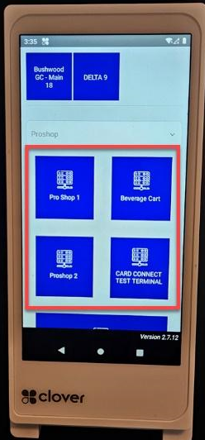
Step 3: Creating, Editing, and Deleting Tabs:
Creating a Tab: Click the plus button and then "Create Tab." You can add items to this tab by navigating through the options.
- Search for Customer/Member Name and assign this tab.
- Enter Name or Table Number.
- Skip associating this tab at this time and select Create Tab.
A new tab will be created.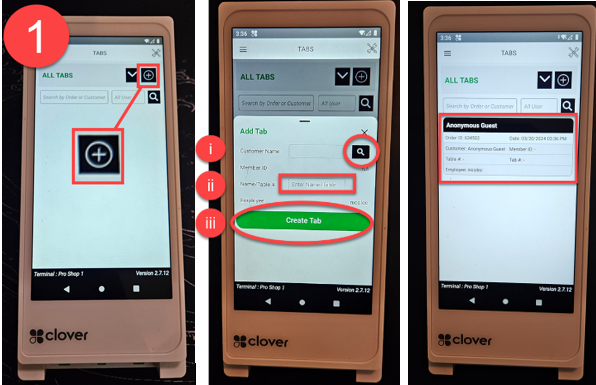
Editing a Tab: Hold down the tab and select Edit to add or change customer details.
Deleting a Tab: You can delete a tab by selecting Delete in the edit menu.
Step 4: Adding Items to the Tab.
- Select the Tab:The register subdepartments will appear.
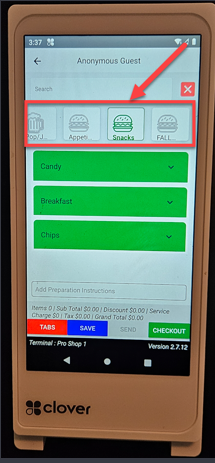
2. Select Items: Navigate through the categories to find and add items to the tab.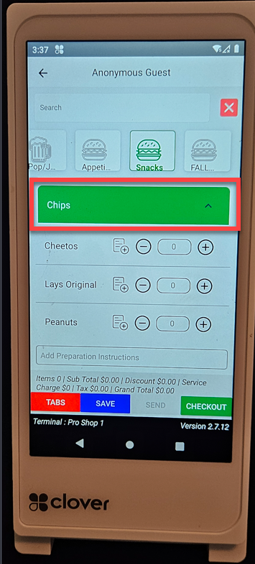
3. Confirm Additions: Ensure each item is added by tapping thetab summary in grey, or if you are ready to checkout, tap Checkout.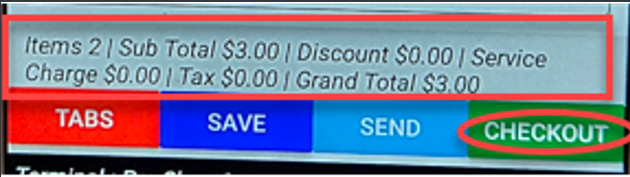
4. Pay Now: You will be prompted to the next screen to confirm items and tap Pay Now.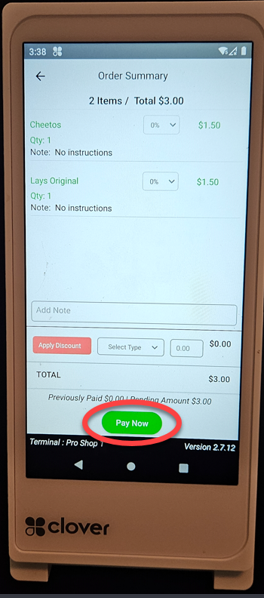
Step 5: Saving Tabs to Pull from POS.
To ensure seamless operations:
Save Tabs: Always save your tabs so they can be accessed from the POS system. This is crucial for syncing data between devices. You cannot access the tab from the POS unless it has been saved. Note: You cannot have a tab open on multiple devices simultaneously.
Step 6: Paying for the Tab.
When it’s time to pay, here’s how to process the payment:
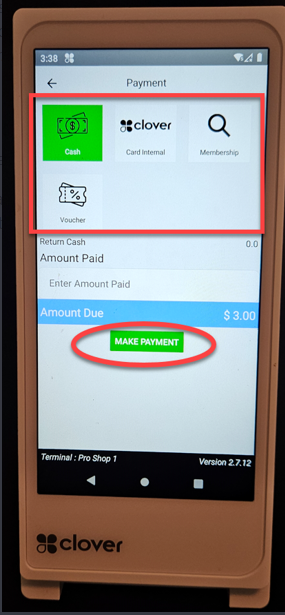
- Select Payment Method: Choose from cash, internal card, membership ID, or voucher.
2. Process Payment: Follow the prompts to complete the transaction.
Related Articles
Pairing a new Clover Device with Jonas Synergy
This article outlines the steps to pair a Clover device with Jonas Synergy. CLOVER INTEGRATION WITH JONAS SYNERGY GUIDE First you will want to ensure that the customer has activated the device and it is powered on and connected to Wi-Fi. Next you ...Installing Jonas Synergy on Windows 11 Home in S Mode
Article Contents: This article covers the steps on how to install Jonas Synergy on a Windows 11 laptop running in S mode, which initially only allows installations from the Microsoft Store. Step-By-Step: Step 1: Determine if your Windows 11 is ...Epson : Epson TM-m30II (LAN) Receipt Printer Setup
Article Contents: This article provides instructions on setting up and installing the Epson TM-m30II (LAN) receipt printer for use with the Jonas Synergy system. Also covered in this article is the requirements, where to purchase the printer, how to ...Setting up a Default Printer
Article Contents: Jonas Synergy utilizes the default printer for standard receipt print jobs such as transaction receipts and not kitchen and bar print jobs. Step-By-Step: Step 1: To choose a default printer, select the Start button and then ...Epson : Epson U220 Setup
Article Contents: This guide provides detailed instructions on setting up a new Epson U220 Printer. Step-By-Step: Downloading and Installing Software Step 1: Download Epson's Net Config utility and Epson's advanced printer drivers. This can be done ...