Star Micronics : Long Receipts Cutting off in Windows
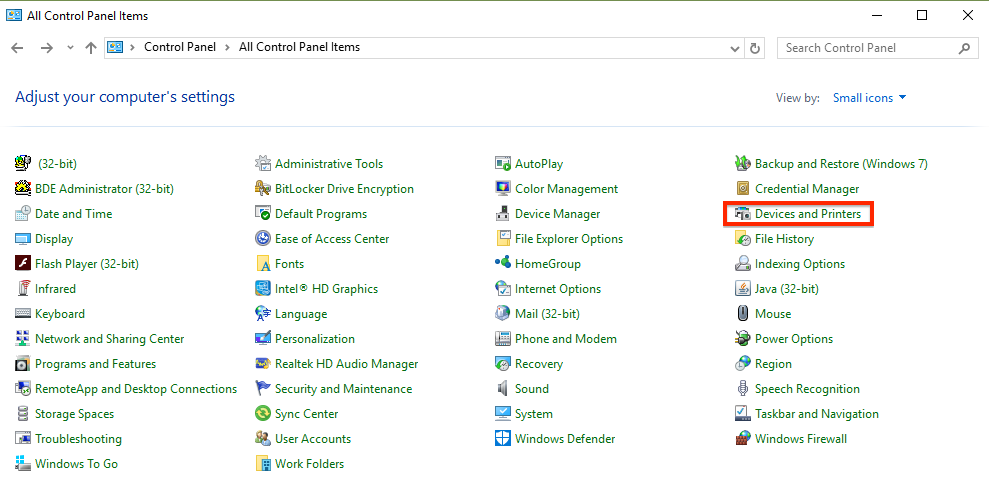
Step 1: Open the Devices and Printers panel on the computer. The steps to access the Devices and Printers panel will vary depending on the Operating System being used. Below are two common options:
Step 3: Search the Start Menu (Option 2). - Click on the Start Menu and begin typing “Devices” into the search box.
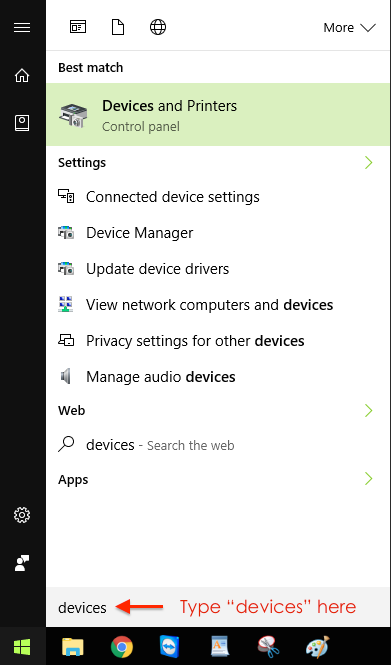
Step 4: When “Devices and Printers” appears in the menu, single click on the icon to open.

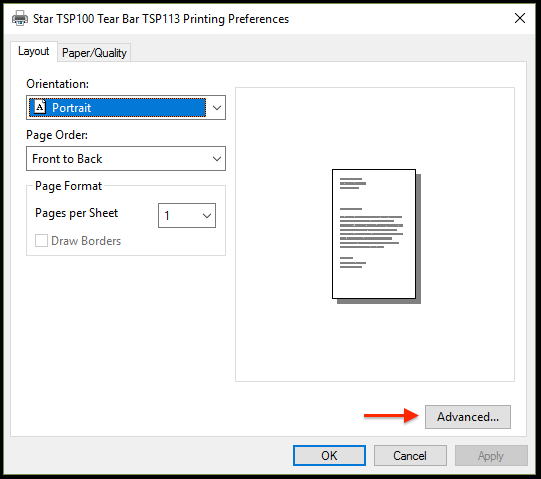
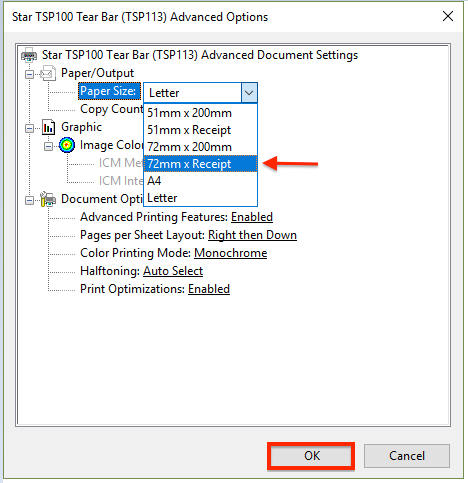
Step 5: The Printing Preferences window will appear. From the bottom right corner, click on the Advanced button. Then, under the Paper/Output options, click on the drop down menu and choose “72mm x Receipt” as the paper size and then press OK.
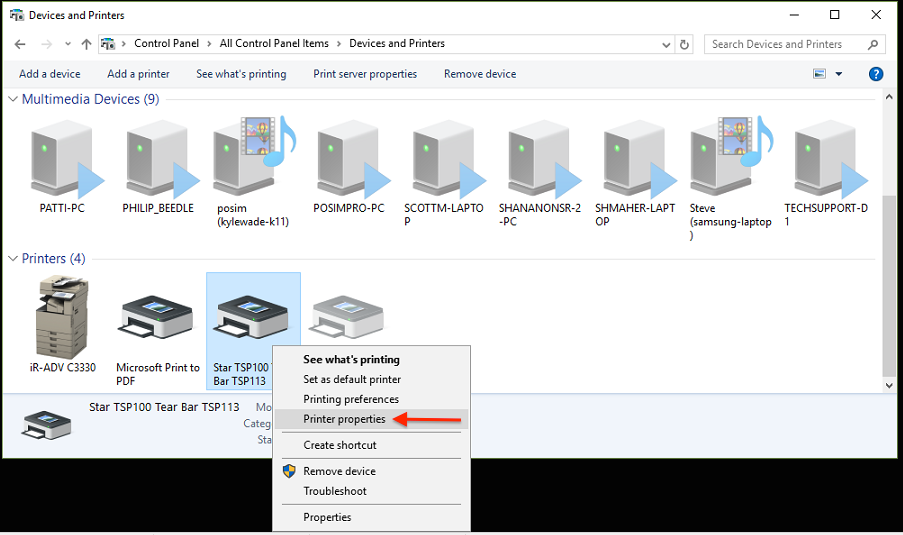
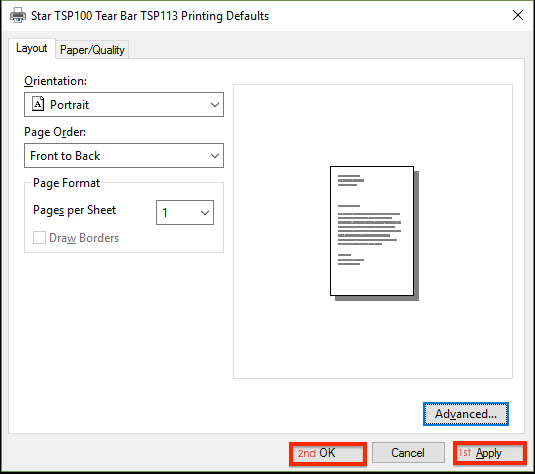
Step 6: The Printing Preferences window will remain open, press Apply and then select OK to save the changes. Then, go back into the Controls panel window, right click on the printer icon for the Star Tsp100 Printer again, but this time click Printer Properties.

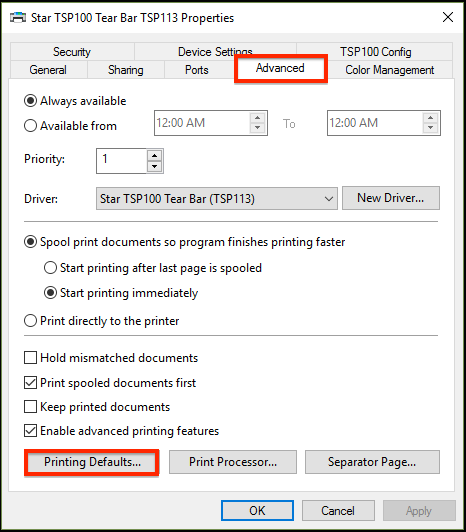
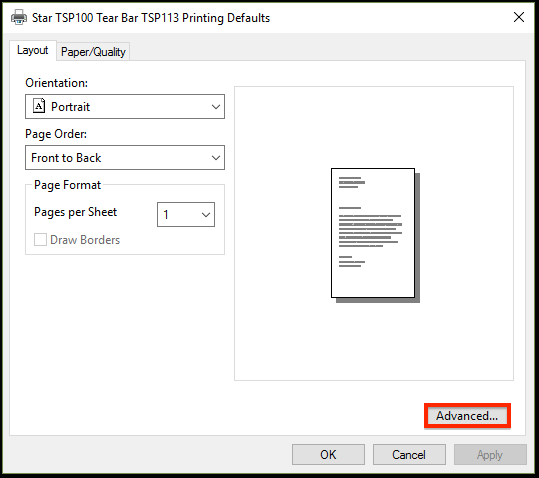
Step 7: When the Printer Properties windows appears, click on the “Advanced” tab at the top and then click on the “Printing Defaults” button in the lower left-hand corner. Inside of the Printing Defaults window, press the Advanced button located at the lower right corner.
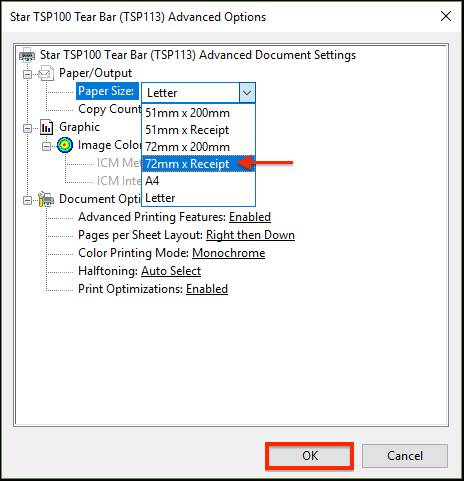
Step 8: Under the Paper/Output options, click on the drop down menu and choose “72mm x Receipt.” as the paper size. Press OK to save the changes and close the window.
Step 9: The Printing Defaults menu will remain open, press Apply and then press OK to close the window. The Properties window remain open, press Apply and then press OK to close the window.

Related Articles
Epson : Long Receipts Cutting Off in Windows
Article Contents: This article covers how to deal with long receipts cutting off for Epson printers. Step-By-Step: Step 1: Option 1 - Using the Control Panel. Click on the Start Menu and locate the Control Panel. From within the Control Panel, double ...Long Receipts Cutting Off in Windows
Article Contents: This article will guide users through the process of configuring printer settings to prevent long receipts from being cut off Step-By-Step: Step 1: Open the Devices and Printers panel on the computer. The steps to access the Devices ...Star Micronics : Error Lights
Article Contents: This article reviews the various error lights displayed by Star Micronics Printers. Step 1: Star Micronics Error Lights Power light Error light Beep code Issue description Recommended fix On On Continuous The top cover of the paper ...Star Micronics : Help Center
Article Contents: This article provides an in browser and link option for viewing Star Micronics help center. To view the Star Micronics Help Center website, please click here.Installing a Star TSP100
Article Contents: This article provides a step-by-step guide on installing a Star TSP100 receipt printer on Windows 8 and later versions. Step-By-Step: Step 1: Download the Driver 1. Visit the Star Micronics website before powering on your Star ...