Sending Order from POS to KDS
Step-By-Step:
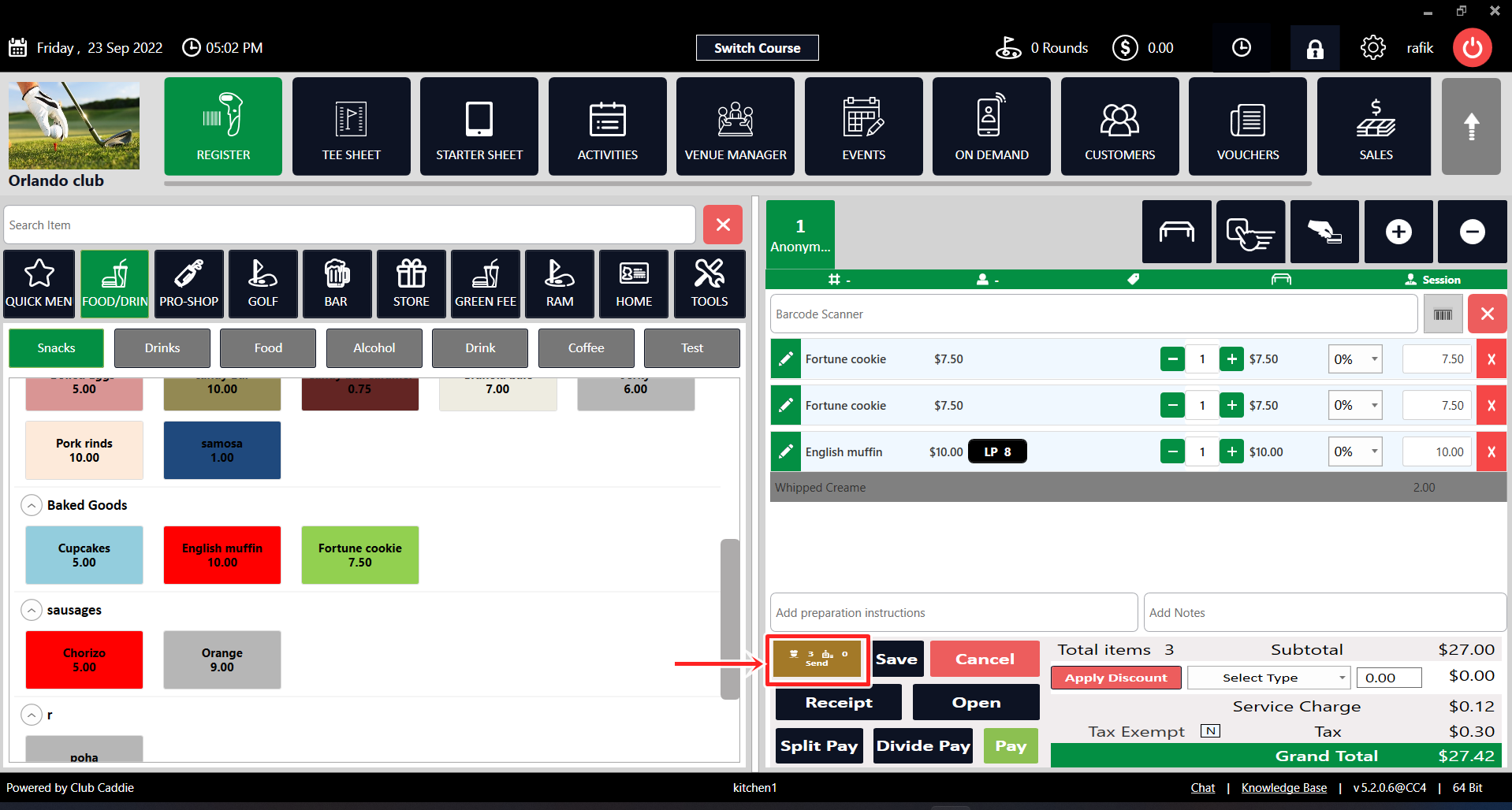
Step 1: Create order in a tab by adding items from the register. Add modifiers if any and click on the send button on the bottom.
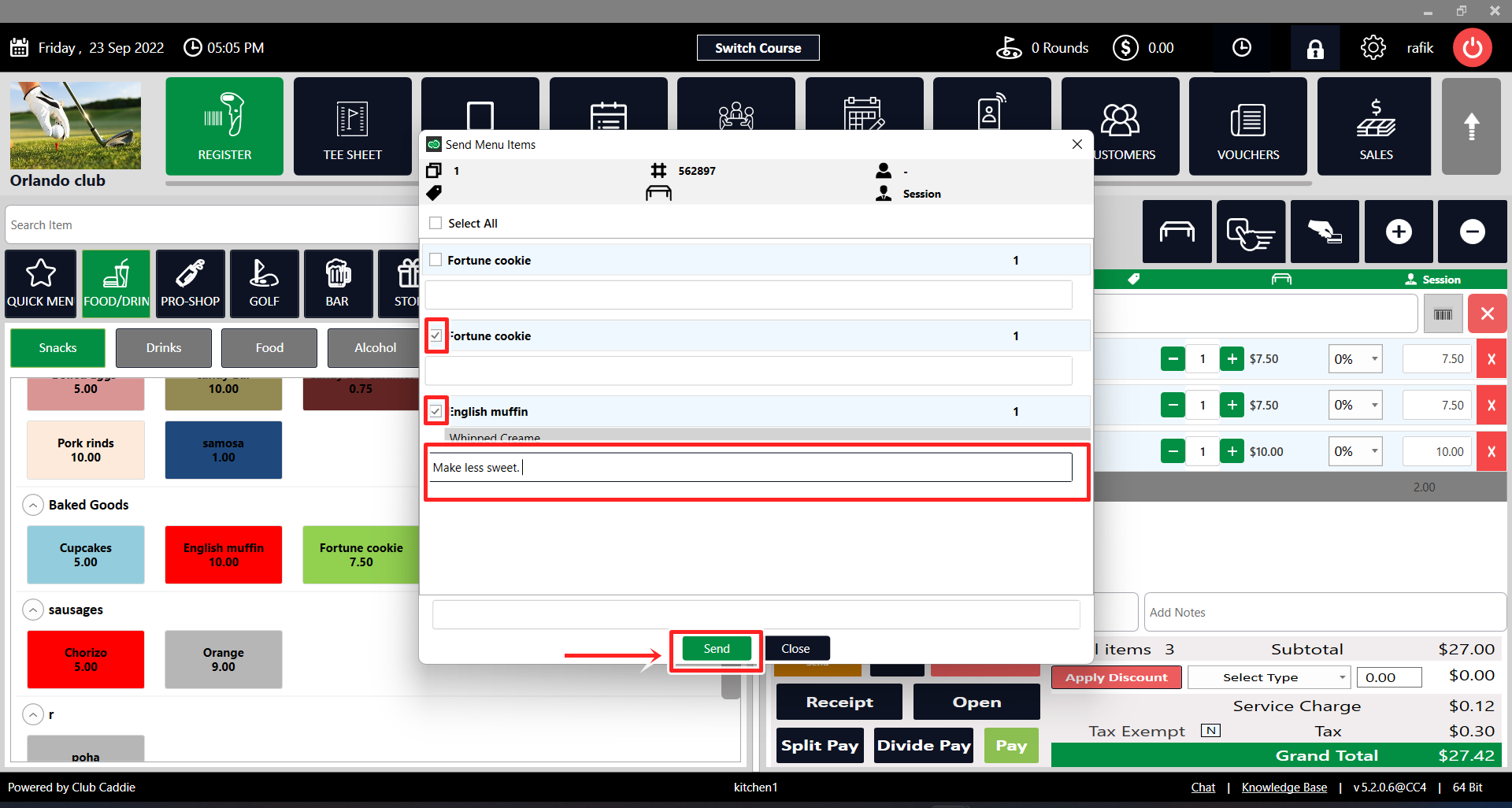
Step 2: Select the items you wish to send to the KDS system and add instructions if any. Then, click on send to pass the order to the kitchen terminal on KDS.
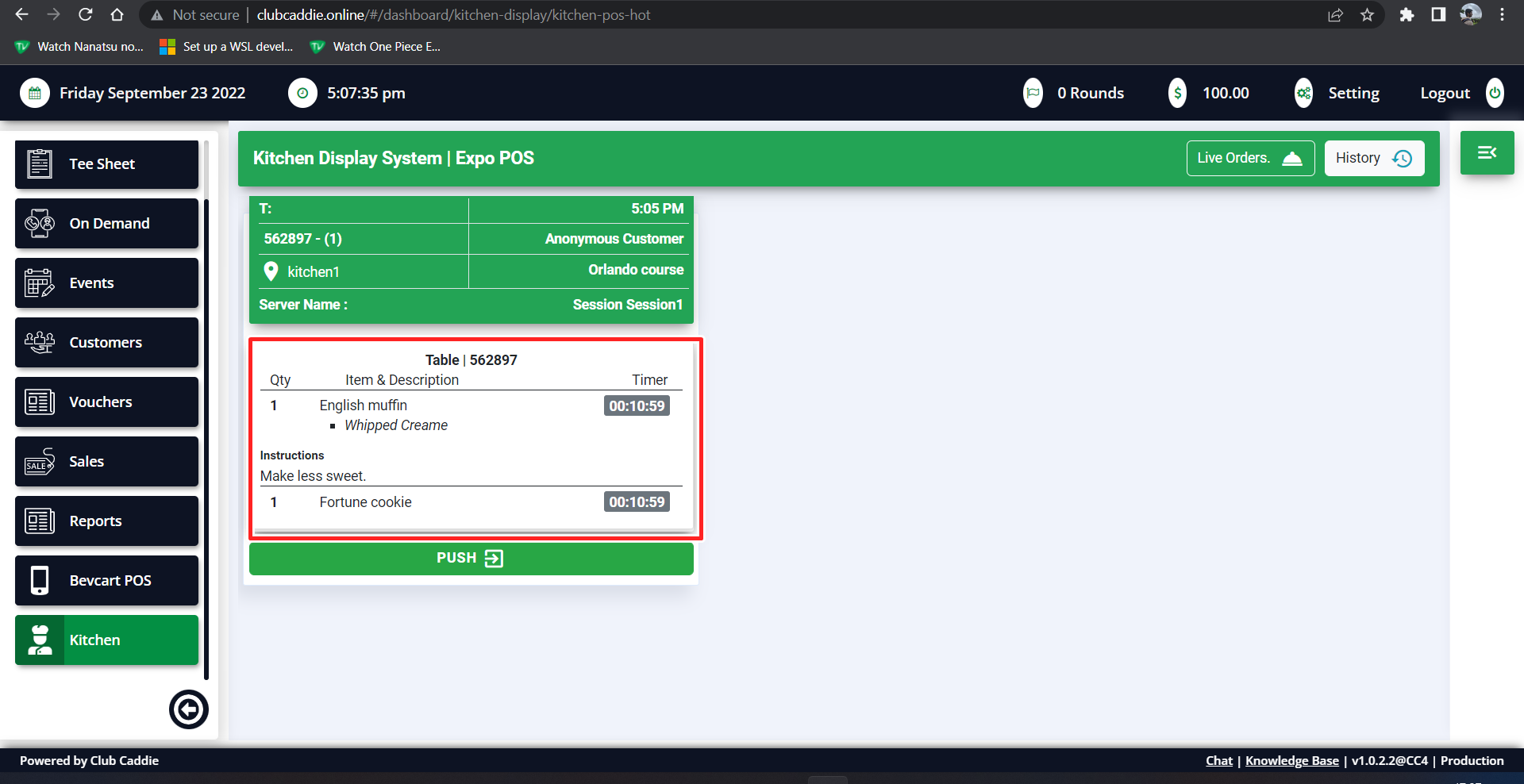
You will be able to see the order on your Jonas Synergy Online in the Kitchen Terminal:
Related Articles
Add Instructions to an Order
Article Contents: How to add instructions to an order item. Step-By-Step: Step 1: After adding the items from the register to a tab, click on send to write specific instructions for KDS system. Send to KDS with instructions. Write your instructions ...Check Order Status
Article Contents: How to view the status of an order that was sent from you POS. Step-By-Step: Step 1: Open your web portal for Jonas Synergy online. On the left side, Scroll down to the Kitchen terminal and click on it. Step 2: Click on the live ...Checking Order Summary and History
Article Contents: How to review the order history and summary any of all order placed. Step-By-Step: Step 1: On the Jonas Synergy Online website, scroll down to the Kitchen terminal and click on it. Step 2: Click on the History button in the top ...