Register : Employee Tab Identification
Step by Step
Step 1: Click on "settings" in the upper right-hand corner and then click on "course user info" from the left-hand side menu options.
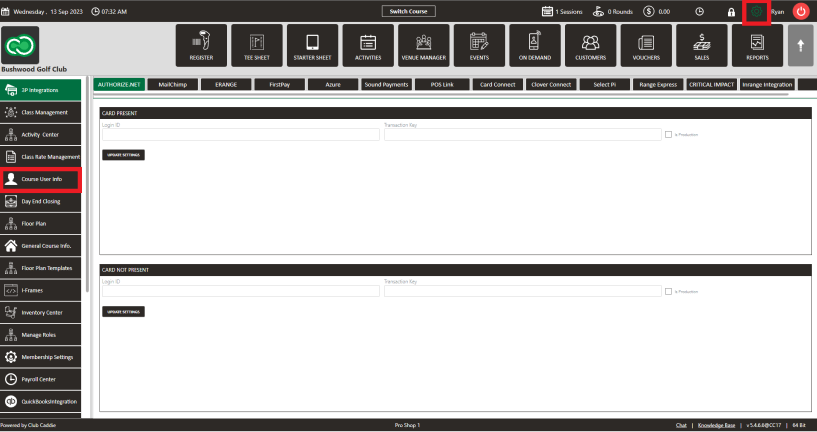
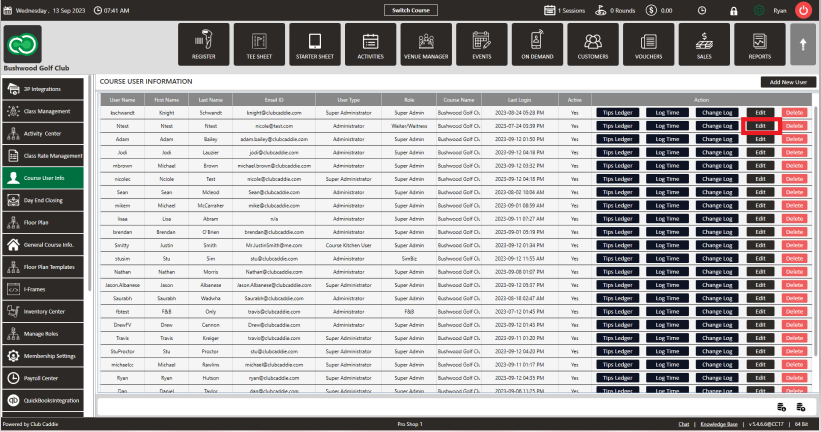
Step 2: Select the particular employee that you want to assign a tab color to and click on "edit."
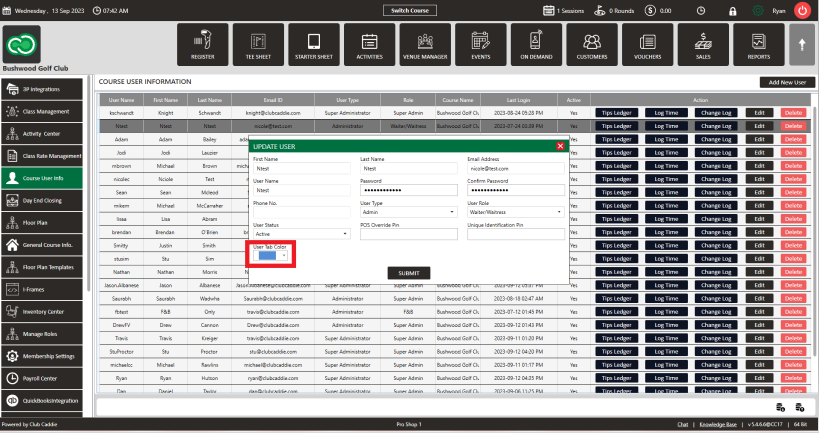
Step 3: Upon clicking on "edit," you'll see the user window pop up where you can make any edits along with selecting a color under the "user tab color" option.
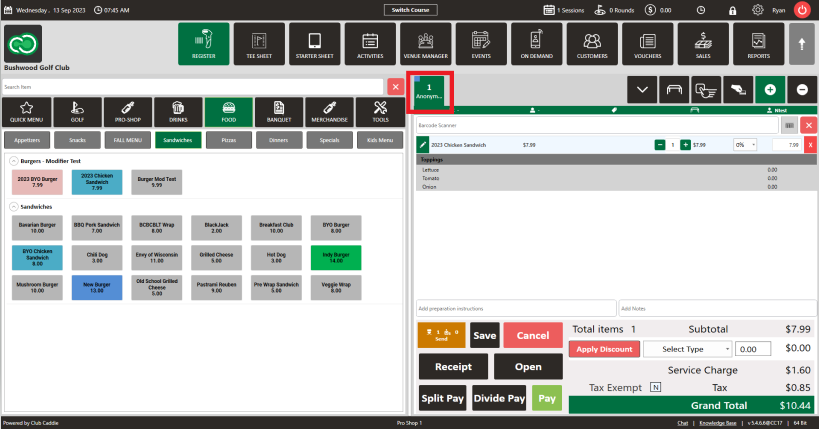
Step 4: When that employee is logged in or uses their unique identification pin number to start a tab, the tab will show the color that is associated to the employee in the upper left-hand corner of the tab. When multiple tabs are open in the register, this is an easy way to help quickly identify the tabs that are associated to what employee based on their color that was assigned to their username.
Related Articles
Register : Day End Closing
Article Contents: This article contains steps to effectively fill in all of the mentioned information to complete a Day End Closing. Step by Step Step 1: Click on the Register button on the header tab. On the Register screen, click on TOOLS tab. Step ...Register : Voucher Deposit from Register
Article Contents This article contains step-by-step instructions on how to do Voucher Deposit from Register. Step-by-Step: Step 1: Click on “Register” in the header tab, then click on the “Tools” tab. Step 2: Select the “Voucher Deposit” option. A ...Register : Edit Item Price
Article Contents: This article gives step-by-step instructions on how to change item prices in the register. Step-by-Step: Step 1: After selecting the REGISTER module, click on an item to add it to the register tab. Step 2: Item prices can be edited ...Register : Editing Item Quantity
Article Contents: This article gives step-by-step instructions on how to edit item quantities in the register. Step-By-Step: Step 1: After selecting the REGISTER module, click on an item to add it to the register tab. Step 2: Item quantities can be ...Register : Merging Tabs
Article Contents: This article gives step-by-step instructions on how to merge two tab's items into one tab in the register. Step-By-Step: Step 1: Select the REGISTER module from the module navigation menu. Step 2: Add items in the tab. Step 3: Add ...