Searching by order details
Step 1: Select the SALES module from the module navigation menu.
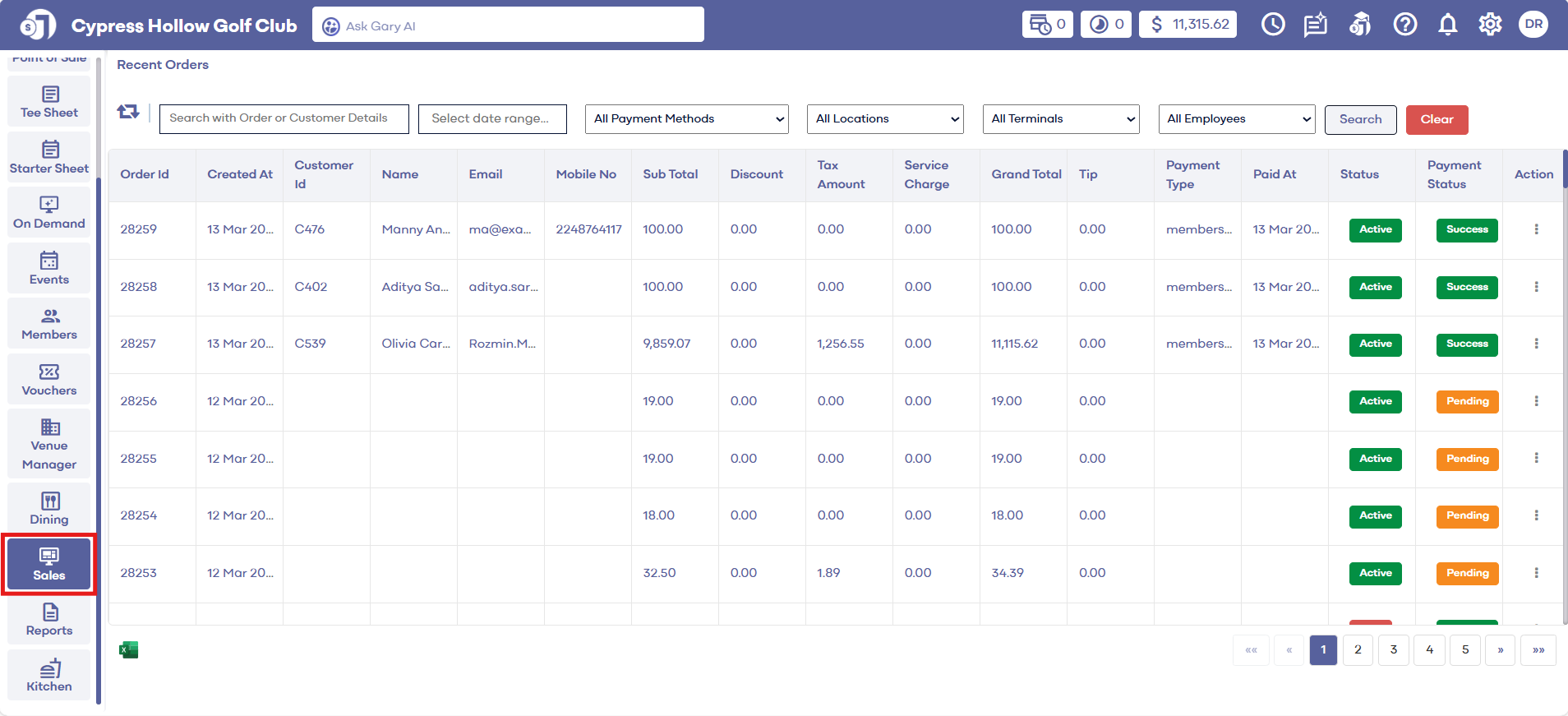
Step 2: Enter the Order Id in the search field and click the Search button. You can also search the sales by guest name or guest ID. The system will return all sales for selected search.
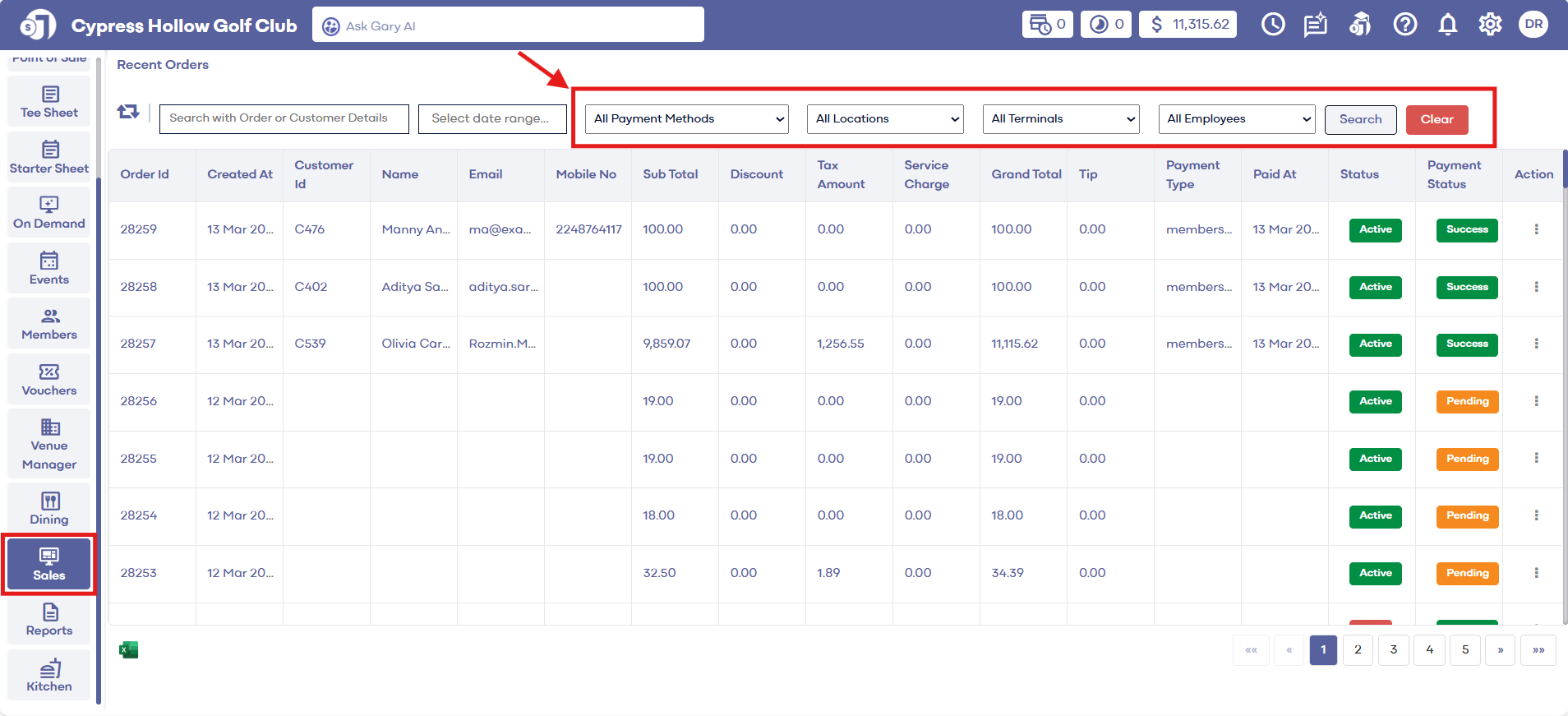
Step 3: You can also apply filters to your search such as Payment Method, Location, Terminal, and Employee.
Related Articles
Searching Sales History
Article Contents: This article contains step by step instructions on how to search sales history Step-By-Step: Step 1: Click on the Sales button on the header tab on the left hand of the screen. Step 2: You can search for sales with order id or guest ...Refunding an Order
Article Contents: This article contains step by step instructions on how to refund an order that has settled Step By Step: Step 1: Click on "Sales" Tab from the left of window. Step 2: Click on the "Action" Button which is on the right side of the ...Sales : Cloning an Order
Article Contents: This article provides step-by-step instructions on how to clone an order. Tip: Cloning is a way for the system to duplicate an existing order. Reasons to clone an order include: re-using a previous order for a customer, or quickly ...Sales Overview
Article Contents: This article contains step-by-step instructions on the sales history tab. Step-By-Step: Step 1: Select the SALES module from the module navigation menu. In the Recent Orders window, you can see the Orders list details with the ...View Receipt
Article Contents: This article contains information on how to view receipts of orders in the sales module Step-By-Step: Step 1: Select the "Sales" module from the left pane Step 2: Upon clicking on "Sales," the system will generate all sales that ...