Refunding an Order
Step 1: Click on "Sales" Tab from the left of window.
Step 2: Click on the "Action" Button which is on the right side of the recent order window. Click on "Refund" from the drop down list.
Step 3: The system will generate new "Order Details" window. You can see orders list here.
Step 4: Select the order to refund by clicking on checkbox. Mention the order refund reason, then click on "Refund" button.
Step 5: Select the Payment mode to refund. If you want to print the receipt click on "Print Receipt" checkbox then click on "Ok" button.
Step 6: You will see a success message and item status will be set as refunded.
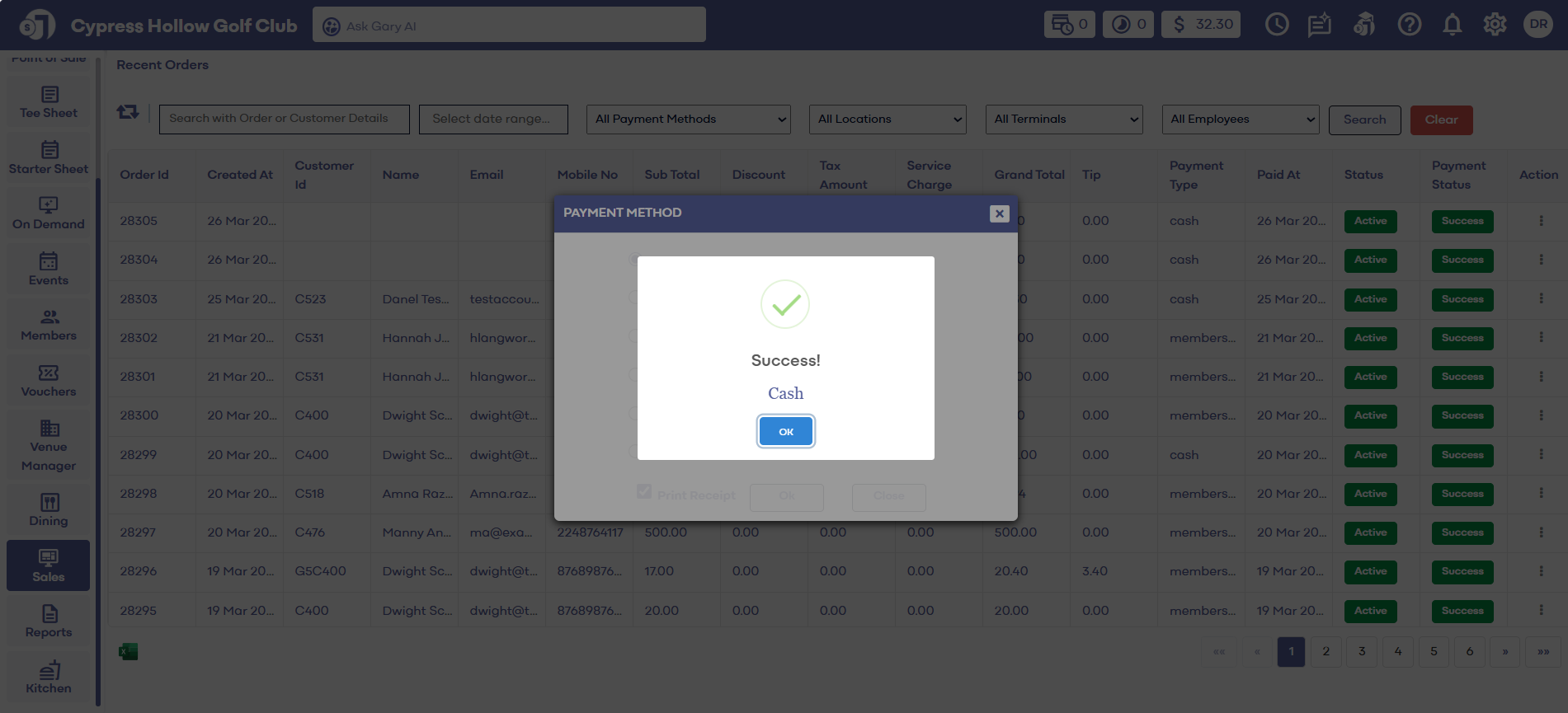
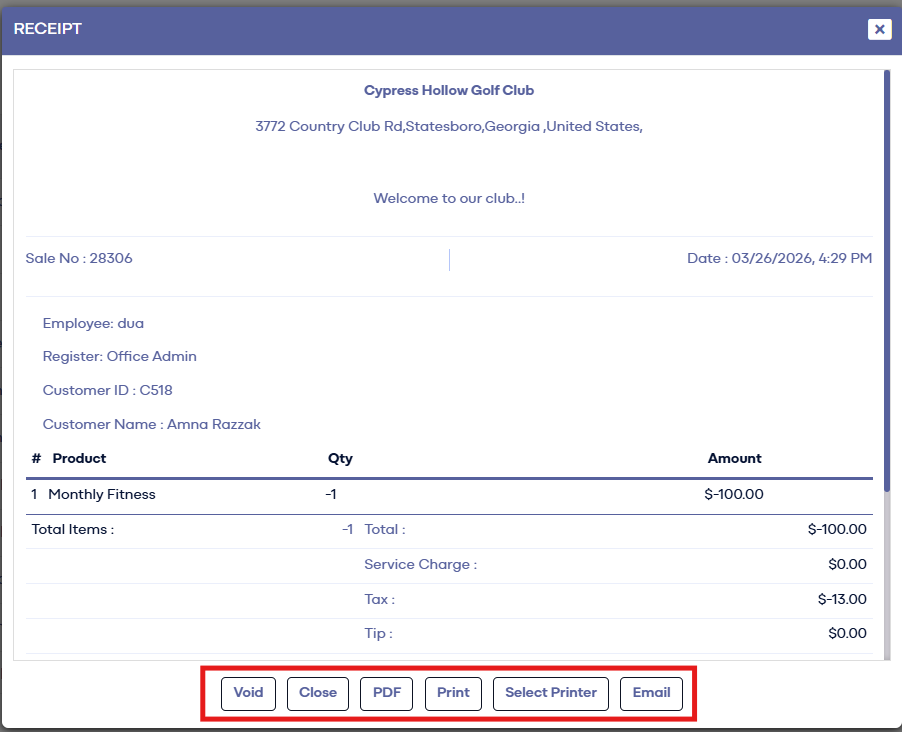
Whenever a Transaction is Refunded in Jonas Synergy, there will now be text in the Notes section of the Receipt. On the Original Transaction Receipt, it will show the OrderID and Date of the Refund. The Refund Receipt will show the OrderID and Date of the original Transaction.
Sales> Action > Refund > Can go back to the original receipt and see the refund in the notes section.
Related Articles
Sales : Cloning an Order
Article Contents: This article provides step-by-step instructions on how to clone an order. Tip: Cloning is a way for the system to duplicate an existing order. Reasons to clone an order include: re-using a previous order for a customer, or quickly ...Searching by order details
Article Contents: This article contains step by step instructions on how to view recent orders Step-By-Step: Step 1: Select the SALES module from the module navigation menu. Step 2: Enter the Order Id in the search field and click the Search button. ...Sales Overview
Article Contents: This article contains step-by-step instructions on the sales history tab. Step-By-Step: Step 1: Select the SALES module from the module navigation menu. In the Recent Orders window, you can see the Orders list details with the ...Adding a Tip
This article shows you how to add a tip from the sales module. Step-By-Step: Add Note : Can not add tip to the order once batch is settled. Step 1: Click on the "Sales" tab from the main menu. It will open the recent order window. Step 2: Click on ...Receipt Reprinting
Article Contents: This article contains instructions on how to re-print sales receipts Step-By-Step: Step 1: Select the SALES module from the module navigation menu. Step 2: The system will generate a recent orders window. Click on the "Action" ...