Voiding a Transaction
Step 2: Click on the Action button, located on the right side of the Recent Orders window. This will display a set of options, including Receipt, Refund, Void, Add Tip, Re-Open, and Clone.
Step 3: Select the " Void" option. This will open a pop-up window with an alert message and a prompt to add a void note.
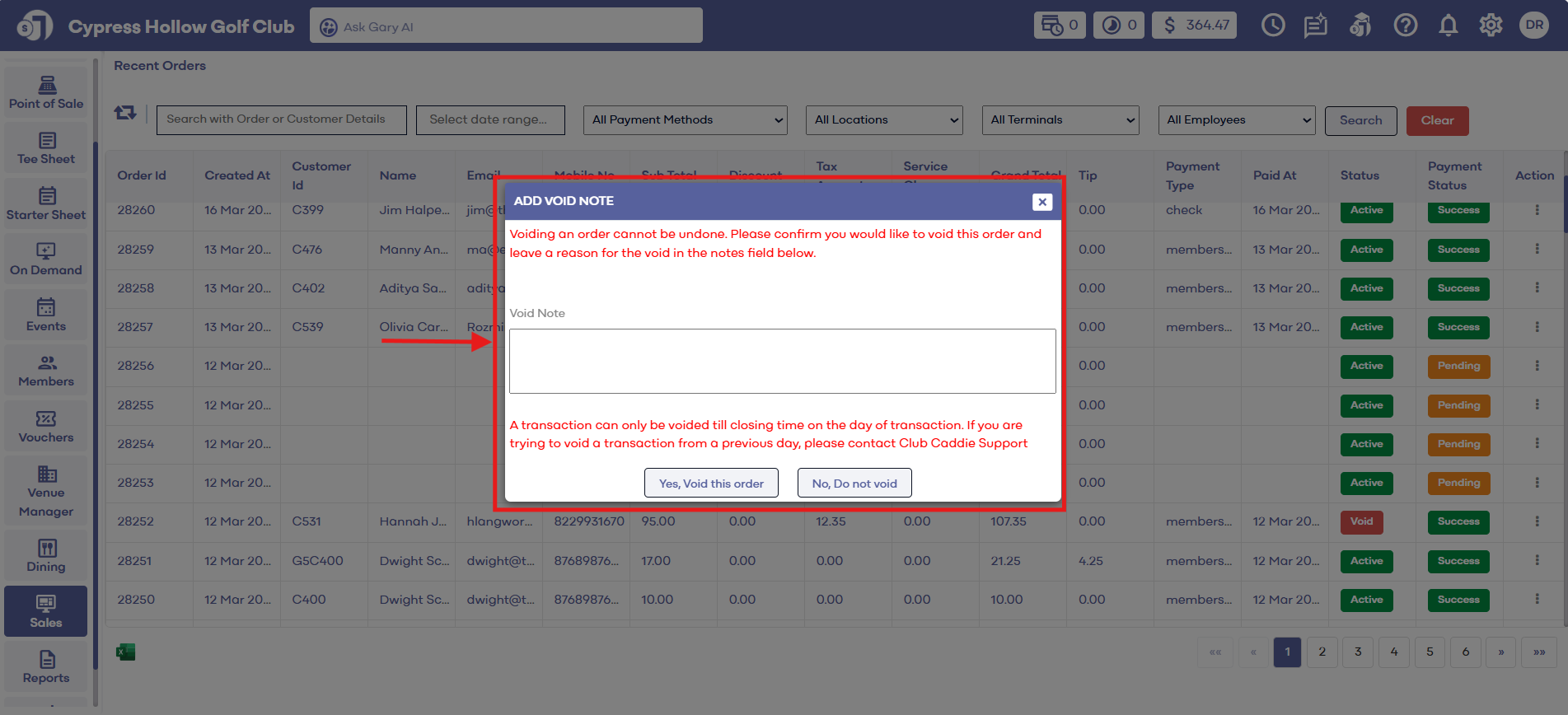
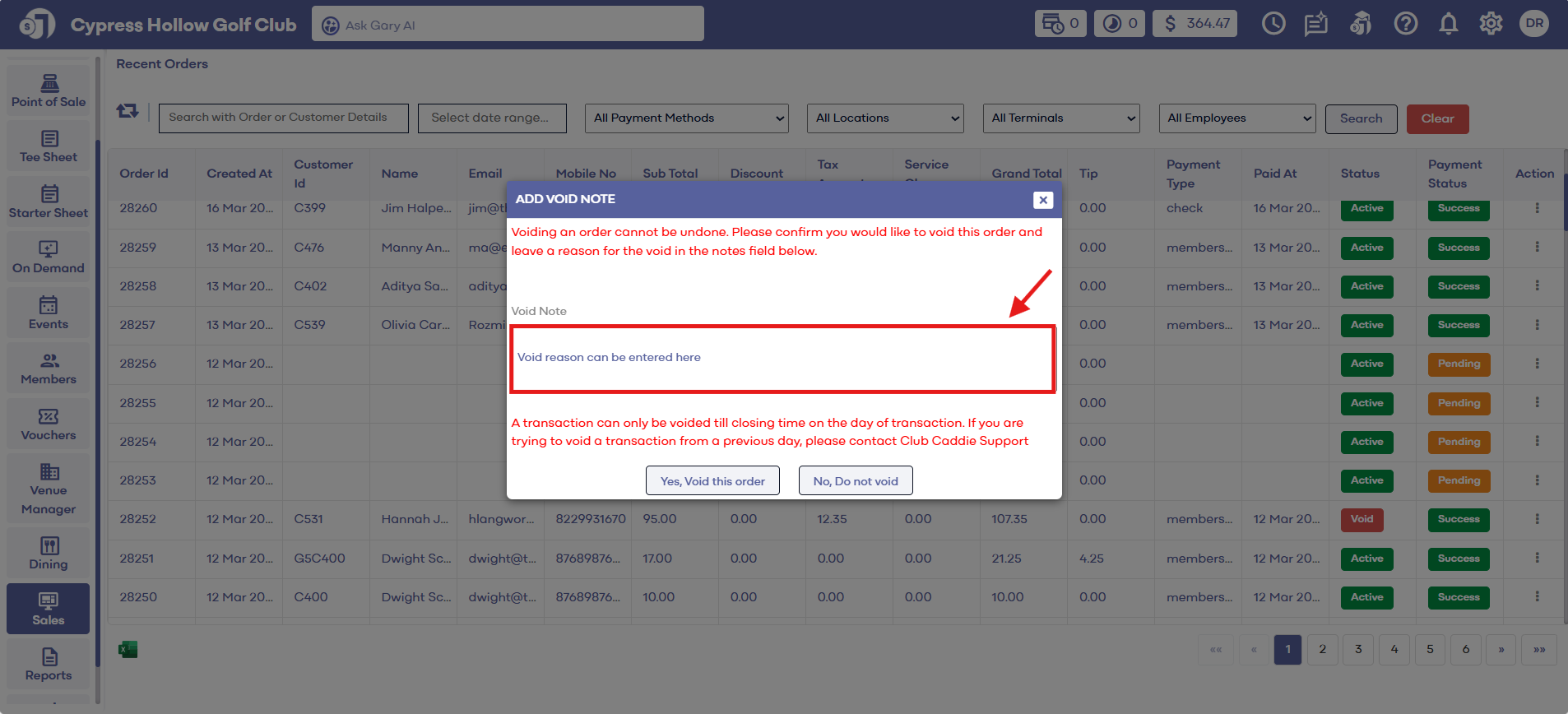
Step 4: If you wish to void the order, provide a reason in the given text field and click the " Yes, Void this order" button. If you decide not to void the order, click the " No, Do not void" button.
Note: If you receive an error message regarding being outside of the void window, please contact your manager. However, with proper permission, you are able to adjust the void window time frame by navigating to settings -> point of sale settings -> void window.
For step by step instructions on how to adjust the void window.
Related Articles
Partial Refund for Member Charges
Article Content: How to apply a partial refund to class billing. If a Class pays a total payment, users can refund a portion of that amount. Step-By-Step: Step 1: Click on the Sales Module. Then, search for the transaction you want to refund and ...Refunding an Order
Article Contents: This article contains step by step instructions on how to refund an order that has settled Step By Step: Step 1: Click on "Sales" Tab from the left of window. Step 2: Click on the "Action" Button which is on the right side of the ...View Receipt
Article Contents: This article contains information on how to view receipts of orders in the sales module Step-By-Step: Step 1: Select the "Sales" module from the left pane Step 2: Upon clicking on "Sales," the system will generate all sales that ...