Step 1: Click on the Gear icon in the top right corner and choose Tee Sheet Settings from the left menu.
Sales Tax: Some States might apply taxes to their Tee Time. If the course is applicable for tax on tee times, the sales tax box should include the Tax Percentage %. Once completed, click on Tee Time Tax, and the system will add the tax amount.
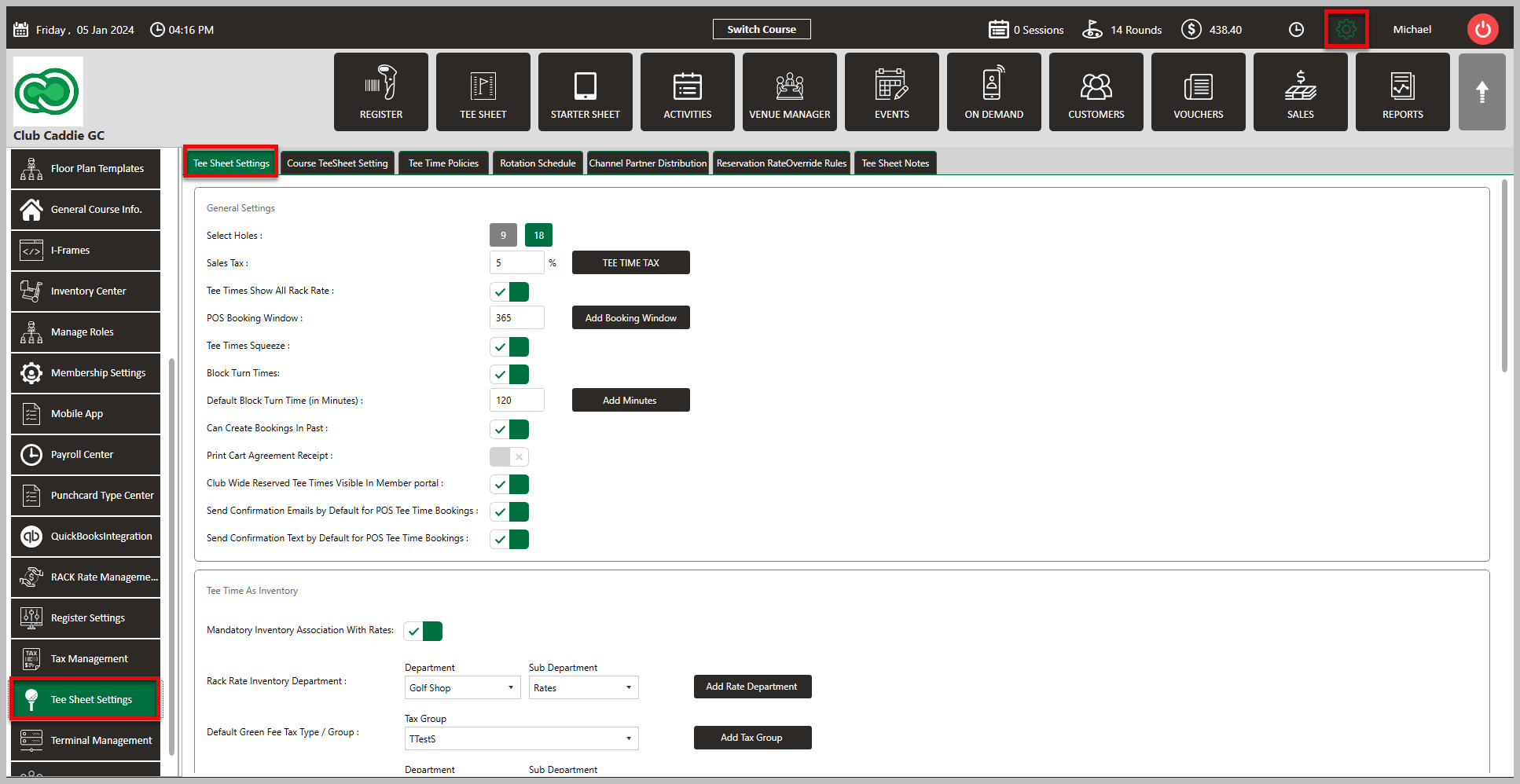
Step 2: Below are descriptions of other settings that users can modify in the General Settings:
Select Holes - You can select the number of holes either Front 9 or all 18.
Tee Time Show All Rack Rate - Toggle allows tee times to show all rack rates.
POS Booking Window - Allows the user to select the number of days out a tee time can be booked. For example: if the POS booking window is 30 days, the system will allow tee time bookings up to 30 days from the current date.
Tee Time Squeeze - If the setting is toggled on, the user has the ability to squeeze a tee time. For example: if there are tee times at 10:00 and 10:08 and it's desired to "squeeze" one in between, squeeze time can be used to add a tee time between 10:00 and 10:08.
Block Turn Time - A parallel turn slot can be blocked for a particular slot using this setting.
Default Block Turn Time (in Minutes) - Automatically blocks a parallel turn slot for a particular slot.
Prepaid Tee Time Liability - Prepaid Tee Time Liability will put the payment amount in a liability account until check in. Once the tee time is checked in it will move that amount from liability to revenue.
Step 3: Tee Time as Inventory
Mandatory Inventory Association With Rates: If this is toggled on, it requires every rate to be linked with an inventory item to easily break out green fees and cart fees to applicable GL codes, and ensuring green fee and cart fee revenue are not calculated as one amount.
Ensuring every rate is linked with an inventory item helps avoid errors and maintains consistent financial reporting.
Rack Rate Inventory Department: Assigns department where you would like the generated rate items to live in. (In the register)
Rack rates assigned to 'Golf Operations' ensure revenue from tee times is correctly attributed in the financial system.
Default Green Fee Tax Type / Group: Defines the tax rate that is applicable to Green Fee items.
A 7% tax group applies automatically to green fees, keeping the club compliant with tax laws.
Green Fee Inventory Department: Specifies what department new green fee items that are created are assigned to.
Green fees are recorded under the 'Green Fees' inventory department, making it easier to analyze revenue sources.
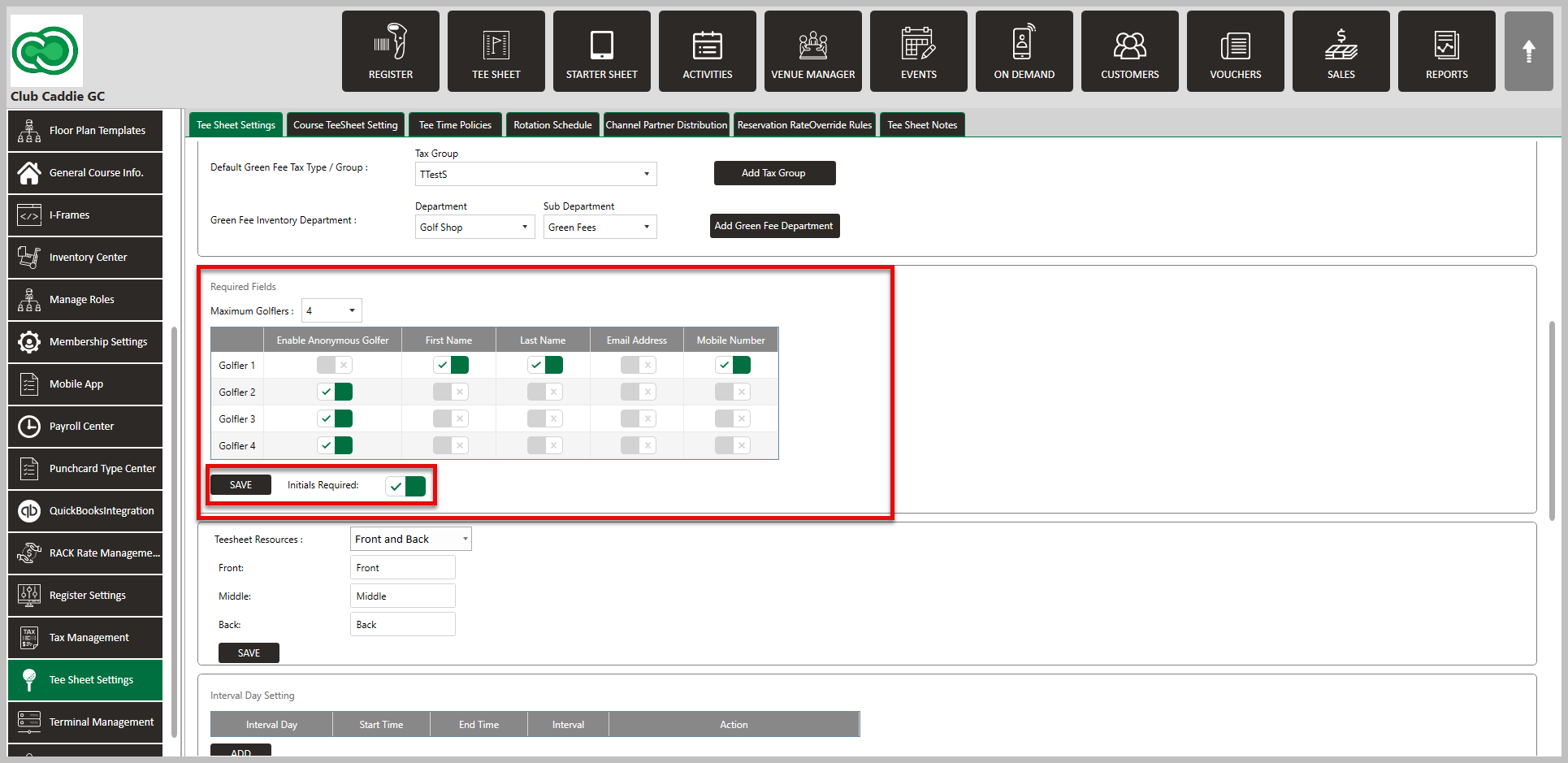
Step 4: Once the information above in step 2 is entered, based on the number of maximum players selected, a toggle box of player information will appear labeled Required Fields. To complete bookings, these mandatory fields will be required.
Toggle the mandatory information required. For Example: if you want Golfer No.1 to give information like First Name, Last Name, Email Address, and Mobile Number, toggle to enable the information needed.
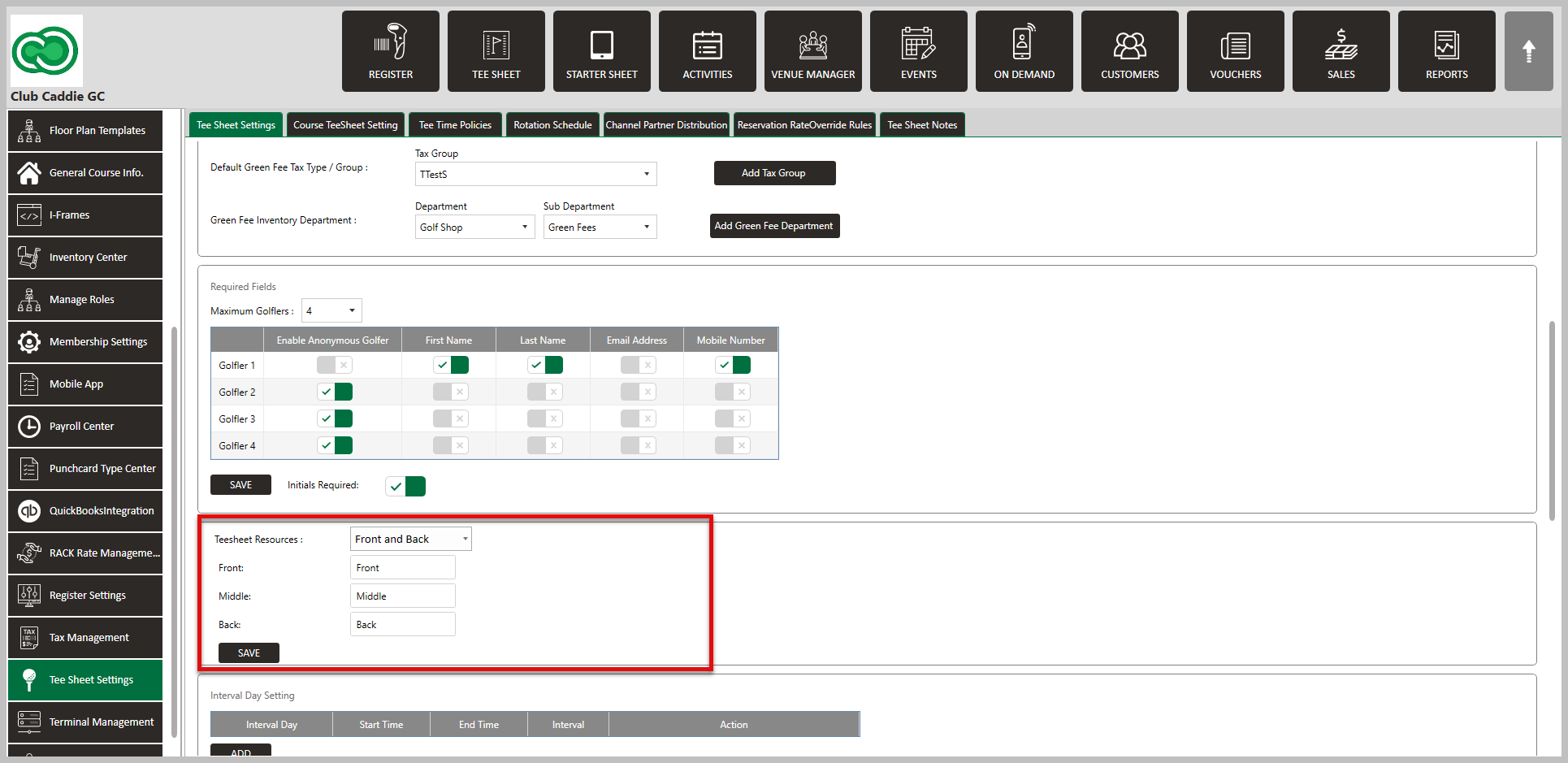
Step 5: Timesheet Resources allows editing the sheet name.
 Step 6:
Interval time Setting: Intervals of available tee times (in minutes) can be set for a particular period using the Interval Time Setting. Slots will be available from the Start Time until the End time at the specified interval rate from a calendar Start Date until a calendar End Date. Define the Start Date, End Date, Start Time, End Time, and Interval, and then click on the Save button.
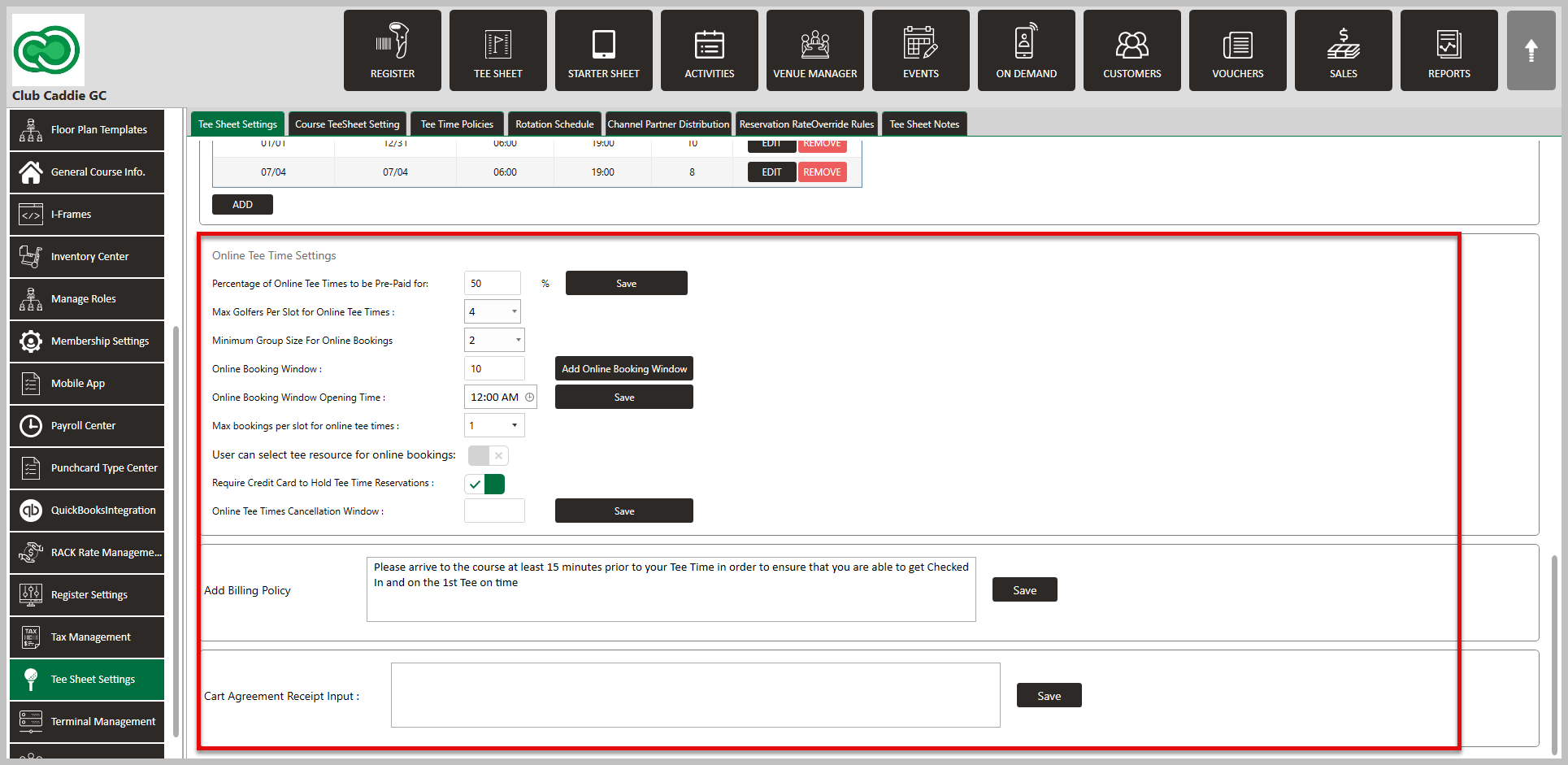
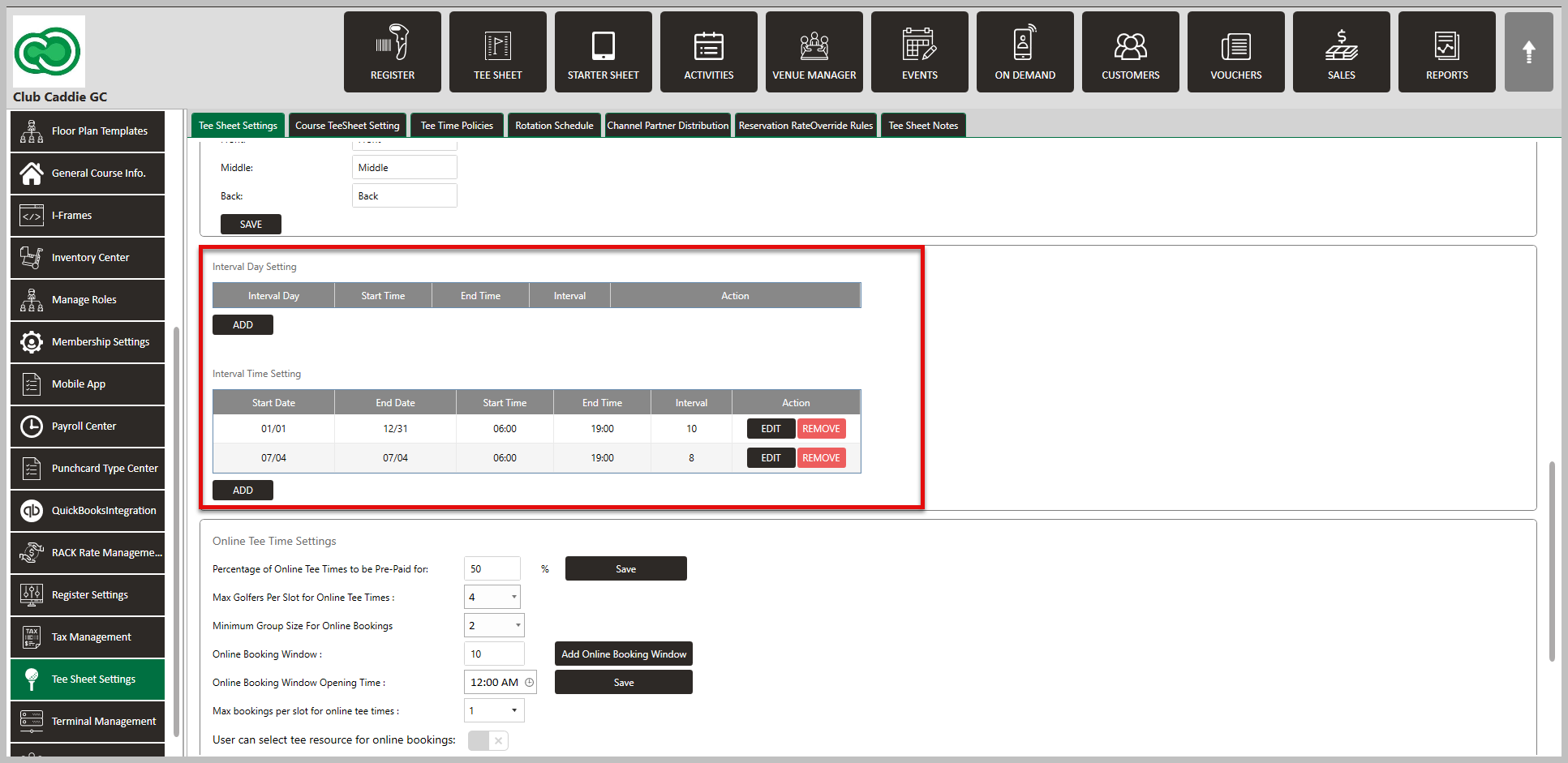 Step 7: Online Tee Time Settings: Customizing Online Booking and Payment Options This section of the knowledge base article delves into the various settings that can be adjusted to customize online tee time reservations. These settings provide control over prepayment percentages, golfer capacity, advance booking options, and credit card requirements.
Percentage of Online Tee Time to be Prepaid For: This setting determines the proportion of the tee time's total cost that needs to be paid in advance. After inputting the preferred percentage, don't forget to click "Save" to finalize the change.
Max Golfers Per Slot for Online Tee Times: This dropdown menu allows you to set the maximum number of golfers allowed per slot, ranging from 1 to 6.
Minimum Group Size of Online Bookings: This setting defines the smallest permissible group size for online bookings, which can be anywhere from 1 to 4 golfers.
Online Booking Window: Define the maximum number of days in advance a golfer can schedule a booking. After inputting the number of days, make sure to click the "Add Online Booking Window" button to update the setting.
Online Booking Window Opening Time: Specify the time of day when online tee time slots become available for booking. Once a time is chosen, hit "Save" to update this setting.
Max Bookings Per Slot for Online Tee Times: Determine the highest number of reservations that can be allocated to each online booking slot.
User Can Select Tee Resource for Online Bookings: This setting enables users to choose the specific course for their booking. Ex. Allowing users to be able to book a tee time on the front 9, or back 9.
Require Credit Card to Hold Tee Time Reservations: Enforce a rule that necessitates a credit card to be registered on file to secure a tee time reservation.
Ensure you regularly save changes to retain and enforce these custom settings, thereby optimizing your online tee time booking experience.
Add Billing Policy: If Add billing policy is populated, this policy will be shown within the membership portal.
Cart Agreement Receipt Input: If Cart Agreement Receipt Input is populated, this policy will be shown within the membership portal.