Receive Inventory

Receive Inventory (Video)

This article contains step-by-step instructions on how to receive inventory and how to create a vendor.

Step-By-Step: 

Step 1: Click the Gear wheel icon from the top right corner of the window. Select Inventory Center from the left row of the window.

 
 Step 2: Click Receive Inventory to receive the inventory. The system will open a new RECEIVE INVENTORY window.
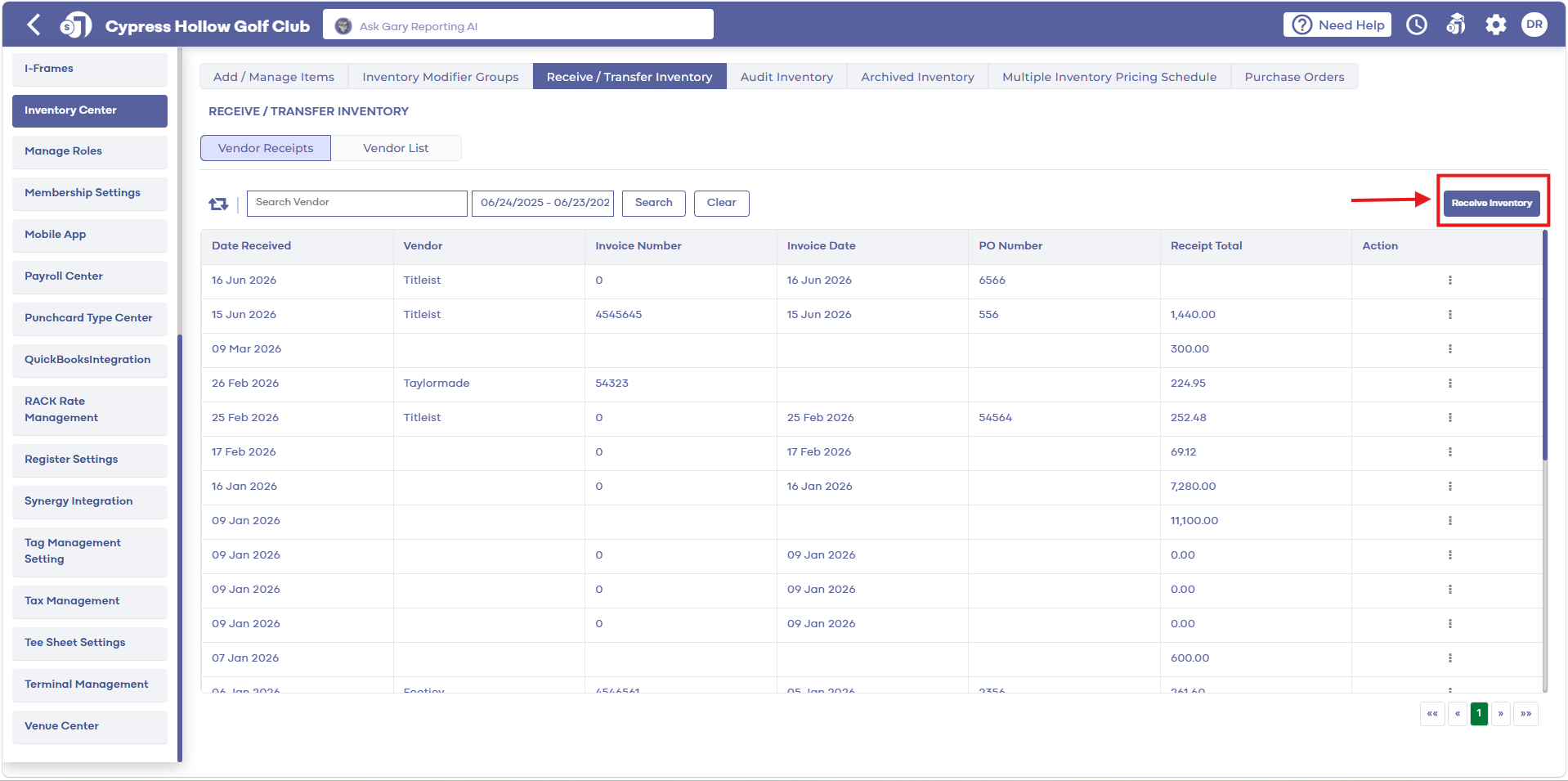


Step 3: In the RECEIVE INVENTORY window, search for the inventory by item name and PLU code then click Add. Enter the Received Qty and Received Unit Cost then click Submit.  


Step 4: Click View to see vendor receipts. The system will open a new VENDOR INVOICE window. Receipts can be filtered by DayWeekMonth, and Year or a selection can be made by date from the date selector for a specified period.


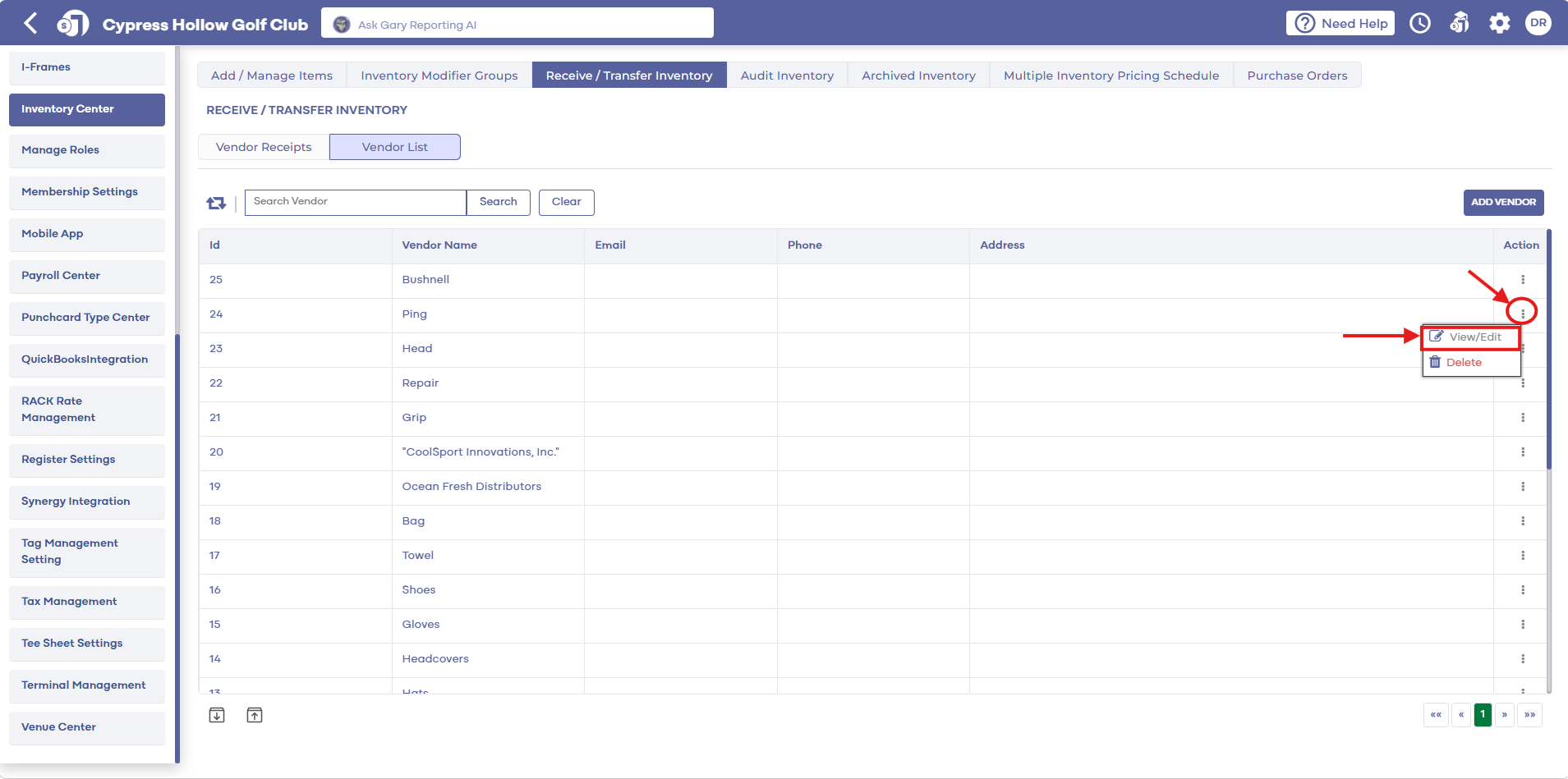
Step 5: Click the tab VENDOR LIST to see a list of vendors. A search can be performed by the vendor by name and then click Search.
 
 
Step 6: Click Add Vendor to add a new vendor. To modify an existing vendor, click View/Edit. To delete the vendor click the Delete button.


View/Edit: Will allow you to add address information once saved. 


    • Related Articles

    • Inventory Audit (Video)

      This article contains step-by-step instructions on how to maintain accurate inventory levels and how to evaluate item costs according to stock Step-by-Step: Step 1: Click the Gear Wheel icon from the window's top right corner. Select the Inventory ...
    • Manage Inventory Categories (Video)

      This article offers a step-by-step guide on how to add, edit, and delete categories in the Inventory Center, which is part of the settings module. Step-By-Step: Step 1: To start, click the Settings icon at the top right corner of the screen and ...
    • Add Item to Inventory (Video)

      Article Contents: This article summarizes how to create a new item using the Inventory Center found within Settings. Step-By-Step: Step 1: Click on the Gear Wheel Icon on the top right corner of the screen. Step 2: Click on the Inventory Center ...
    • Adding a Pricing Schedule (Video)

      Article Contents: This article contains step-by-step instructions on how to add a Pricing Schedule. Ex. Setting up discounts on drinks for a happy hour every Friday from 4-7pm. Video Contents: This tutorial video delves into the features and ...
    • Creating A New Group Modifier (Video)

      In this video tutorial, we will guide you through the process of creating an inventory item with modifiers We will cover how to start with an existing item template, update its details, choose menu colors, add modifiers, and apply them to the ...