Step-by-Step:
Step 1: Click on the Tee Sheet module along the top row.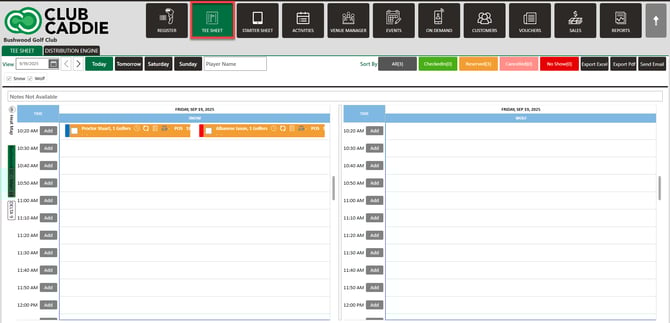
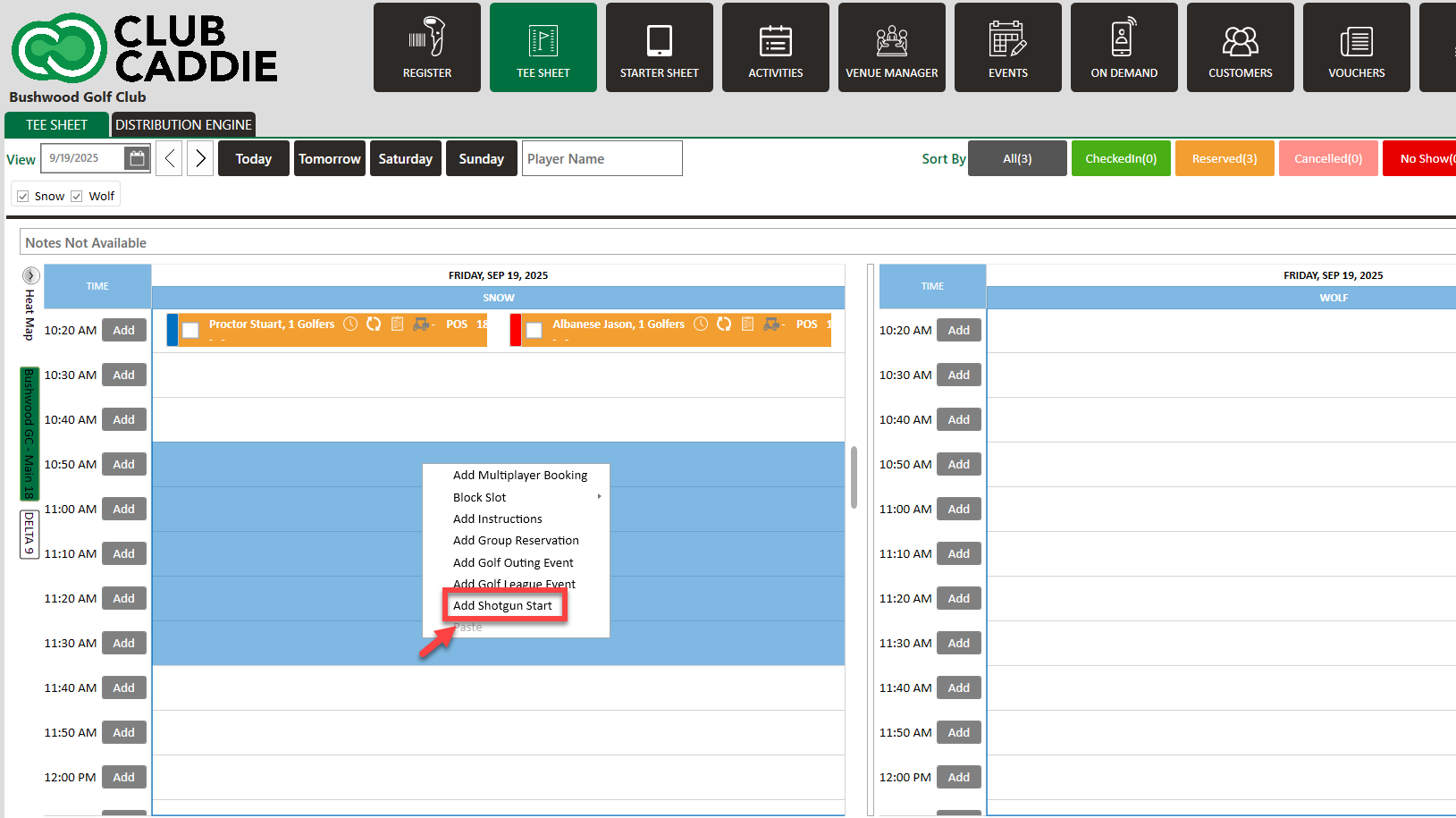
Step 2: On the tee sheet, you can either click and drag the time range (e.g., 9:00 AM to 1:30 PM for an 18-hole shotgun), select Shotgun Start, and the system will calculate the player capacity (e.g., 112 players), apply your turn time (e.g., 2 hours), and block the course as needed.
OR
Create a shotgun by right-clicking a start time, right-click on a specific time (e.g., 9:00 AM) and select Add Shotgun, enter your player count (e.g., 100 players). Jonas Synergy calculates the end time automatically (e.g., 1:10 PM for 100 players, taking up ~25 tee times).
Step 3: Enter shotgun details.
- Name the shotgun (e.g., “Spring Tournament” or “Shotgun Training”).
- Choose 18 holes or 9 holes.
- Set the Online Display Start Time if you want it to show a clean 9:00 AM even when tee slots technically begin at 8:56 AM.
Save and confirm.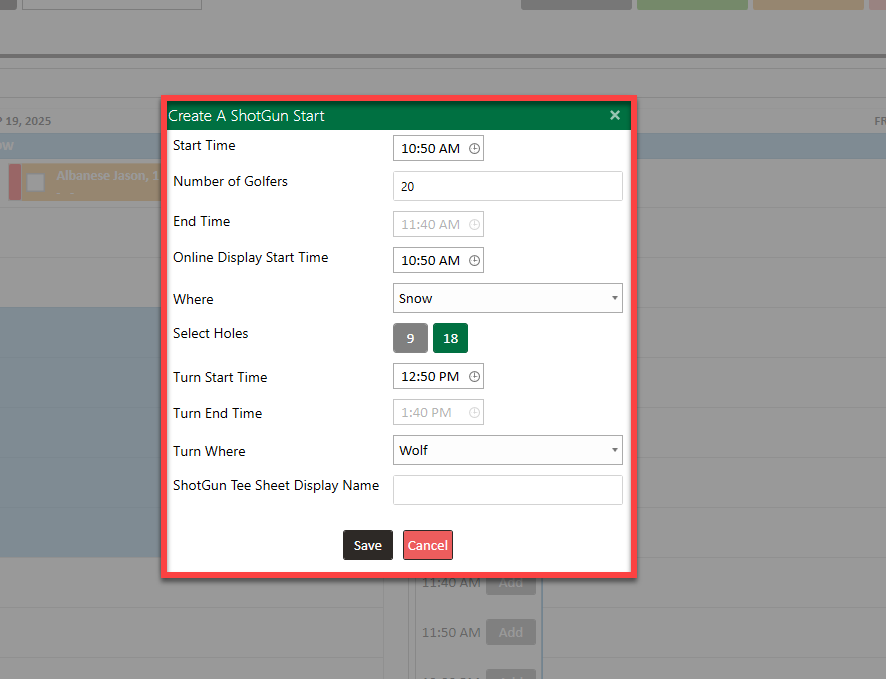
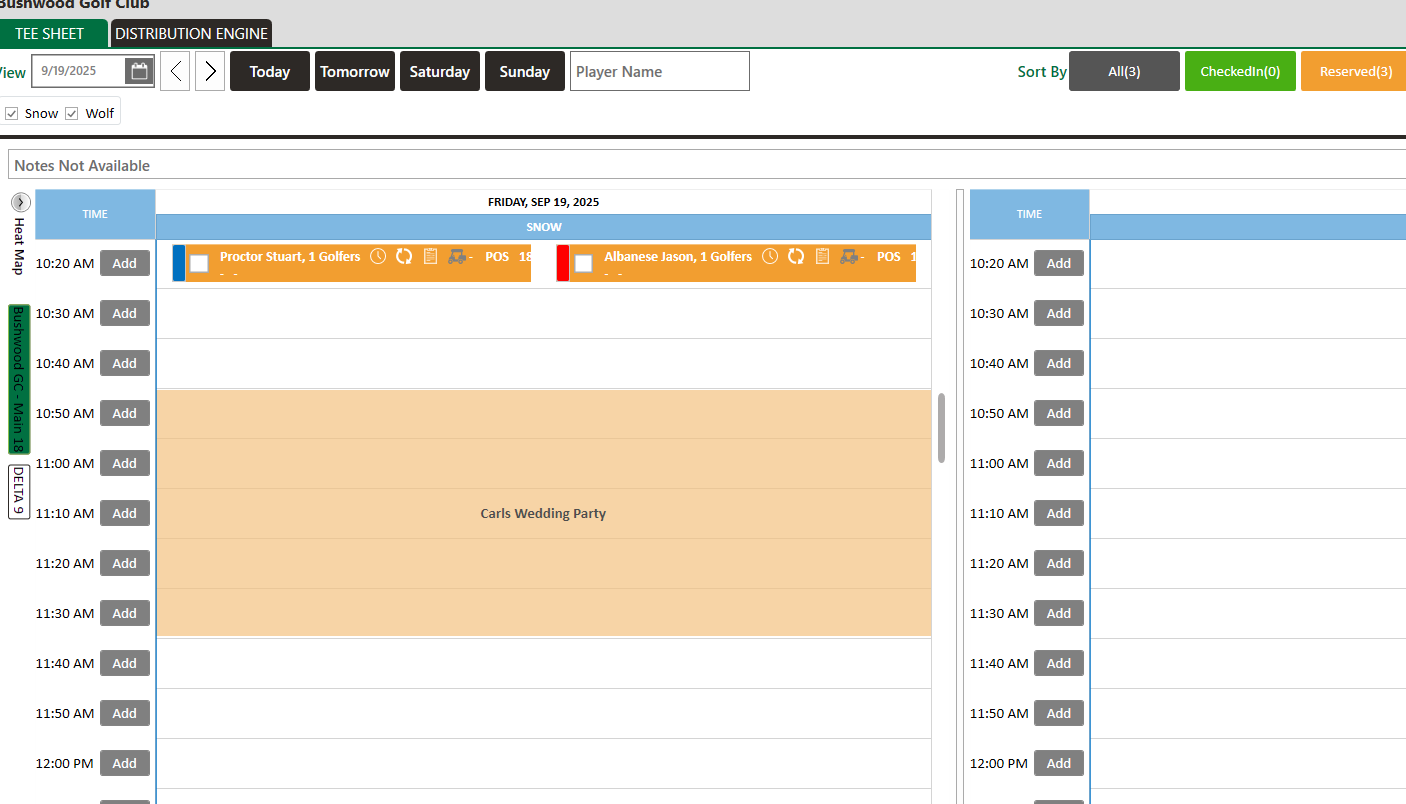
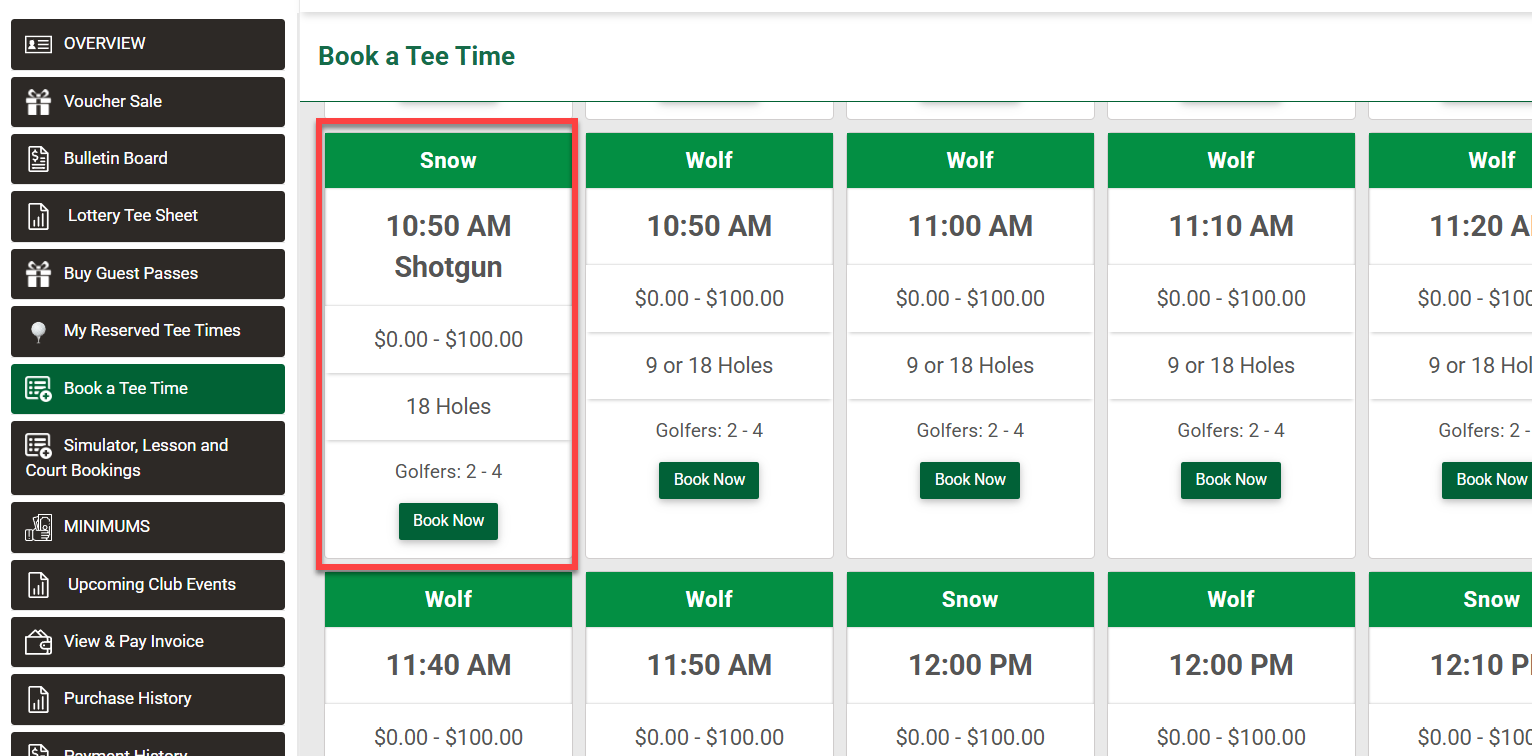
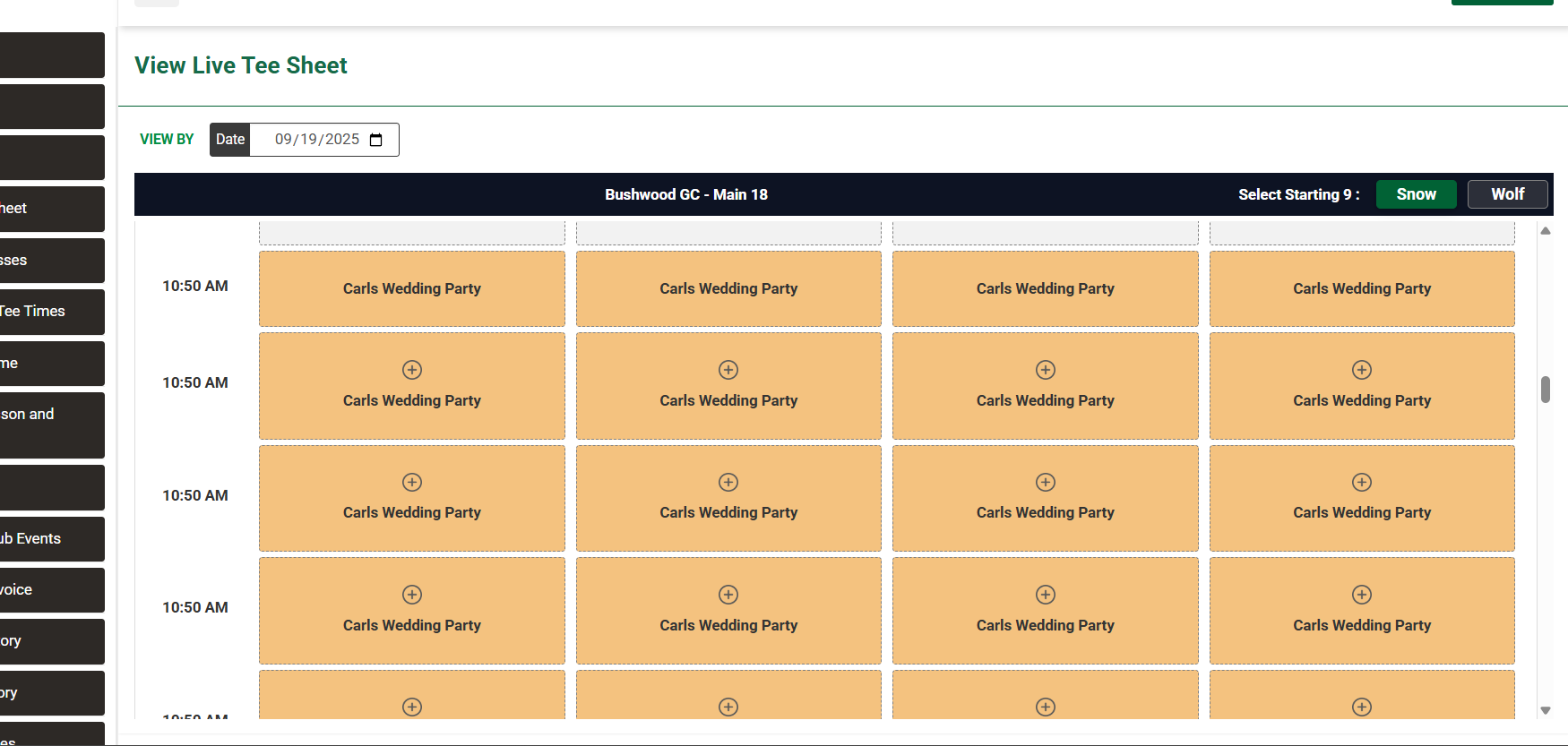
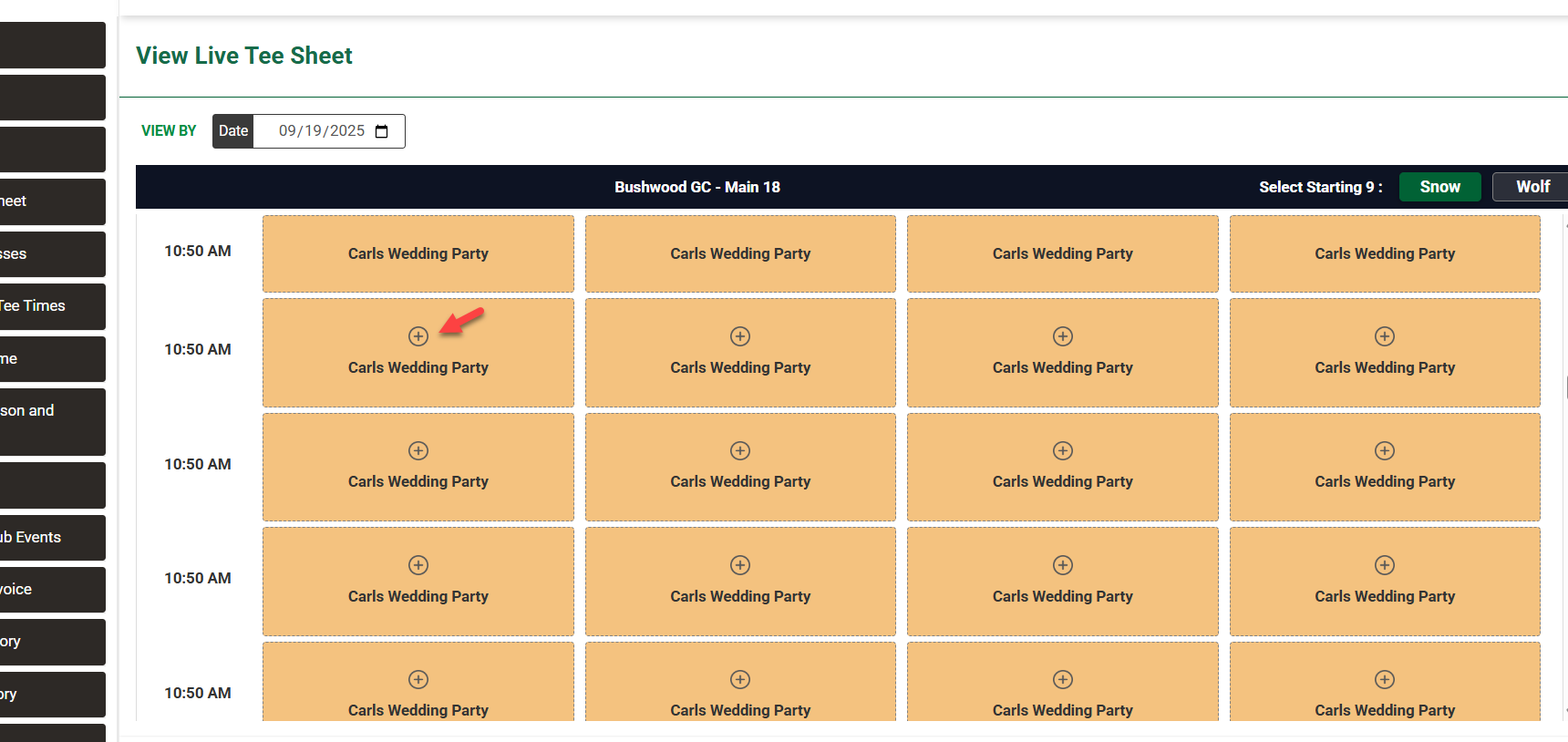
Step 4: Once saved, the shotgun displays on the tee sheet and appears in the booking engine.
In the booking engine, players will only see the shotgun start (e.g., “9:00 AM Shotgun”) and the sheet reopens automatically once the shotgun has finished (e.g., 1:10 PM).
Step 5: Manage course flow with Blocks.
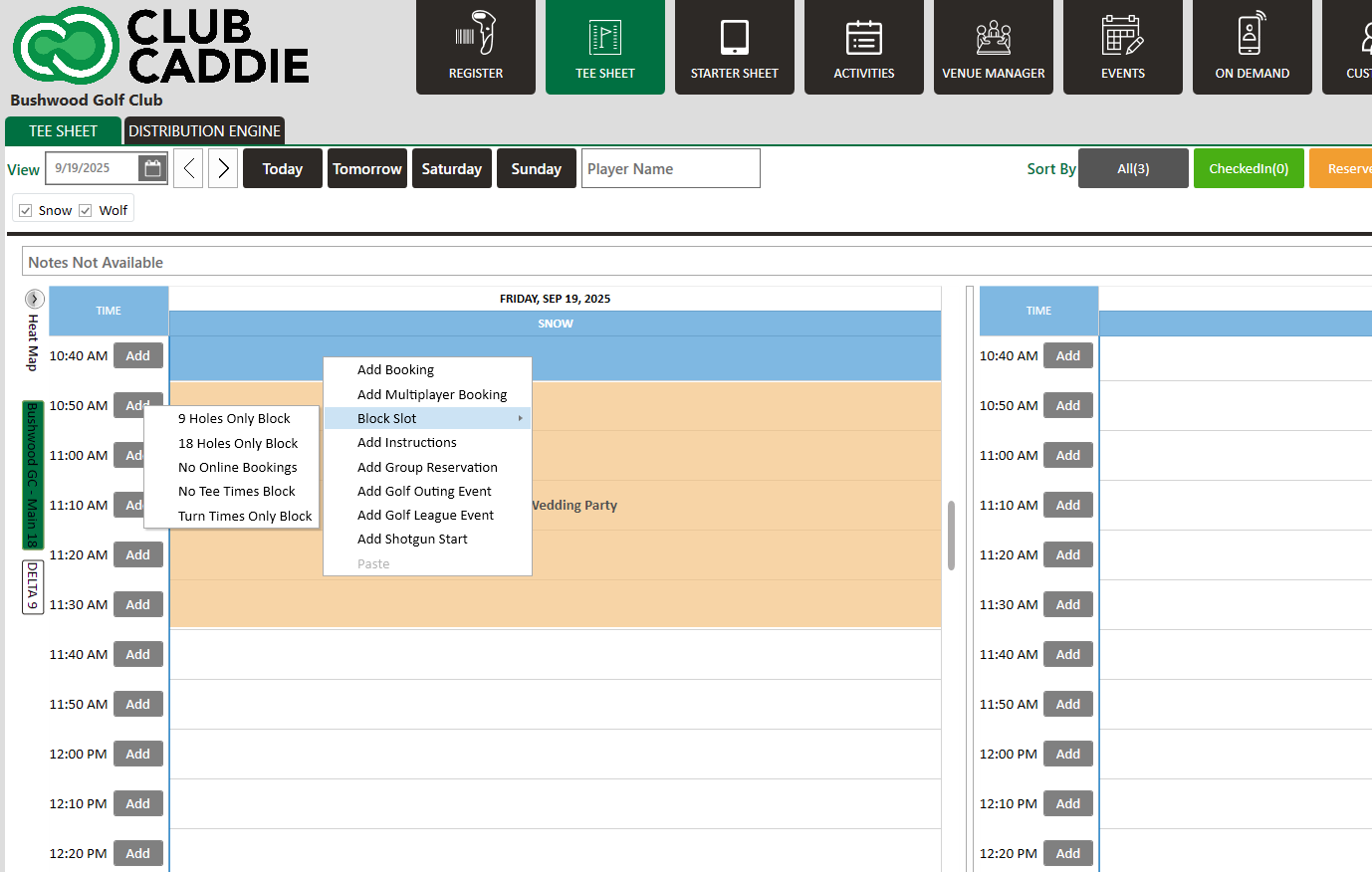
- To prevent conflicts, you may need to add:
- No Online Bookings in front of the shotgun.
- 9 Holes Only blocks if certain groups will finish early.
- OT Times Blocks if you need to fully restrict outside play.
Blocks ensure smooth flow and help manage cart inventory or overlapping play.
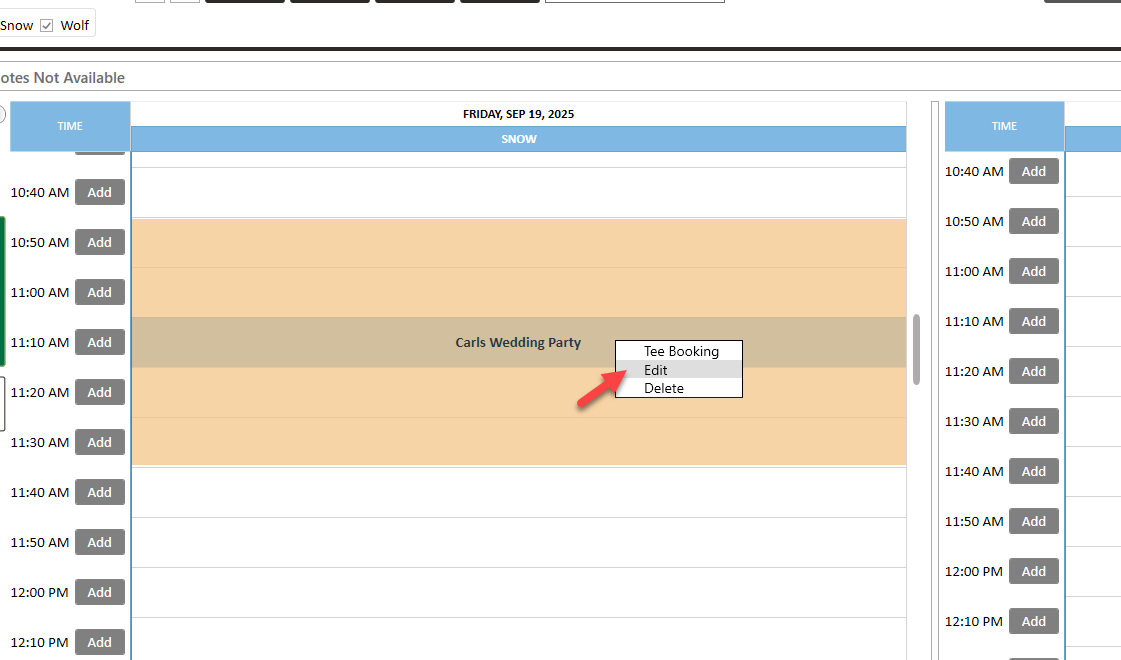
Step 6: Adjust player counts as needed. - Right click on the shotgun, and select Edit.
- If fewer players register than expected, update the shotgun size (e.g., from 100 to 64 players).
- The system automatically shrinks the blocked range, reopening later tee times (e.g., opening 11:40 AM slots for normal booking).
Step 7: Booking into a shotgun.
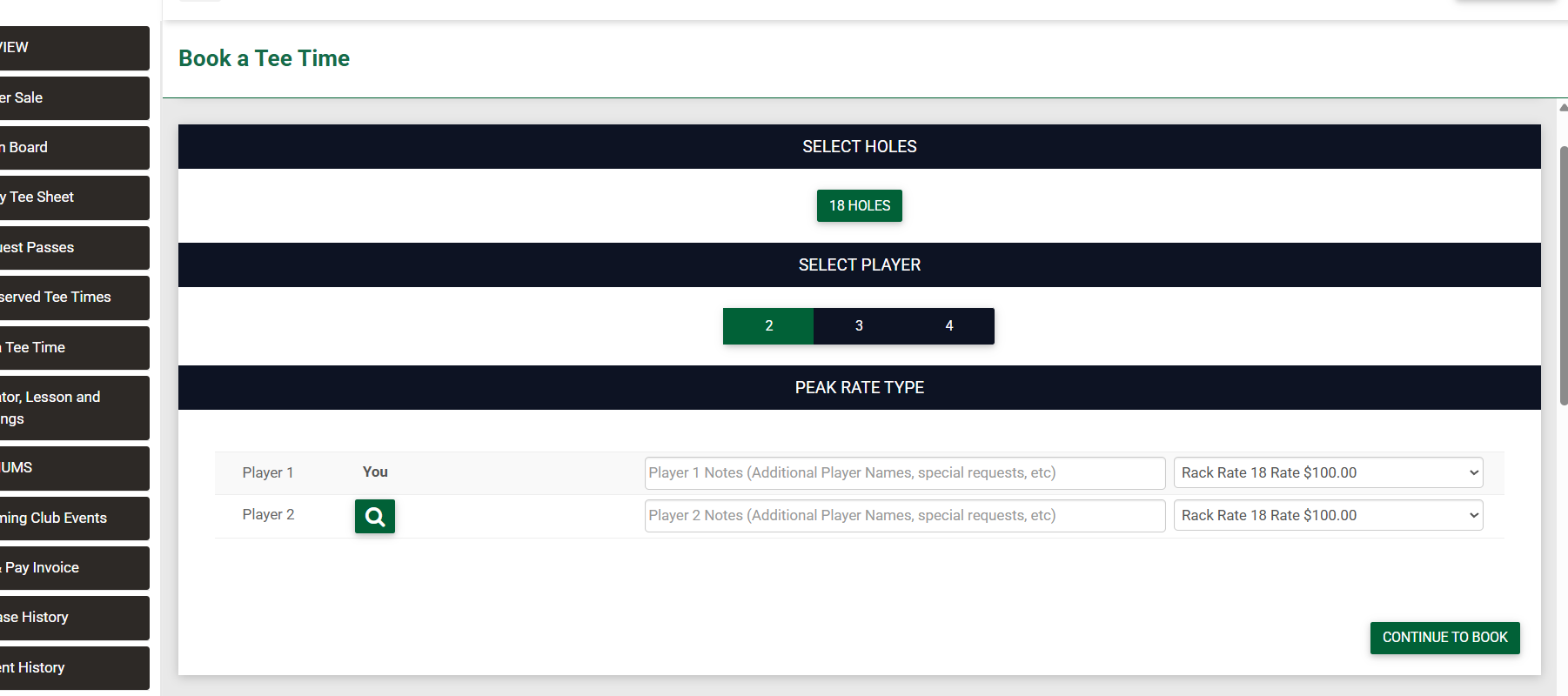
- Members can book just like a regular tee time, selecting the shotgun slot and choosing their number of players (1–4).
- The system fills slots sequentially (e.g., showing 9:00 AM but internally assigning 9:10 or 9:20).
As slots fill, additional players are placed into the next available time in the shotgun.
Tips & Tricks
- Always use the Online Display Start Time to keep your event start clean and consistent for members.
- If you don’t want outside play interfering, add appropriate blocks before and after the shotgun.
- Monitor registrations — adjusting the shotgun size on the day of the event can open up valuable tee times for general play.
- Remember that the system fills in shotgun slots sequentially, so even if players see “9:00 AM,” they may actually be placed into the 9:10 or 9:20 slot — the system handles this automatically.