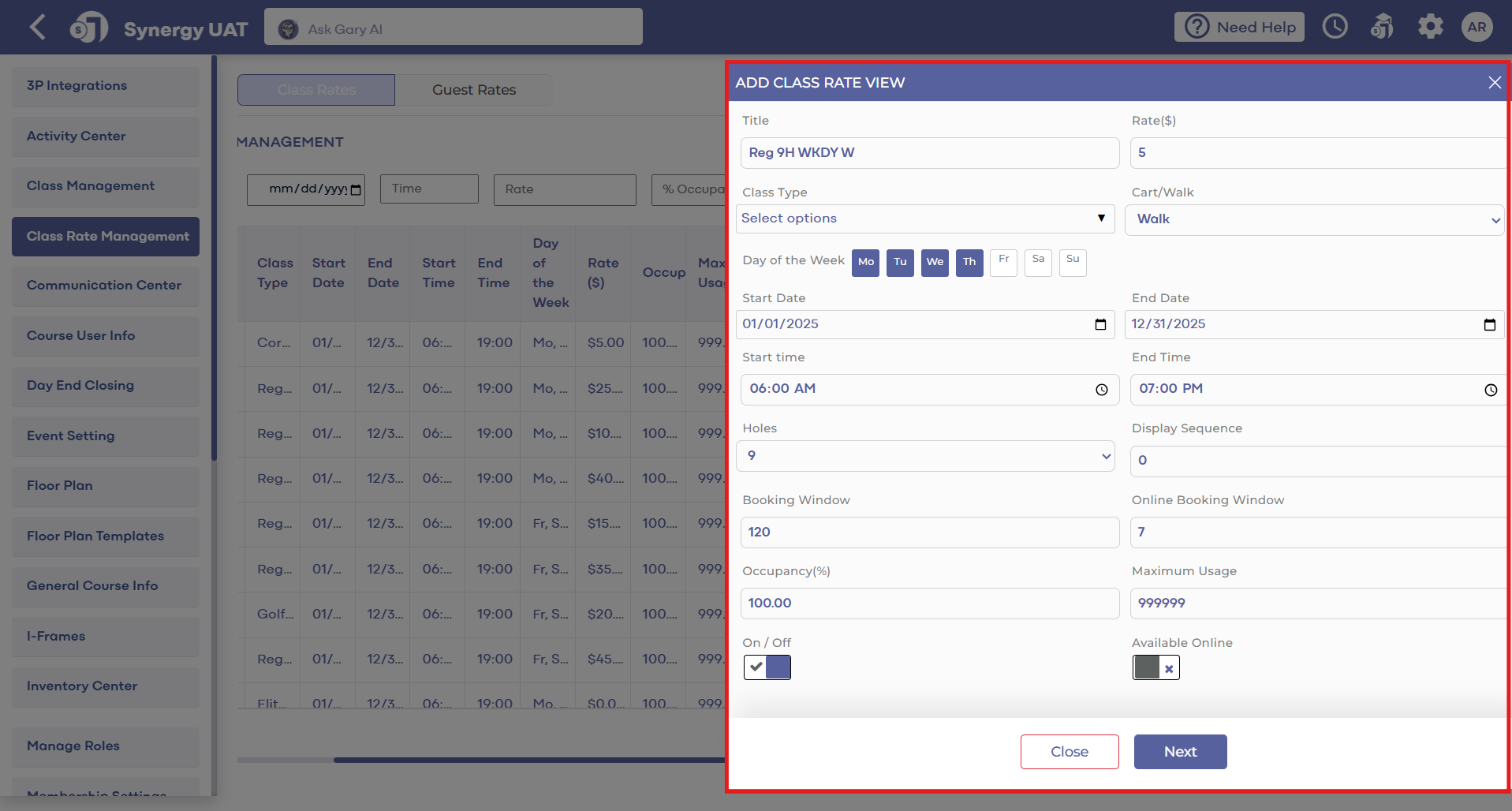
Assigning Class Rates to Multiple Classes
Related Articles
Guest Rates
Article Contents: This article contains a step-by-step guide on how to create specific rates for Guests. Example: Jason is a Platinum member and brings three non-members to play in his foursome, those non-members could receive a discounted guest ...
Class Rate Management
Article Content: This article provides step-by-step instructions on how to set up Class Rates. Step-By-Step These are rates that are typically used for members. - For public rates, utilize Rack Rate Management. Step 1: Click on the Gear Wheel Icon on ...
Class Management
Article Contents: This is a step-by-step guide on how to create a new class or edit an existing class. Step-By-Step: Step 1: Click on the Gear Wheel icon on the top-right corner of the screen. Then click on Class Management from the left-side menu. ...
Configuring Holiday Tee Time Rates
Article Contents: This article contains step-by-step instructions on setting up holiday rates, which will override existing rates for the specified day, making the holiday rate the only available class rate. Step-By-Step: Step 1: Log in to Jonas ...
Updating Sales Tax Rates For California Courses 2026
California sales tax rates change periodically as local district taxes are approved or extended by voters. When rates change, you’ll need to update Jonas Synergy before the effective date to make sure your transactions are charging the correct ...