Updating Sales Tax Rates For California Courses 2026
1) Find Your Correct Rate
California tax rates vary by city and county. The CDTFA (California Department of Tax and Fee Administration) publishes an address-based lookup tool that gives you the exact rate for your facility’s location.
To look up your rate:
- Step 1: Visit ca.gov/taxes-and-fees/sales-use-tax-rates.htm
- Step 2: Under the Current Tax Rates section, select Find a Sales and Use Tax Rate by Address.
- Step 3: Enter your facility’s street address and click Search. The result will show your exact combined rate, including state, county, and any local district taxes.
NOTE: New rates for April 1, 2026 will be searchable on CDTFA’s site beginning April 1, 2026. If you’re setting up rates in advance, refer to the rate change table below or the official CDTFA notice (L-1022).
April 1, 2026 Rate Changes — California
The following cities and counties have confirmed rate changes effective April 1, 2026, per California CDTFA Notice L-1022. If your facility is in one of these areas, your rate will need to be updated.
|
City / Area
|
County
|
Previous Rate
|
New Rate (Apr 1, 2026)
|
Change
|
|
City of Campbell
|
Santa Clara
|
9.875%
|
10.500%
|
▲
|
|
City of Dunsmuir
|
Siskiyou
|
7.750%
|
8.250%
|
▲
|
|
City of Los Gatos
|
Santa Clara
|
9.250%
|
9.875%
|
▲
|
|
City of McFarland
|
Kern
|
8.250%
|
9.250%
|
▲
|
|
City of Milpitas
|
Santa Clara
|
9.375%
|
10.000%
|
▲
|
|
City of San Jose
|
Santa Clara
|
9.375%
|
10.000%
|
▲
|
|
City of Santa Fe Springs
|
Los Angeles
|
10.750%
|
11.000%
|
▲
|
|
Santa Clara County (unincorporated)
|
Santa Clara
|
9.125%
|
9.750%
|
▲
|
If your city or county is not listed above, your rate may not have changed. Always verify using the CDTFA address lookup tool before making updates.
2) How to Update Your Tax Rate in Jonas Synergy
Jonas Synergy doesn’t let you edit an existing tax type directly — and that’s intentional. Old tax types are preserved so your historical reports stay accurate. Instead, you’ll create a new tax type with the updated rate and assign it to your inventory items going forward.
Phase 1: Create the New Tax Type
Step 1: Settings (gear icon, top right) > Tax Management
Step 2: On the Tax List column, click Add Tax Type.
Step 3: Fill in the following fields:
- Name: Use a clear, date-stamped name. For example: CA Sales Tax 9.75% — Apr 2026. This makes it easy to identify in reports.
- Chart of Accounts: Select your tax account.
- Rate: Enter the number only — no % symbol. For example: 75
Step 4: Click Save. Your new tax type will appear in the Tax List.
NOTE: If you use Tax Groups (combining multiple tax types), you’ll need to create a new Tax Group that includes the new tax type. See Phase 2 below.
Phase 2: Update Your Tax Group (If Applicable)
If your facility uses Tax Groups — for example, combining a state tax and a local district tax — you’ll need to create a new group that includes the updated rate.
Step 1: In the Tax List column, check the box next to the new tax type you just created.
Step 2: Click Add to Group. The selected tax will appear in the Create Tax Group
Step 3: Enter a Group Title. Example: TAXES
Now click Create Group.
Step 4: The new group will appear in the Taxes Group
NOTE: Do not delete your old tax group. It’s tied to historical transactions and removing it will affect past reports.
Phase 3: Assign the New Rate to Your Inventory Items
Creating the tax type is only half the job. You’ll also need to update your inventory items so they use the new rate at checkout.
Step 1: Settings > Inventory Center
Step 2: Double-click the inventory item you want to update.
Step 3: Find the Tax Group dropdown and select your new tax rate or group.
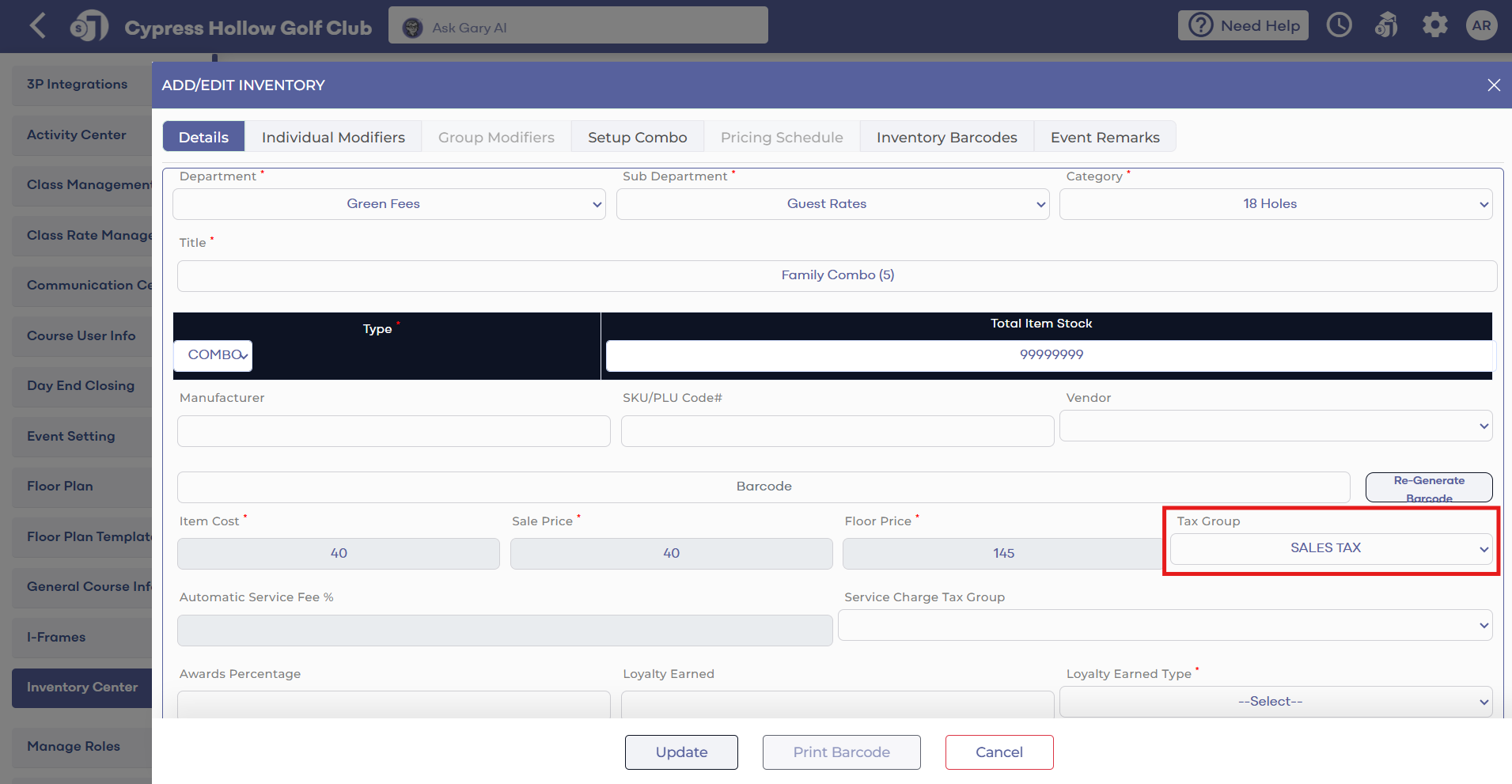
Step 4: Click Update to save the change.
Step 5: Repeat for each item that needs the updated rate.
TIP: If you have a large number of inventory items, work through them by category — for example, update all green fee items first, then merchandise, then food and beverage. This helps you track where you are without missing anything.
3) Verify the Update
Once you’ve updated your inventory items, do a quick check before the effective date to make sure everything looks right.
- Open Point of Sale (POS) and start a test transaction with one of the updated items.
- Confirm the correct tax rate appears in the checkout breakdown.
- If the old rate is still showing, double-check that the item’s Tax Group was saved correctly in the Inventory Center.
NOTE: Tax rate changes only apply to new transactions after the update. Past transactions will always reflect the rate that was in place at the time of sale. This is expected behavior and is important for your records.
Related Articles
How to Update Sales Tax Percentages
Article Contents: When your local sales tax rate changes, you’ll need to update Jonas Synergy to make sure new transactions charge the correct amount. This article walks you through creating a new tax type and applying it to your inventory items. ...Guest Rates
Article Contents: This article contains a step-by-step guide on how to create specific rates for Guests. Example: Jason is a Platinum member and brings three non-members to play in his foursome, those non-members could receive a discounted guest ...Tax Management Overview
Article Contents: This article contains information on the tax management settings. Step-by-Step: Step 1: Click on the Gear Wheel icon on the top right corner of the screen. Then click on the Tax Management button from the left menu. Step 2: Adding ...Creating Holiday Rates
This article contains step-by-step instructions on how to establish holiday tee time rates. These rates will override regular rates for the specified holiday, ensuring that the holiday rate is the primary rack rate for that day, except when other ...Adding Rack Rates
This article shows how to Add rack rates to tee sheet. Step-By-Step: Step 1: Click on the Gear Wheel Icon on the top right corner of the screen for Settings. Then, click on Rack Rate Management on the left-hand-side menu. Step 2: Click on "Add" for ...