Setting up Holiday Tee Time Rates

SETTINGS: CONFIGURING HOLIDAY TEE TIME RATES

Article Contents: This article contains step-by-step instructions on setting up holiday rates, which will override existing rates for the specified day, making the holiday rate the only available class rate.

Step-By-Step Instructions:
 
Step 1: Log in to Jonas Synergy and navigate to the  Settings menu. From there, select " Rack  Rate Management ."
 
 
Step 2: In the Rack Rate Management section, click on the " ADD" button to create a new holiday rate.
 
 
Step 3: Fill out the required information for the holiday rate, such as the name, date, and pricing details. If you need further guidance on creating class rates, please refer to the article " How to Add Rack Rates" ( https://desk.zoho.com/portal/en/kb/articles/add-rack-rates-to-teesheet)

 
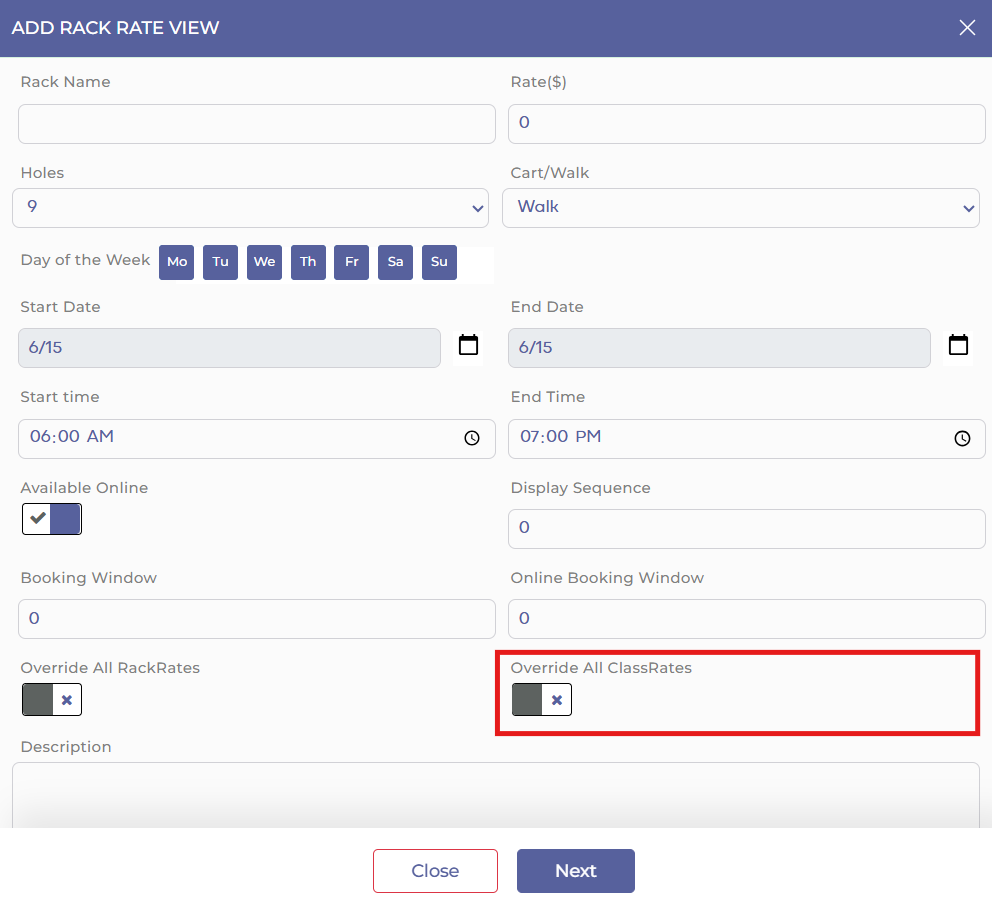
Step 4: Once you have filled out the necessary information for the holiday rate, locate the toggle switch next to the label " Override All ClassRates." Click on this toggle to enable the override feature.

With the " Override All ClassRates" toggle activated, the holiday rate you created will be the only available rate for the specified date. All class rates will be hidden from customers, ensuring that the holiday rate is applied.
 
Step 5: Review the details of your holiday rate to ensure accuracy. If everything looks correct, click " Next" to continue filling in holiday rate details. Once completed click " Save" to apply those rate to the tee sheet.
 
To confirm the holiday rate has been set up correctly, navigate to the tee sheet for the specified date and verify that the holiday rate is displayed overriding class rates.
 
By following these step-by-step instructions, you can successfully set up holiday tee time rates for your golf course, ensuring that customers are charged the correct rates during holiday periods.


    • Related Articles

    • Creating Holiday Rates

      This article contains step-by-step instructions on how to establish holiday tee time rates. These rates will override regular rates for the specified holiday, ensuring that the holiday rate is the primary rack rate for that day, except when other ...
    • SETTINGS: PREPAID TEE TIME LIABILITIES

      The new Prepaid Tee Time Liability feature allows facilities to require a flat fee deposit per player for online bookings, ensuring partial payment is collected upfront. This deposit can be configured as nonrefundable, streamlining revenue handling ...
    • SETTINGS: TEE SHEET COLOR CODING

      Article Contents: This article provides guidance on color-coding Class Rates on the Tee Sheet for easy visual reference. Step 1: Navigate to "Settings" on the system's main menu. Step 2: Select "Class Management" from the list of options. Step 3: ...
    • SETTINS: TEE SHEET SETTINGS OVERVIEW

      This article summarizes Tee Sheet Settings. The topics include Sales Tax, Prepaid Percentage, Max Golfers Per Slot For Online Sale, Select Holes, Tee Time Squeeze, Maximum Golfers, and Interval Settings Step-By-Step: Step 1: Click on the Gear icon in ...
    • Tee Time Rack Rate Order

      This article contains step-by-step instructions on how to alter the sequence of rack rates for tee times in settings. Step-By-Step: Step 1: Click the Gear Wheel icon located in the top right corner of the screen. Step 2: From the left-hand menu, ...