General : Scheduling a Nightly Reboot
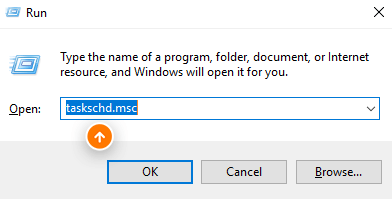
Step 1: Press "Win + R" to open the Run dialog box. Type `taskschd.msc` and press Enter. This action launches the Task Scheduler.
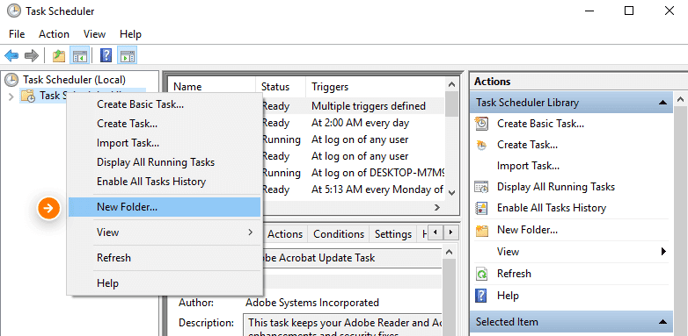
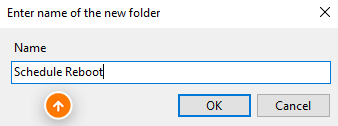
Step 2: In the Task Scheduler, right-click on "Task Scheduler Library" and select "New Folder." Name this new folder "Schedule Reboot" or a name of your preference, then click "OK.
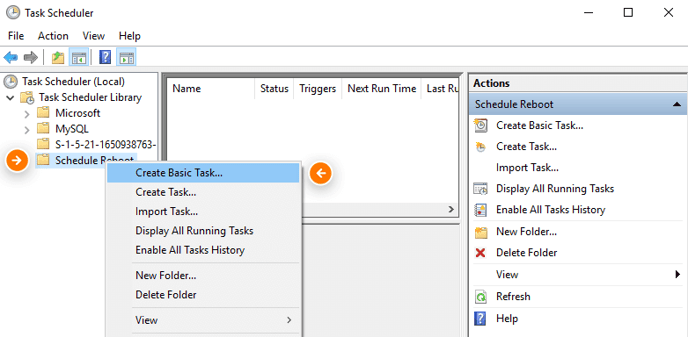
Step 3: Expand the "Task Scheduler Library" and select the "Schedule Reboot" folder. Right-click on this folder and choose "Create Basic Task." This opens a wizard. Name the task "Reboot" and click "Next."
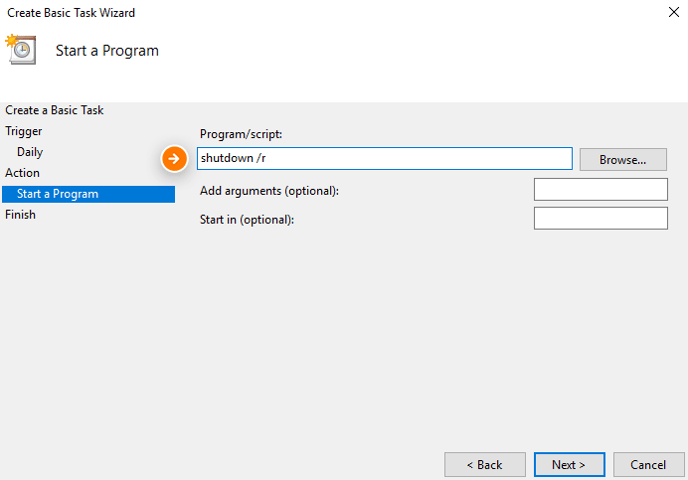
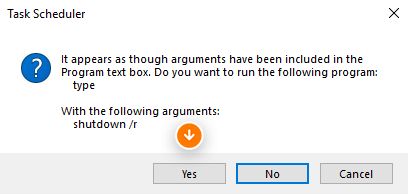
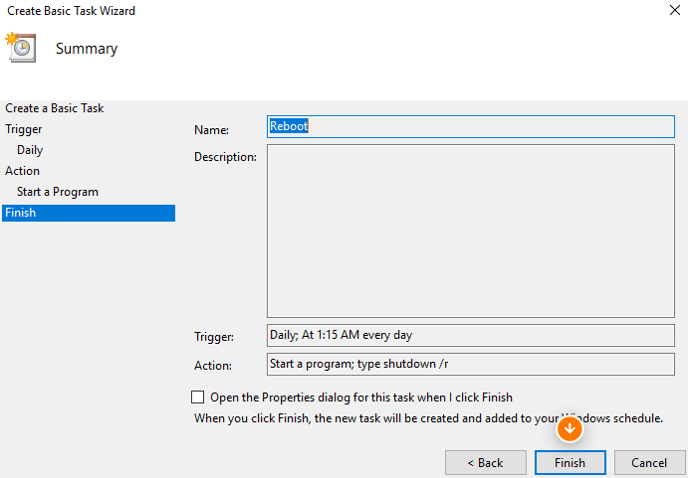
In the "Trigger" section, choose when you want the task to run (e.g., daily, one-time, weekly), then click "Next." Specify the exact time for the reboot to occur and proceed by clicking "Next." In the "Action" section, select "Start a program" and continue to the next step. Enter `shutdown /r` in the program/script field and click "Next." If prompted by Windows for permission, click "Yes." Click "Finish" to complete the setup of your task.
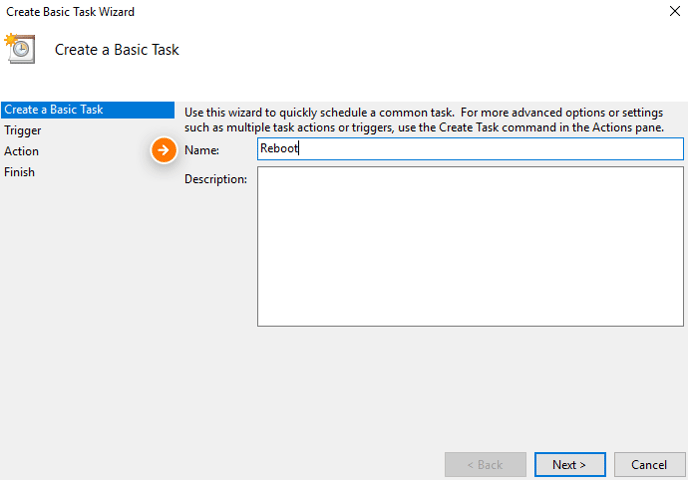
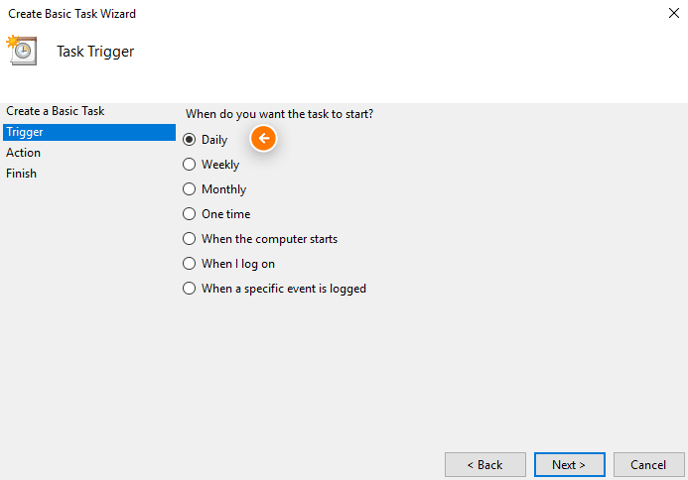
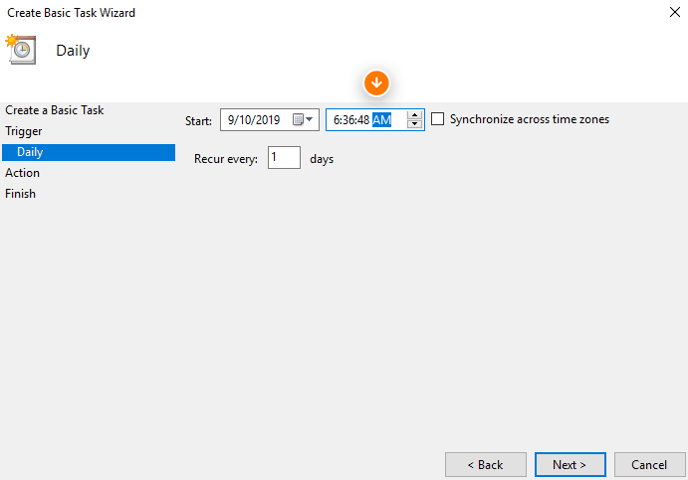
Step 4: In the "Trigger" section, choose when you want the task to run (e.g., daily, one-time, weekly), then click "Next." Specify the exact time for the reboot to occur and proceed by clicking "Next."
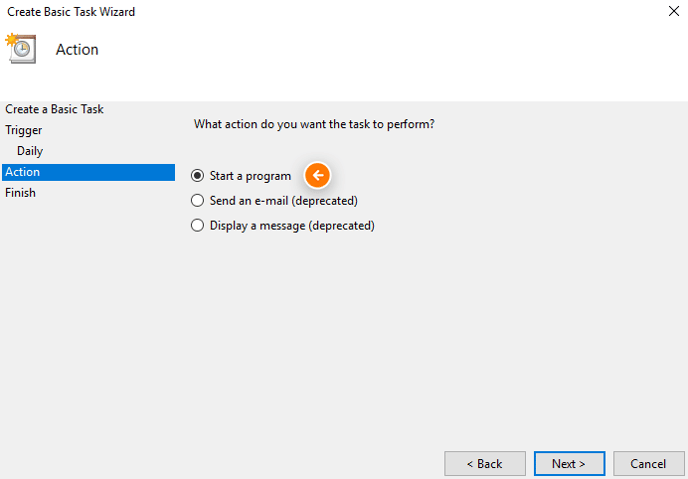
Step 5: In the "Action" section, select "Start a program" and continue to the next step. Enter `shutdown /r` in the program/script field and click "Next." If prompted by Windows for permission, click "Yes." Click "Finish" to complete the setup of your task.
Related Articles
General : Understanding the General Info Tab (Video)
In this video, we will provide an overview of the General Info Tab:General : Clocking In and Out
Article Contents: This article will guide you on the process of how to clock in and clock out within the software Step by Step Step 1: Access the Time Clock by clicking the clock icon in the top right-hand corner of your screen. Step 2: Enter your ...General : Downloading Jonas Synergy
Article Contents: This article will walk through the step by step process on how to download Jonas Synergy and log in to your facility's golf management software. Step by Step Step 1: To download the Synergy software head over to the link: ...General : Computer System Requirements
Article Contents: This article describes the necessary computer requirements for Jonas Synergy. Step by Step Step 1: Desktop Terminal Minimum Hardware: Intel i5 2.4/3ghz+ Processor 8GB DDR3 RAM HD Graphics Card 128GB Solid State Drive 20”+ ...General : Firewall Allow List
Article Contents: If you are on a restricted network environment, you might need to allow outbound/Inbound traffic between your network and Jonas Synergy to ensure that your environment can connect to our servers. Note: Domains listed in this article ...