Menu
Step-By-Step:
Step 1: Select the EVENTS module from the module navigation menu. Then, click on Golf Outing Manager in the left-hand menu.
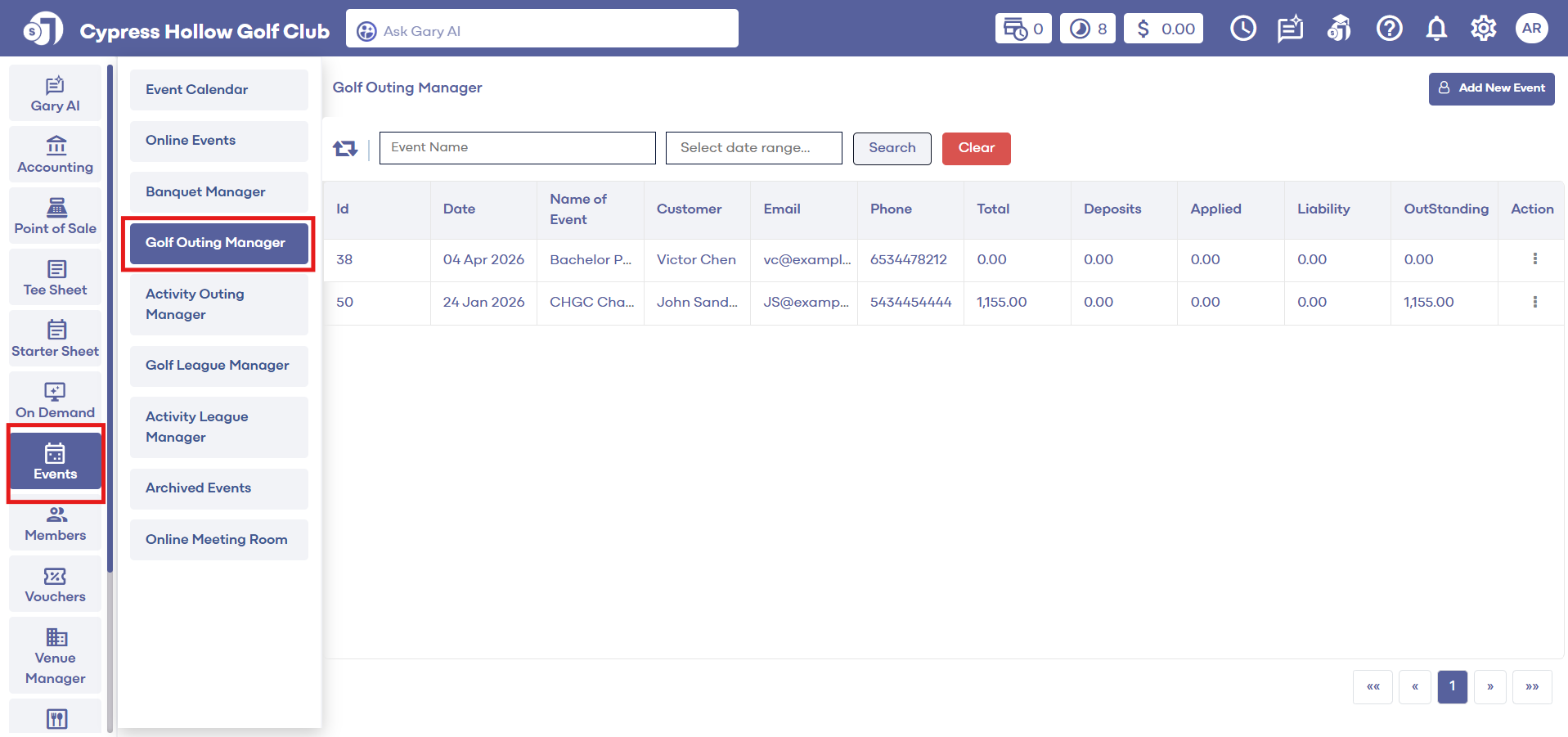
Step 2: The Golf Outing Manager shows a list of existing events. Under Action, click on the three small dots, followed by View/Edit. The System will generate an EDIT GOLF OUTING EVENT pop-up window.
Step 3: Select Menu under the EVENT BUILDER tab. Select Category, Sub-Category, and other necessary details. Once completed, click on the Add to Sheet button. The item will be added to the Sheet.
Related Articles
Menu
This article will help you understand Banquet Manager - Menu. Step-By-Step: Step 1 : Click on the “Events” button on the left-hand side pane, on the left hand of the screen click on “Banquet Manager” button from the row on the left. Step 2 : Click on ...Date Filters
This article contains step-by-step instructions on how to filter events by date. Step-By-Step: Step 1: Select the EVENTS module from the module navigation menu. Then, click on Banquet Manager in the left-hand menu. Step 2: The system will show a list ...Search Event
This article gives step-by-step instructions on how to search event names in the Golf Outing Manager. Step-By-Step: Step 1: Select the EVENTS module from the module navigation menu. Then, click on Golf Outing Manager in the left-hand menu. Step 2: ...Date Filter
This article contains step-by-step instructions on applying date filters to Golf Outings. Step-By-Step: Step 1: Select the EVENTS module from the module navigation menu. Then click Golf Outing Manager from the left-hand menu. Step 2: Select the Date ...Add-Ons
This article contains step-by-step instructions on how to add add-ons to a menu in sheet. Step-By-Step: Step 1: Select the EVENTS module from the module navigation menu. Step 2: Click on Banquet Manager in the left-hand menu. The Banquet Manager ...