Epson : Epson U220 Setup
Step-By-Step:
Downloading and Installing Software
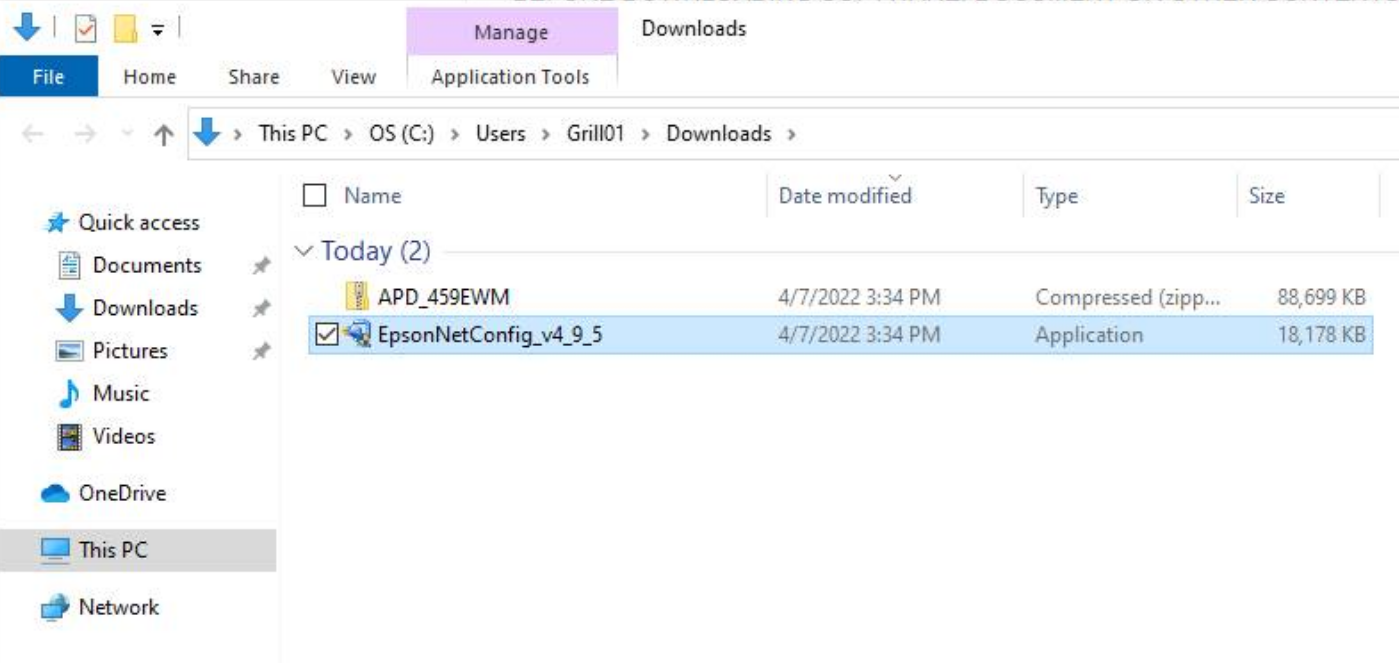
Step 1: Download Epson's Net Config utility and Epson's advanced printer drivers. This can be done through the provided link or by searching Google for each and clicking the first link.
Step 2: Launch the Epson Net Config tool installer. Follow the installation prompts until the installation complete message is displayed by the installation wizard.
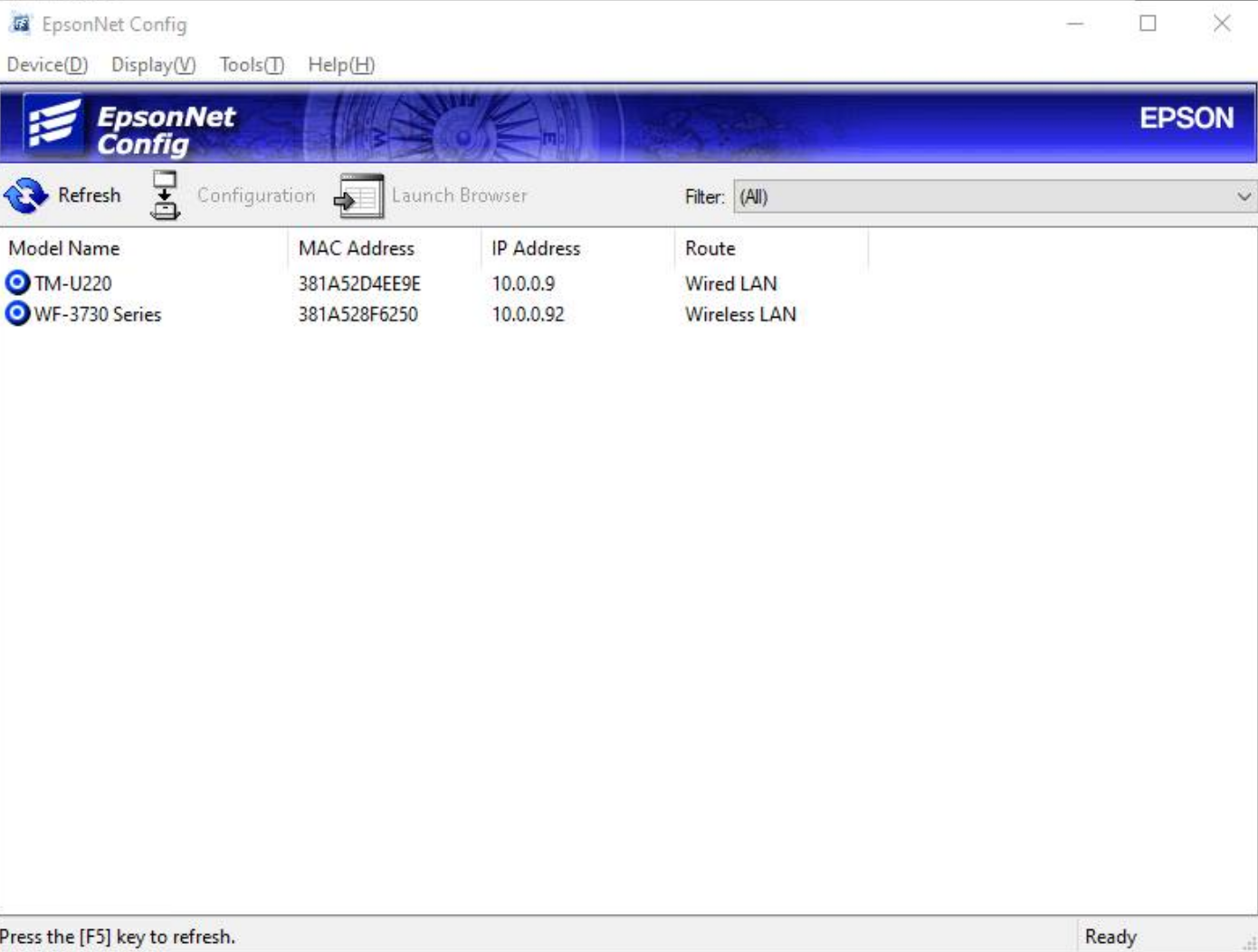
Step 3: Open the Epson Net Config application by typing "Epson Net Config" into your Windows search bar. Allow the application to add an exemption to your firewall when prompted. Ensure your printer is connected to your network if it doesn't appear in the displayed list of network-connected printers.
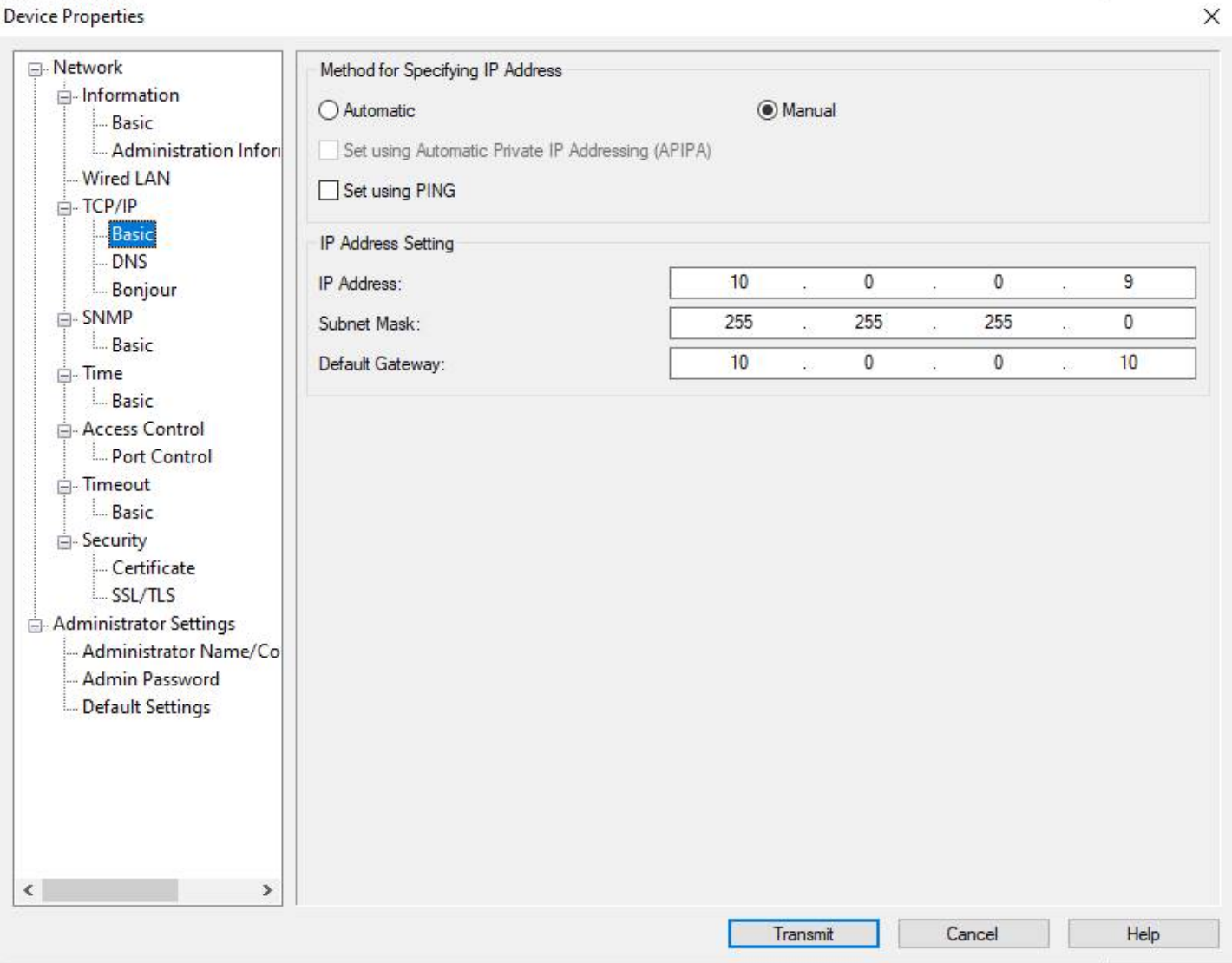
Step 4: Select your network printer and click "Configuration". Then, under TCP/IP configuration options, select "Basic". If an IP address is already populated, ensure "Manual" is selected before hitting "Transmit". If no IP address is displayed, set the IP address assignment to "Automatic" and transmit, then revert to "Manual".
Installing Advanced Printer Drivers
Step 5: Extract and open the Advanced Printer Drivers application.
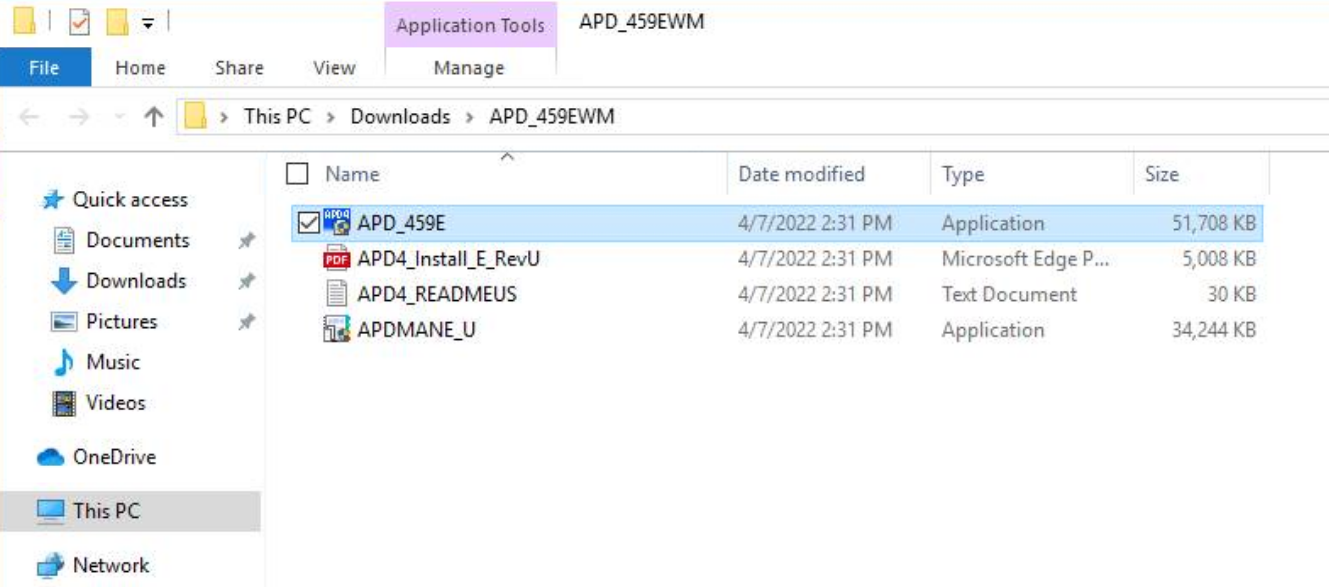
Step 6: Follow the installation prompts until you reach a screen with an "Add" button. Click this button to proceed.
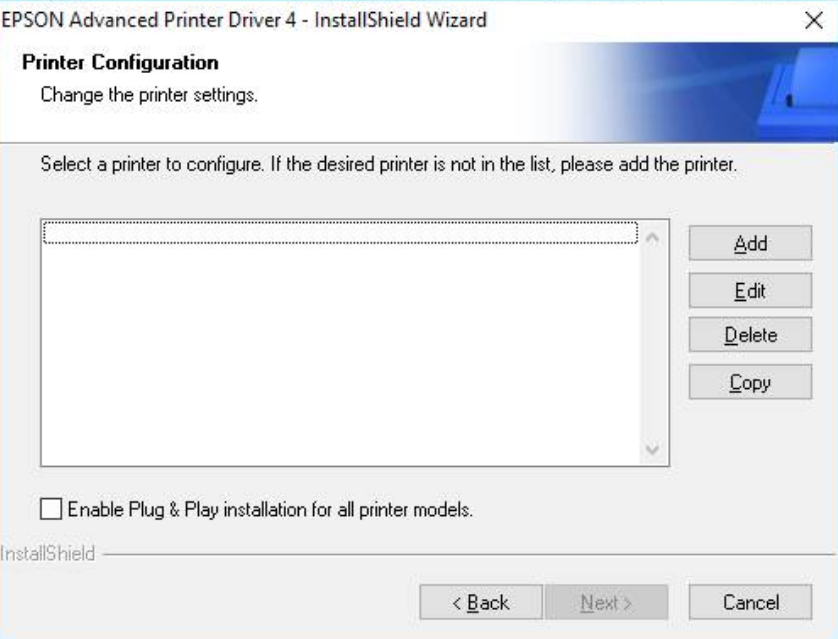
Step 7: Specify the printer model as U220. Leave the printer name as default or add a custom name if it is to be used as a kitchen/bar printer, following your settings in Jonas Synergy under departments -> printer options. For network printers, select "Ethernet Port" as the port type.
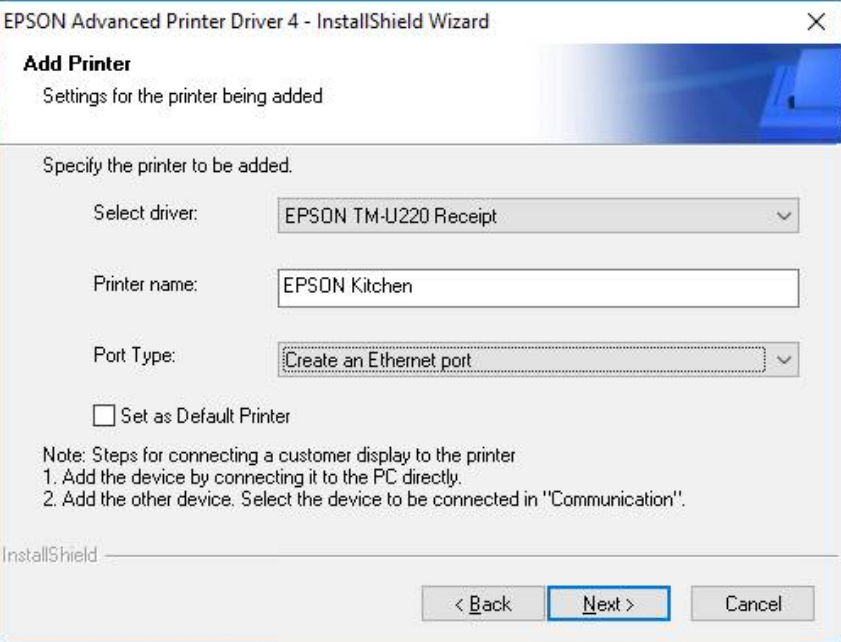
Step 8: Continue through the next screens until the installation complete message is displayed.
Testing the Printer
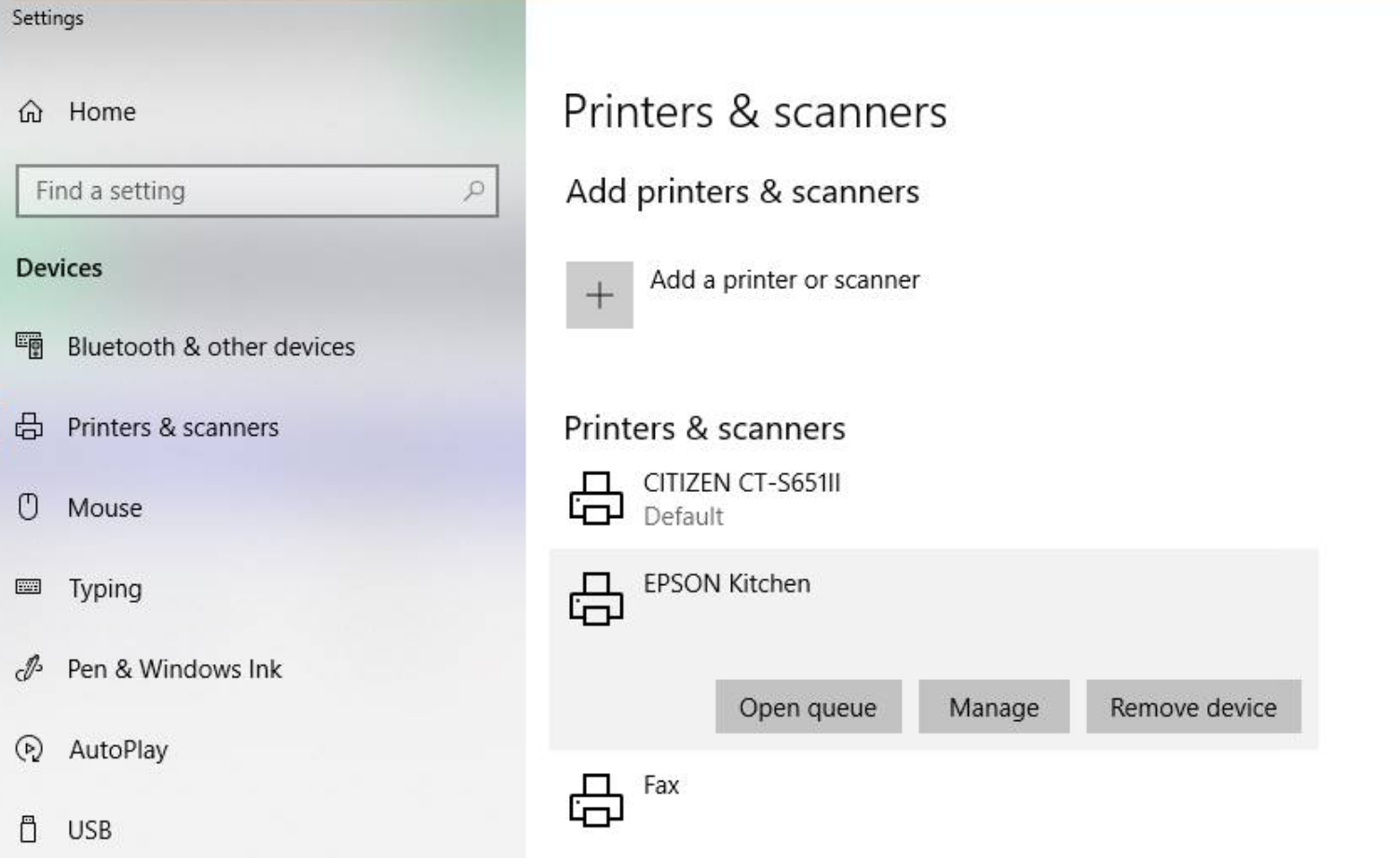
Step 9: In Windows "Printers and Scanners" settings, your new Epson Kitchen printer should now be listed. Test the printer by selecting a test print from the Windows print queue. Further testing within Jonas Synergy can be done by adding a food item from a department mapped to the kitchen printer and pressing "Send" in the register.
Related Articles
Epson : Epson TM-m30II (LAN) Receipt Printer Setup
Article Contents: This article provides instructions on setting up and installing the Epson TM-m30II (LAN) receipt printer for use with the Jonas Synergy system. Also covered in this article is the requirements, where to purchase the printer, how to ...Epson : Epson TM-m30II (Bluetooth) Receipt Printer Setup
Article Contents: This article covers the setup of a Epson TM-m30II (Bluetooth) Receipt Printer Requirements: To use this hardware with your Jonas Synergy system, you need to meet the following requirements: Where to buy the Epson TM-m30II receipt ...Epson : Downloading and installing the Epson driver for Windows
Downloading and installing the Epson driver for Windows. Step 1: Download the latest printer drivers. This is specialized software that helps the printer run correctly on your computer. To download this, go to Epson's website and select Windows ...Epson : Printer Error Lights
Article Contents: This article explains how to diagnose problems with an Epson printer by checking the status of its lights, including the power, paper, ink, and Wi-Fi lights. Step-By-Step: You can often diagnose problems with your product by ...Epson : Epson TM-20 Receipt Printer Troubleshooting and FAQs
This article provides troubleshooting tips for the Epson TM-T20ii thermal receipt printer, addressing issues such as the printer not printing receipts, being offline, or not connecting to the cash drawer. If you're having issues with your Epson ...