Ingenico IPP320 : Blank Message or not Connected
Note: Follow these step after the Ingenico credit card reader is plugged into the system and after all drivers and mSDK services have been installed and configured. If you do not believe this has been completed on your system, kindly launch a live chat session with our support team.
Step-By-Step:
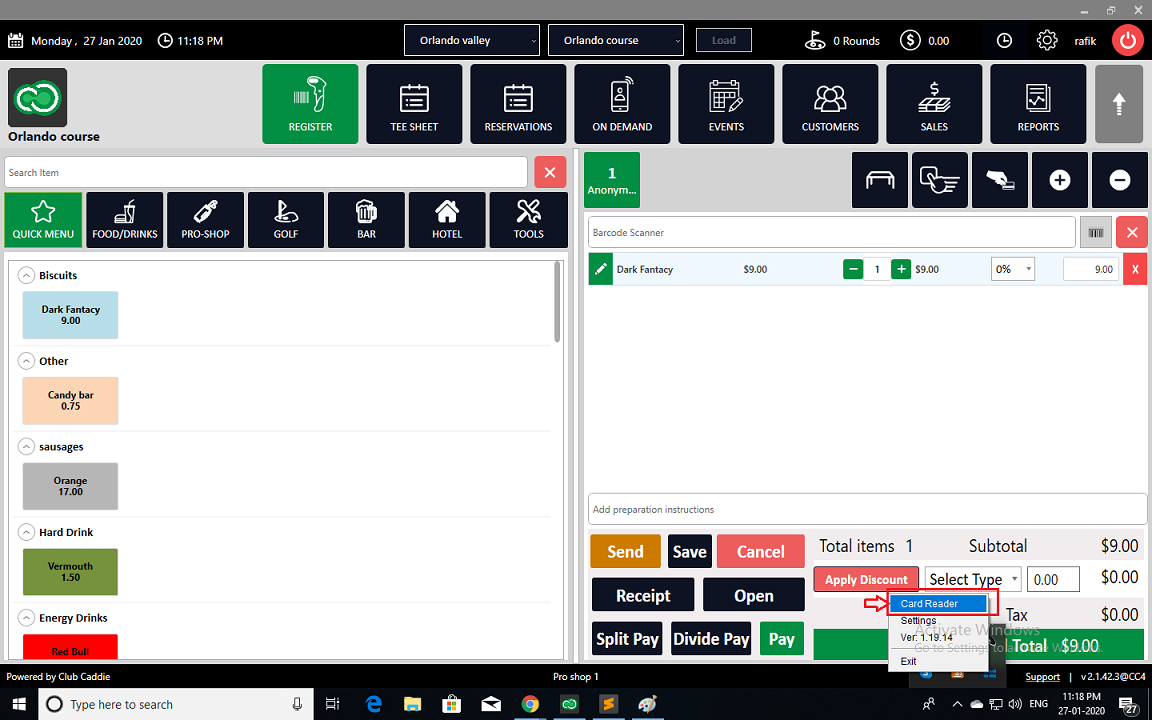
Step 1: In the task-bar at the bottom right-hand corner of your screen, you will see a blue-colored icon named 1stPay mSDK.
If this icon does not exist, first click on the up-arrow symbol next to the task-bar. If it is still not available kindly search in your windows search bar for "mSDK" and run the program's launcher.
If this icon does not exist, first click on the up-arrow symbol next to the task-bar. If it is still not available kindly search in your windows search bar for "mSDK" and run the program's launcher.
Step 2: Right-click on 1stPay mSDK symbol, select "Card Reader" from the drop-down list, it will open a new pop-up titled "Card Reader".
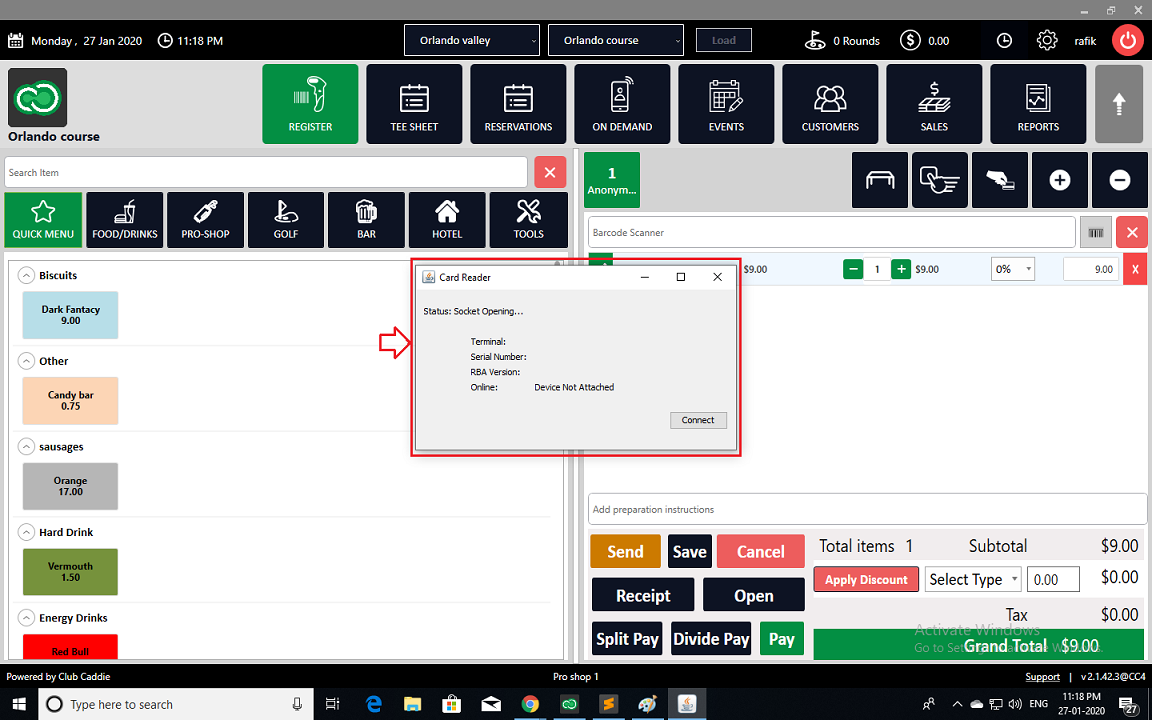
Please make sure that is it showing Terminal id, Serial Number, RBA version, and Online status, and if all are showing blank, click on the "Connect" button. If it still has trouble connecting please follow step 3 below.
Please make sure that is it showing Terminal id, Serial Number, RBA version, and Online status, and if all are showing blank, click on the "Connect" button. If it still has trouble connecting please follow step 3 below.
Step 3: Right-click again on the 1stPay mSDK icon and click on the "settings" option from the drop-down list. This will open a new pop up window titled "Settings".
Click on the "Stop" button then wait for 10 seconds before clicking on the "Start" button. The status will cycle through the setup and if resolved will turn to "Ready".
If it fails to connect kindly re-try steps 2 and 3, and contact support through the live chat option at the bottom of your screen.
Click on the "Stop" button then wait for 10 seconds before clicking on the "Start" button. The status will cycle through the setup and if resolved will turn to "Ready".
If it fails to connect kindly re-try steps 2 and 3, and contact support through the live chat option at the bottom of your screen.
After "Connected"
Related Articles
Ingenico Lane 3000 : User Guide
Article Contents: This article covers an overview of the Ingenico Lane 3000 User Guide. This Ingenico Lane 3000 User Guide covers the device's features, setup process, and troubleshooting. It explains how to connect the device, enter text using the ...Ingenico Lane 3000 : Device Disconnected
Article Contents: This article covers the steps to follow if your Ingenico Lane 3000 device is displaying "Disconnected." Step-By-Step: Step 1: Verify that you are using the provided multi-point mono connector (Ethernet) cable and power supply. The ...Ingenico Lane 3000 : PPS - 21 Invalid Merchant Error
Article Contents: This article provides guidance on addressing the "PPS - 21 Invalid Merchant" error encountered on payment terminals. Step-By-Step: Step 1: Identify the error message "PPS - 21 Invalid Merchant" on your payment terminal. Step 2: ...Ingenico Lane 3000 : Time Setting
Article Contents: To adjust the date and time in the Lane 3000 settings you will need to navigate the admin menu for the device by following the below instructions. Step-By-Step: Step 1: Accessing and Navigating the Admin Menu. - The Admin Menu ...Ingenico Lane 3000 : Beep Settings Configuration
Article Contents: This article provides an introduction on how to inform you to adjust the beep settings on your Lane 3000 device. Step-By-Step: Step 1: Access the Admin Menu by pressing O (the green button) to select Settings. Step 2: Press the down ...