Setting up a Default Printer
Step-By-Step:
Step 1: To choose a default printer, select the Start button and then Settings.
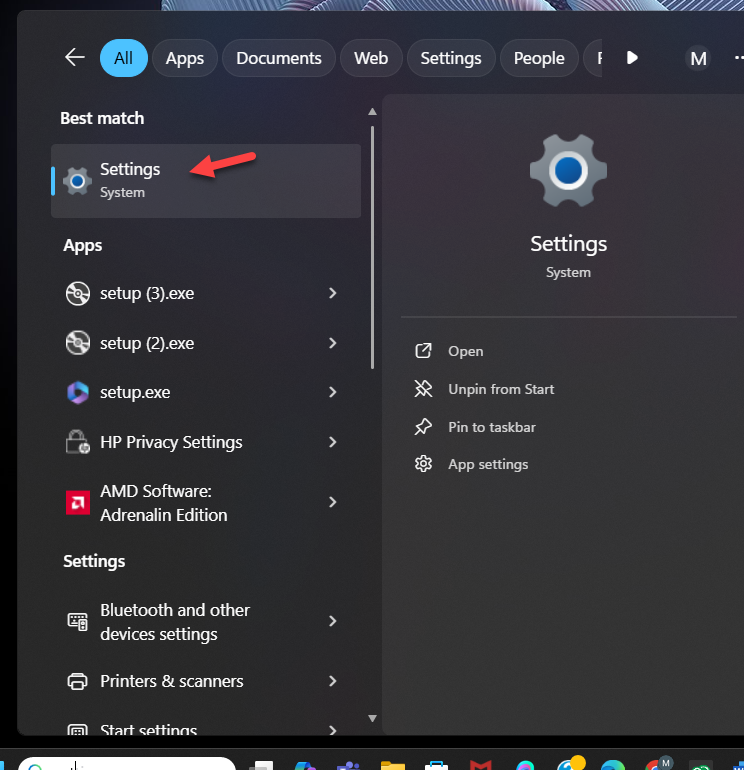
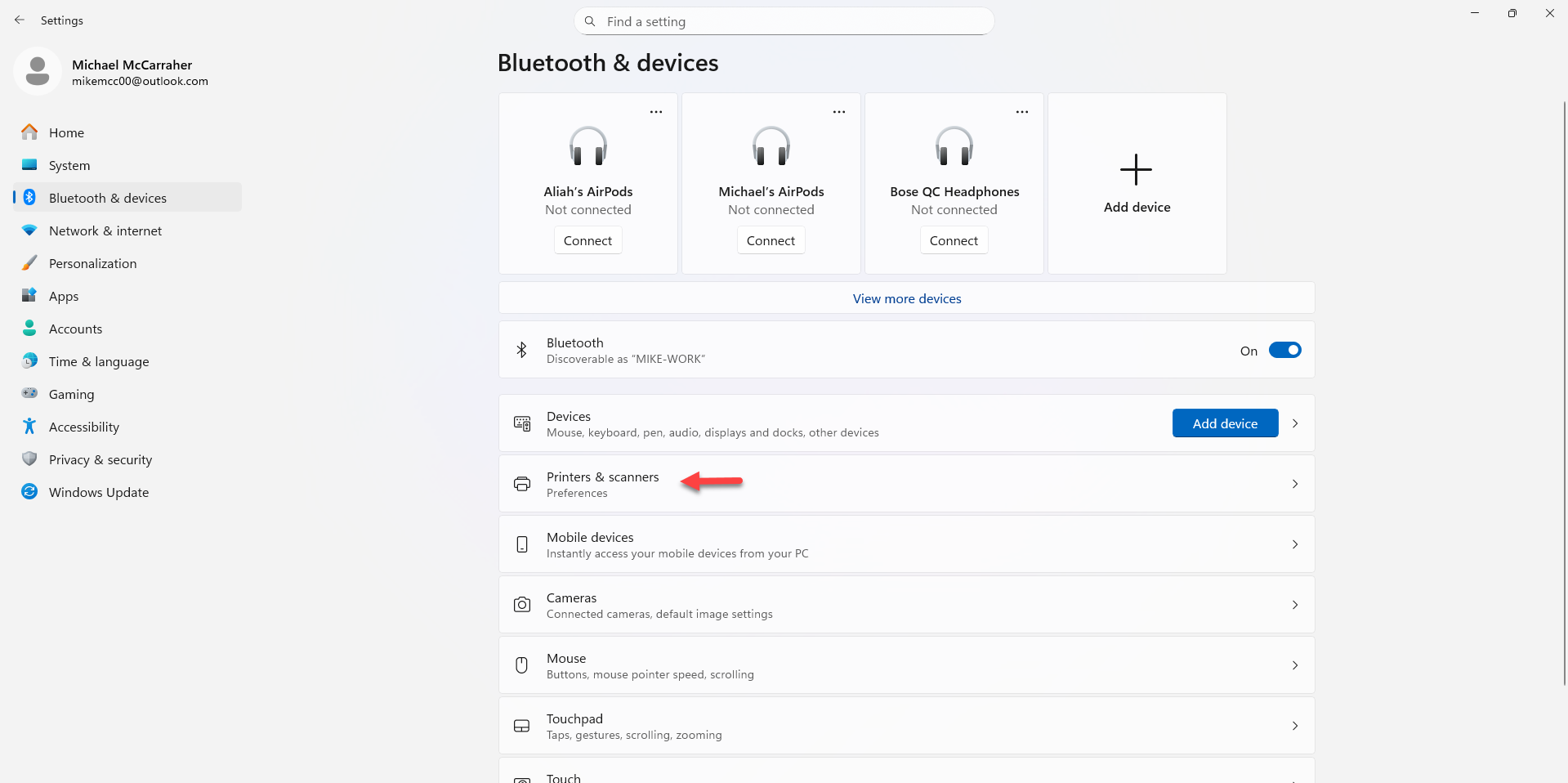
Step 2: Go to Devices > Printers & scanners > select a printer > Manage.
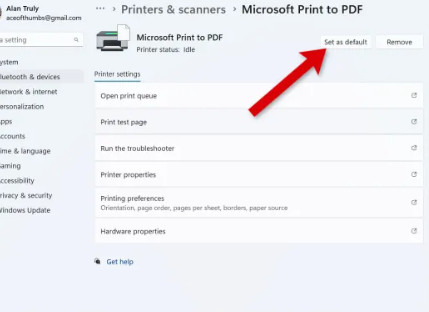
Step 3: Select the desired printer you are looking to print standard print jobs to and select Set as Default.
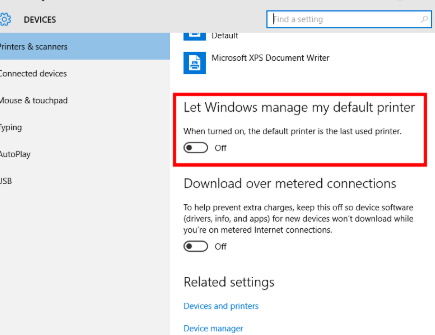
Step 3: If you are prevented from selecting a default or find that the selection is resetting. Please ensure that you deselect "Let Windows Manage My Default Printer" option pictured below:
Related Articles
Printer Paper Settings
Article Contents: This guide outlines the steps required to adjust the paper settings to use 72mm x receipt paper. Step-By-Step: Accessing Printer Settings Step 1: Open the Control Panel and left-click on “View devices and printers” under the ...Epson : Epson TM-m30II (LAN) Receipt Printer Setup
Article Contents: This article provides instructions on setting up and installing the Epson TM-m30II (LAN) receipt printer for use with the Jonas Synergy system. Also covered in this article is the requirements, where to purchase the printer, how to ...Epson : Epson TM-20 Receipt Printer Troubleshooting and FAQs
This article provides troubleshooting tips for the Epson TM-T20ii thermal receipt printer, addressing issues such as the printer not printing receipts, being offline, or not connecting to the cash drawer. If you're having issues with your Epson ...Ingenico Lane 3000 : Time Setting
Article Contents: To adjust the date and time in the Lane 3000 settings you will need to navigate the admin menu for the device by following the below instructions. Step-By-Step: Step 1: Accessing and Navigating the Admin Menu. - The Admin Menu ...Epson : Printer Error Lights
Article Contents: This article explains how to diagnose problems with an Epson printer by checking the status of its lights, including the power, paper, ink, and Wi-Fi lights. Step-By-Step: You can often diagnose problems with your product by ...