Printer Paper Settings
Step-By-Step:
Accessing Printer Settings
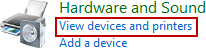
Step 1: Open the Control Panel and left-click on “View devices and printers” under the “Hardware and Sound” category.
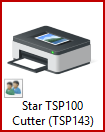
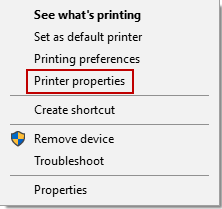
Step 2: In the “Devices and Printers” window, locate the Star Micronics printer’s icon under “Printers”. Right-click on the printer’s icon, then left-click on “Printer Properties”.
Adjusting Paper Size in Printer Preferences
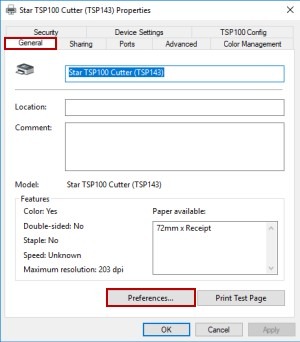
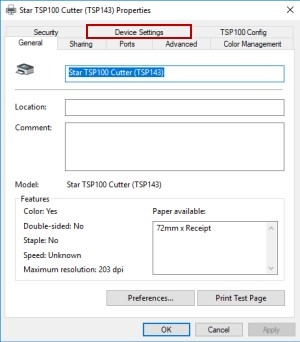
Step 3: With the “Printer Properties” window open, the “General” tab will be selected by default. Left-click on “Preferences”.
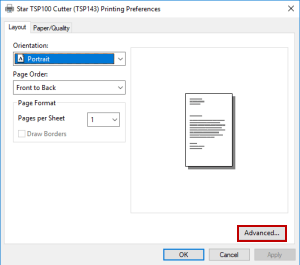
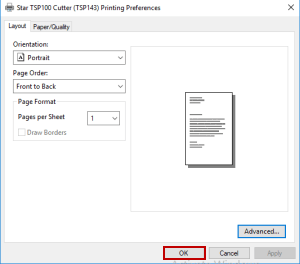
Step 4: In the “Preferences” window, left-click on “Advanced”.
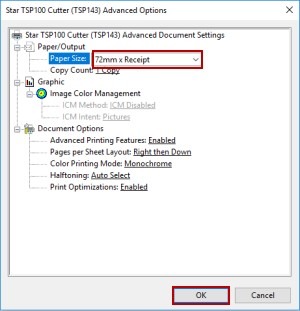
Step 5: Change the “Paper Size” setting to “72mm x Receipt” and click on “Ok”. Ensure to click “Ok” again in the “Preferences” window to apply the changes.
Configuring Device Settings
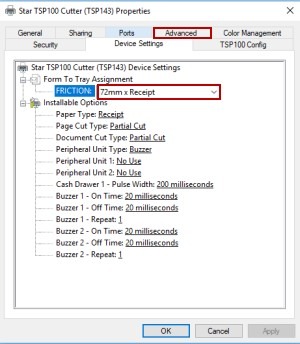
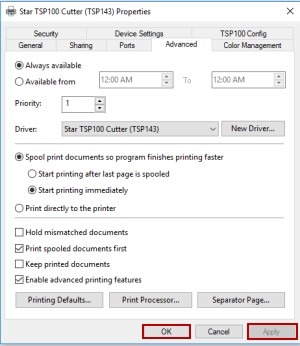
Step 6: Back in the “Printer Properties” window, left-click on “Device Settings” and adjust the “Friction” setting to “72mm x Receipt”. Then proceed by left-clicking on the “Advanced” tab.
Setting Printing Defaults
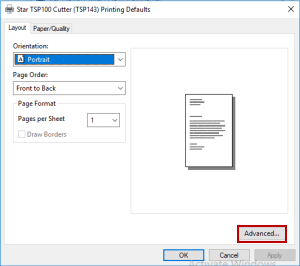
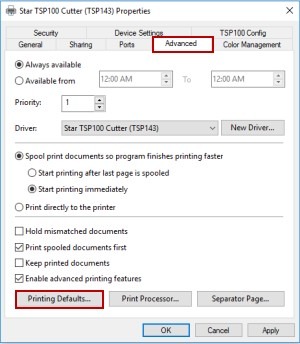
Step 7: With the “Advanced” tab open, left-click on “Printing Defaults”. When the “Printing Defaults” window opens, left-click on “Advanced”.
Step 8: In the “Advanced Options” window, change the “Paper Size” setting to “72mm x Receipt” and click on “Ok”. Remember to click “Ok” in the “Printing Defaults” window as well to save the changes.
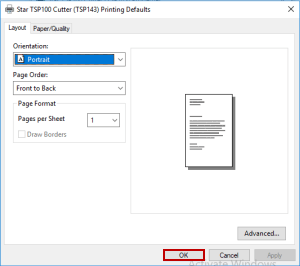
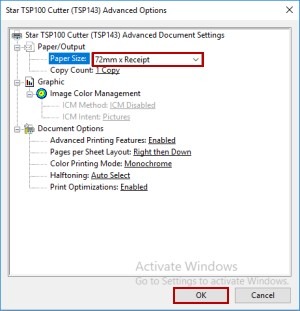
Step 9: Click “Apply” then “Ok” on the “Printer Properties” window to confirm all settings have been changed to use the 72mm x Receipt paper size.
Note: By following these detailed instructions, users can ensure their printer is correctly configured for optimal receipt printing.
Related Articles
Add Custom Paper Size
Article Contents: This articles covers the process of creating a custom paper size within the printer properties in Windows Devices and Printers. Step-By-Step: Step 1: Search for and open Control Panel, and then click View devices and printers. ...Epson : Printer Error Lights
Article Contents: This article explains how to diagnose problems with an Epson printer by checking the status of its lights, including the power, paper, ink, and Wi-Fi lights. Step-By-Step: You can often diagnose problems with your product by ...Setting up a Default Printer
Article Contents: Jonas Synergy utilizes the default printer for standard receipt print jobs such as transaction receipts and not kitchen and bar print jobs. Step-By-Step: Step 1: To choose a default printer, select the Start button and then ...Epson : Epson TM-m30II (Bluetooth) Receipt Printer Setup
Article Contents: This article covers the setup of a Epson TM-m30II (Bluetooth) Receipt Printer Requirements: To use this hardware with your Jonas Synergy system, you need to meet the following requirements: Where to buy the Epson TM-m30II receipt ...Epson : Epson TM-m30II (LAN) Receipt Printer Setup
Article Contents: This article provides instructions on setting up and installing the Epson TM-m30II (LAN) receipt printer for use with the Jonas Synergy system. Also covered in this article is the requirements, where to purchase the printer, how to ...