Adding a Tip
Step 1: Click on the "Sales" tab from the main menu. It will open the recent order window.
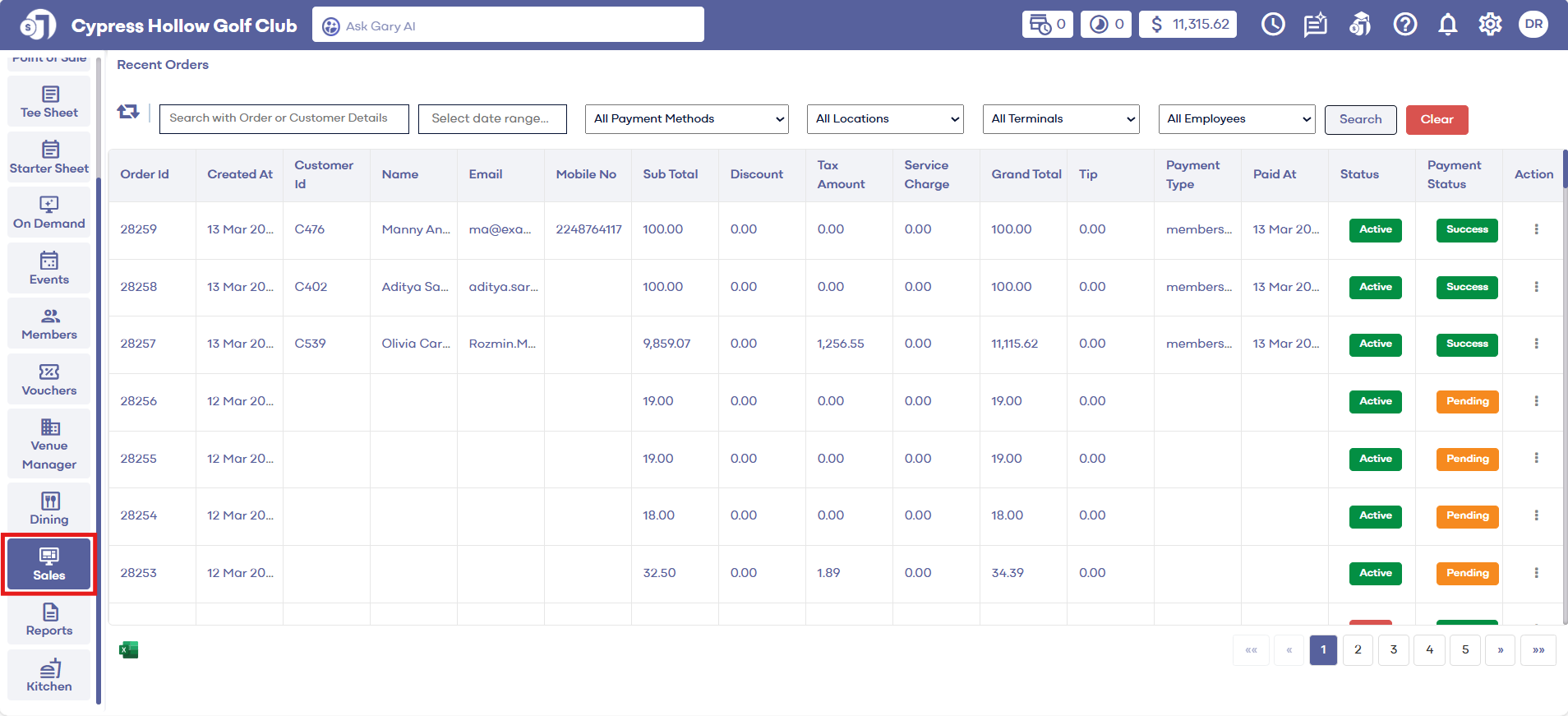
Step 2: Click on the Action Button which is on the right side of recent order window.
It will show four pop-up options, i.e Receipt, Refund, Void, Add Tip. Click on the 'Add tip'
It will show four pop-up options, i.e Receipt, Refund, Void, Add Tip. Click on the 'Add tip'
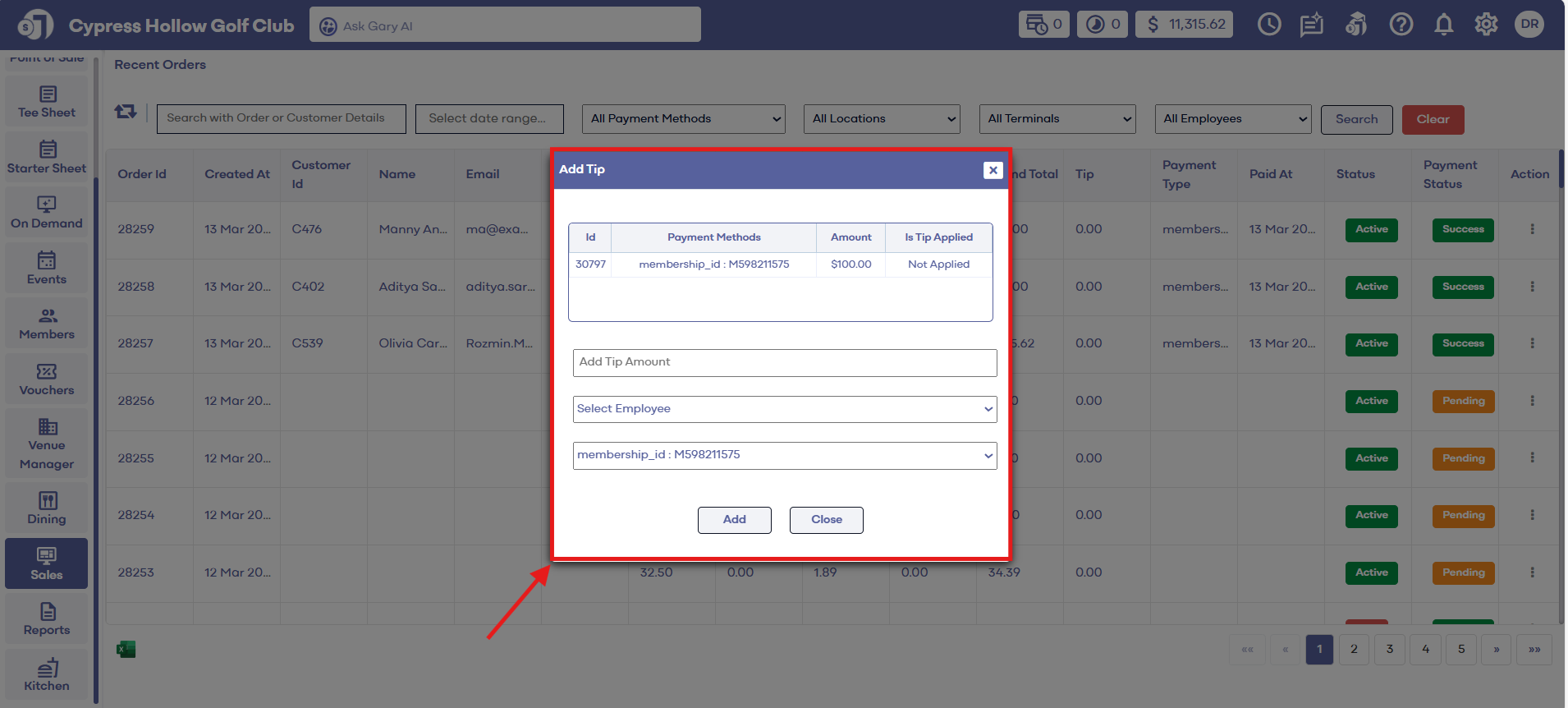
Step 3: Input the tip amount and select the employee, then click on the 'Add' button.
Related Articles
Sales Overview
Article Contents: This article contains step-by-step instructions on the sales history tab. Step-By-Step: Step 1: Select the SALES module from the module navigation menu. In the Recent Orders window, you can see the Orders list details with the ...Receipt Reprinting
Article Contents: This article contains instructions on how to re-print sales receipts Step-By-Step: Step 1: Select the SALES module from the module navigation menu. Step 2: The system will generate a recent orders window. Click on the "Action" ...Voiding a Transaction
Article Contents: This article contains step by step instructions on voiding an order Step-By-Step: Step 1: Navigate to the SALES module from the main navigation menu. This will open the Recent Orders window. Step 2: Click on the Action button, ...Sales : Cloning an Order
Article Contents: This article provides step-by-step instructions on how to clone an order. Tip: Cloning is a way for the system to duplicate an existing order. Reasons to clone an order include: re-using a previous order for a customer, or quickly ...