SETTINGS: REFUNDING IN CARDPOINTE
Navigate a log into your cardpointe portal.
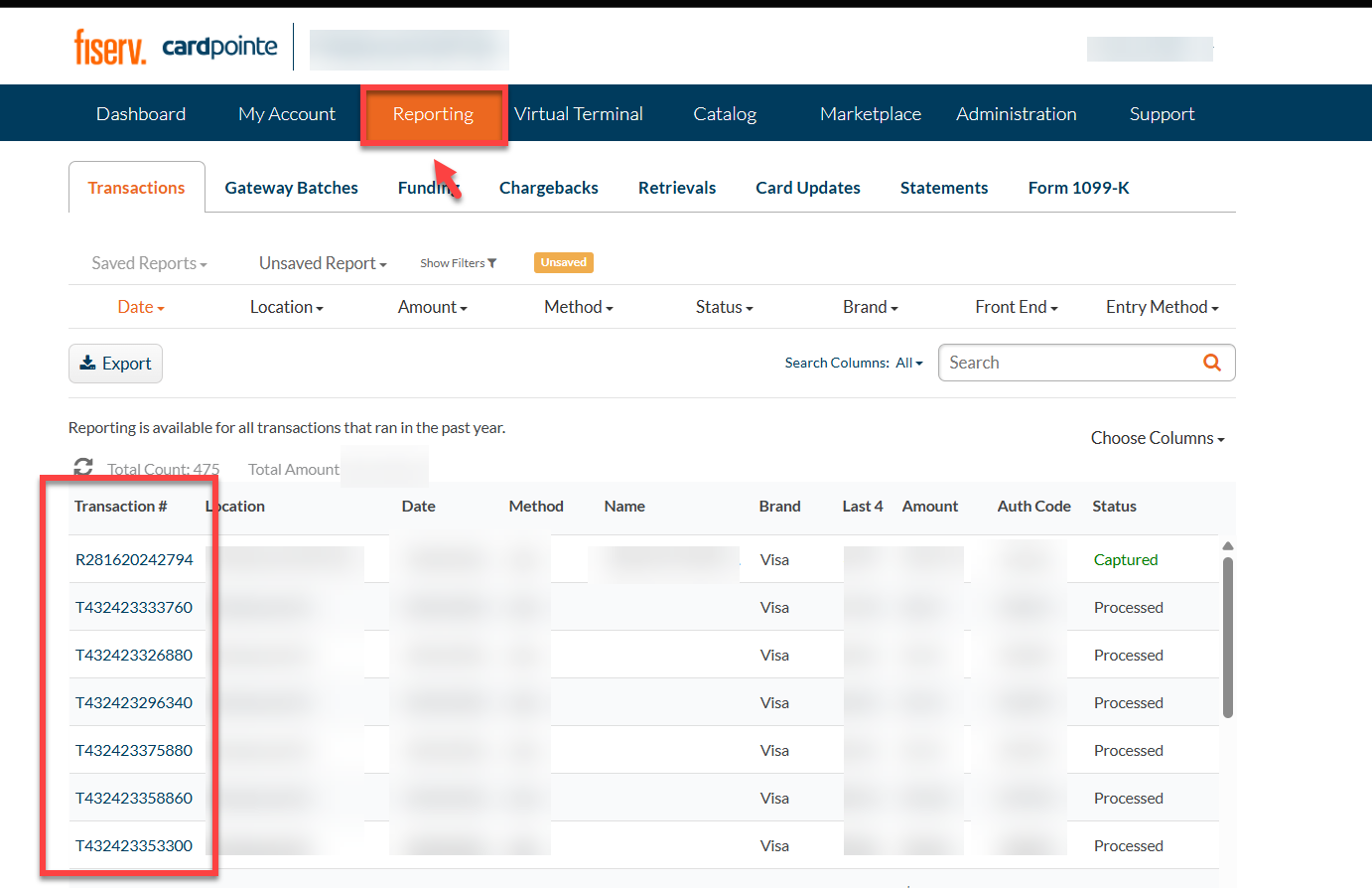
Step 1: Go to Reporting and click on the Transaction #.
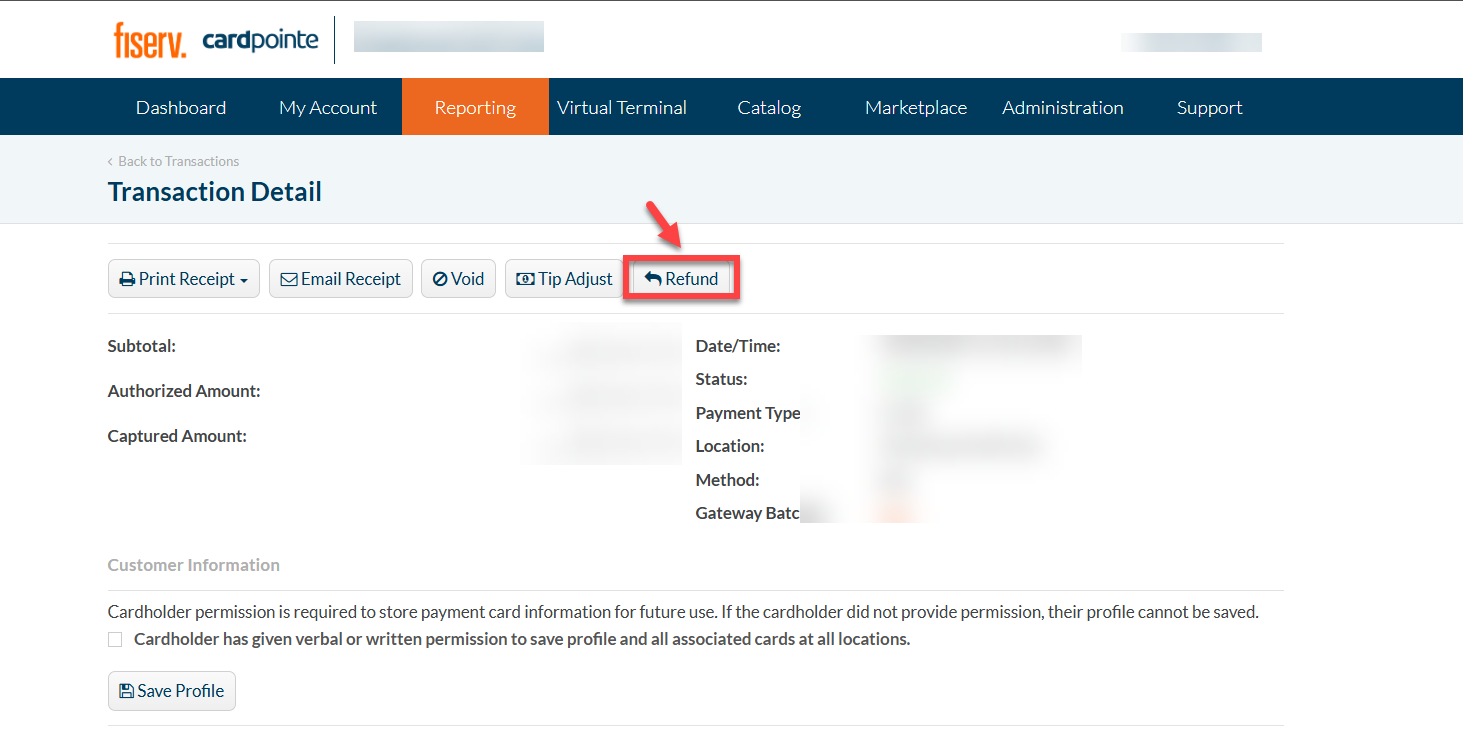
Step 2: Click on the Refund button and specify amount, then the partial or full amount and Refund reason.
Related Articles
CardPointe FAQs
This article contains information regarding common questions that arise with Cardpointe. This article covers: - Definitions of various merchant account and transaction fees - Explanations of decline codes and after-hours support - Instructions for ...SETTINGS: DEFAULT PRINT SETTINGS
Article Contents: This article gives step-by-step instructions on how to adjust the default print settings. Step-by-Step: Step 1: Click on the Gear Wheel icon on the top right corner of the screen. Step 2: Click on Register Settings from the ...SETTINGS: REGISTER SETTINGS
Article Contents: This will show you how to navigate through your register settings, as well as providing a brief description on what each setting can do for you club. Video: The video covers essential features such as printing tip receipts, adding ...Membership Settings
In Jonas Synergy, the membership settings are crucial to managing your club operations effectively. This knowledge-based article will guide you through the membership settings, offering a detailed understanding of each option, ensuring you make the ...SETTINGS: PER USER QUICK MENU SETTINGS
Article Contents: This article gives step-by-step instructions on enabling or disabling the Per User Quick Menu setting from the Register. Step-By-Step: Step 1: Click on the Gear Wheel icon in the top right corner of the screen. Step 2: Click on ...