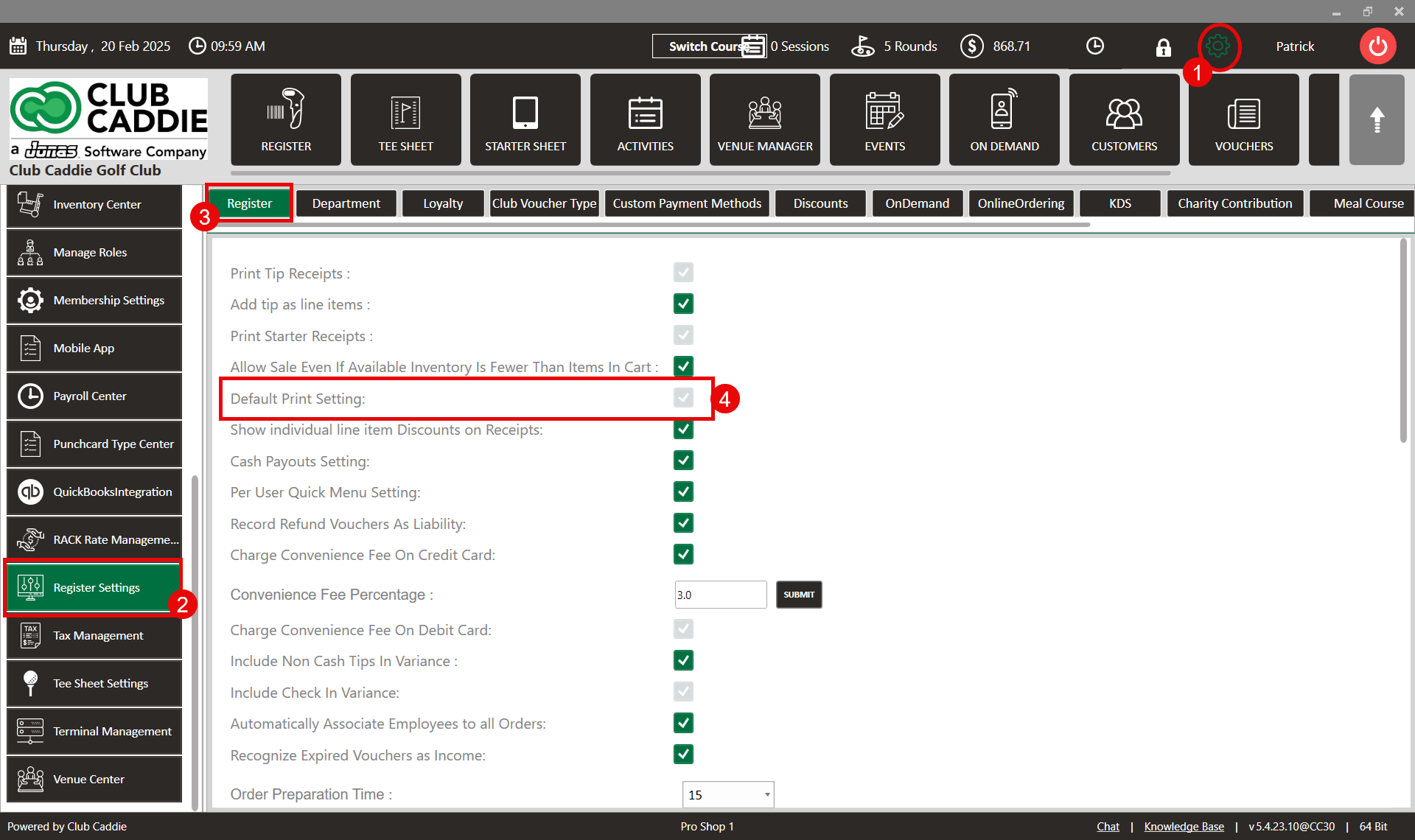
SETTINGS: DEFAULT PRINT SETTINGS
Related Articles
SETTINGS: REGISTER SETTINGS
Article Contents: This will show you how to navigate through your register settings, as well as providing a brief description on what each setting can do for you club. Video: The video covers essential features such as printing tip receipts, adding ...
Membership Settings
In Jonas Synergy, the membership settings are crucial to managing your club operations effectively. This knowledge-based article will guide you through the membership settings, offering a detailed understanding of each option, ensuring you make the ...
SETTINGS: PRINT STARTER RECEIPT
Article Contents: This article contains step by step instructions on how to print starter receipts Step by Step Step 1: Click on the "Settings" (Gear Wheel) icon in the upper right corner of the software. Step 2: Select "Register Settings" from the ...
SETTINGS: PRINT TIP RECEIPTS
Article Contents: This guide shows how to toggle on tip receipts in your register. Step-By-Step: Step 1: Click on the "Settings" gear wheel icon on the top-right corner of the screen. Then click on "Register Settings" from the left-hand menu. Click ...
SETTINGS: DEFAULT DEPARTMENT FOR EVENT MENU
Article Contents: This article gives step-by-step instructions on setting the default department in the event menu. Step-By-Step: Step 1: Click on the Gear Wheel icon on the top right corner of the screen. Step 2: Click on Register Settings in the ...