Void Window Setting / User Specific Void Window

SETTINGS: VOID WINDOW SETTING/USER SPECIFIC VOID WINDOW

Article Contents: This article contains a step-by-step instruction on how to set the void window setting and how to set User-specific Void Windows.

Step by Step

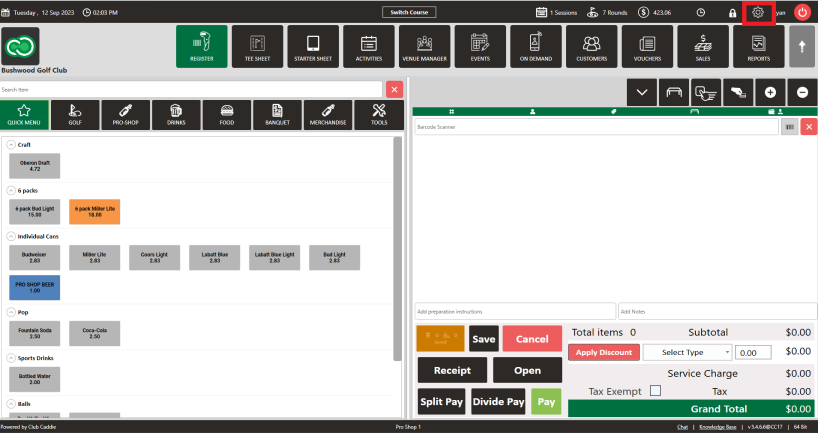
Step 1:   Click on the Gear wheel (Settings) Icon in the top right corner of Jonas Synergy.
 
 
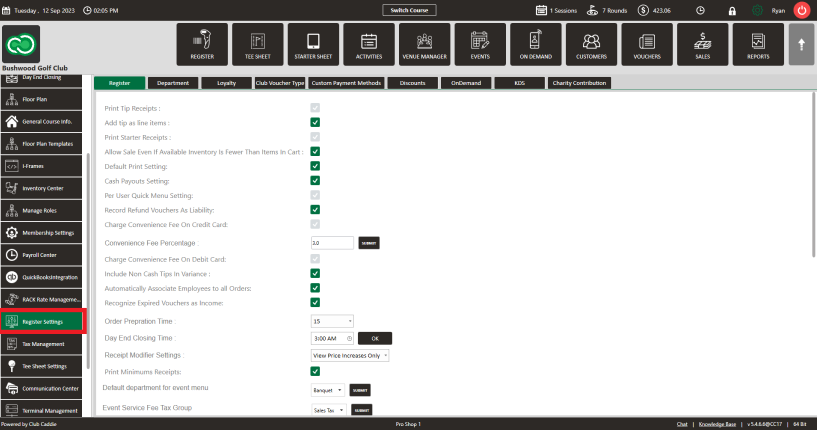
Step 2:   From the left hand menu, click on "Register Settings."
 
 
Step 3:  Scroll down to the "Void Window" setting. The void window is based on days. Ex. 1 for 1 day. 
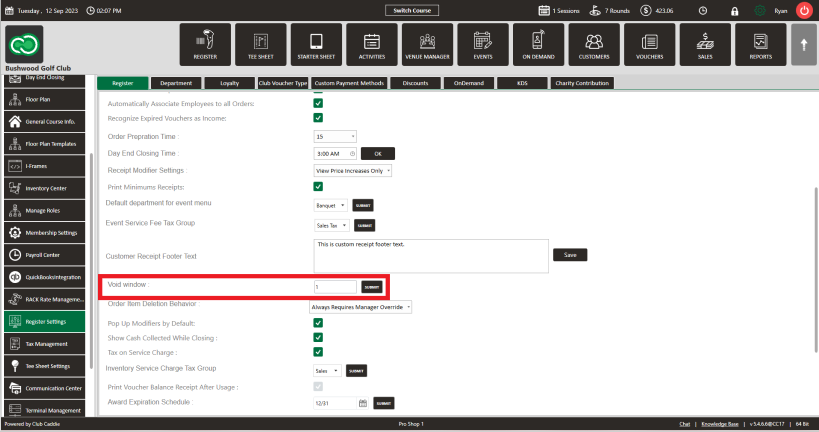
 
 
The void window will need to be set in "days" and will allow you to void a transaction within that void window. 
1) If the void window is set to 1 day, you'll be able to void transactions that occurred yesterday. 
 
2) If the void window is set to 2 days, you'll be able to void transactions that occurred up to 2 days ago. 
 
3) If there is nothing set in the void window, you will only be able to void transactions that occurred today or same day transactions. 
 
User-specific Void Windows
 
Overview of the user-specific void window feature for transaction management
 
Step by Step: 

Step 1: Go to 'Settings', then 'Manage Roles', followed by 'Action', and then select 'Settings'. Enter the 'Void Window' section. 
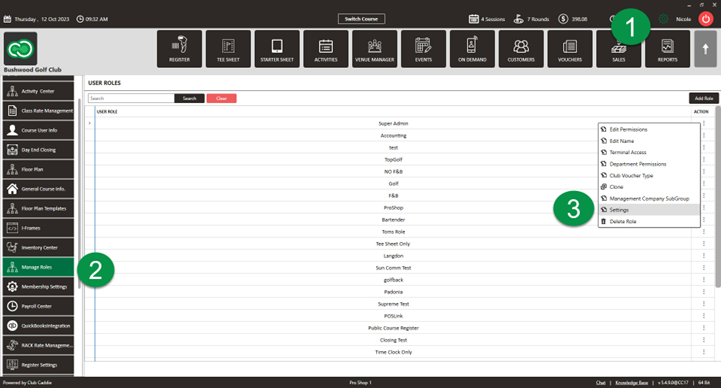

Step 2:
 Set custom time frames in days that employees are allowed to void transactions, which provides flexibility and minimizes potential misuse.
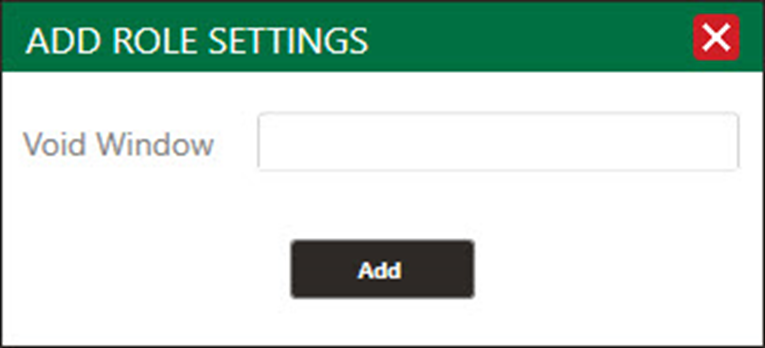

Note: If there is not a void window set on the user role level, the software will default to the global setting found in "Register Settings."

    • Related Articles

    • SETTINGS: CLOVER MINI USER'S GUIDE

      Article Contents: This Clover Mini User's Guide covers the device's features, setup process, and troubleshooting Overview The CardPointe Integrated Terminal Clover Mini provides a sleek and secure next-generation payment experience for your ...
    • SETTINGS: CLOVER FLEX USER'S GUIDE

      Article Contents: This Clover Flex User's Guide provides an overview of the device's features, setup process, and troubleshooting. Overview The CardPointe Integrated Terminal solution now includes Clover Flex devices for US merchants. The Clover Flex ...
    • Inactivate a User

      Article Contents: This article contains steps on how to inactivate a specific user account. Step-By-Step: Step 1: Click on the Gear Wheel (Settings Icon) in the top right corner of Jonas Synergy. Step 2: Click on “Course User Info” from the left hand ...
    • SETTINGS: PER USER QUICK MENU SETTINGS

      Article Contents: This article gives step-by-step instructions on enabling or disabling the Per User Quick Menu setting from the Register. Step-By-Step: Step 1: Click on the Gear Wheel icon in the top right corner of the screen. Step 2: Click on ...
    • SETTINGS: REGISTER SETTINGS

      Article Contents: This will show you how to navigate through your register settings, as well as providing a brief description on what each setting can do for you club. Video: The video covers essential features such as printing tip receipts, adding ...