Creating and Assigning Bar Codes

Creating and Assigning Bar Codes

This article summarizes how to create and assign a bar-code to an inventory item.

Step-By-Step: 


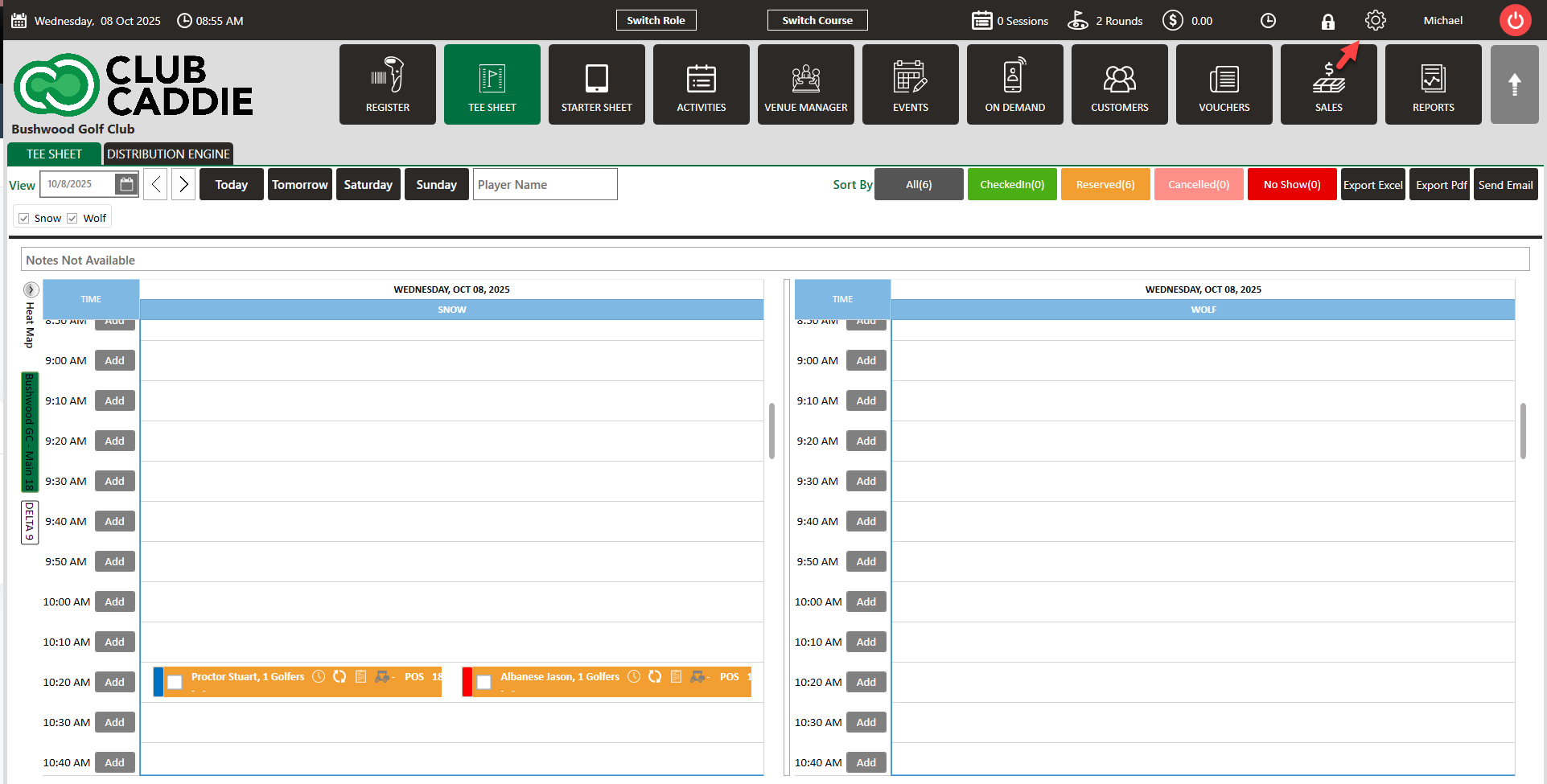
Step 1: Click on the "Gear Wheel" Icon on the top right corner of the screen.

 
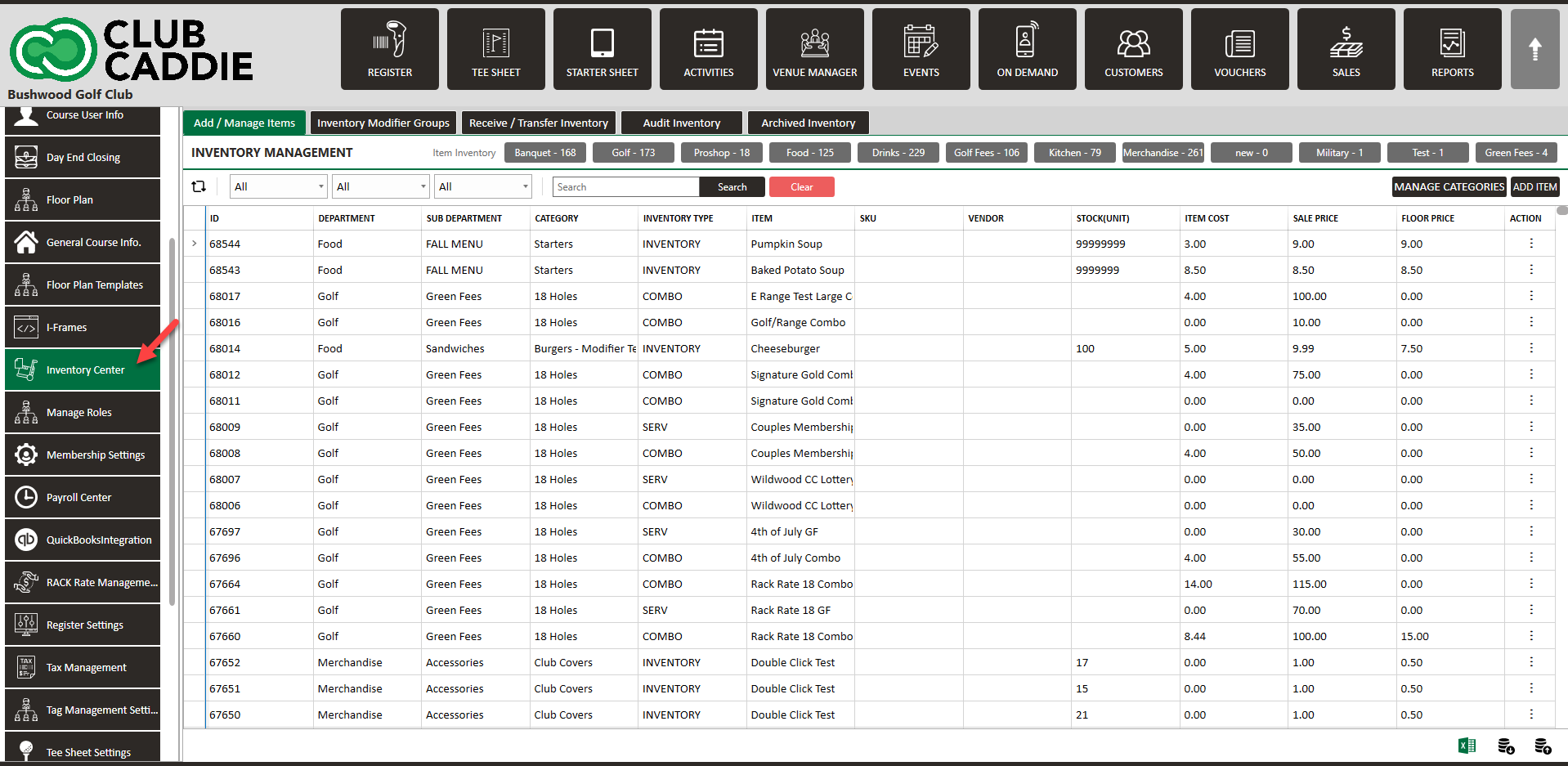
Step 2: Click on the “Inventory Center” button on the left side of the screen.


Step 3: 
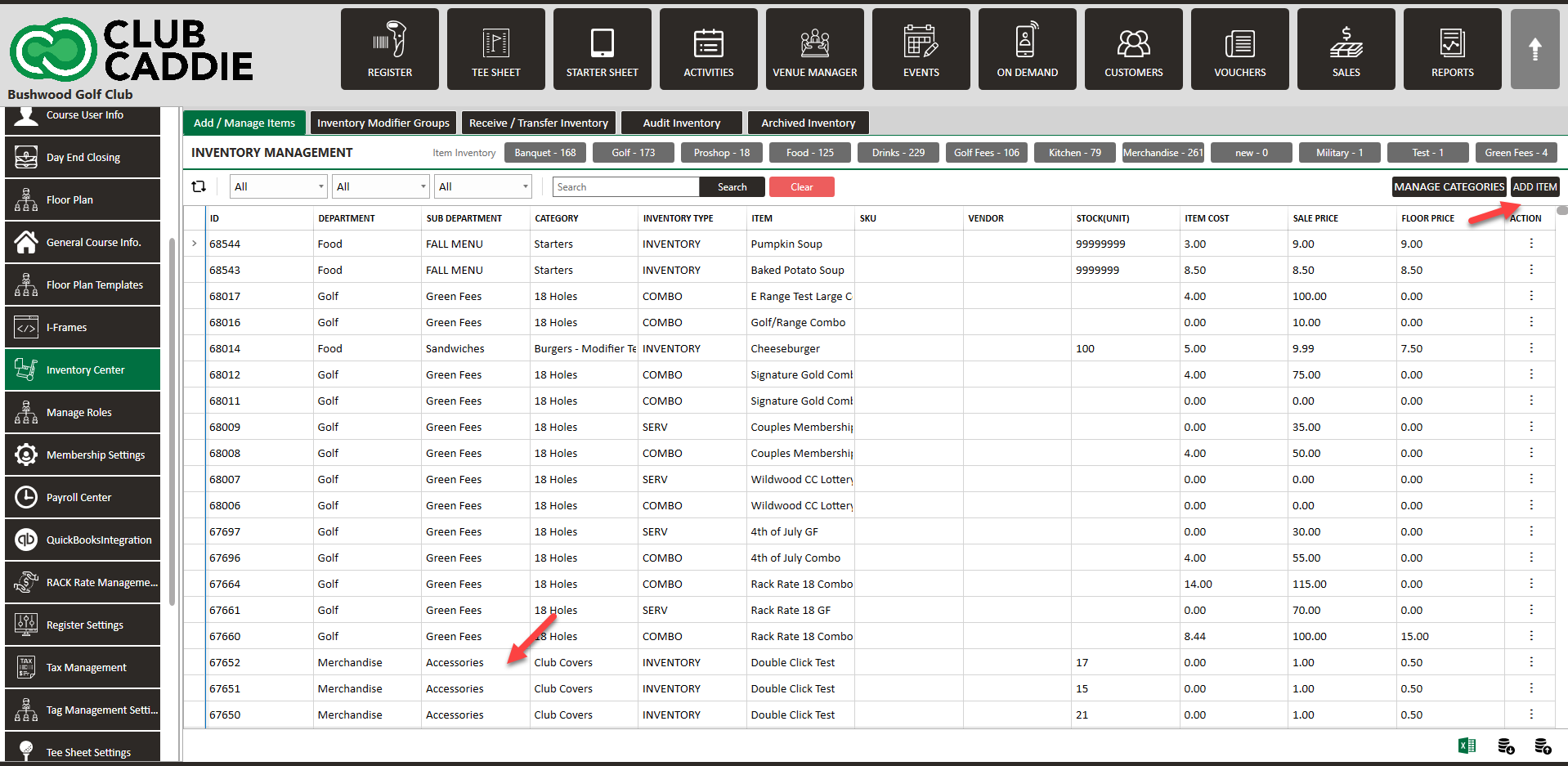
You can create Barcode for new items and for existing items. To add a bar code for new item click on "Add Item" and if you want to create a bar code for existing item double click on an item to populate the inventory window.
 

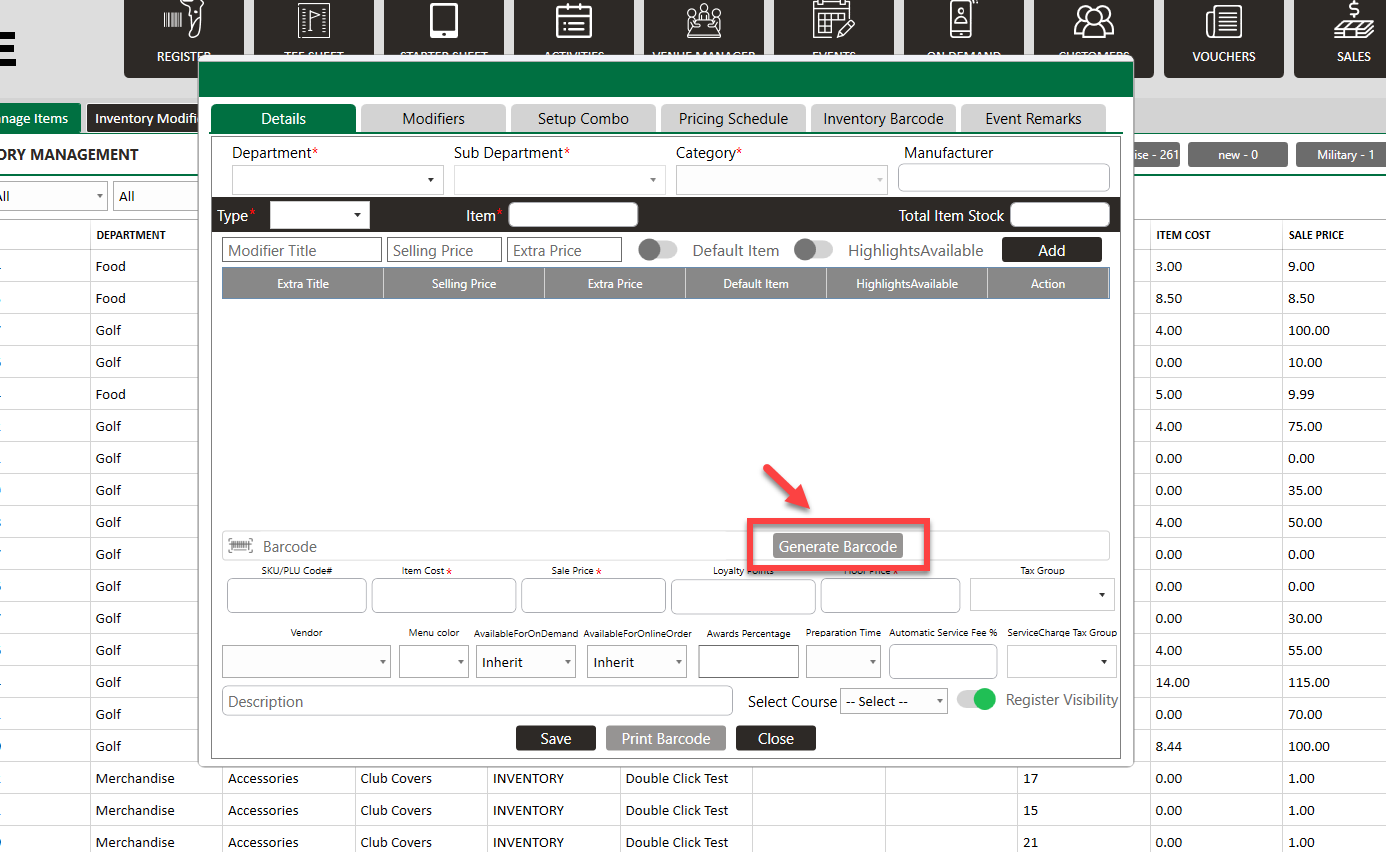
Step 4: To generate Barcode for new item click on "Add Item" button. The system will generate new "ADD ITEM TO INVENTORY" window. Fill all the necessary info, and to generate bar-code click on "Generate Barcode" button. The bar-code will be generated successfully for the item, then click on "Save" button.


Step 5: 
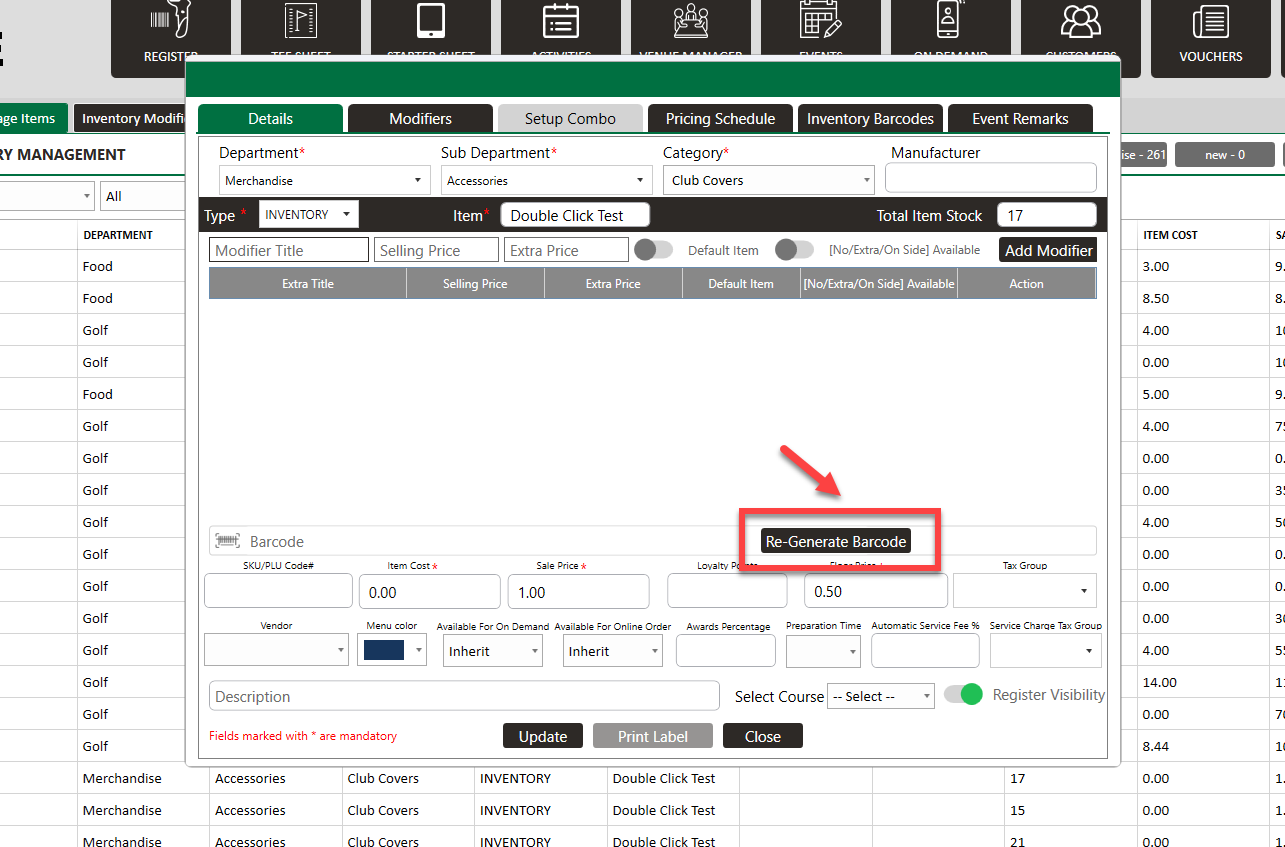
For existing item click on "View/Edit" button. The system will generate new "EDIT ITEM OF INVENTORY" window. Click on "Re-Generate Barcode" button. Bar-code will be Re-Generate successfully for the item, then click on "Update" button.


    • Related Articles

    • Creating A New Group Modifier (Video)

      In this video tutorial, we will guide you through the process of creating an inventory item with modifiers We will cover how to start with an existing item template, update its details, choose menu colors, add modifiers, and apply them to the ...
    • Creating and Editing Combo Items (Video)

      This article gives step-by-step instructions on creating and updating combo inventory in your system. Step-By-Step: Step 1: Click on "Settings" then "Inventory Center". Step 2: To add a new item to your inventory, you need to click on the "ADD ITEM" ...
    • Assigning group modifiers to items

      Article Contents: This article provides a step by step guide on how to assign group modifiers to items. Step-By-Step: Step 1: Click on Settings (gear wheel) followed by Inventory Center from the left hand menu. Step 2: Click on the Inventory Modifier ...
    • Assigning Class Rates to Multiple Classes

      Article Contents: Class Rate Management can now give a Class Rate a “Title,” which will be what the guest/member sees during the booking experience. Users can now also apply multiple Classes to a given Class Rate. Step-By-Step Step 1: Click on the ...
    • Creating / Editing a Vendor

      Article Contents: This article contains step by step instructions on managing the vendor list, including adding, editing and searching for vendors. Step by Step Step 1: Click the Gear Wheel icon at the top right corner of the screen. Step 2: Click on ...