Assigning group modifiers to items
Step-By-Step:
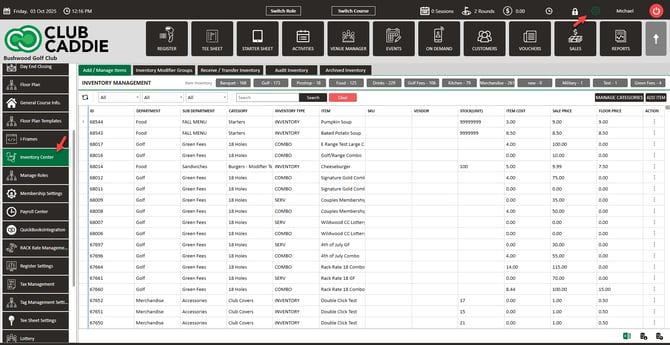
Step 1: Click on Settings (gear wheel) followed by Inventory Center from the left hand menu.
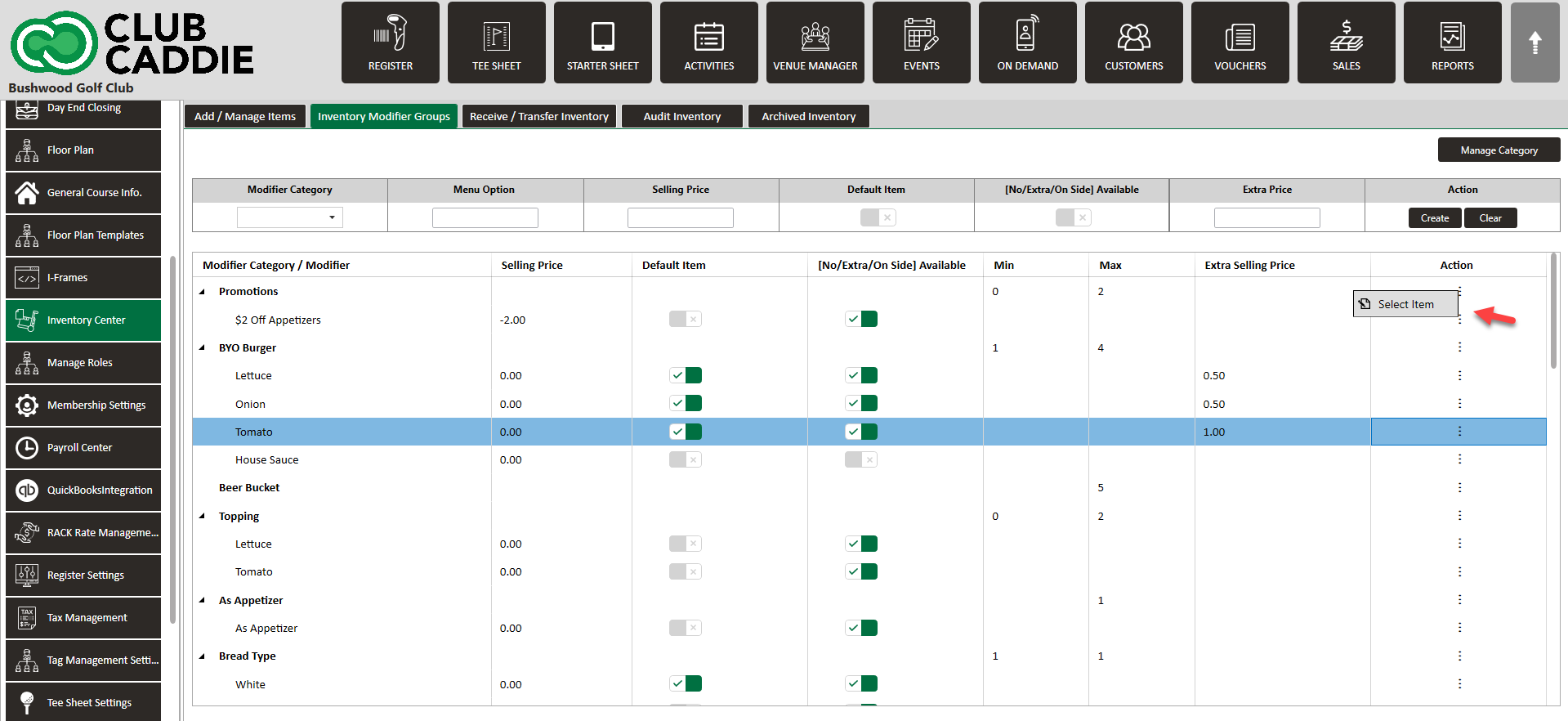
Step 2: Click on the Inventory Modifier Groups tab followed by Action (three small dots). Then, click Select Item.
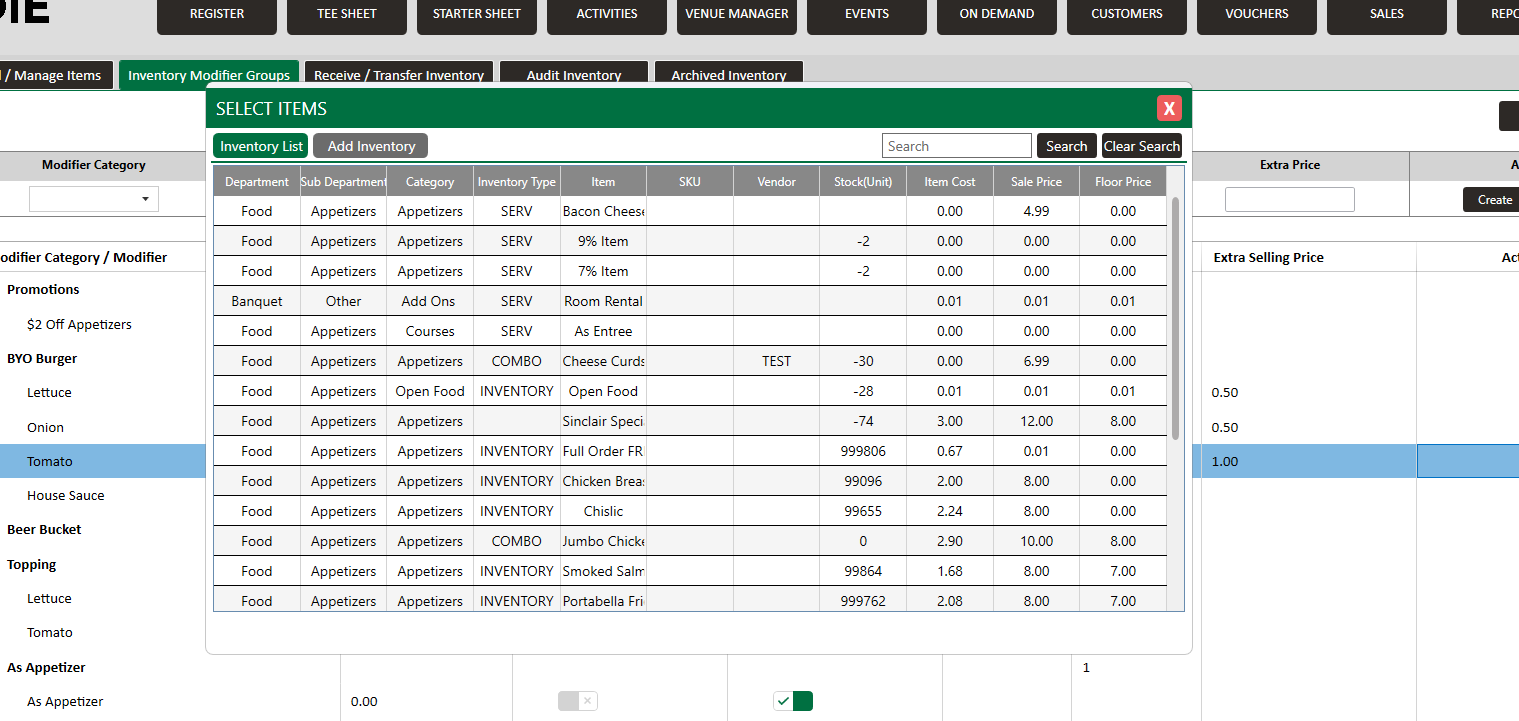
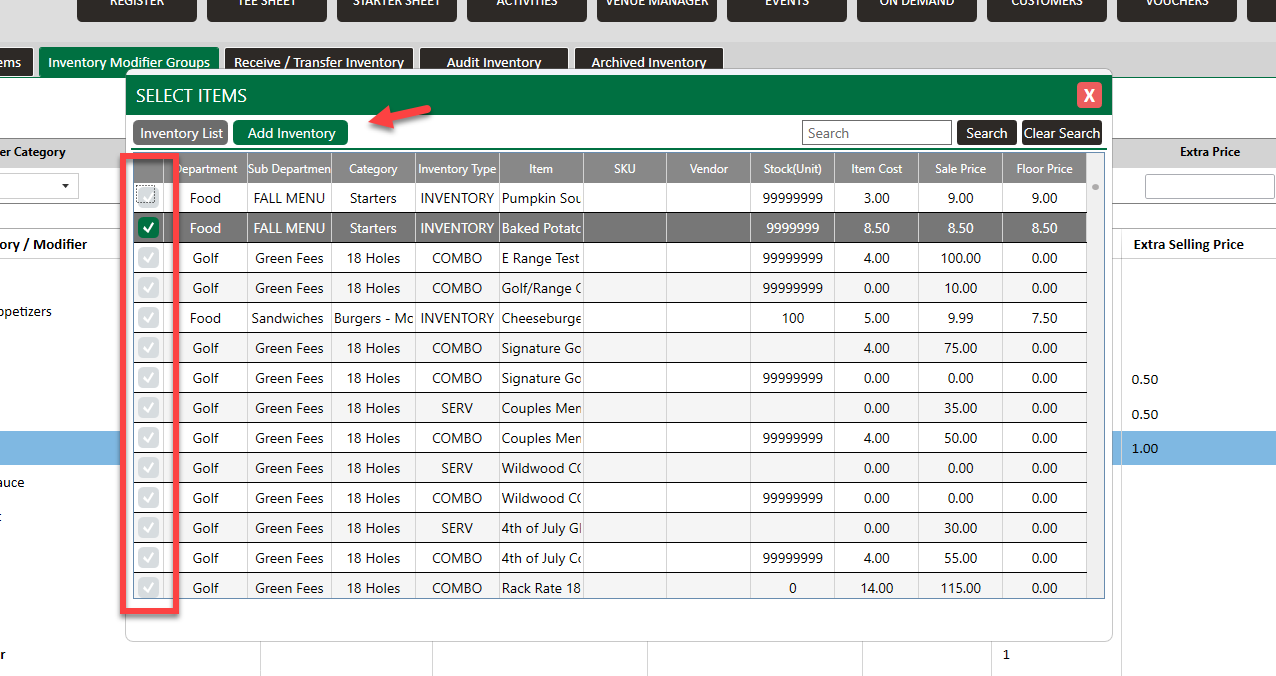
Step 3: The Inventory List will show all inventory items this group is applied to. To add a new inventory item, click Add Inventory and check the box next to the relevant groups to add (you can use the search function to narrow down).
Step 4: Check any inventory items you would like this modifier group applied.
You can now enable or disable specific modifiers as needed for this item by ensuring the check-box on the far left hand side is green.
Uncheck any options that don't apply.
Exit the window when you are done with your selections.
Related Articles
Creating A New Group Modifier (Video)
In this video tutorial, we will guide you through the process of creating an inventory item with modifiers We will cover how to start with an existing item template, update its details, choose menu colors, add modifiers, and apply them to the ...Inventory Modifiers
You will learn how to apply Modifiers to Inventory items by either creating reusable modifier groups to reduce repetitive data entry, naming new groups and setting quantity limits, building out groups by adding modifier categories and options, ...Editing Group Modifiers
This article provides a step by step guide on how to edit Group Modifiers Step-By-Step: Step 1: Click on Settings (gear wheel) followed by Inventory Center from the left hand menu. Step 2: Click on the Inventory Modifier Groups tab. Then, click on ...Upcharge for "Extras" on Modifiers
This article contains step by step instructions on how to assign a specific upcharge price for when Extra is selected on individual Modifiers Step-By-Step: Step 1: Navigate to Settings > Inventory Center > then click on the Inventory Modifier Groups ...Default Modifiers
This article gives step-by-step instructions on how to set a default modifier for an item. Step-By-Step: A default modifier can be set for an item at the time of the new item's creation. For an existing item, a modifier can be set directly from the ...