Create a new Terminal

SETTINGS: HOW DO I CREATE A NEW TERMINAL

In this article, we will walk through adding additional terminals to locations that you have set up.

Step-By-Step:

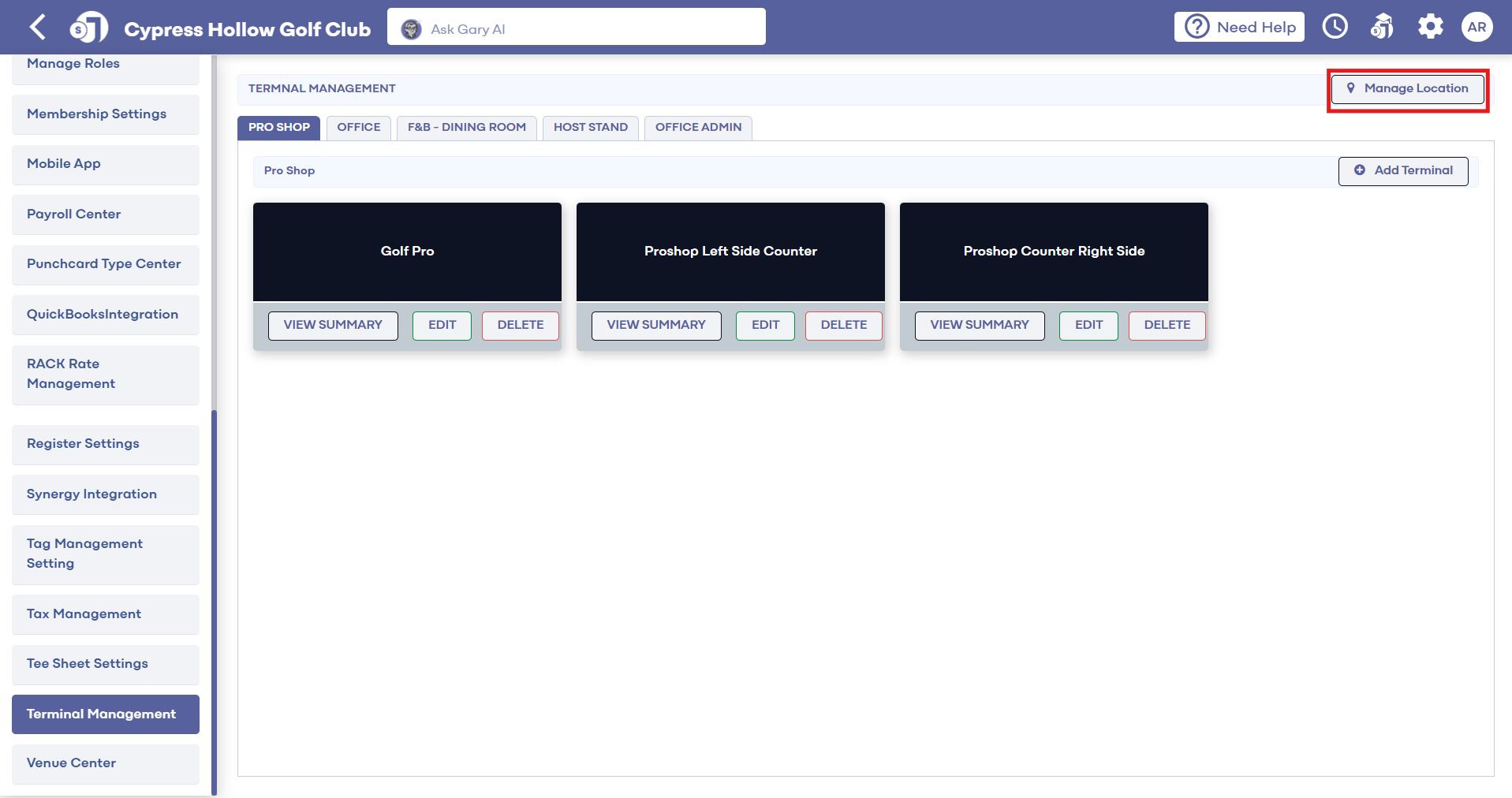
Step 1: Start by navigating to terminal management found within the settings module by clicking the gear icon (1) in the top right-hand corner and finding "Terminal Management" (2) from the left-hand navigation menu.


Step 2: Across the top of terminal management, you'll need to select the desired location where you'll be creating a new terminal (3).
 
Step 3: Using the "Add Terminal" button (4), you'll be presented with the terminal creation wizard.
 
(1) You'll need to add the desired terminal name.
(2) If you'll need to receive on-demand notifications to the terminal. 
(3) If the terminal will require an employee pin upon creation of a quick tab. 
(4) If the employee lock screen will be in use to display only orders tied to the currently logged-in employee.  A lock icon in the top-right hand corner will be displayed to allow for quick switches. 
(5) The number of seconds the Automatic Pinlock feature turns on after idle.  Leave blank if you do not wish to turn on 
(6) The number of seconds for Automatic Logout to trigger after idle.  Leave blank if you do not wish to turn on 
(7) If you would like to enable a signature tip after payment has been made.  U sually turned on for facilities that utilize Microsoft Surface Pro's for tableside service. Ex. the server could take the tablet to the table and ultimately have the customer swipe their card and sign/tip right on the device itself.

 
(8)The Automatically Saved Register Tabs should ALWAYS be triggered on for all terminals to ensure tabs are automatically saved.
Step 4: Once you've filled out the above information, you can finalize the terminal creation by selecting "Add Terminal" (9).
    • Related Articles

    • SETTINGS: HOW DO I CREATE A NEW TERMINAL LOCATION

      In this article, we will walk through creating a new location to house underlying terminals. Step-By-Step: Step 1: Start by navigating to terminal management found within the settings module by clicking the gear icon (1) in the top right-hand corner ...
    • SETTINGS: SETTING UP A NEW FLOOR PLAN

      Article Contents: This article contains step-by-step instructions on how to set up a new or edit an existing floor plan. Step by Step Step 1: Click on the Gear Wheel icon in the top-right corner of the screen. The system will open the system settings ...
    • SETTINGS: REGISTER SETTINGS

      Article Contents: This will show you how to navigate through your register settings, as well as providing a brief description on what each setting can do for you club. Video: The video covers essential features such as printing tip receipts, adding ...
    • SETTINGS: EMPLOYEE PIN LOCK

      This is a guide with instructions on setting up Pin Lock for employees, creating a 4-digit code for each employee, as well as tips to making sure your transition to employee pin lock runs smoothly. Step-by-Step Guide: Step 1: Turn on Employee Pin ...
    • SETTINGS: DEPARTMENT - CREATE NEW DEPARTMENT

      Article Contents: This article contains a step-by-step guide on how to create a new department for the register. Step-By-Step: Step 1: Click on the Gear Wheel Icon on the top-right hand corner of the screen. Step 2: Click on the “Register Settings” ...