Setting Up a New Floor Plan

SETTINGS: SETTING UP A NEW FLOOR PLAN

Article Contents: This article contains step-by-step instructions on how to set up a new or edit an existing floor plan.

Step by Step

Step 1: Click on the Gear Wheel icon in the top-right corner of the screen. The system will open the system settings menus.
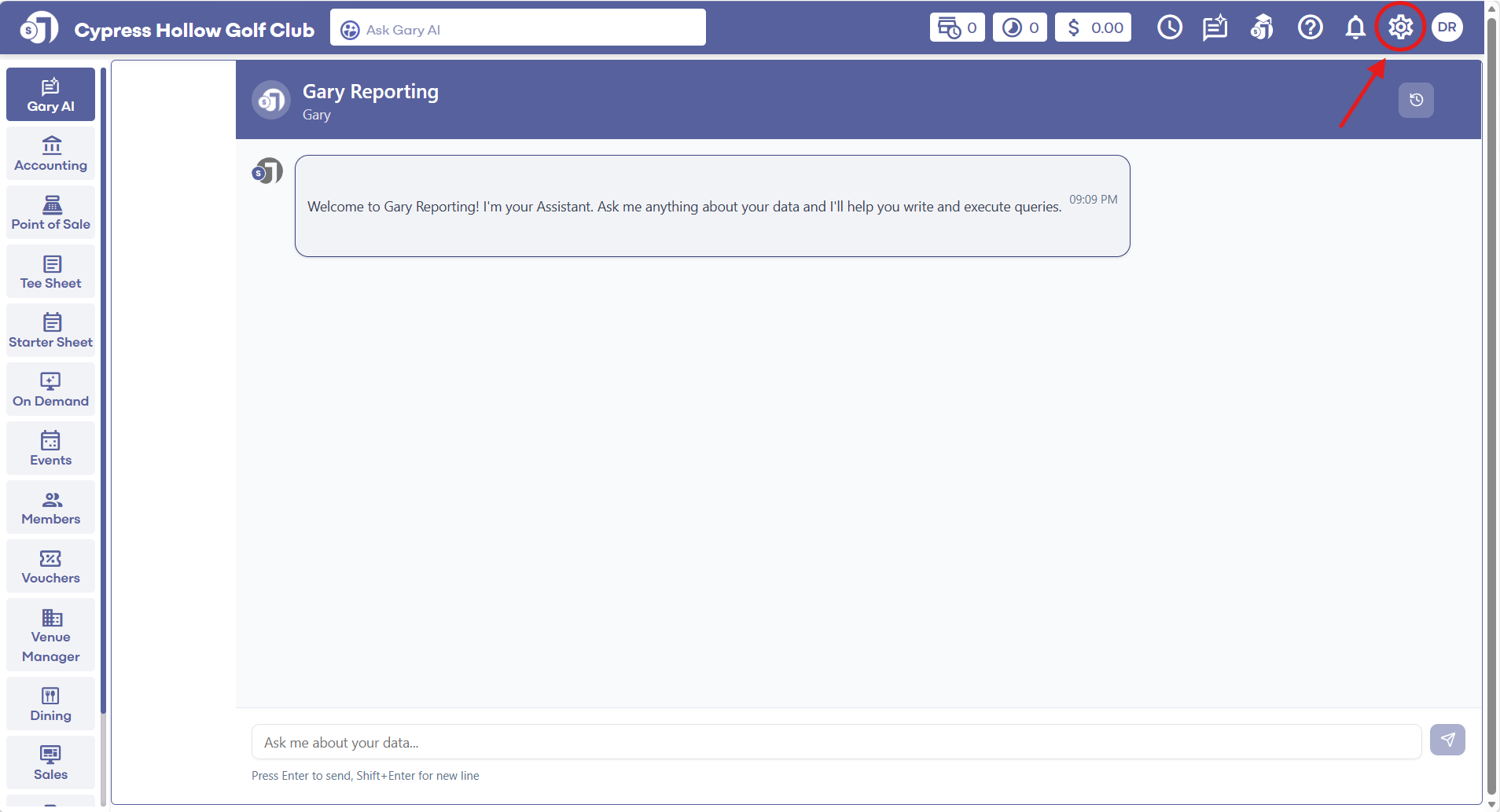
 
Step 2: Select the Floor Plan tab from the left-hand menu.

 
Step 3: Along the top of the floor plan editor is the location selection. Note that these options are taken from the locations created in terminal management. 
 
Step 4: Once a desired location is selected. To create a floor plan, drag and drop the necessary table or seat icons. Note to edit the location name double-click on the object.

Note: Double Click on an object to adjust it's display name

 
Step 5: After making the desired changes to the floor plan, click on the Save button in the bottom left-hand corner of the floor plan editor.
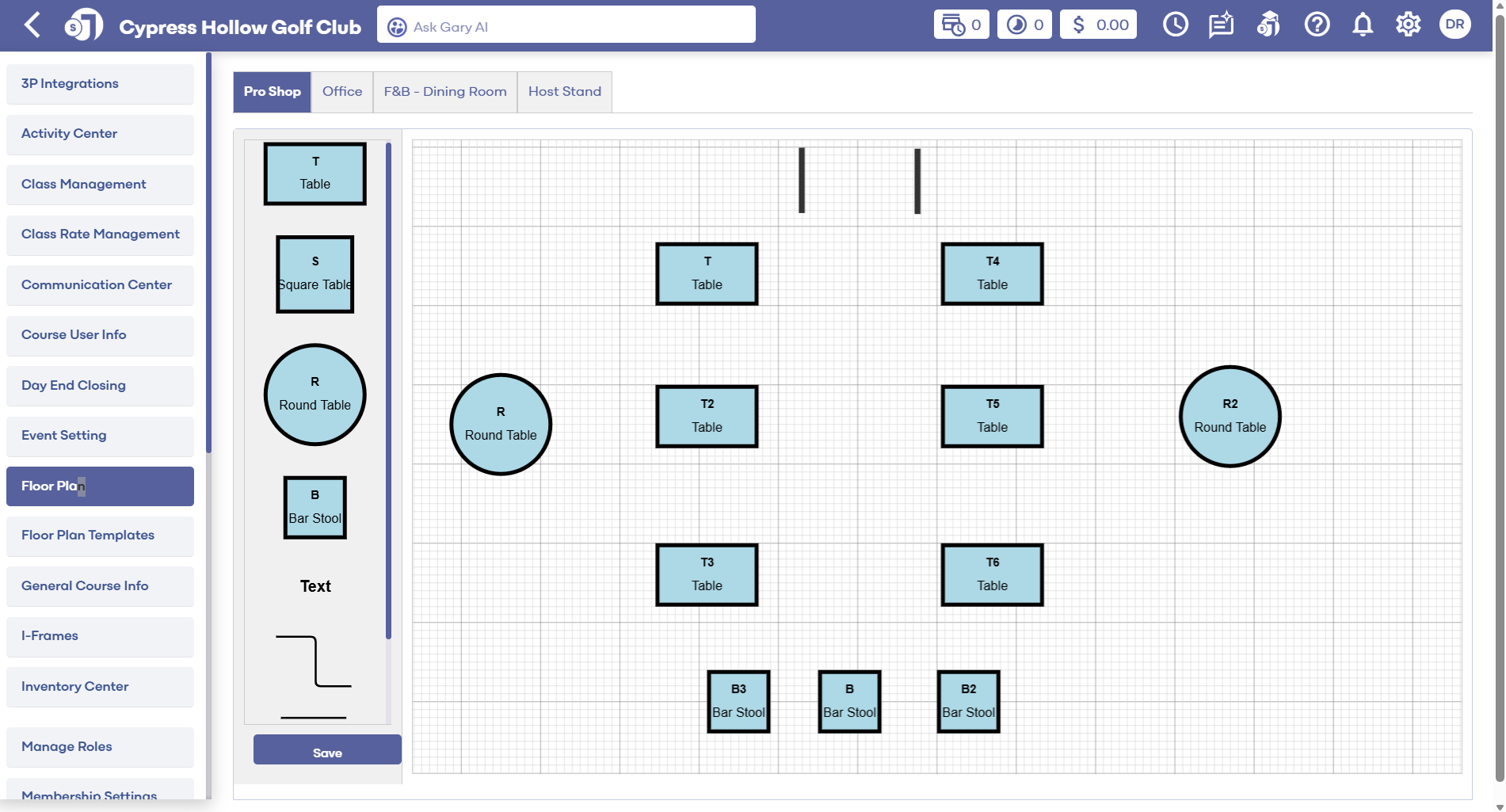
Step 6: The newly created floor plan is now accessible from the register by clicking on the table icon to assign a new tab to either a table or a seat.


    • Related Articles

    • SETTINGS: DEPARTMENT - CREATE NEW DEPARTMENT

      Article Contents: This article contains a step-by-step guide on how to create a new department for the register. Step-By-Step: Step 1: Click on the Gear Wheel Icon on the top-right hand corner of the screen. Step 2: Click on the “Register Settings” ...
    • SETTINGS: DEPARTMENT - CREATE A NEW SUB-DEPARTMENT AND CATEGORY

      Article Contents: This article contains step-by-step instructions on how to create a new sub-department. Step-by-Step: Step 1: Click on the Settings icon on the top right corner of the screen. Then click on Register Settings in the left-hand menu and ...
    • SETTINGS: HOW DO I CREATE A NEW TERMINAL LOCATION

      In this article, we will walk through creating a new location to house underlying terminals. Step-By-Step: Step 1: Start by navigating to terminal management found within the settings module by clicking the gear icon (1) in the top right-hand corner ...
    • SETTINGS: HOW DO I CREATE A NEW TERMINAL

      In this article, we will walk through adding additional terminals to locations that you have set up. Step-By-Step: Step 1: Start by navigating to terminal management found within the settings module by clicking the gear icon (1) in the top right-hand ...
    • SETTINGS: REGISTER SETTINGS

      Article Contents: This will show you how to navigate through your register settings, as well as providing a brief description on what each setting can do for you club. Video: The video covers essential features such as printing tip receipts, adding ...