Create new Department

SETTINGS: DEPARTMENT - CREATE NEW DEPARTMENT

Article Contents: This article contains a step-by-step guide on how to create a new department for the register.

Step-By-Step:

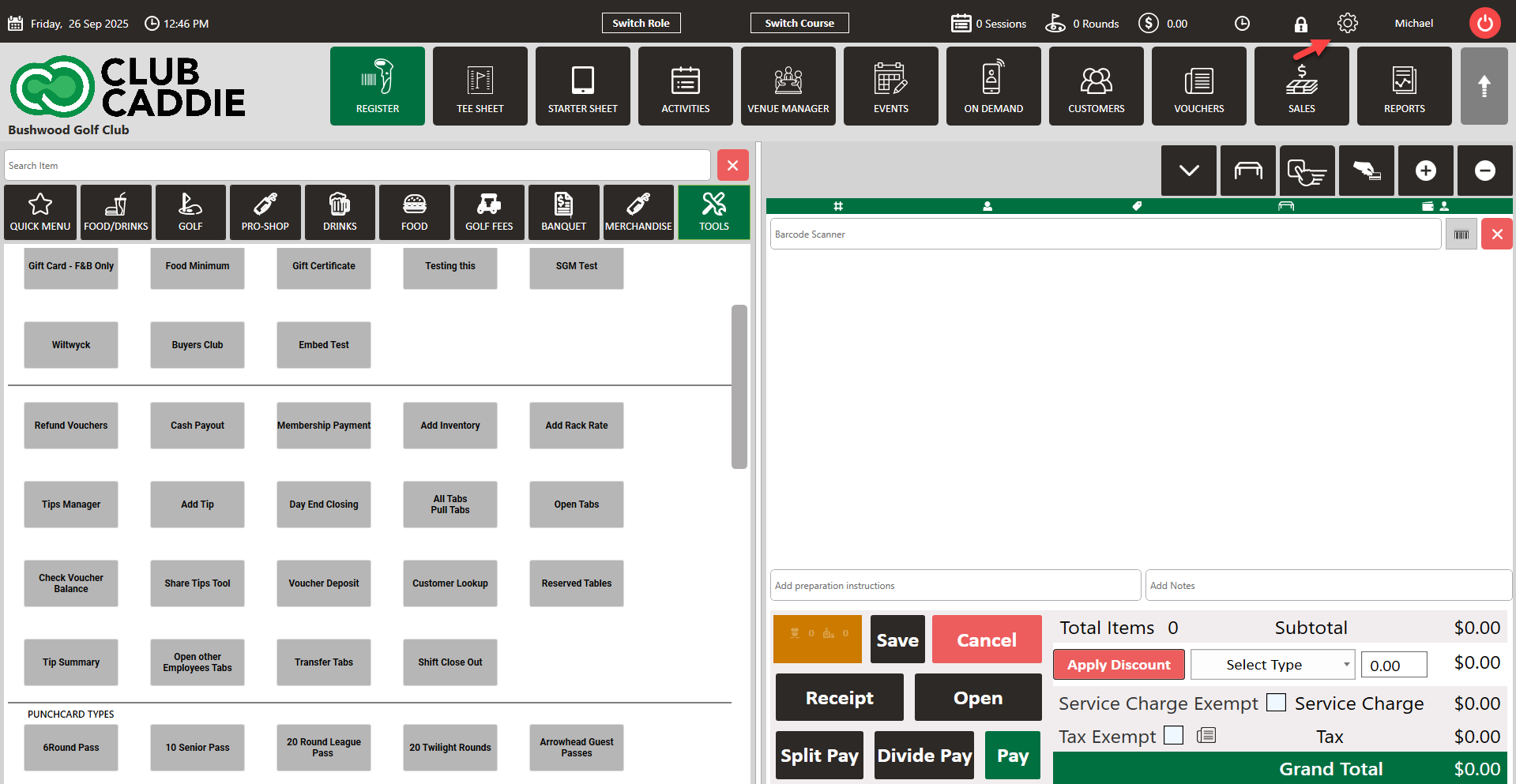
Step 1: Click on the Gear Wheel Icon on the top-right hand corner of the screen.
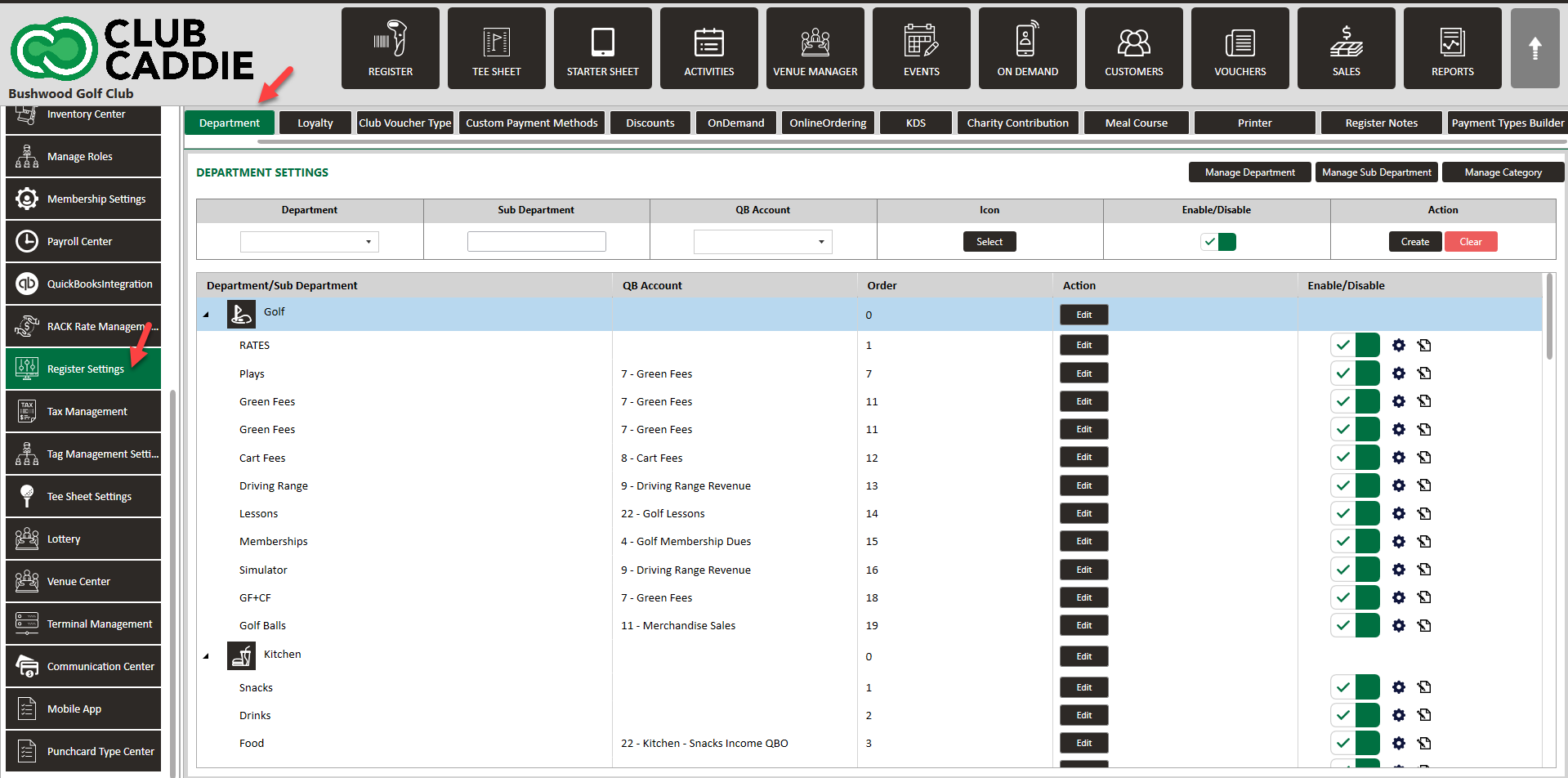
Step 2:  Click on the “Register Settings” button from the row on the left side of the screen, then click the Department tab.
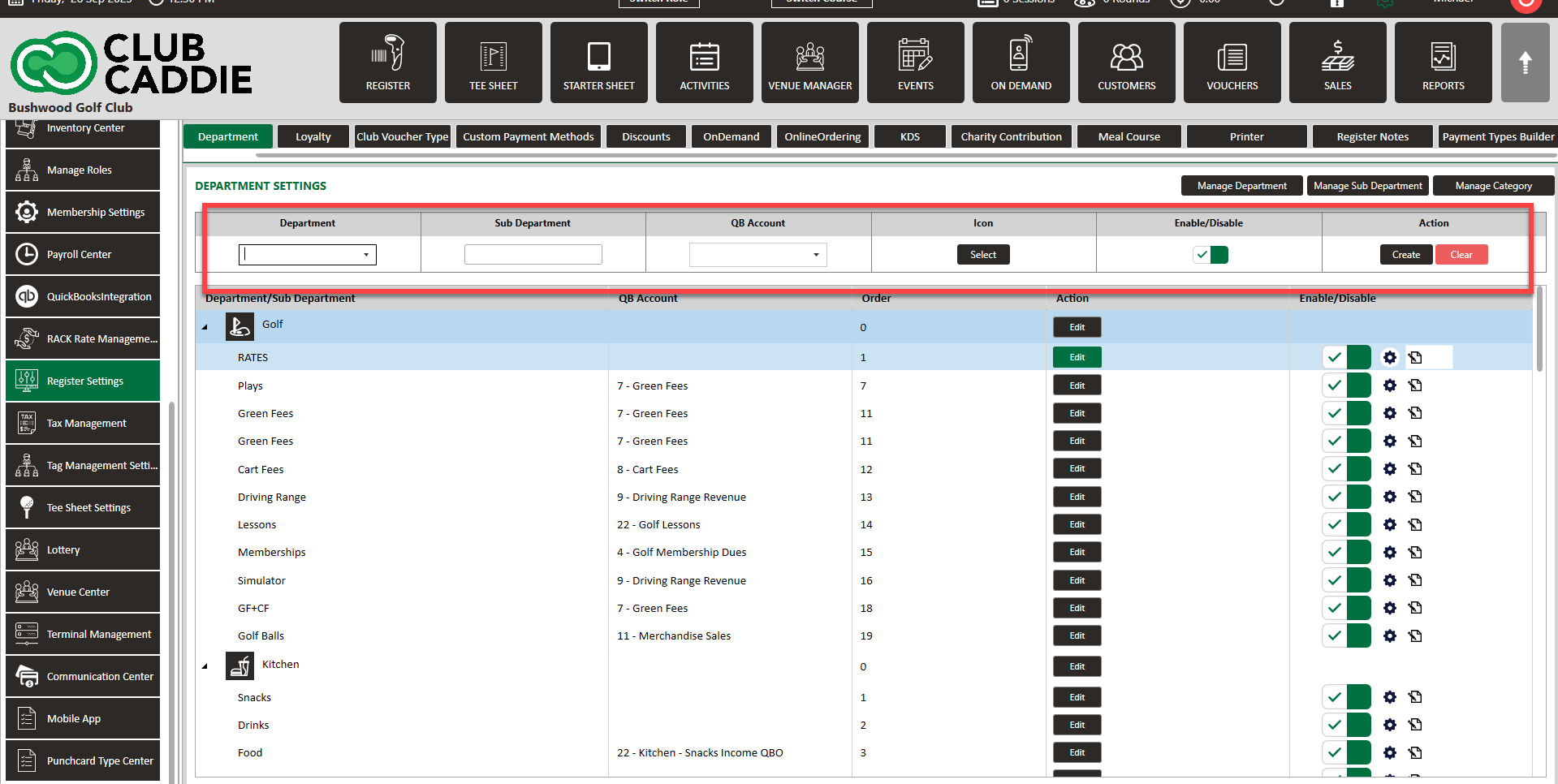
Step 3: Enter the Department name in the first drop-down box and the Sub-Department name in the second drop-down box. You can also choose an icon for the Department by clicking on the "Select" button or browsing your computer.

If you want to enable the Department right away, check the "Enable/Disable" box. If you want to disable the Department for now, uncheck the box. Click on the "Save" button to save your changes.

Using the pen/paper sign to the right of the gear wheel, you can assign this department to different user roles.

Please refer to this article as a guide to add a department to a user role
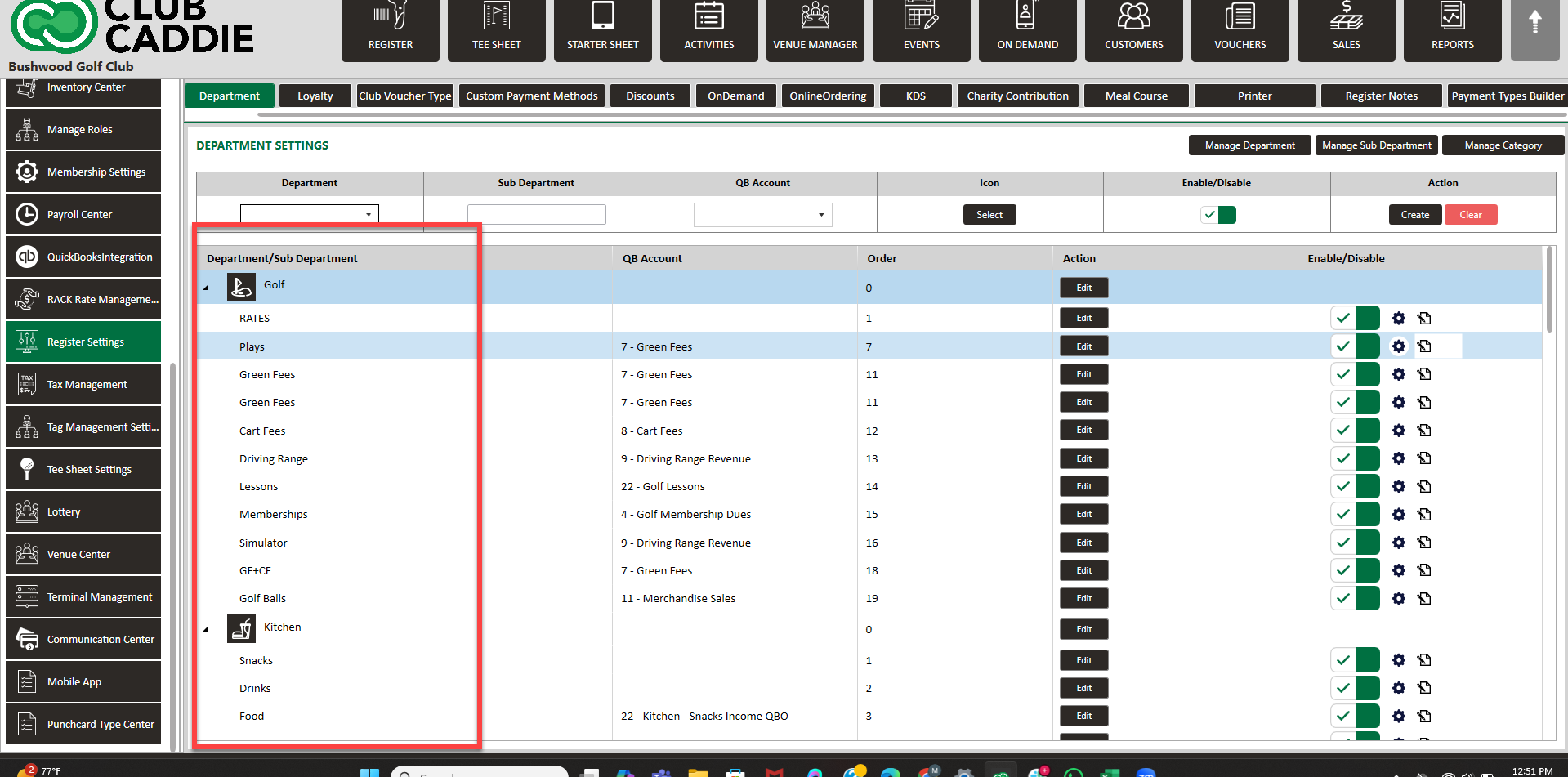
Step 4: After creating the new Department, you will see a new line in the Departments list. You can also select it from the Department drop-down if you need to create more Sub-Departments.
After you are done, you will need to add the Department to your user role under 'User Roles' in settings, follow this guide to add a department to a user role.


    • Related Articles

    • SETTINGS: DEPARTMENT - CREATE A NEW SUB-DEPARTMENT AND CATEGORY

      Article Contents: This article contains step-by-step instructions on how to create a new sub-department. Step-by-Step: Step 1: Click on the Settings icon on the top right corner of the screen. Then click on Register Settings in the left-hand menu and ...
    • SETTINGS: REGISTER SETTINGS

      Article Contents: This will show you how to navigate through your register settings, as well as providing a brief description on what each setting can do for you club. Video: The video covers essential features such as printing tip receipts, adding ...
    • Creating A New Group Modifier (Video)

      In this video tutorial, we will guide you through the process of creating an inventory item with modifiers We will cover how to start with an existing item template, update its details, choose menu colors, add modifiers, and apply them to the ...
    • SETTINGS: CLASS MANAGEMENT

      Article Contents: This is a step-by-step guide on how to create a new class or edit an existing class. Step-By-Step: Step 1: Click on the Gear Wheel icon on the top-right corner of the screen. Then click on Class Management from the left-side menu. ...
    • SETTINGS: DEPARTMENTS TAB OVERVIEW (VIDEO)

      Article Contents: In this video tutorial, we provide step-by-step instructions on navigating the second tab of the register settings: Department. Below are the key points covered. Step-By-Step: Step 1: The Department tab is where you create and ...
