Employee Pin Lock

SETTINGS: EMPLOYEE PIN LOCK

This is a guide with instructions on setting up Pin Lock for employees, creating a 4-digit code for each employee, as well as tips to making sure your transition to employee pin lock runs smoothly.

Step-by-Step Guide:
 
Step 1: Turn on Employee Pin Lock. Navigate to Settings > Select Terminal Management > Chose your Terminal Location > Click on Edit for the terminal you want to enable Pin Lock > Toggle on Lock Screen > Click Save.


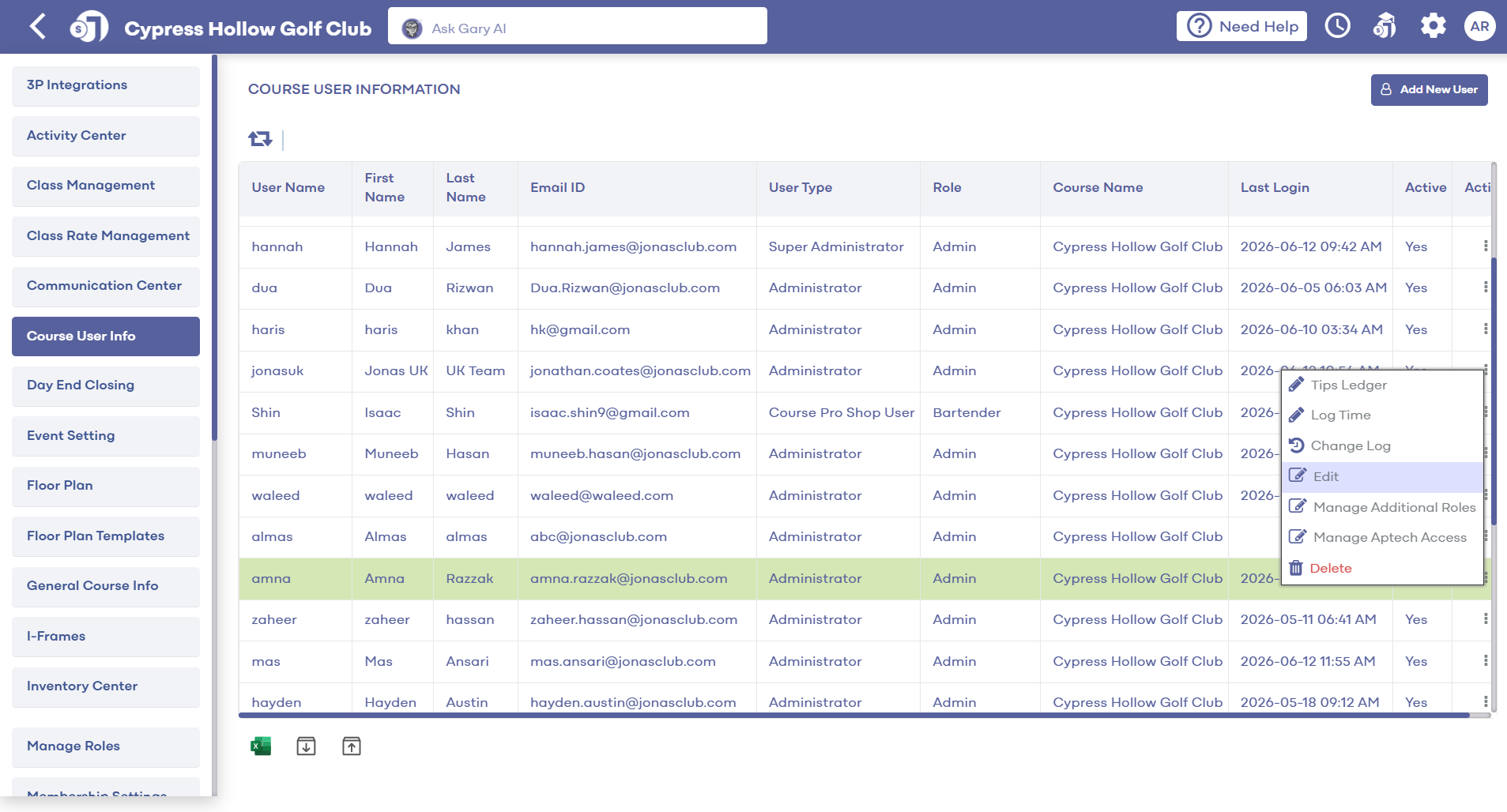
Step 2: Set a pin for each employee by navigating to your Settings > select Course User Info > select an employee to populate their profile > create and enter a 4 digit code for that particular employee under Unique Identification Pin > Click Submit. Then, log out and back in to start using this feature.

 
Step 3: If you want to require employees to use Pin Lock for Quick Tabs, you will need to toggle that feature on. Navigate to Settings > Terminal Management > click on Edit on the terminal that you want this feature enabled > Toggle on Requires Pin on Quick Tab, then click Save.


Step 5: Pin Lock is mainly used for servers to assign tabs. Before creating a new tab, the employee will select the lock icon in the top right of the screen, enter their 4-digit pin, and then start the tab. That tab and transaction will now be assigned to that employee.

    • Related Articles

    • SETTINGS: PIN LOCK NOTES

      This article instructs how to add notes to the pin-lock window. The note will display in the Pin Lock pop-up window when creating a new tab in the register Step-By-Step Guide: Step 1: Navigate to Settings, then select Register Settings from the ...
    • SETTINGS: TERMINAL MANAGEMENT

      This video offers a walk-through on adding additional terminals. With clear, step-by-step instructions, this tutorial simplifies the process of terminal creation, highlighting key features and providing practical examples. Learn how to personalize ...
    • SETTINGS: HOW DO I CREATE A NEW TERMINAL

      In this article, we will walk through adding additional terminals to locations that you have set up. Step-By-Step: Step 1: Start by navigating to terminal management found within the settings module by clicking the gear icon (1) in the top right-hand ...
    • SETTINGS: RESTRICT EMPLOYEE CLOCK OUT WITH OPEN TABS

      Article Content: When this feature is turned ON, employees will not be able to clock out with any open tabs and will either have to transfer them to another employee or tender out the open tabs. Step-By-Step: Step 1: Click on the top left gear wheel ...
    • SETTINGS: REGISTER SETTINGS

      Article Contents: This will show you how to navigate through your register settings, as well as providing a brief description on what each setting can do for you club. Video: The video covers essential features such as printing tip receipts, adding ...