Create a New Sub-Department and Category

SETTINGS: DEPARTMENT - CREATE A NEW SUB-DEPARTMENT AND CATEGORY

Article Contents: This article contains step-by-step instructions on how to create a new sub-department.

Step-by-Step:

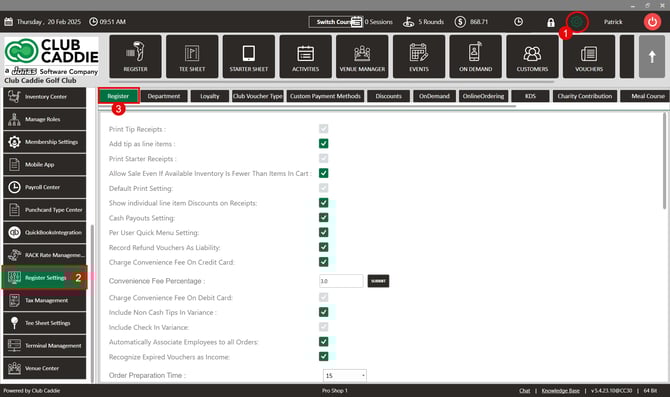
Step 1:  Click on the Settings icon on the top right corner of the screen. Then click on Register Settings in the left-hand menu and then click on the Department tab.
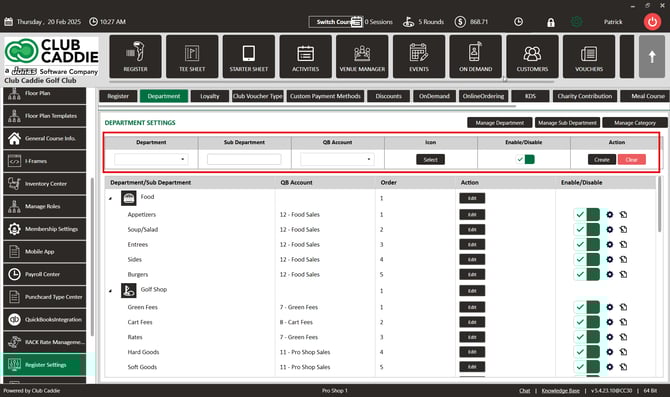
Step 2: Select the Department name in the drop-down, then type your desired Sub-Department name in the second drop-down. If a Chart of Accounts is used for accounting, please select the desired GL Account that this sub-department needs to route to. Once completed, in the Action section, click the Create button
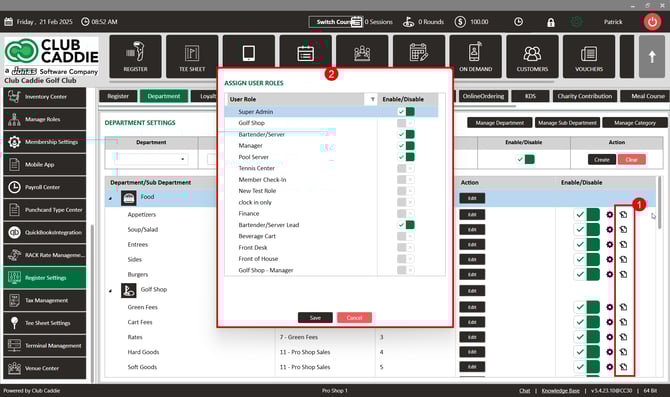
Step 4: After creation, a pop-up will display asking if you would like to add this sub-department to this user role in order for it to display in register. If you select No, you can follow steps 6-8 below to add to a user role at a later time.

If you selected "Yes", you will then select which user roles can view the new sub-department. However, after doing so you will need to log out and log back in for the sub-department to display.


Step 5: After creation, the sub-department can be viewed within the Department tab. 


Department and sub-department assignment can happen by clicking the symbol to the right of the gear wheel. It can also be assigned by following steps 6-8.
Step 6: From the left hand menu in the settings, please select Manage Roles where you'll give access to the new sub-department to each role that needs access. 
 
 
Step 7: For each role that needs access to the new sub-department, you'll want to click on Action (three small dots), and the select Department Permissions. Then toggle on the new sub-department, and click Done.


Step 8: After completion, logout and log in again and your newly created sub-department will appear in the Register. 
 

    • Related Articles

    • SETTINGS: DEPARTMENT - CREATE NEW DEPARTMENT

      Article Contents: This article contains a step-by-step guide on how to create a new department for the register. Step-By-Step: Step 1: Click on the Gear Wheel Icon on the top-right hand corner of the screen. Step 2: Click on the “Register Settings” ...
    • SETTINGS: MANAGE DEPARTMENT / SUB-DEPARTMENT / CATEGORIES

      Article Contents: This article explains Manage Department/Sub Department/Category. Step-by-Step: Step 1: Click on "Settings" then click on "Register Settings". Step 2: Click on the "Department" tab. Step 3: Click on the "Manage Department". You can ...
    • Manage Inventory Categories (Video)

      This article offers a step-by-step guide on how to add, edit, and delete categories in the Inventory Center, which is part of the settings module. Step-By-Step: Step 1: To start, click the Settings icon at the top right corner of the screen and ...
    • Department Visibility

      Article Contents: This article contains step-by-step instructions on how to add or hide departments from users by utilizing the role manager. Step-By-Step: Step 1: Click the Gear Wheel icon from the top right corner of the screen. Click Manage Roles ...
    • SETTINGS: HOW DO I CREATE A NEW TERMINAL LOCATION

      In this article, we will walk through creating a new location to house underlying terminals. Step-By-Step: Step 1: Start by navigating to terminal management found within the settings module by clicking the gear icon (1) in the top right-hand corner ...