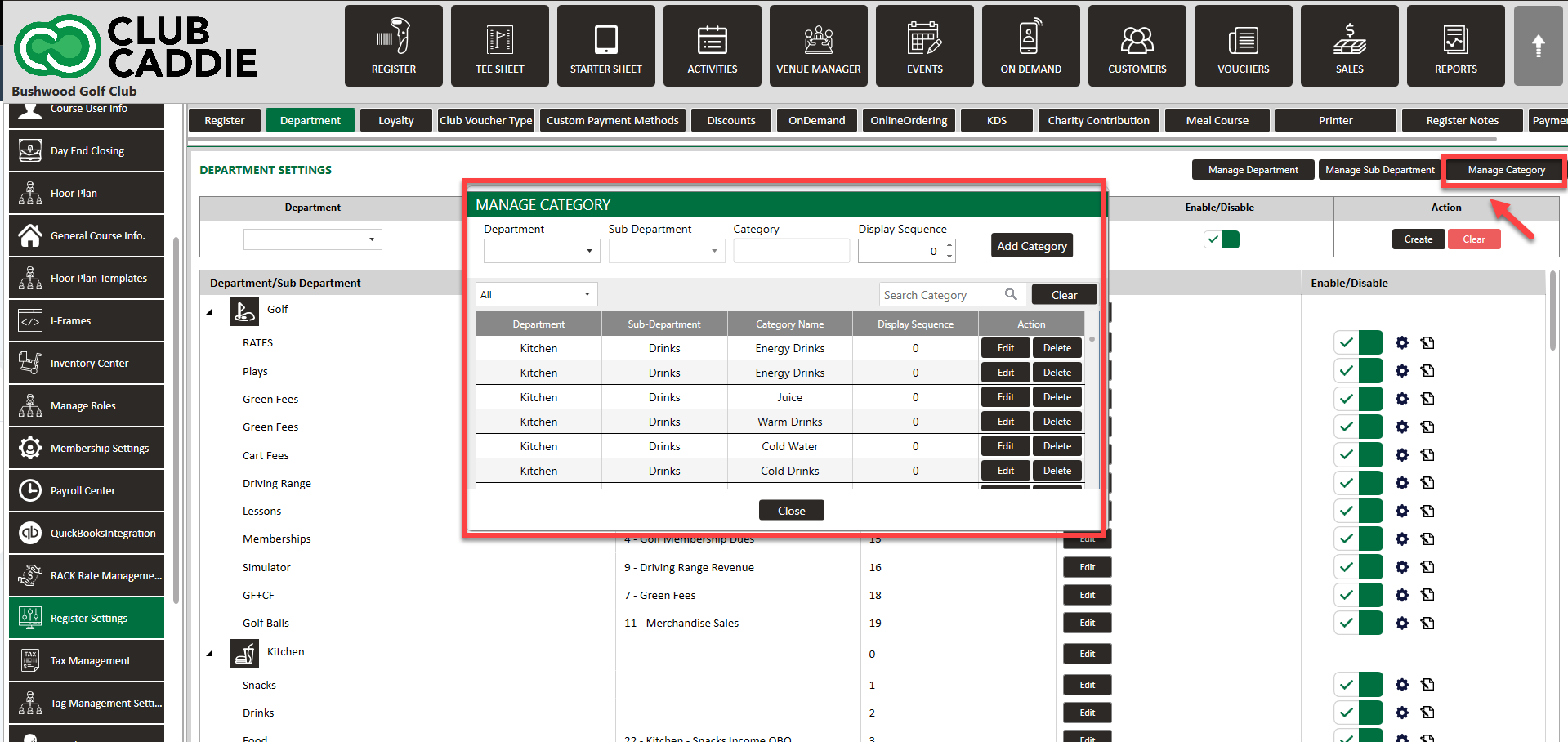
SETTINGS: MANAGE DEPARTMENT / SUB-DEPARTMENT / CATEGORIES
Related Articles
Manage Inventory Categories (Video)
This article offers a step-by-step guide on how to add, edit, and delete categories in the Inventory Center, which is part of the settings module. Step-By-Step: Step 1: To start, click the Settings icon at the top right corner of the screen and ...
SETTINGS: DEPARTMENTS TAB OVERVIEW (VIDEO)
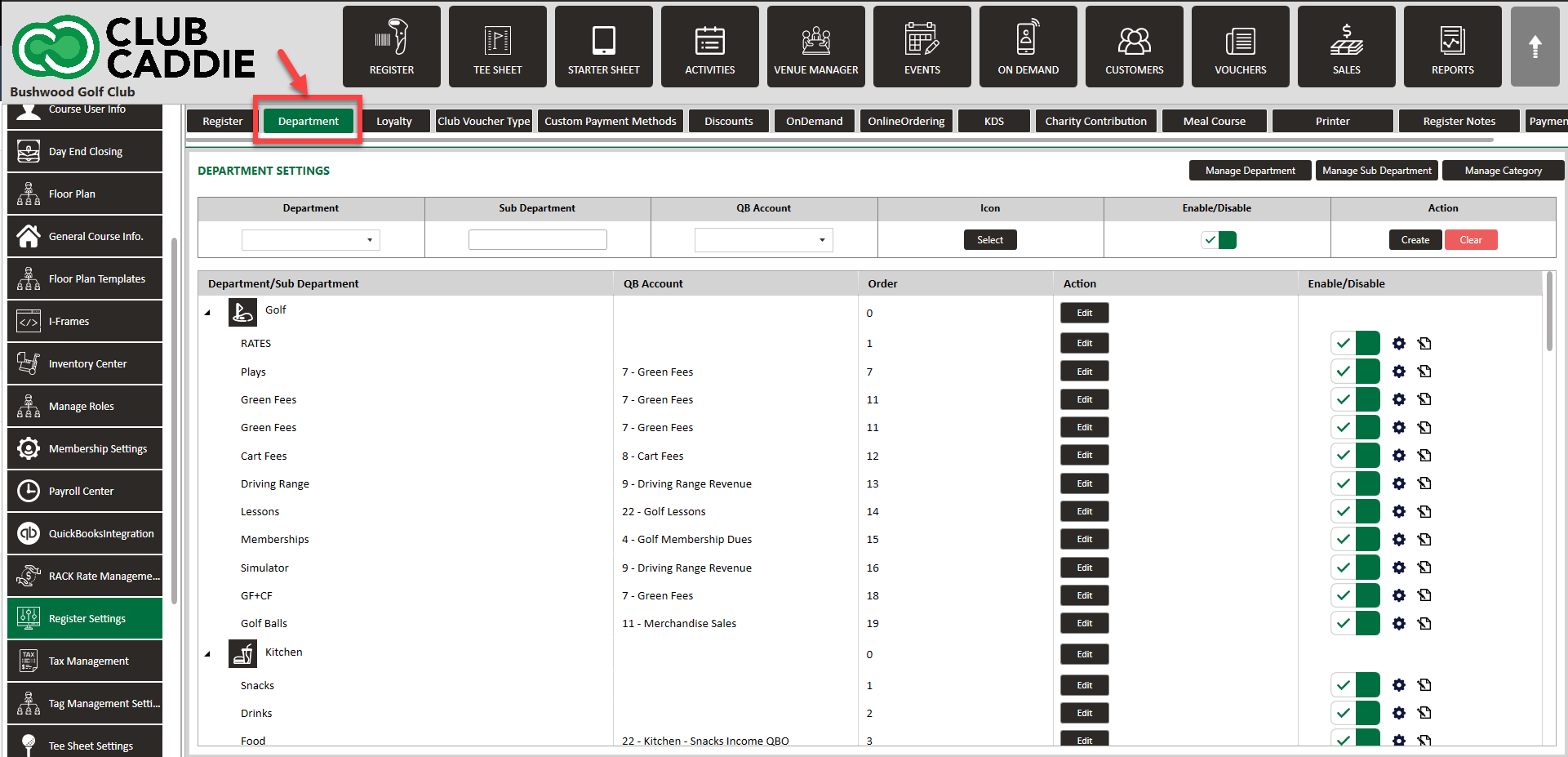
Article Contents: In this video tutorial, we provide step-by-step instructions on navigating the second tab of the register settings: Department. Below are the key points covered. Step-By-Step: Step 1: The Department tab is where you create and ...
SETTINGS: DEPARTMENT - CREATE A NEW SUB-DEPARTMENT AND CATEGORY
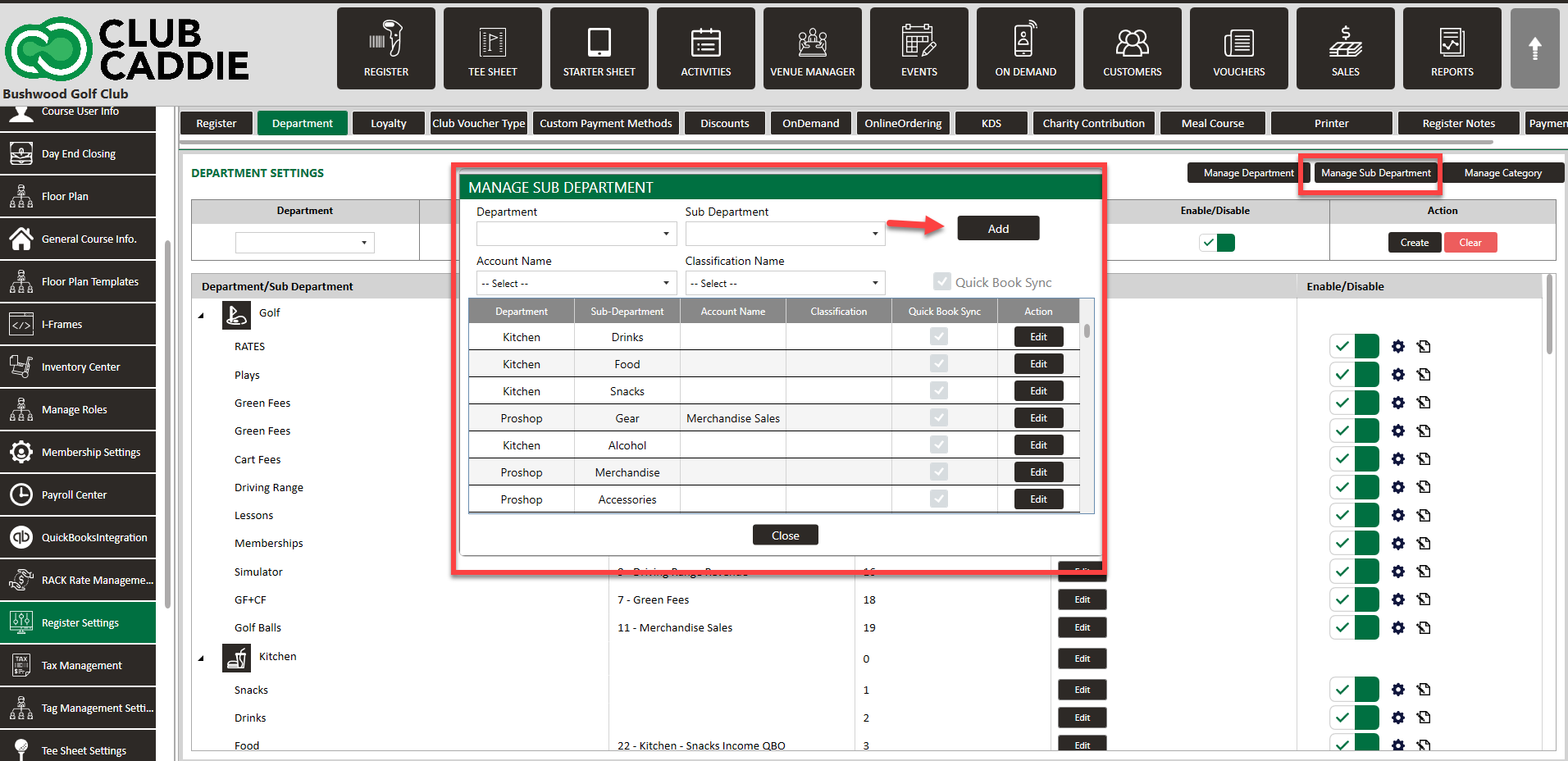
Article Contents: This article contains step-by-step instructions on how to create a new sub-department. Step-by-Step: Step 1: Click on the Settings icon on the top right corner of the screen. Then click on Register Settings in the left-hand menu and ...
SETTINGS: DEPARTMENT - CREATE NEW DEPARTMENT
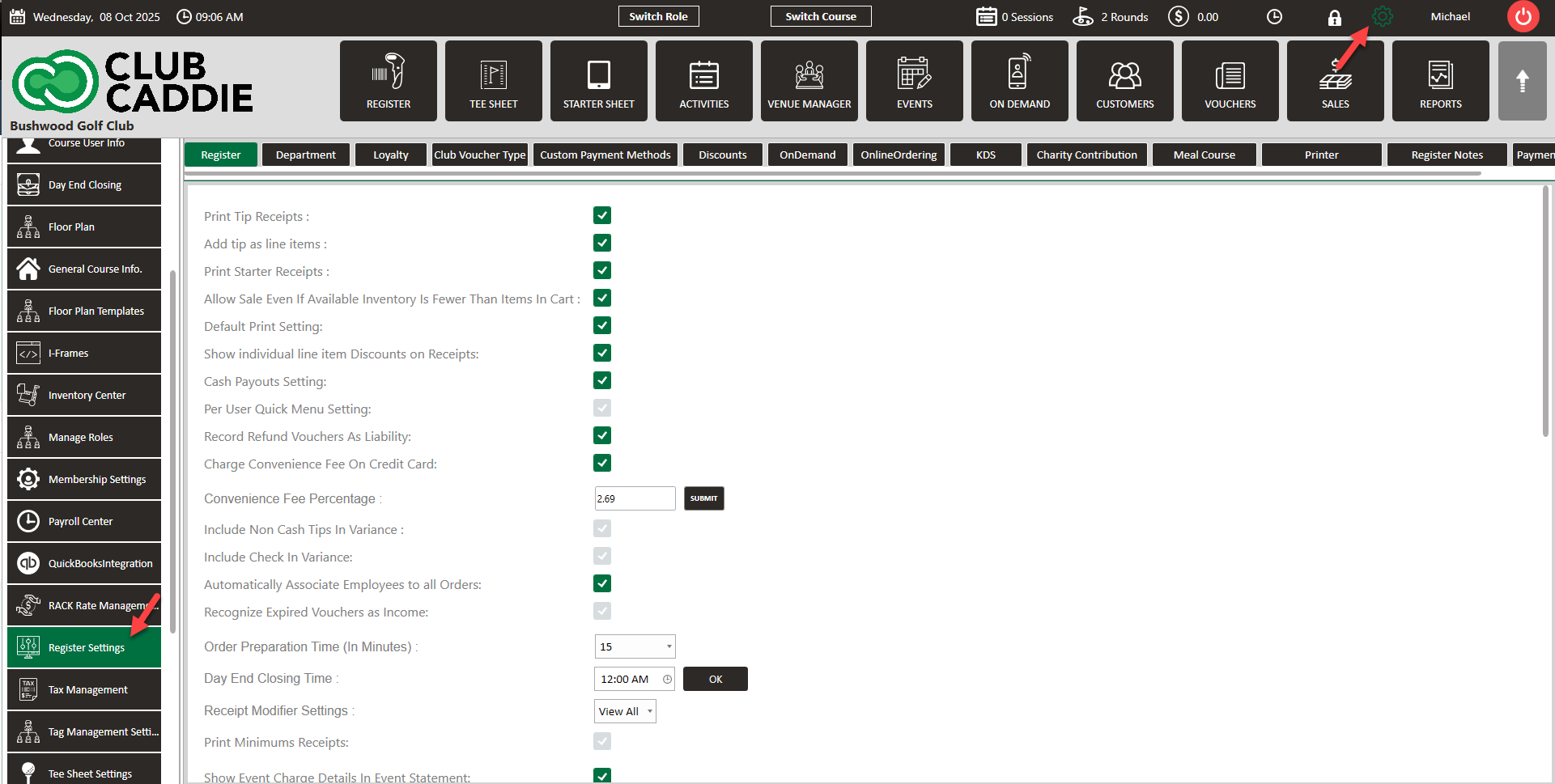
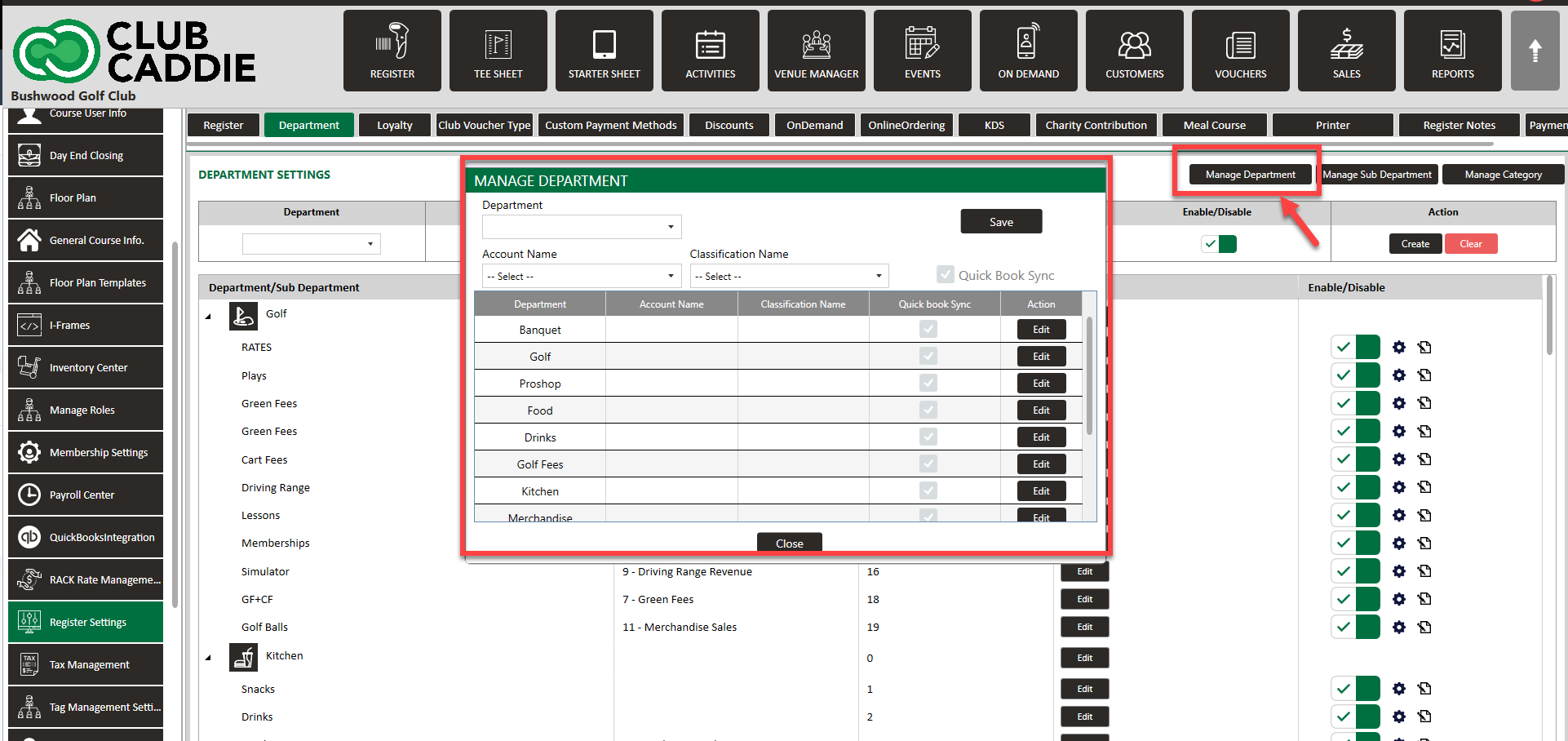
Article Contents: This article contains a step-by-step guide on how to create a new department for the register. Step-By-Step: Step 1: Click on the Gear Wheel Icon on the top-right hand corner of the screen. Step 2: Click on the “Register Settings” ...
Department Visibility
Article Contents: This article contains step-by-step instructions on how to add or hide departments from users by utilizing the role manager. Step-By-Step: Step 1: Click the Gear Wheel icon from the top right corner of the screen. Click Manage Roles ...