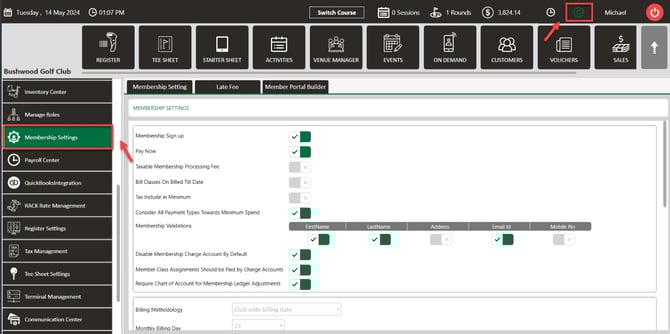
Step 1: Navigate to Settings in the top right hand corner and then locate Membership Settings from the left hand panel.
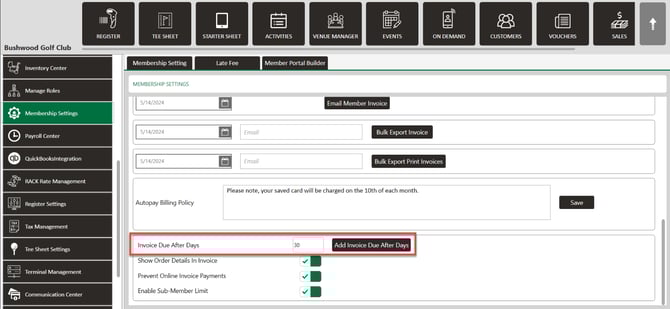
Step 2: Scroll down until you see the option to set the Invoice Due After Days setting. Enter the number of days for the invoice due date. This number is capped at 30 days.
Click Add Invoice Due after Days to save the number of days you've entered.
Step 3: Setting the amount of the late fee:
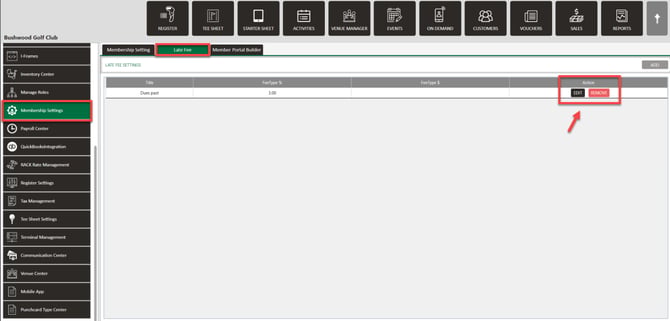
While still under Membership Settings, click on the Late Fee tab. Then, click Add to create a late fee. Fill out the required fields.
Fee Type: Select either percent or Fixed $. Then enter either the percentage or the flat dollar amount that will be charging.
Title: Enter a title for the late fee.
Don't bill if charge calculated is less than: Enter a dollar amount. If a member’s calculated late fee is less than this value, the system will not assess a fee. Example: If set to $5.00 and the calculated fee is $3.00, no late fee will be charged.
Don’t Bill if Overdue Balance is Less Than: Enter a dollar amount. If the member’s overdue balance is less than this amount, a late fee will not be charged. Example: If set to $5.00 and the overdue balance is $3.50, no late fee will be applied.
Minimum amount to charge: Enter a minimum value. This ensures that members are never charged a late fee below this amount, even if the calculation is lower. Example: If the calculated fee is $3.00, but the Minimum Amount is set to $5.00, the system will charge $5.00.
Click Save.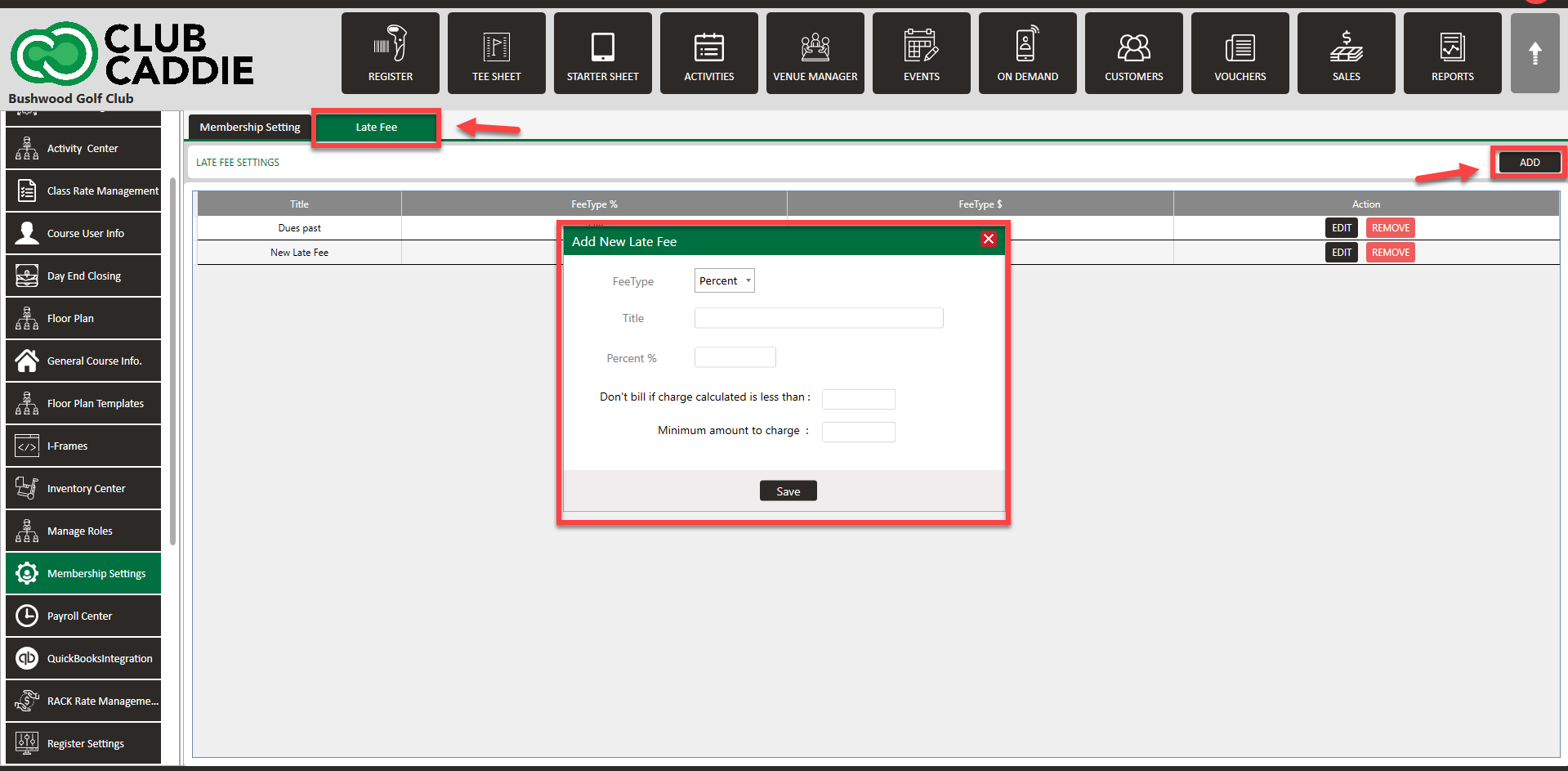
Step 4: Editing an Existing Late Fee:
- Navigate to Settings > Membership Settings > Late Fee.
- Click Edit next to the late fee that you're looking to modify.
- Make the specified changes that you need and click Save. 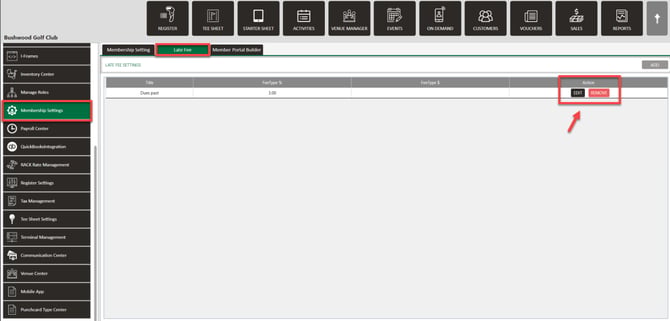
Step 5: Removing a Late Fee:
- Navigate to Settings -> Membership Settings -> Late Fee.
- Click Remove next to the late fee that you're looking to remove.
- Confirm the Removal when prompted.
Note: Once the late fee is set, the fee will trigger after the number of days set in Step 1. Ex. If the invoice due after days setting to 20, if the guest invoice is not fully paid for by the 20th of the month, they will accrue a late fee charge to their account on the 21st for any outstanding balance of that invoice that is not paid.