Step-by-Step:
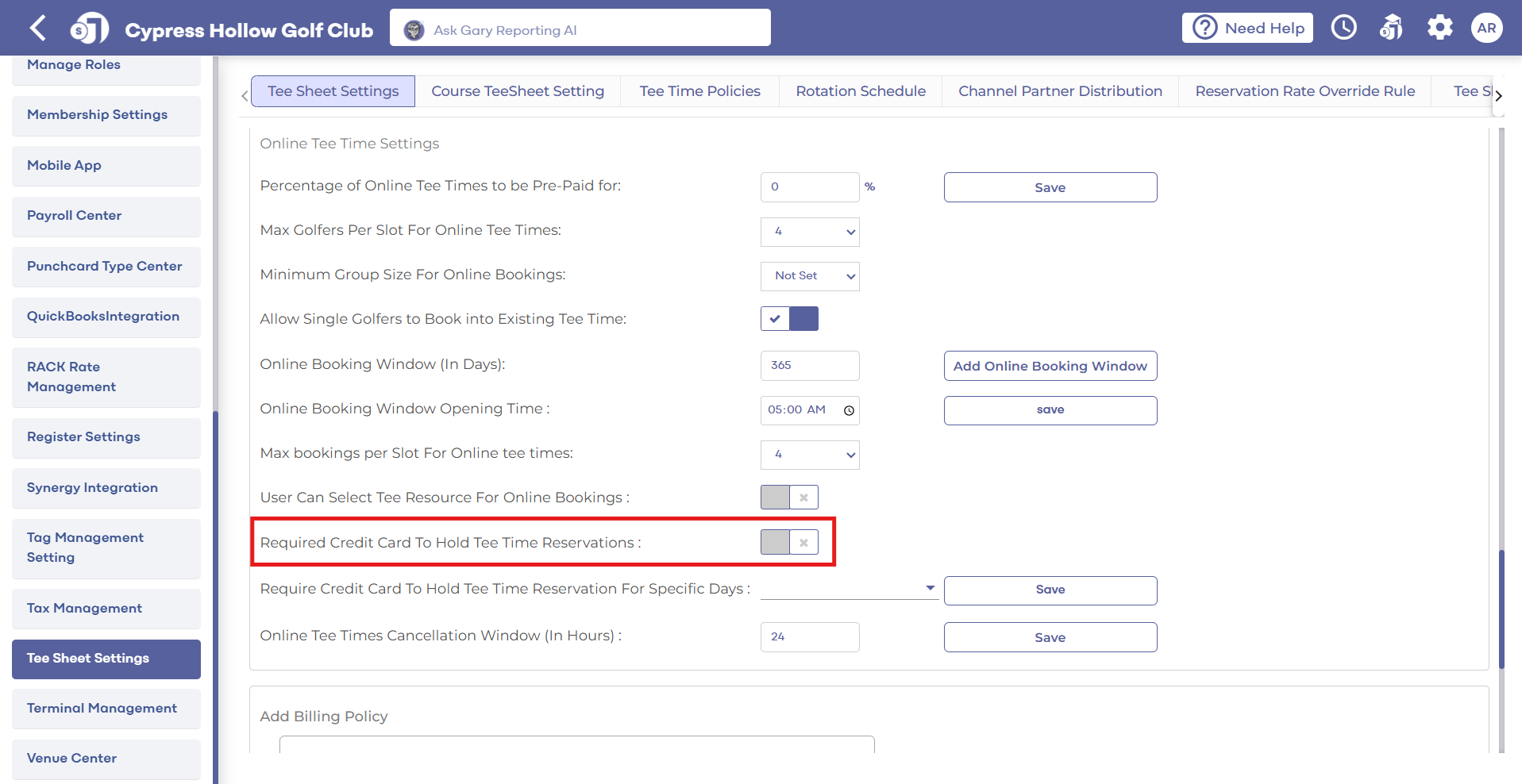
Step 1: Click on 'Settings', then go to 'Tee Sheet Settings'. Scroll down until you find the 'Online Tee Sheet Settings' section.
Step 2: Look for the option that says 'Require credit card to hold tee time reservations'. Toggle this setting on to require customers to provide their credit/debit card information when making an online booking.
Booking Sequence Post Activation:
After the feature is enabled, customers will continue to browse available tee times on the online booking platform as usual. They will choose a preferred date and time for their reservation.
The customer will be asked to provide their name, contact information, number of players in their party, and choice from available golf rates.
Credit/debit card requirement: At this stage, the customer will be prompted to enter their credit/debit card information to secure their reservation. This requirement is a direct result of enabling the "Require credit card to hold tee time reservations" feature in Jonas Synergy.
Card verification: The system will verify the provided card information to ensure it is valid. If the card is valid, the booking process will continue. If the card is invalid or the verification fails, the customer will be prompted to enter new card information.
Once the card information is verified, the customer will receive a confirmation of their reservation via email. This confirmation will include the date, time, and any additional details about their booking.
The customer's credit/debit card information will be securely saved to their profile within the golf course management system. This allows for seamless transactions during their visit, such as check-ins, purchases at the pro shop or restaurant, and charging no-show fees if necessary.
Charging no-show fees: With a card on file, you can charge customers a no-show fee based on your course policy. This helps encourage customers to cancel their bookings in advance if they can't make it, freeing up tee times for other golfers. To learn more about setting up and charging no-show fees, please refer to our separate article on this topic (see below).
Prepaid bookings: Customers can use their saved card to prepay for their tee time, making check-ins more efficient.
Point of Sale (POS) benefits: Once a customer's card is saved to their profile, it can be used within the POS system for various transactions, such as check-ins and purchasing items at the pro shop or restaurant. This simplifies the payment process for both staff and customers.