Note: For the integration to work properly, the below MUST be followed:
1. Department Name: MUST be called Golf
2. Sub-Department Name: MUST be called Driving Range
After the integration is complete, you can head back to settings -> point of sale settings -> department and you can rename the department and sub-department if you wish.
1. Department Name: MUST be called Golf
2. Sub-Department Name: MUST be called Driving Range
After the integration is complete, you can head back to settings -> point of sale settings -> department and you can rename the department and sub-department if you wish.
Step-By-Step
Step 1: Click on Settings (gear wheel top right).
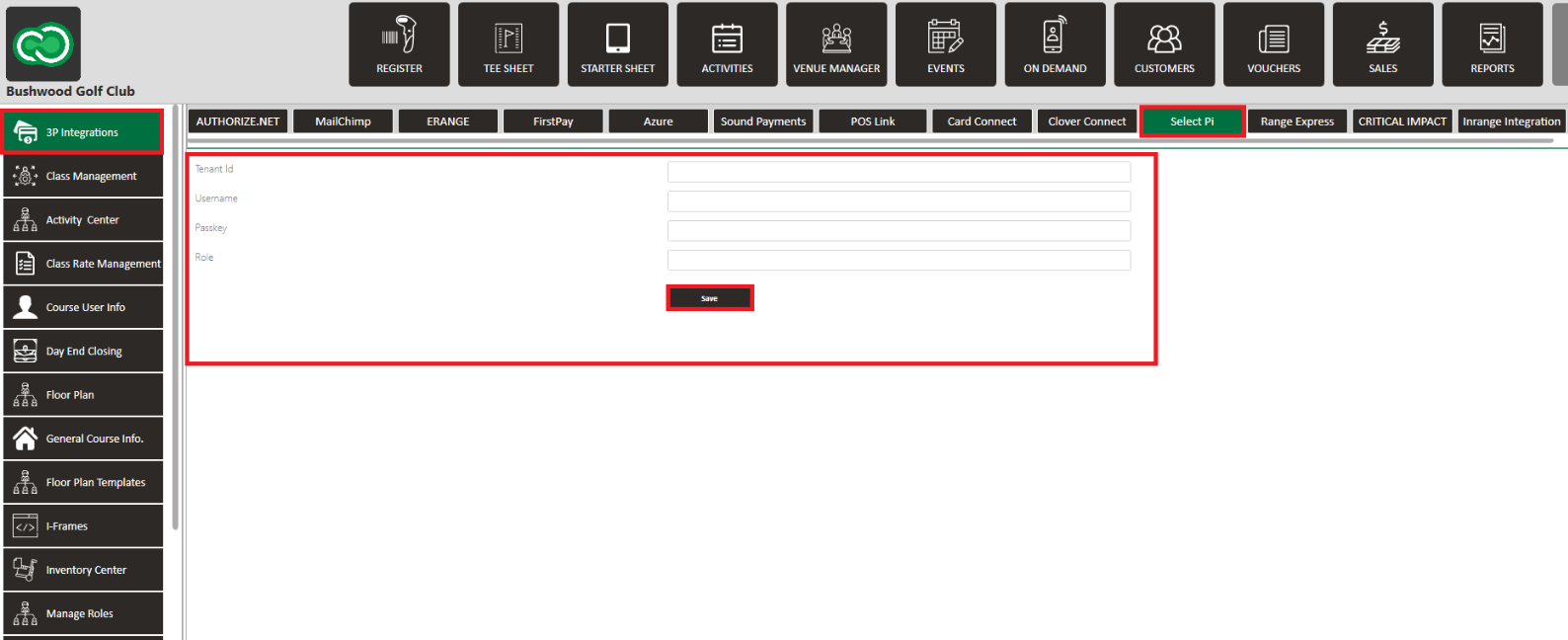
Step 2: Click on "3P Integrations" on the left hand side menu, and then click "Select Pi" on the top row.
Step 3: Enter all required fields below:
Select Pi Integration -
Requires a tenant ID - (Need to get from Operator)
Requires the username - (Need to get from Operator)
Passkey - (Need to get from Operator)
Role - (Need to get from Operator)
Requires a tenant ID - (Need to get from Operator)
Requires the username - (Need to get from Operator)
Passkey - (Need to get from Operator)
Role - (Need to get from Operator)
Note: The credentials will be provided to you by your Select Pi representative