Department/Subdepartment Class Discount

SETTINGS: CLASS DISCOUNTS

Article Contents: This article provides instruction on how to set a discount for a Class.

Step-By-Step:
Step 1: 
Click on the  Settings gear wheel icon from the top-right corner of the screen. Select  Class Management from the left-side panel.


Step 2: Select the drop-down arrow next to the  Action button. Select  Discount Type.


Step 3: Click  Add which opens a new window. Select the department and subdepartment to apply the discount. Enter the discount percentage (%). Click  Save.
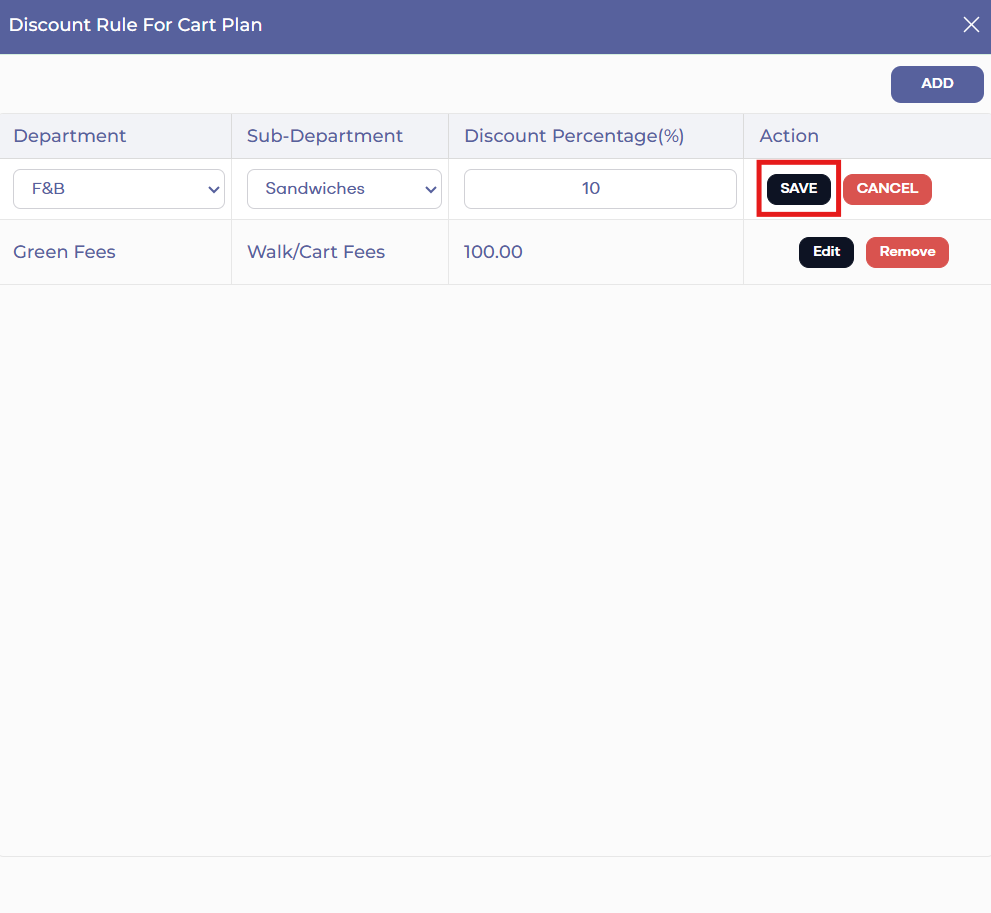
 

Discount is a percentage, not specific dollar ($) amount.

Step 4: Notice that when an item that's within the subdepartment that is associated with the discount for the class is added to the cart, the discount automatically applies. However, the tab must be assigned to the member with the class that has the assigned discount for the discount to automatically apply.


    • Related Articles

    • SETTINGS: CLASS MANAGEMENT

      Article Contents: This is a step-by-step guide on how to create a new class or edit an existing class. Step-By-Step: Step 1: Click on the Gear Wheel icon on the top-right corner of the screen. Then click on Class Management from the left-side menu. ...
    • SETTINGS: ONLINE PREPAYMENT OPTIONS BY CLASS

      Article Contents: There is an option to require prepayment for online Bookings. This enables operators to have more flexibility with their Customers/Members. Step by Step: Step 1: Navigate to the 'Settings' menu, select 'Class Management', and then ...
    • Class Rate Management

      Article Content: This article provides step-by-step instructions on how to set up Class Rates. Step-By-Step These are rates that are typically used for members. - For public rates, utilize Rack Rate Management. Step 1: Click on the Gear Wheel Icon on ...
    • SETTINGS: LOTTERY

      This article provides steps on how to create a lottery booking for tee times for your facility. Article Content: This article provides steps on how to create a lottery booking for tee times for your facility. Step by Step Guide: Step 1: Navigate to ...
    • SETTINGS: PRORATING MEMBER CLASSES

      Article Contents: This article covers the option of prorating a member class for when adding a new class to a member. When this option it turned on in Class Management, the monthly or yearly rate for the member will be prorated appropriately. Step by ...