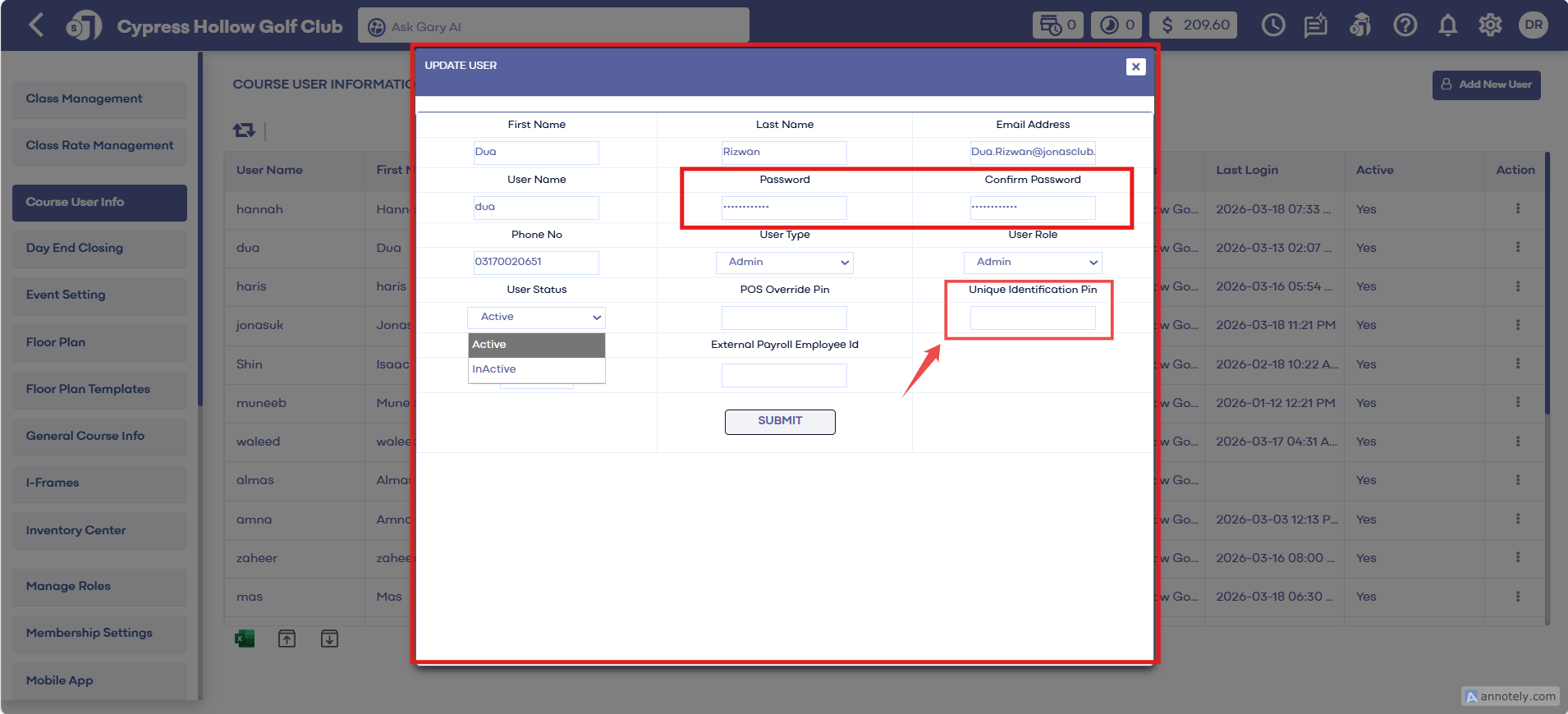
Unique Identification Pins
Related Articles
Unique Employee Identifier
Article Content: This Article Provides Steps On Create An External Payroll ID Field To Support Integration With Third-Party Payroll Systems. These IDs Are Included In Payroll Exports, Ensuring Consistent Employee Tracking And Simplifying ...
Employee Pin Lock
This is a guide with instructions on setting up Pin Lock for employees, creating a 4-digit code for each employee, as well as tips to making sure your transition to employee pin lock runs smoothly. Step-by-Step: Step 1: To set a pin for each employee ...
Course User Info
Article Contents: This article contains information on users of the courses information, how to add a new user, how to edit a user, and how to change the log of the user. Step-By-Step: Step 1: Click on the Gear Wheel Icon on the top right corner of ...
SETTINGS: MOBILE APP BUILDER
After the initial set-up of your Custom Mobile App, in Jonas Synergy you’re now able to make adjustments to the modules that appear in your App, curating the desired experience that you want your players to have. Step-By-Step: To manage the modules ...
Clover Connect Oauth V2 Configuration
Article Content: This Article Step-By-Step Guidance For Configuring Oauth 2.0 With Clover Connect To Securely Authorize And Integrate The Club's System With Clover's Payment Platform. It Ensures Users Can Properly Set Up Authentication, Retrieve And ...