Step-By-Step:
To manage the modules that are featured, follow these steps:
Step 1: In the top right hand corner of Jonas Synergy, you’ll find the Settings button. Click on that button to access your Jonas Synergy Settings. (Some staff will not have access to settings based on their permission level)
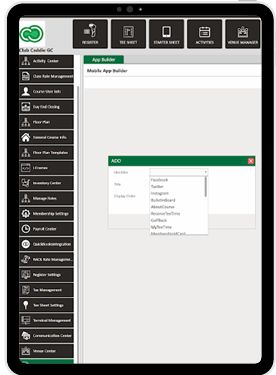
Step 2: Once in Settings, Click on Mobile App from the left hand side menu. Once you’ve accessed the Mobile App settings, you’ll then be in the App Builder screen. In the top right corner, you’ll see the Add button. Click on that button to proceed.
Step 3: You’ll next have a pop-up appear. Within the Pop-up you’ll find three options: Identifier, Title and Display.
Identifier, is where you can choose what modules will be featured on your Custom Mobile App. These options include: Facebook, Twitter, Instagram, Bulletin Board, About Course, Reserve Tee-Time, Golf Back, My Tee Times, Membership ID Card, Membership Portal, Activities, On Demand (Food and Beverage Ordering), Events, Golf Genius, Contact, Amenities, Weather, Special Events, Golf Outing, Staff, Messaging, Hide Rangefinder and Scorecard
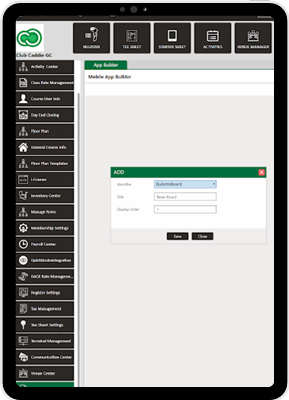
Title, allows you the option when choosing one of the above modules, to give a more appropriate name as it applies to your facility. This gives you the flexibility to change what it is that your players see when in the app.
Display Order, lets you organize the modules and how they will appear from the top of the Custom Mobile App to the bottom. With 1 appearing at the top of the Mobile App, you can assign the order for all modules that appear, and adjust that order when needed
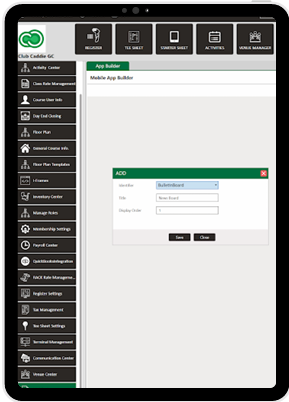
As each facility is unique, the Jonas Synergy Custom Mobile App allows you to decide what modules apply to your facility, and will be most readily used by the players. The Mobile App settings function, also allows you to pivot on a moment's notice and update the modules within the Mobile App to align with the requests and feedback of your members and players.