Rack Rates
BEFORE ADDING RACK RATES, ENSURE RESOURCE TYPES HAVE ALREADY BEEN INPUT IN JONAS SYNERGY.
For instructions on how to add Activity Resources, refer to https://desk.zoho.com/portal/en/kb/articles/activity-center-activity-resource).
Step-By-Step:
Step 1: Navigate to the Activity Rack Rate Management section in Jonas Synergy by going to Settings > Activity Center and then locating the Activity Rack Rate section.
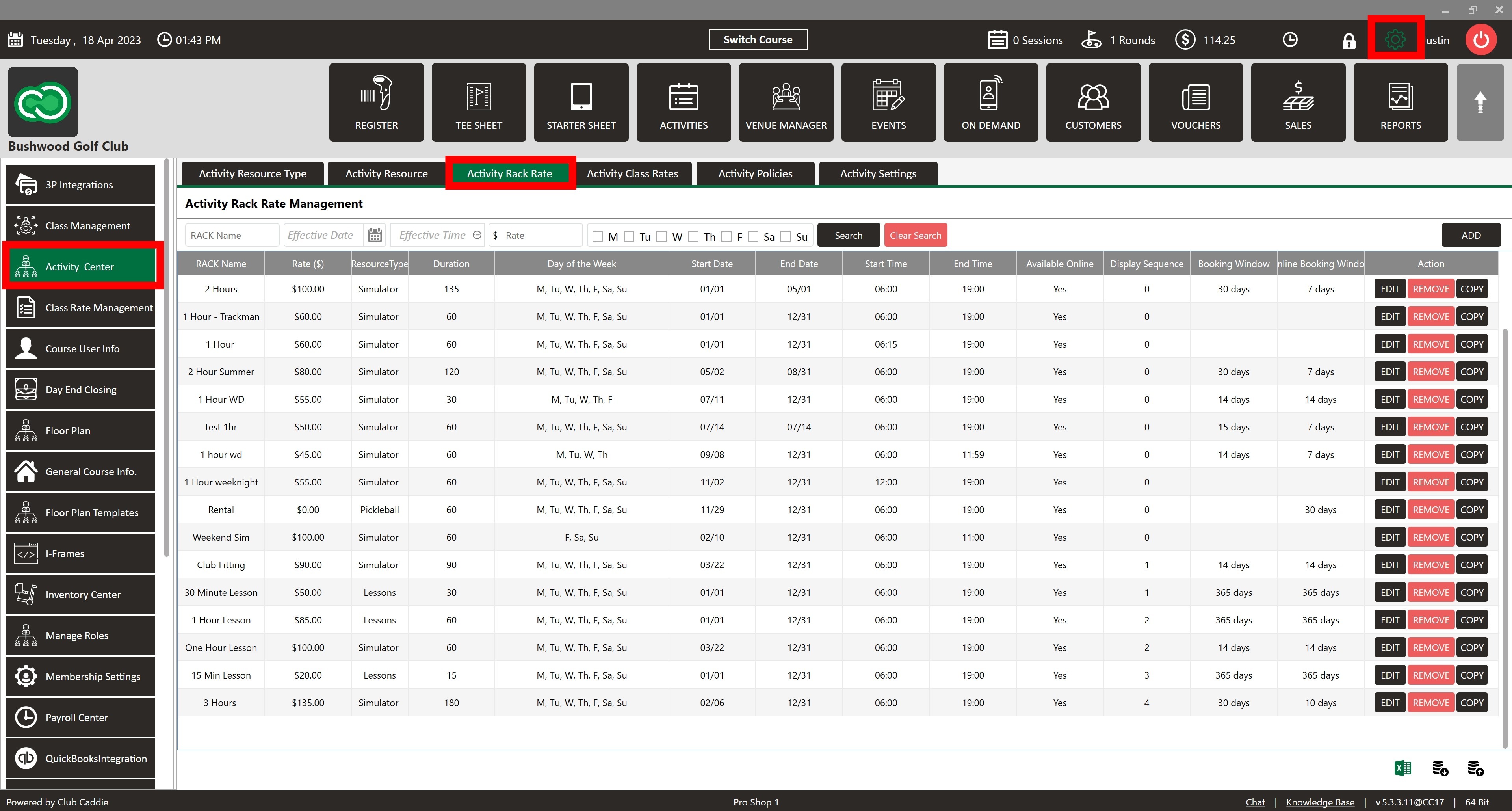
Step 2: To add a new Activity Rack Rate, click ADD in the top right corner of the Activity Rack Rate Management. Fill in the required fields as described below:
RACK Name: The name of the Activity Rack Rate (e.g., '3 hours')
Rack ($): The cost of the activity rack rate
Resource Type: Select the resource type from the dropdown that will be used for this rack rate
Duration: Input or select a time length for the activity rack rate from the dropdown
Day of the Week: Checkmark the days the activity rack rate will be available (M = Monday, T = Tuesday, W = Wednesday, Th = Thursday, F = Friday, Sa = Saturday, Sun = Sunday)
Start Date: Choose the date when the activity rack rate will become available from the calendar
End Date: Choose the last date the activity rack rate will be available from the calendar
Start Time: Select the earliest time the activity rack rate will be available
End Time: Select the latest time the activity rack rate will be available
Available Online: Toggle whether the activity rate will be available for online bookings
Display Sequence: Select a number to determine the positioning of the activity rack rate in relation to other created rates (0 = displayed first, 1 = second, etc.)
Booking Window: Input the number of days in the future an activity rack rate can be booked within Jonas Synergy software
Online Booking Window: Input the number of days in the future an activity rack rate can be booked online
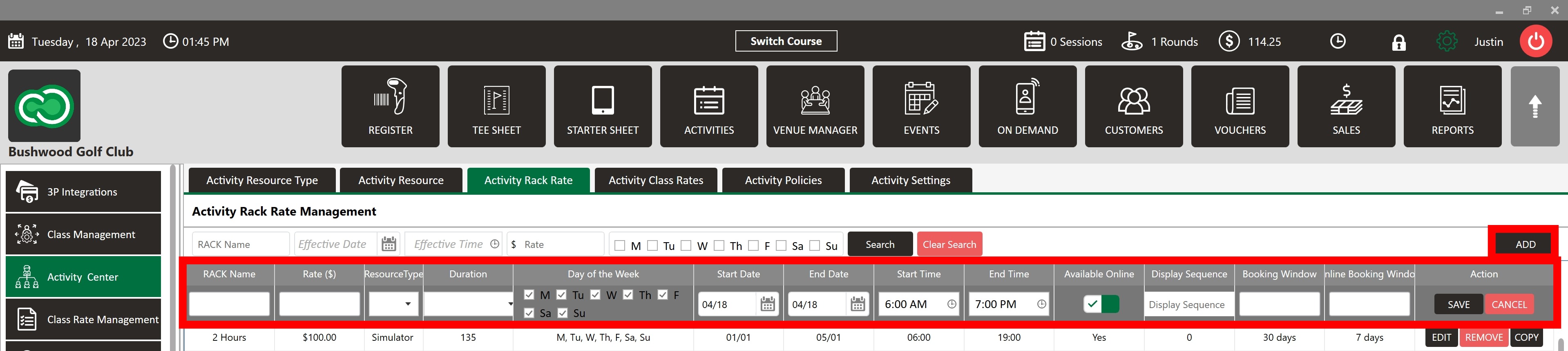
Step 3: After filling in all fields, click SAVE to store the activity rack rate or click CANCEL to cancel the process.
Step 4: To edit an existing activity rack rate, click EDIT, make the necessary changes, and then click SAVE to update the entry.
Step 5: To delete an existing entry, click REMOVE. To duplicate an existing entry, click COPY.

Step 6: To search for an existing activity rack rate, use the search bar located at the top left corner of the Activity Rack Rate Management. You can search rates by Name, Effective Date, Effective Time, Rate Cost, Day of the Week, or a combination of these. Click Search to perform the search and Clear Search to reset the search and display all rates.

Related Articles
Class Rates
This article contains step-by-step instructions on how to add, edit, and search for Activity Class Rates in the Class Rate Management section of the Activity Center in Jonas Synergy. Before adding class rates, ensure resource types and Classes have ...Activity Booking Blended Rates
This article provides a guide on how to set blended rates for your activity booking. Blended rates are best utilized when a single rate is available for a specific given time. This Strategy essentially eliminates the need to set up individual Rates ...Settings Overview
Article Contents: This article contains an overview of the Activity Center, including its functions and features for managing various activities and resources within the Jonas Synergy software. Overview: Step 1: The Activity Center acts as the ...Reservation Strategy
This article contains a step-by-step guide on how to set your Reservation Strategy as it will set your sequence options for players booking online. Step-By-Step: Step 1: Navigate to Settings and then click on Activity Center from the left-hand-side ...