Users
Article Contents: This article explains how to create and manage user profiles under Company Setup.
Step-By-Step:
Step 1: From the System Setup menu, select Company Setup > Users.
Step 2: To enter a new user, select “New” at the top of the page.
Step 3: Fill in the following fields:
- User Name
- First Name / Last Name
- Email Address
- Hire Date / Date of Birth
- Address, City, State, Zip, Country
- Phone and Fax
If the user account should be restricted, check the Locked box.
Select the companies the user should have access to by checking the boxes under Companies.
Choose roles for each company or apply default roles across all companies. Roles determine the user’s permissions within the system.
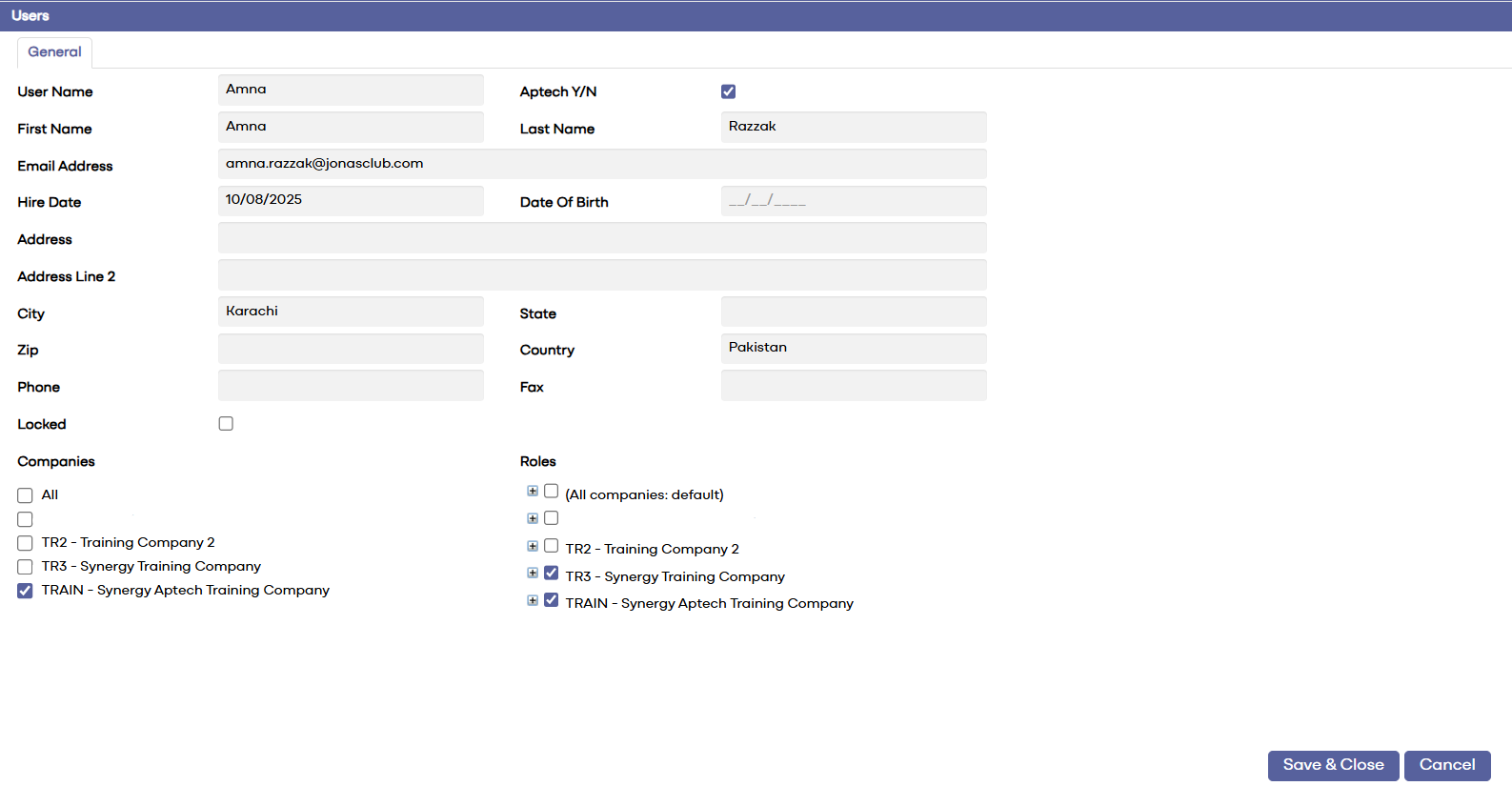
Step 4: Click Save & Close to apply changes and activate the user profile.
Related Articles
Exports
Article Contents: This article explains how the A/P Exports menu allows users to export Accounts Payable data Simply select the Export Type by clicking on the edit icon, and columns that you wish to export: Invoices: Vendors: You will then be able to ...Exports
Article Contents: This article explains the User Logins Export feature under Exports. It displays login details for all users or a selected user within a chosen date range. Step-By-Step: Step 1: Go to System Setup > Exports. The report can be ...System Reports
Article Contents: This article explains the System Reports tab under System Setup. These reports provide insights into financial report design, account verification, user roles, permissions, and company user access. Go to System Reports under system ...Posted GL Transactions
Article Content: This article covers how to view all posted GL transactions. To access posted entries, go to the Posted GL Transactions tab under Ledger. This section allows users to review completed and finalized general ledger activity for accurate ...GL Transactions
Article Content: This article covers the use of the GL Transactions section, which allows users to enter General Journal entries, view entries available for posting, modify or delete unposted entries, and post completed transactions. Navigate to GL ...