Create & Manage Groups
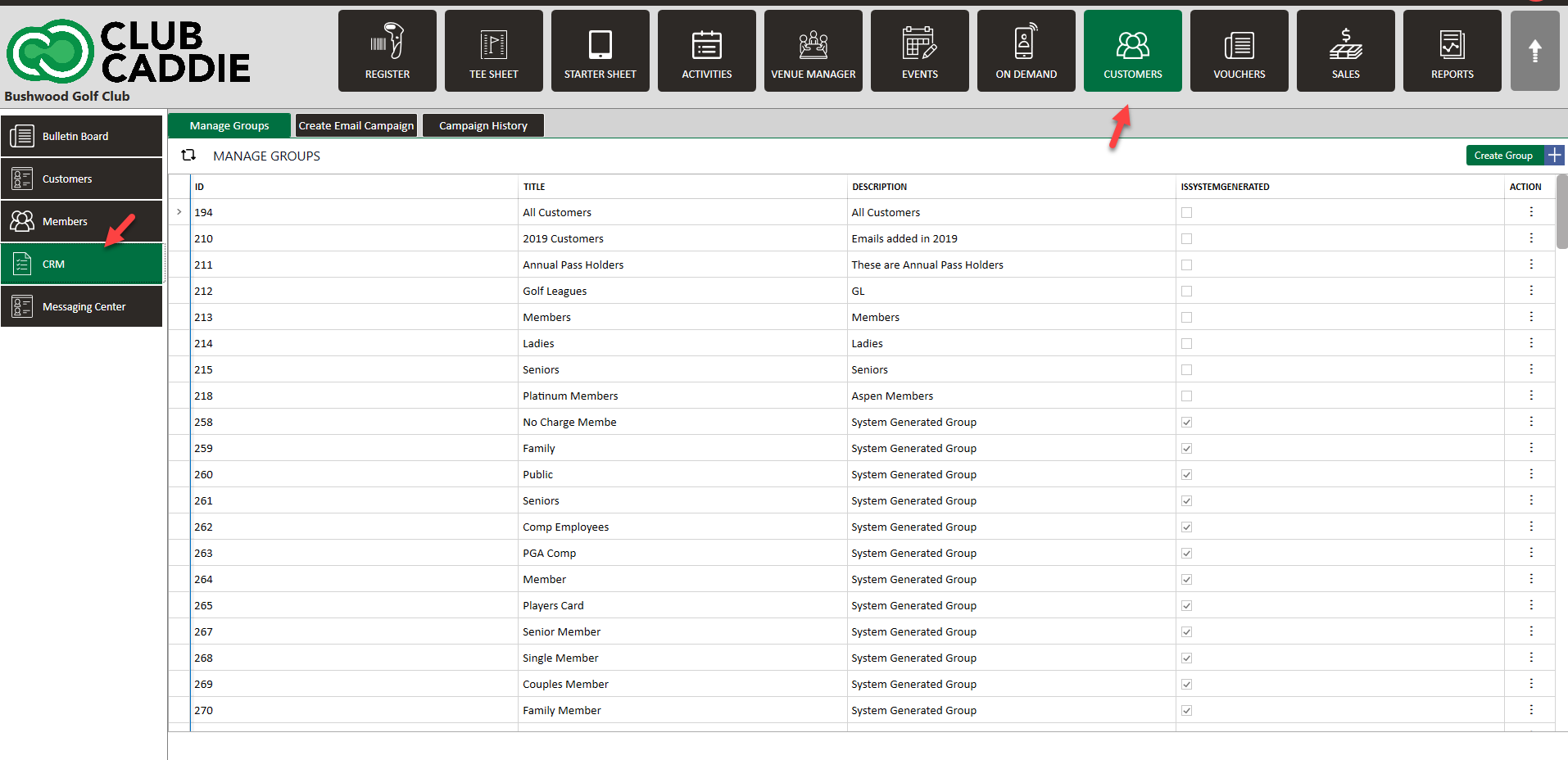
Step 1: Select the Guests module from the module navigation menu. Click CRM from the left row of the window.
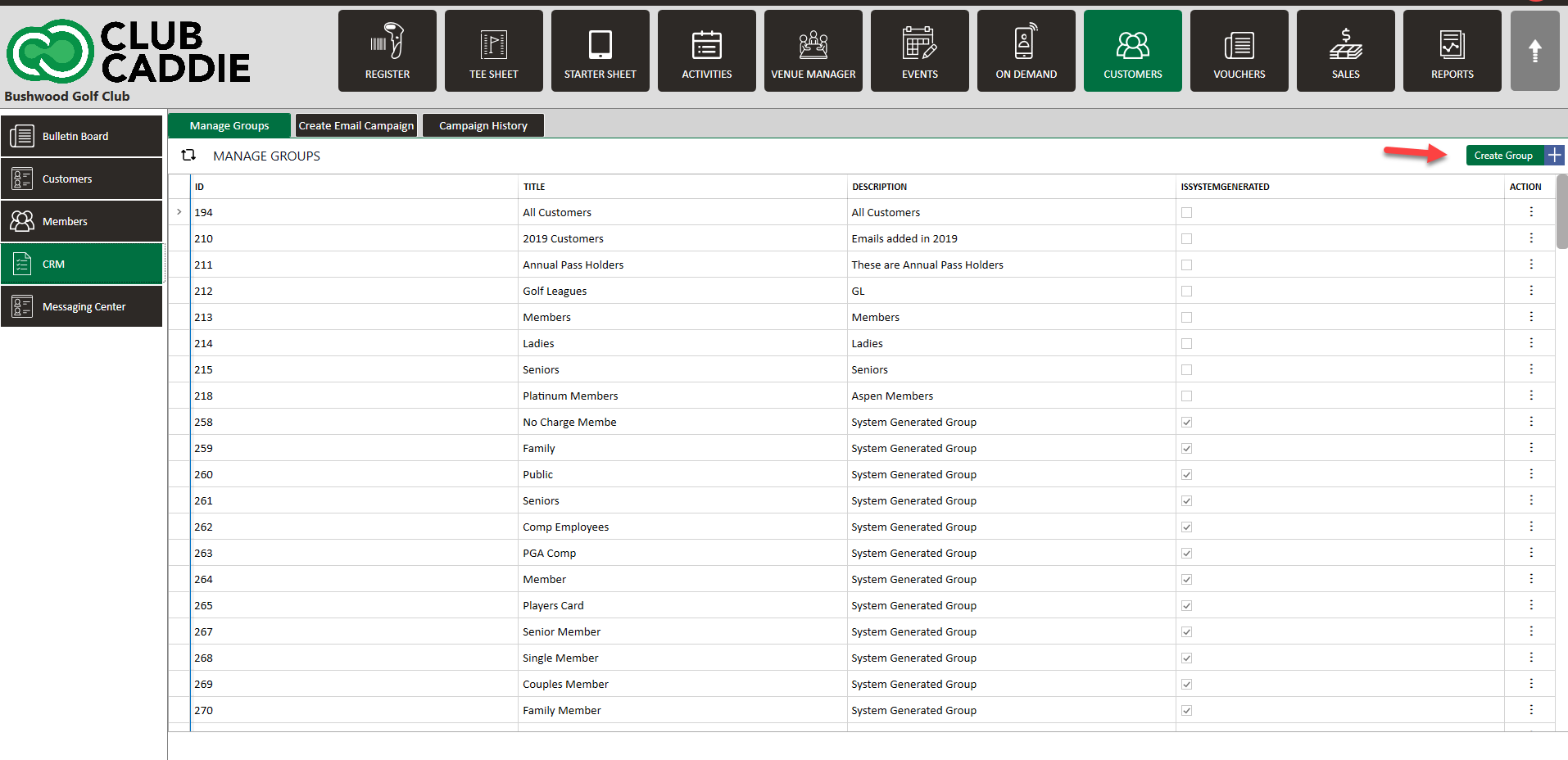
Step 2: To create a new group click on the Create Group button.
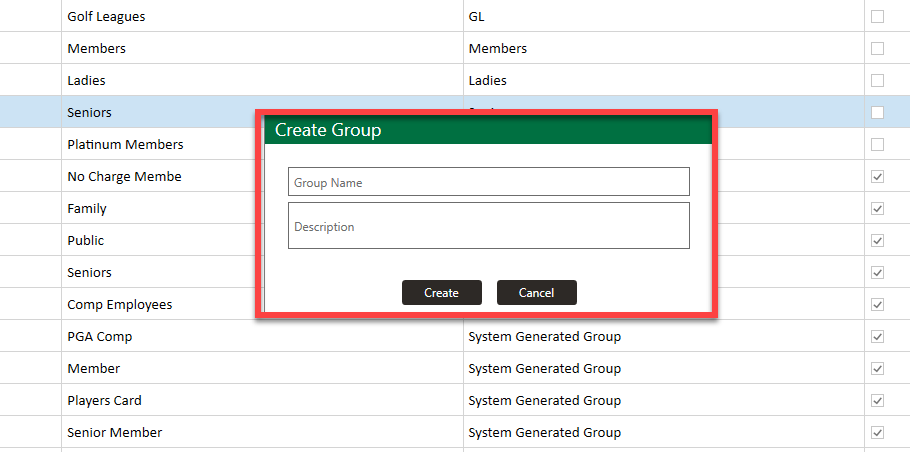
Step 3: The system will generate a new Create Group pop-up window. Give a group name and enter the group description in the provided text boxes, then click on the Create button to create a Group.
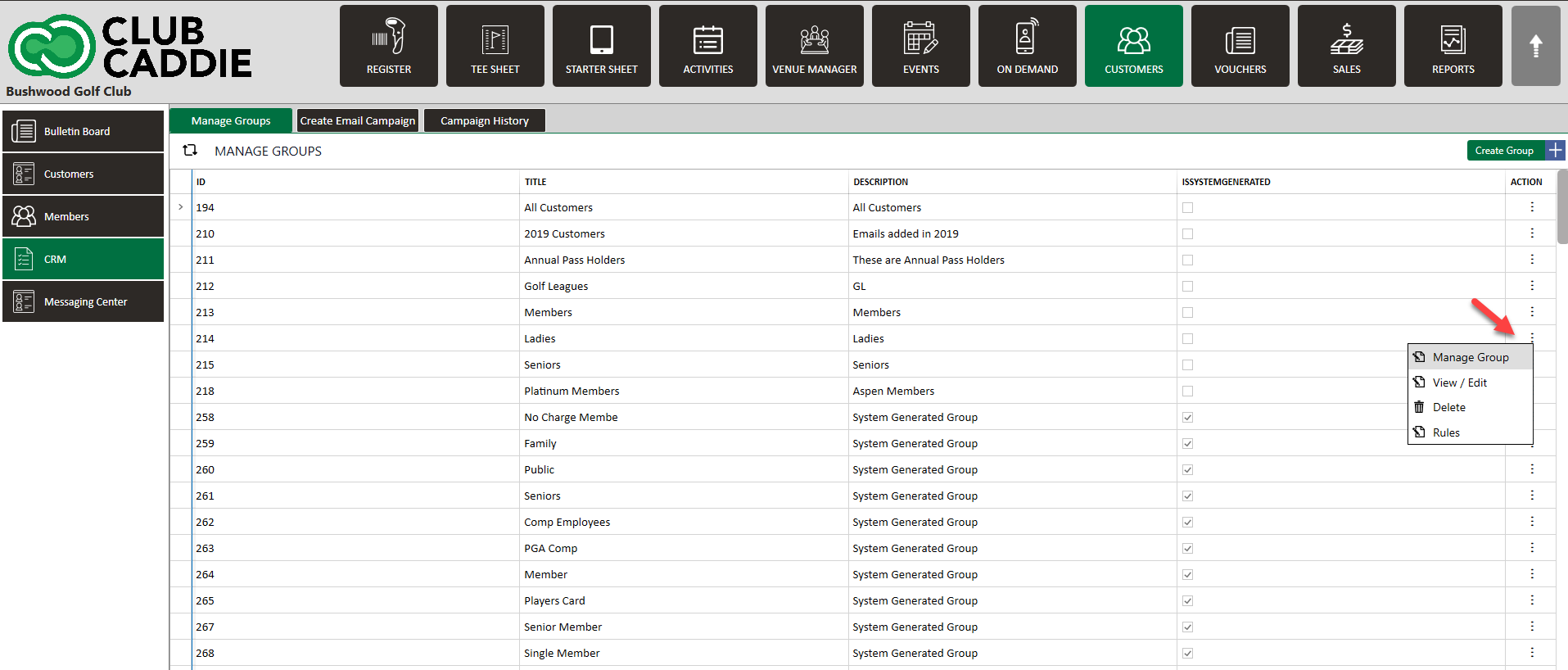
Step 4: To add or remove Guests from groups then click on the Manage Group button of that group within the ACTION menu. The system will generate a new MANAGE GROUP window.
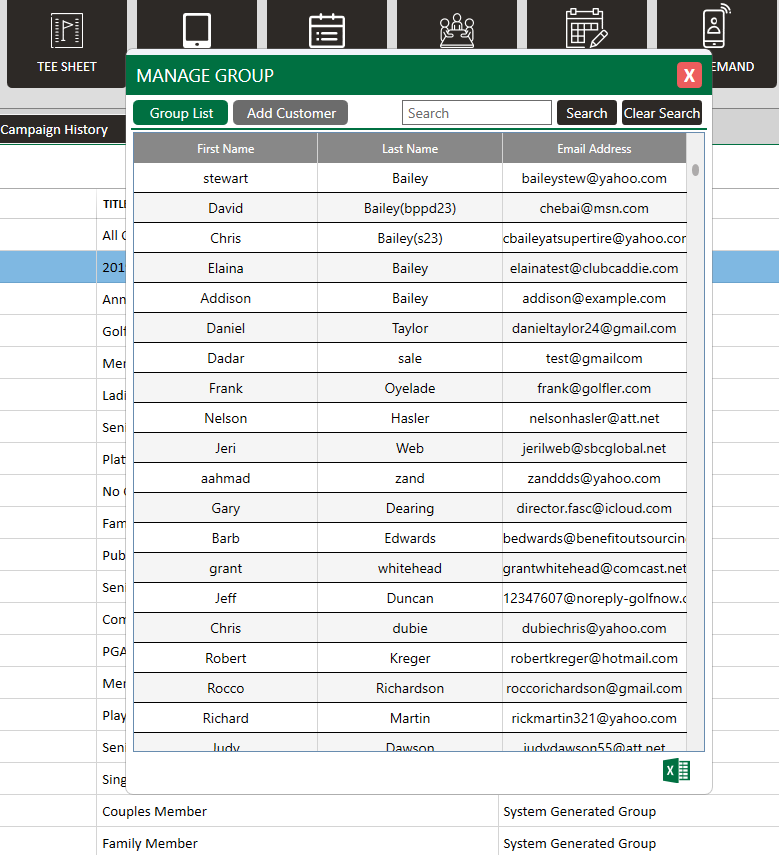
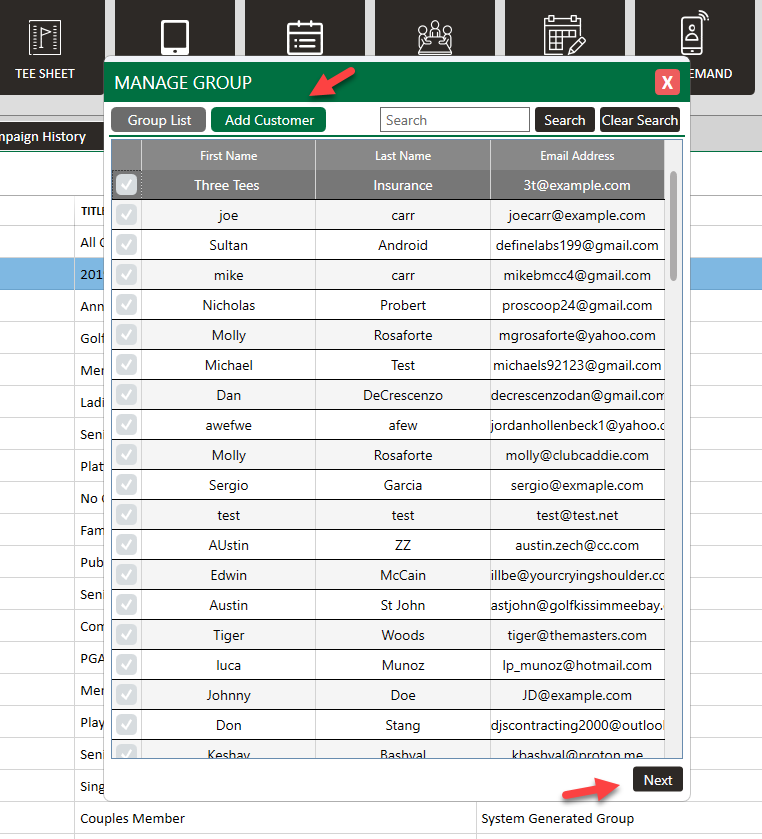
Step 6: Click on the Add Guest button to add new Guests to a group. Select the Guest then click on the Next button. The Guest will be added to the group.
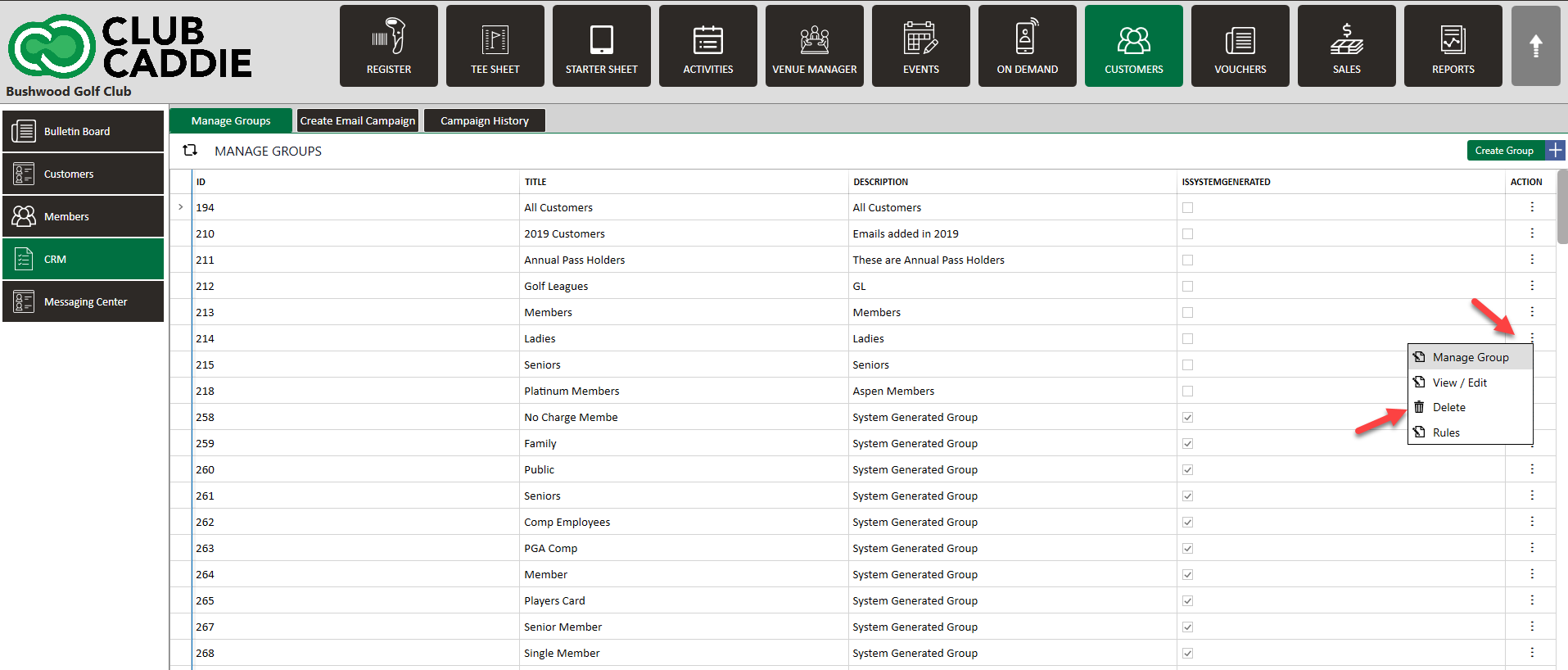
Step 7: Click on the Action button and click delete to delete the group.
Related Articles
Create a New Email Campaign (MailChimp)
This article summarizes how to create a new Email Campaign. Step-By-Step: Step 1: Click on the Guest tab (1) from the header of the window. Select CRM (2) from the left row of the window, then select Create Email Campaign tab (3). Step 2: The system ...Understanding the Bulletin Board (Video)
Article Contents: The video tutorial focuses on the bulletin board feature within the guests module of the Jonas Synergy software. It demonstrates how to create, edit, and manage posts to effectively communicate with guests or members. Step-By-Step: ...How to create a flag
This article contains step-by-step instructions on how to set a new flag for Guests. Step-By-Step: Step 1: Select the Guests module from the module navigation menu. Next, select Guest from the left side of the window. The system will show existing ...Add Guest to Group
This portion summarizes how to Manage Groups and Add Guests to a Group. Step-By-Step: Step 1: Click on the Guests Tab (1) from the header of the window. Click on CRM (2) from the left row of the window, then select Manage Groups (3) where you can see ...Messaging Center
This article provides instructions on how to use the new Messaging Center within the Guests module. The Messaging Center consolidates all Guest communications in one place, allowing for easier management of messages and quick access to Guest This ...