Assign Guest Class
Step-By-Step:
Step 1: Select the Guest module from the module navigation menu, then click on Guests in the left-hand menu.
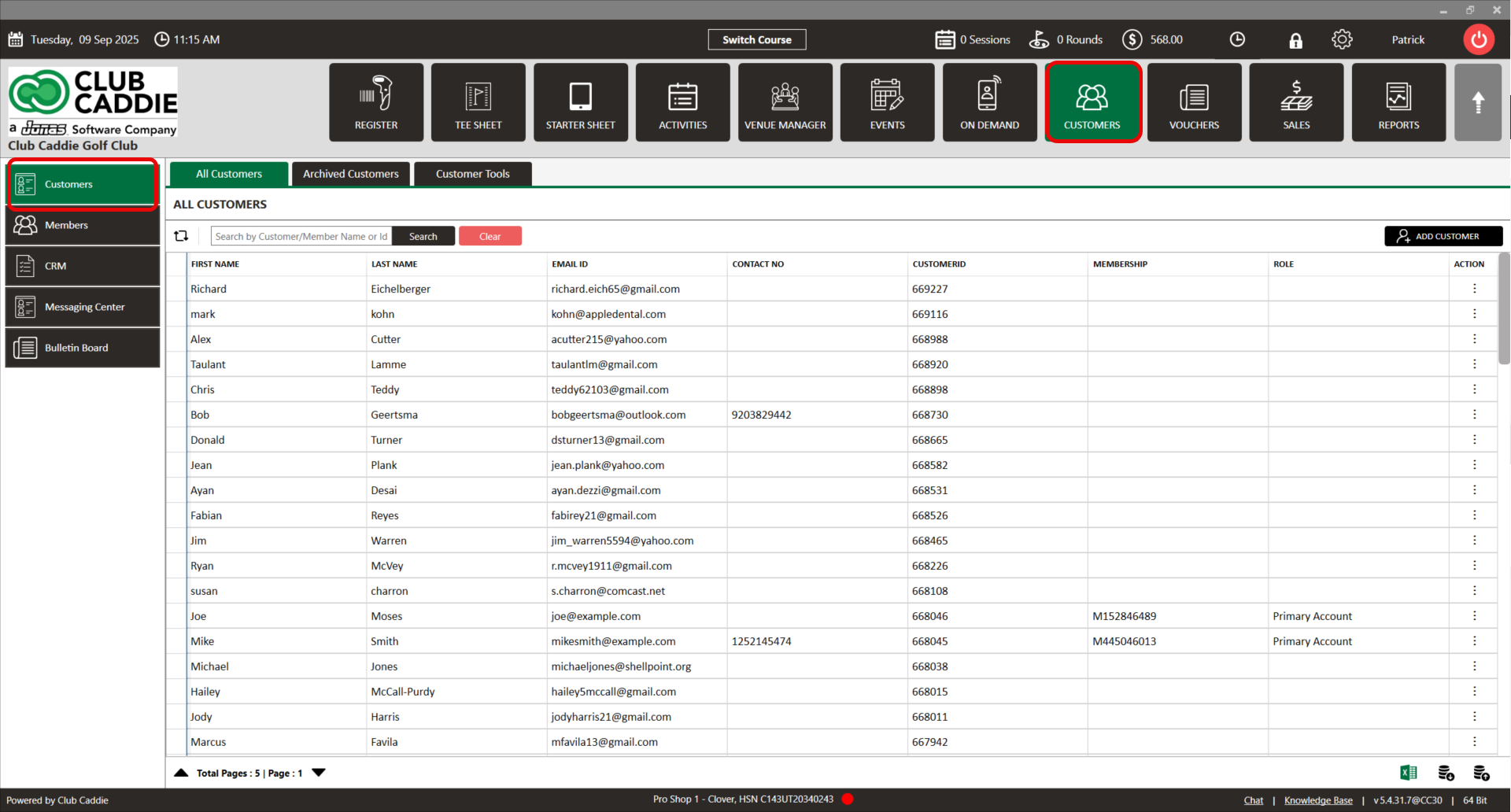
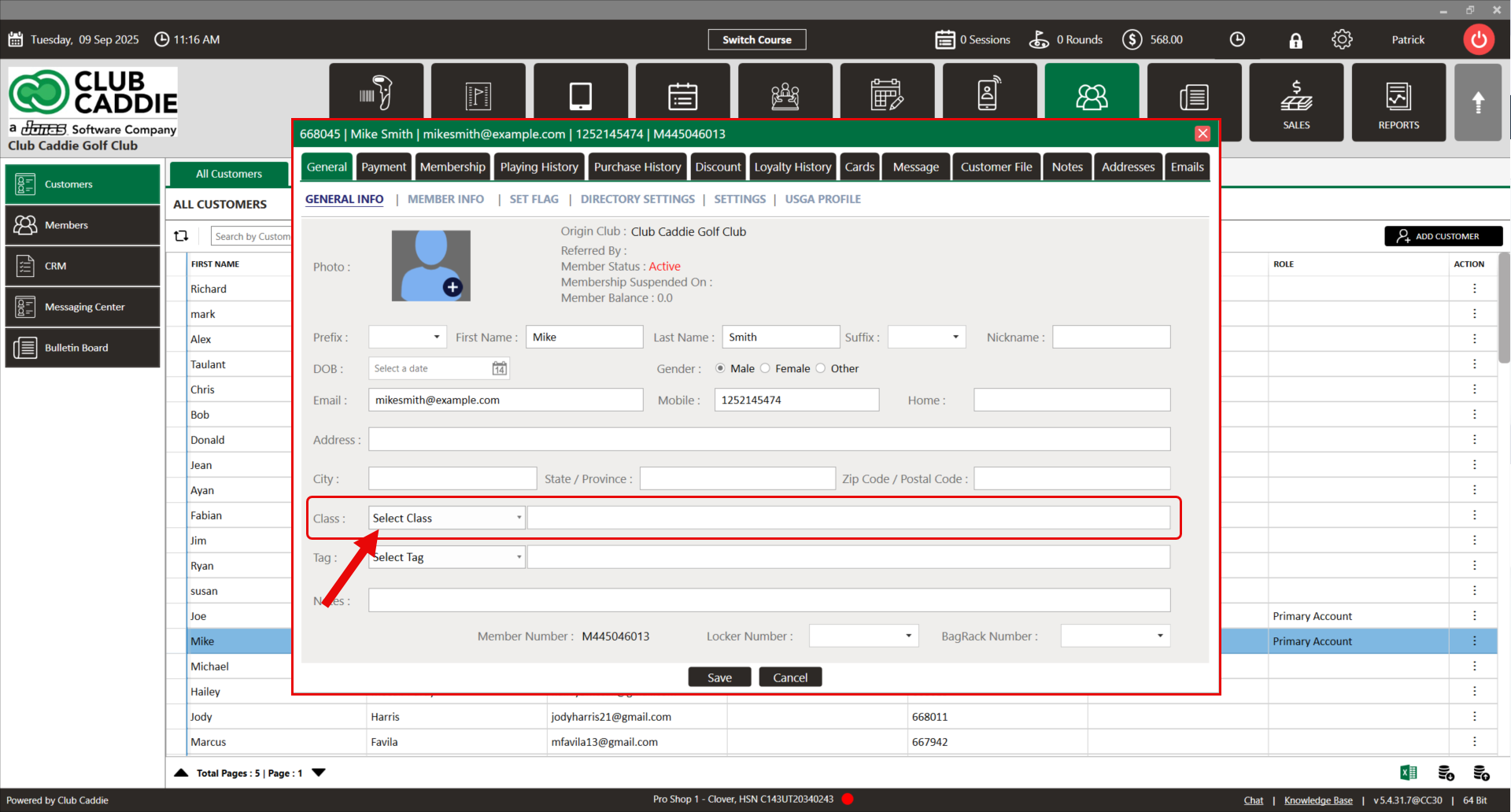
Step 2: Click on the ADD Guest button or click on into an existing Guest profile. In the Guest pop-up window under the General tab fill in the Guest details and select the Guest Class from the drop-down list. Click on the Save button to save the details.
Related Articles
Class Expiration / Archiving
This article contains instructions on how to archive a class on a member Once a class is assigned to a Guest, it cannot be deleted. The user has to wait until the expiration time of the class for it to get deleted. You can also change the expiration ...Understanding the Guest Module
In this video, we will provide an overview of the Guest Module:Adding a New Guest
This article summarizes how to add a new Guest from Tee Sheet, POS, and Guest Tab. Step-By-Step: A. Adding a new Guest through Tee-Sheet. Step 1: Click on the "Tee Sheet' Tab from the header of the window. Step 2: On Tee Sheet, there are time slots ...Archiving a Guest
This is a step-by-step guide on how to delete (archive) a member from your Guest list. Please keep in mind that this will move the Guest to your Archived list. Step-By-Step: Step 1: Navigate to the Guests module along the top of the POS, then click ...Add Guest to Group
This portion summarizes how to Manage Groups and Add Guests to a Group. Step-By-Step: Step 1: Click on the Guests Tab (1) from the header of the window. Click on CRM (2) from the left row of the window, then select Manage Groups (3) where you can see ...