Cards Tab (List of Vouchers)
Step-by-Step:
A) For " Member" Profile:
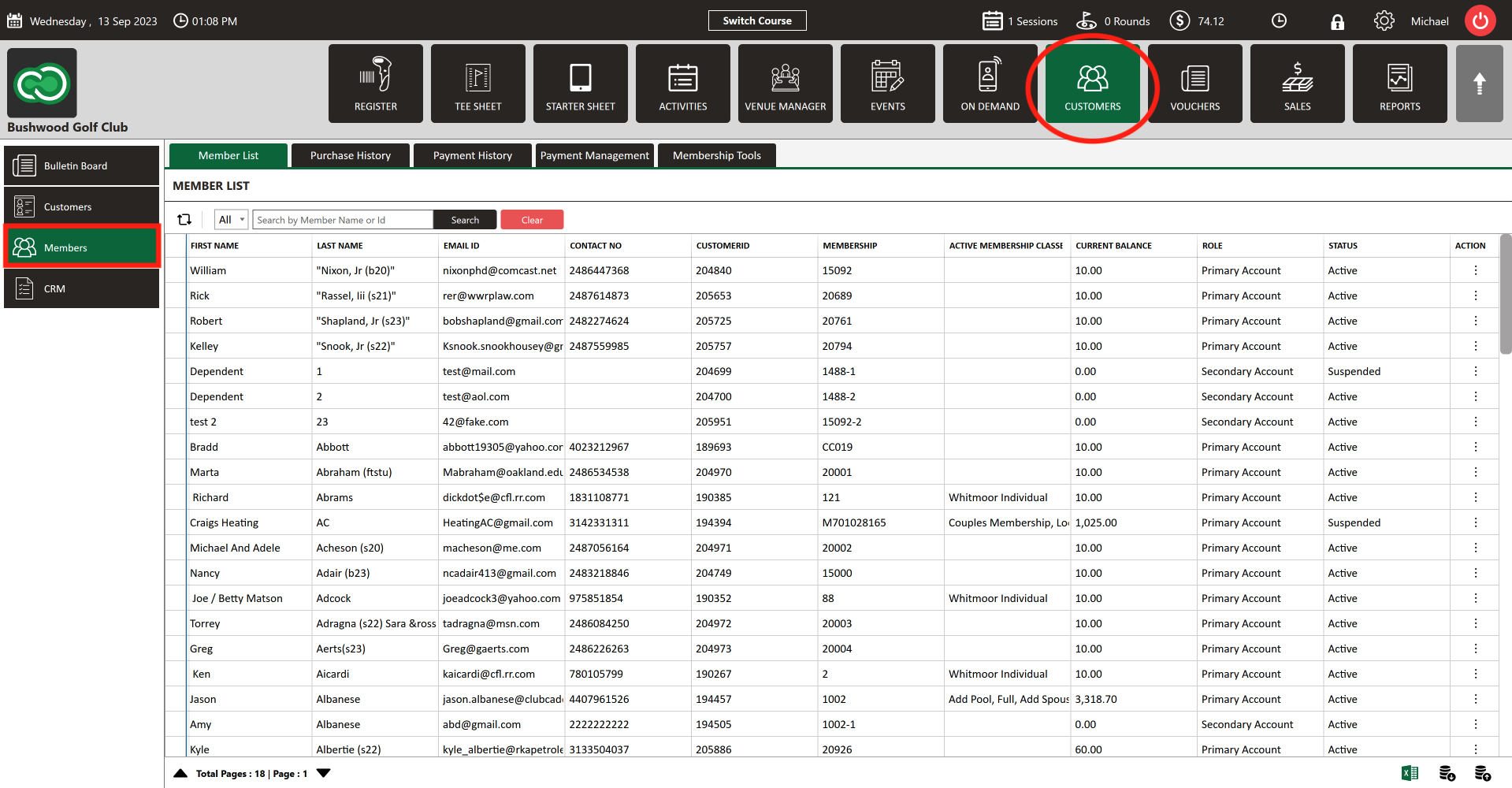
Step 1: Click on the "Guests" tab from the top navigation bar and select the "Members" tab from the left-hand navigation menu.
Step 2:
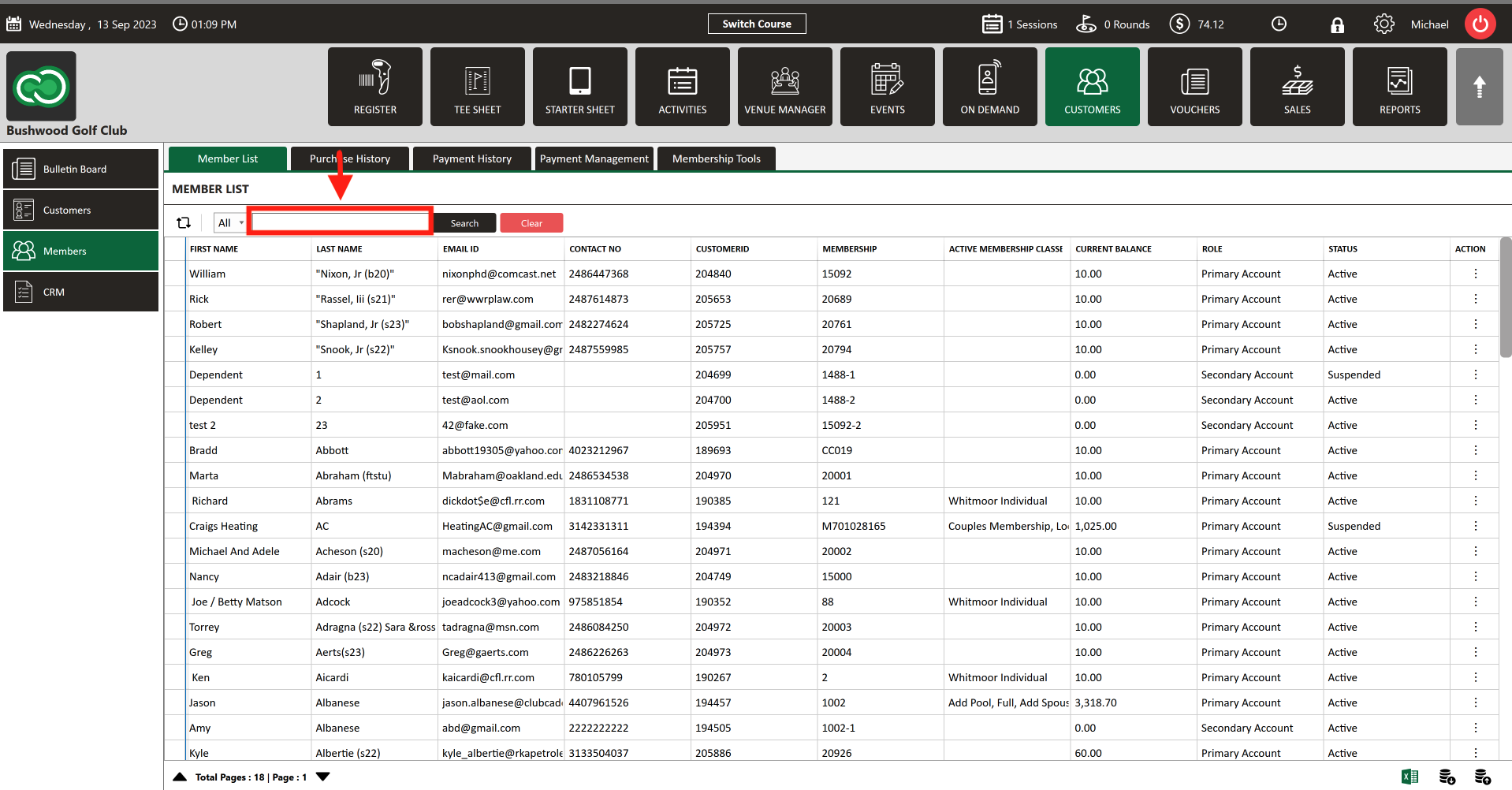
Begin search by typing in the search box. You can search by NAME, EMAIL, CONTACT #, or MEMBERSHIP ID #. Click "Search".
Step 3:
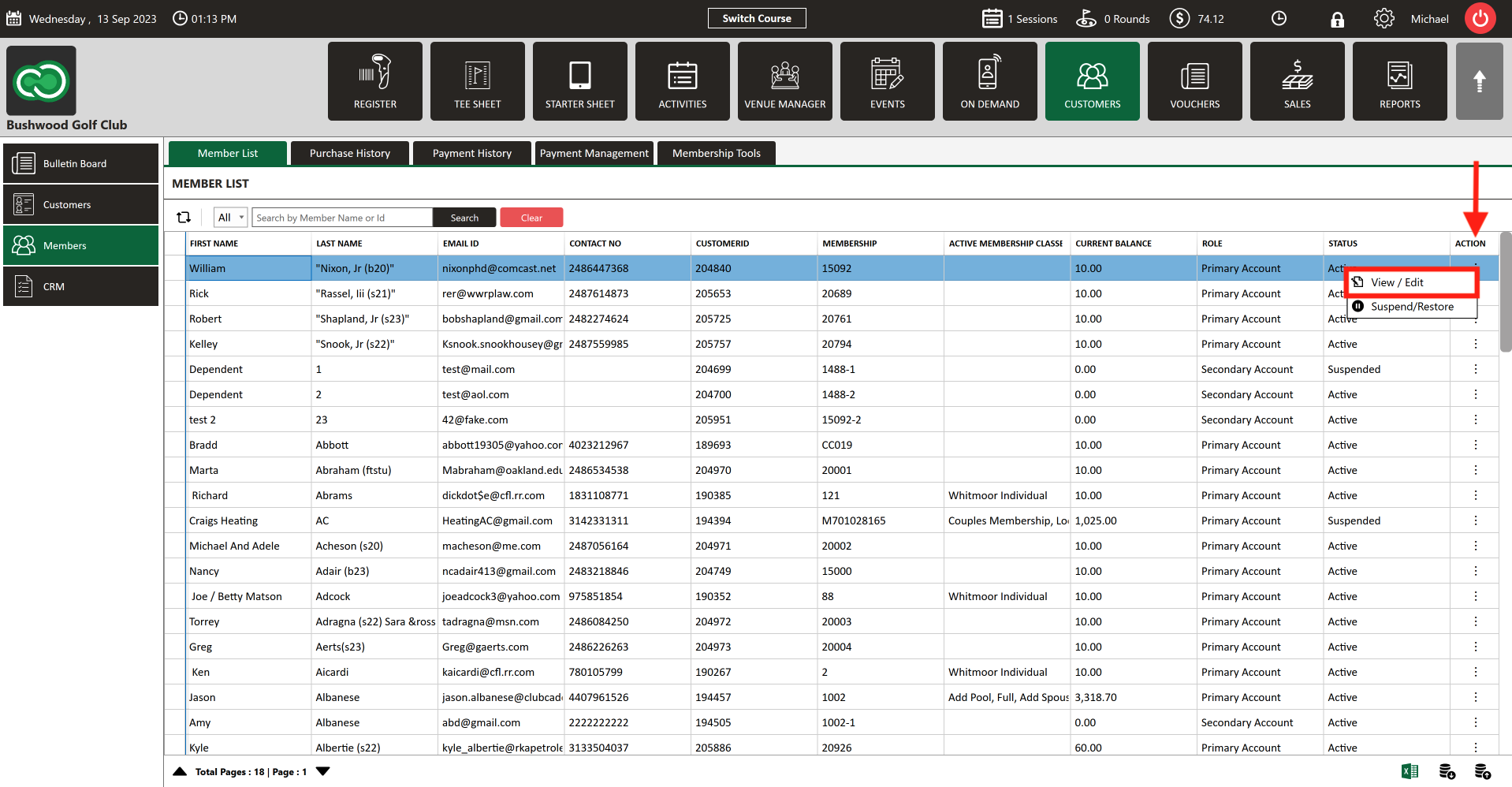
Select the member then click on the "Action" (3 vertical lines) button. Next, select the "View/Edit" button.
Step 4:
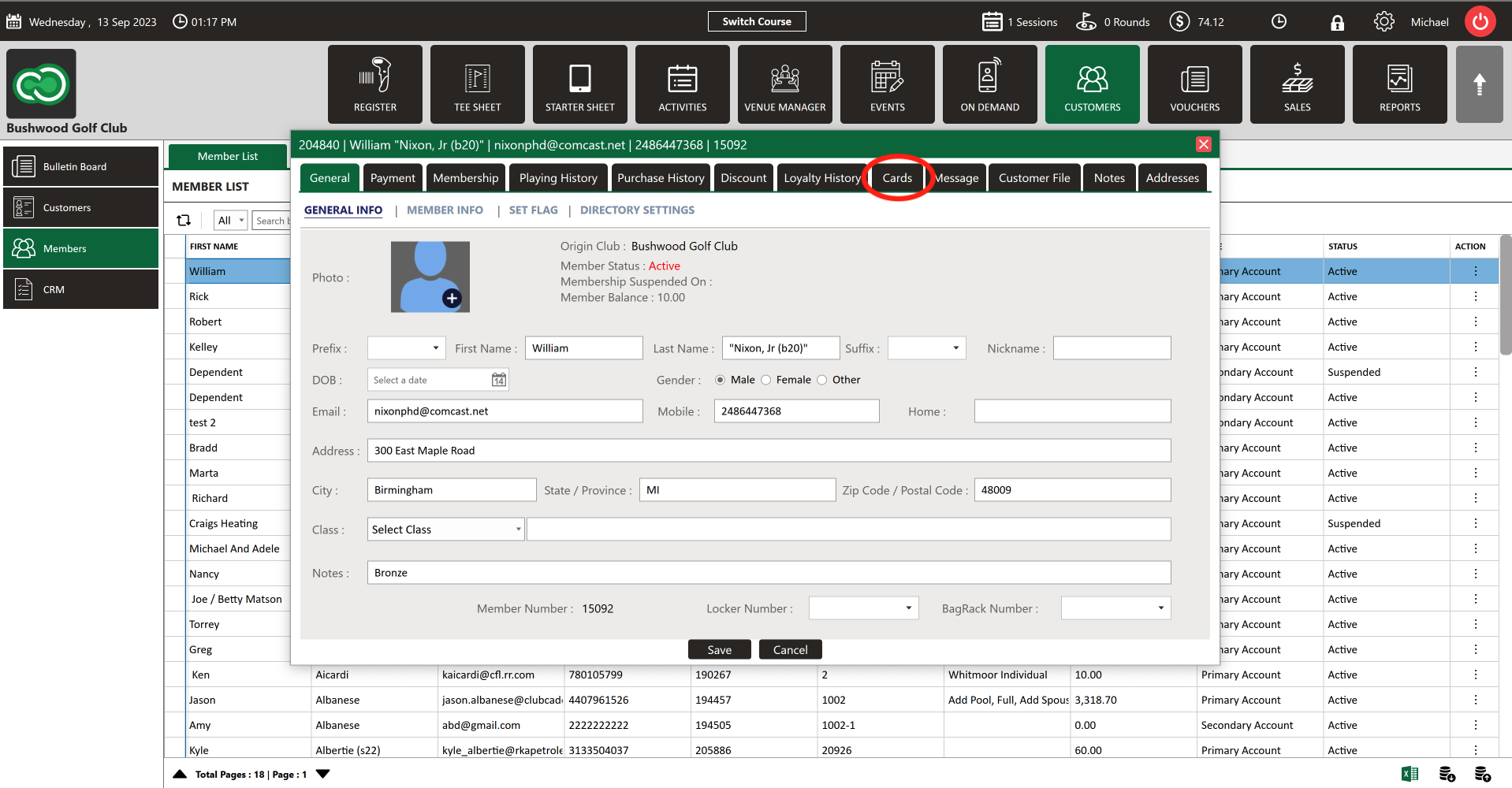
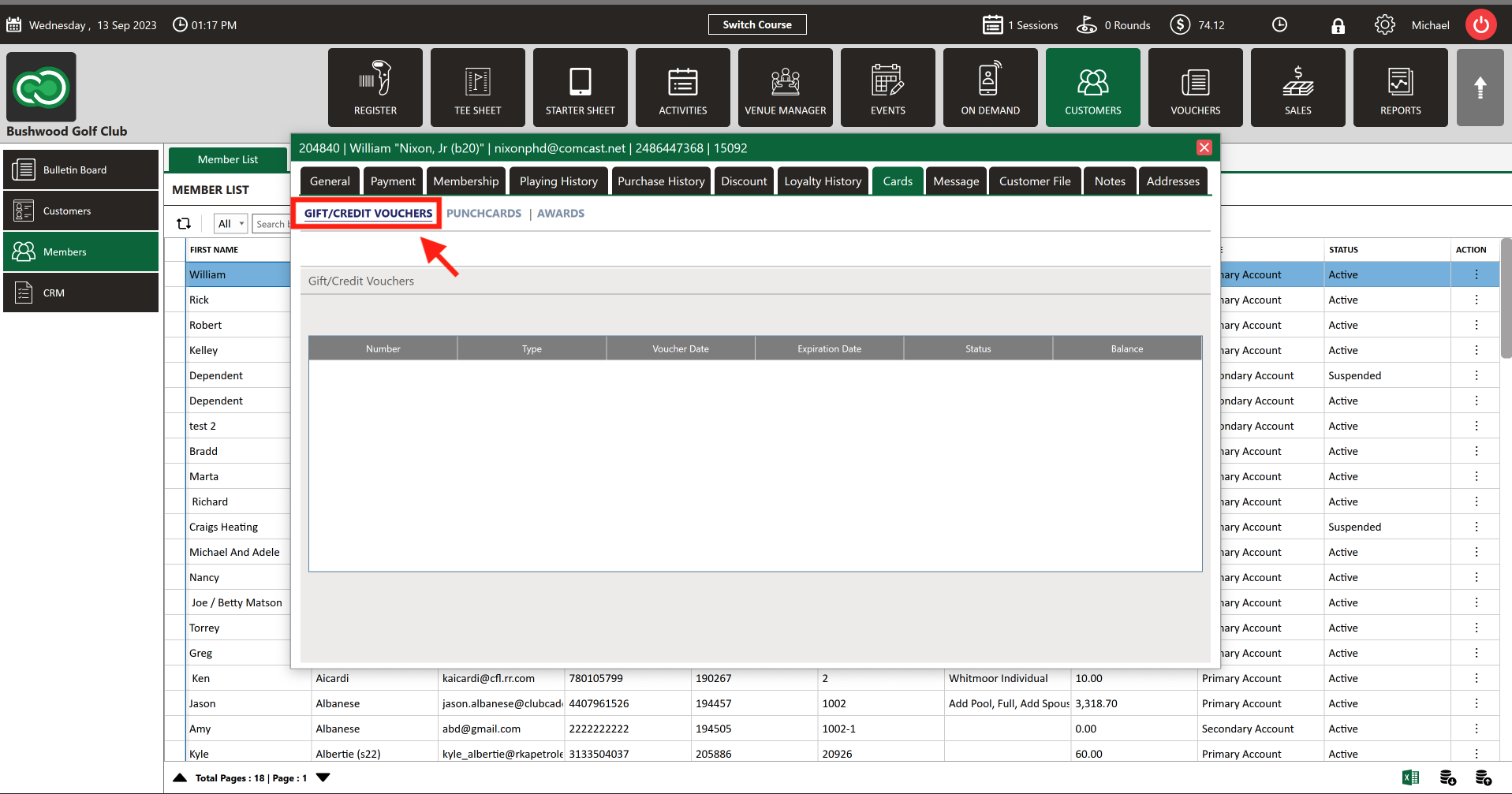
The "Member Profile" will appear. Next, click on "Cards" tab.
Step 5:
In the "Gift/Credit Vouchers" tab you can see the list of vouchers associated with the particular Member.
B) For "Guest" Profile:
Step 1:
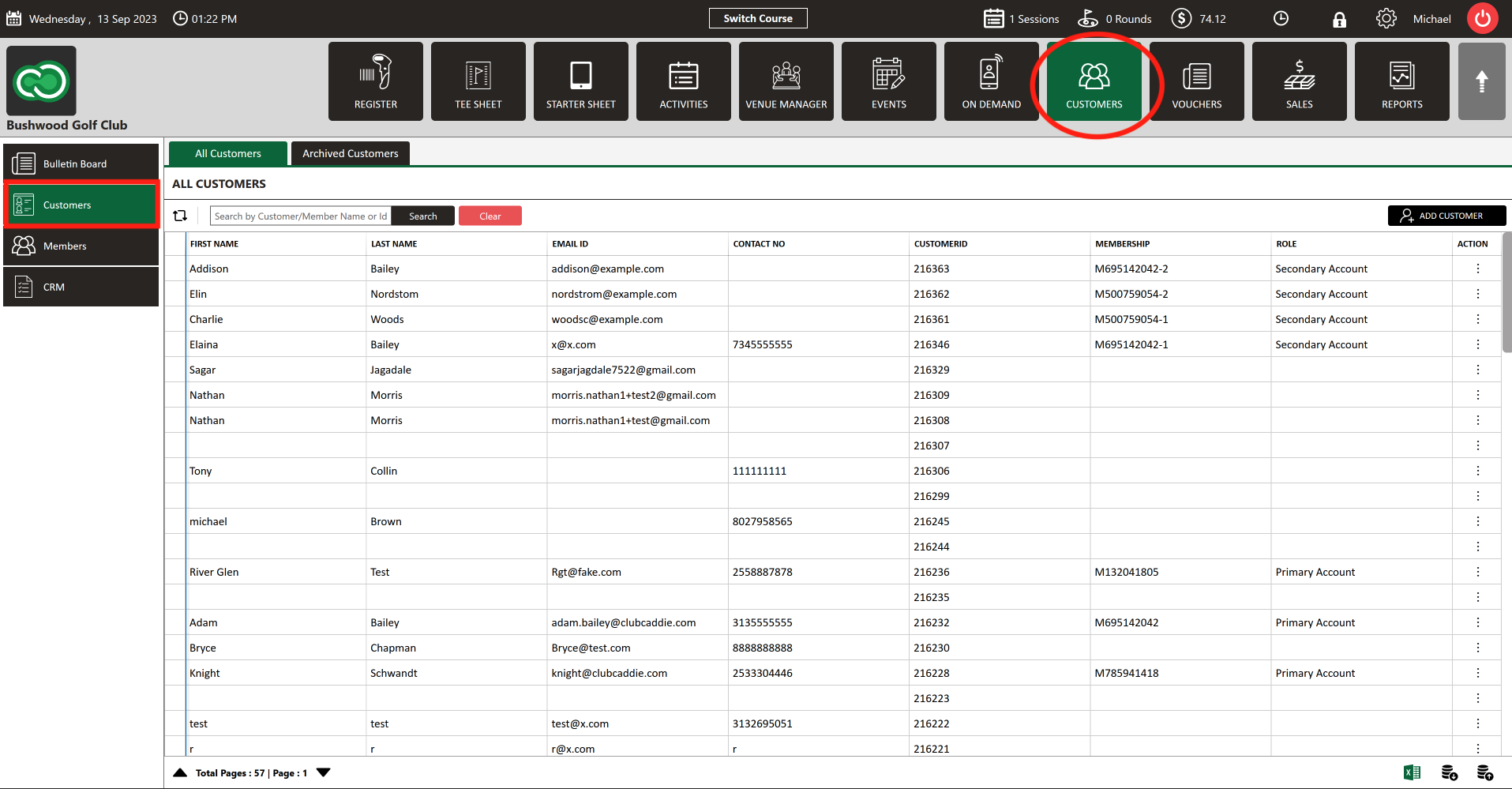
Click on the "Guests" tab from the top navigation bar and select the "Guests" tab from the left-hand navigation menu.
Step 2:
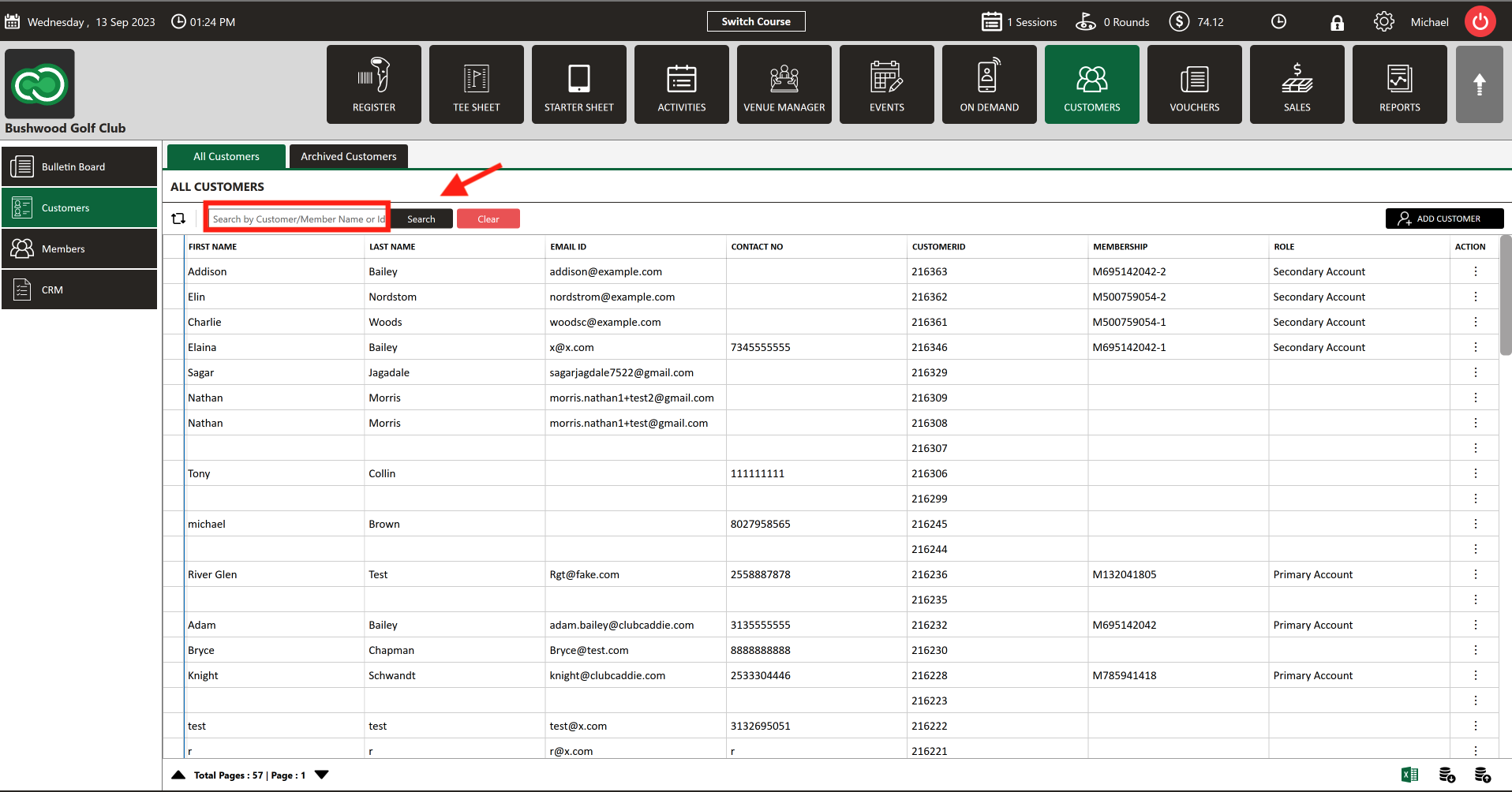
Begin search by typing in the search box. You can search by NAME, EMAIL, or CONTACT #. Click "Search".
Step 3:
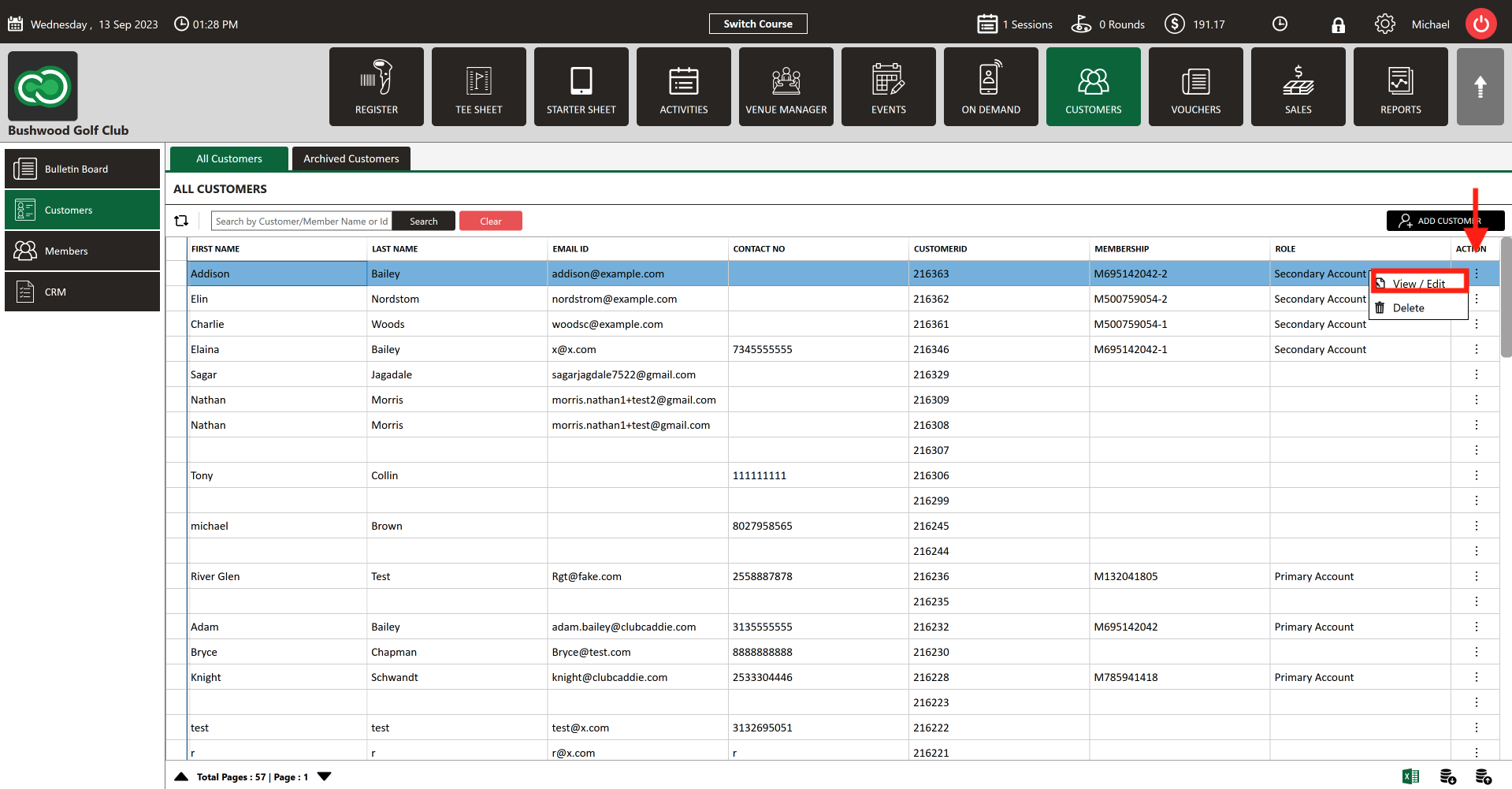
Select the Guest then click on the "Action" (3 vertical lines) button. Next, select the "View/Edit" button.
Step 4: The "Guest Profile" will appear. Next, click on "Cards" tab.
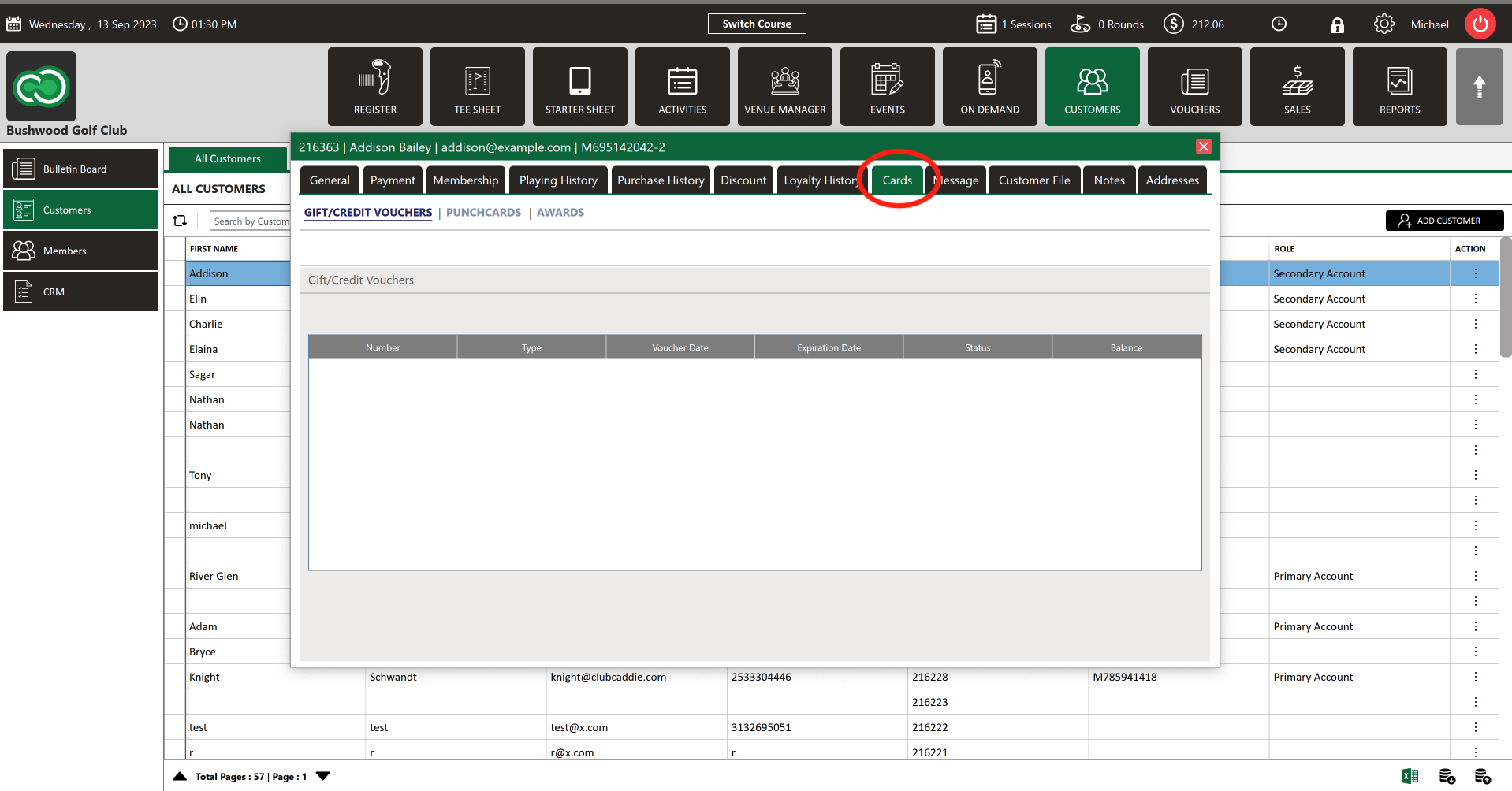
Step 5:
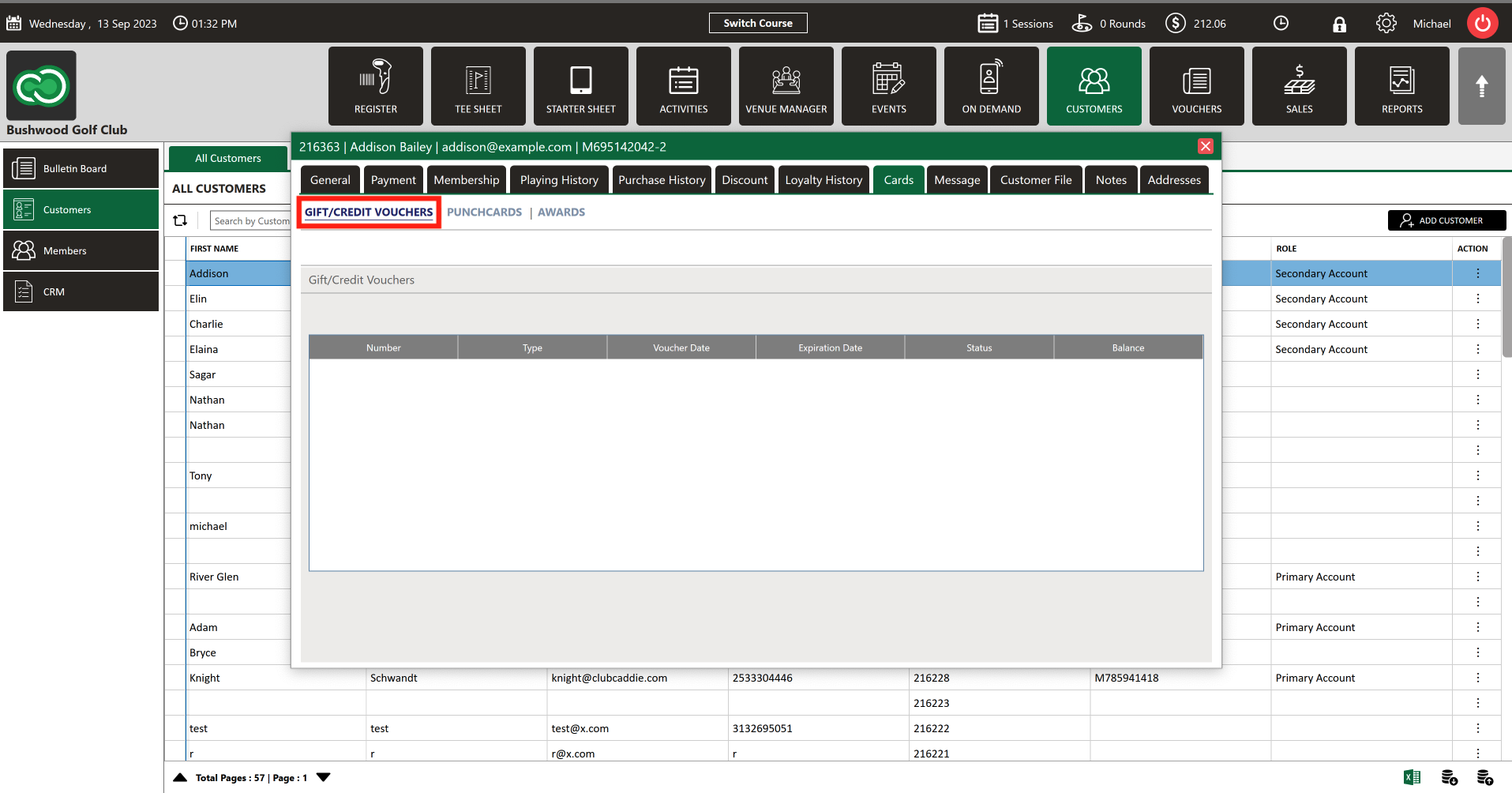
In the "Gift/Credit Vouchers" tab you can see the list of vouchers associated with the particular Guest.
Related Articles
Adding a card to guest profile
Article Contents: The video tutorial demonstrates how to manage member payments using the "Payment" tab in the Jonas Synergy software. Step-By-Step: Step 1: The "Payment" tab allows you to store a credit card or an ACH account on file for a member or ...Merging Guests
Article Content: This Article Provides Steps On How To Utilize The Merge Guests Tool That Allows Staff To Consolidate Duplicate Or Secondary Guest Profiles Into A Single Master Record. This Unified Profile Includes Total Play History, Purchases ...Adding a New Guest
This article summarizes how to add a new Guest from Tee Sheet, POS, and Guest Tab. Step-By-Step: A. Adding a new Guest through Tee-Sheet. Step 1: Click on the "Tee Sheet' Tab from the header of the window. Step 2: On Tee Sheet, there are time slots ...Archiving a Guest
This is a step-by-step guide on how to delete (archive) a member from your Guest list. Please keep in mind that this will move the Guest to your Archived list. Step-By-Step: Step 1: Navigate to the Guests module along the top of the POS, then click ...Assign Guest Class
Article Contents: This article contains step-by-step instructions on how to link a Guest class to a Guest Step-By-Step: Step 1: Select the Guest module from the module navigation menu, then click on Guests in the left-hand menu. Step 2: Click on the ...